
For Administrators
Notification: “This device is already assigned to (user). Please contact your administrator.”
In Clockster, only one employee can be linked to one mobile device.
This is done to ensure data transparency and prevent anyone from clocking in or out on behalf of someone else.
If you receive a notification that login is not possible, there may be two reasons:
1. You changed or purchased a new phone.
In this case, your profile in the system is still linked to the old device.
To allow you to log into the app on your new phone, the administrator must unlink the old device.
How the administrator can unlink the old device:
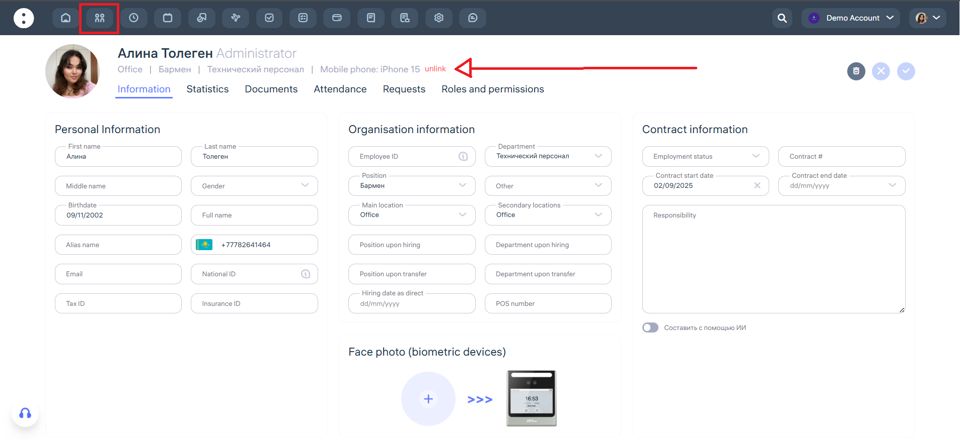
Through the web version:
– Go to the “Employees” section.
– Find the employee you need.
– Click on their name.
– The employee profile will open, including the “Mobile Phone” field showing the device make and model.
– Click the “unlink” next to the device to remove it.
After that, the employee will be able to log in to the app on the new phone.
Through the mobile app:
– Go to the “Employees” section.
– Find the needed employee.
– Tap on their name.
– In the profile, find the “Phone model” field showing the device make and model.
– Tap the Unlink button to remove the device.
After removing it, the employee will be able to log in to the app on their new phone.
2. Another employee previously logged into Clockster from your device.
In this case, the notification will display the name of the employee who was previously logged in from this phone.
What to do:
The administrator must follow the same steps described above, but this time remove the device from the profile of the employee who was previously linked to that phone.
Notification: “Account does not exist or the password is incorrect”.
Why does the “Invalid data” notification appear?
This means that you entered an incorrect phone number or password when logging into the app.
Step-by-step what to do
1. Check your phone number.
Make sure you enter it in the international format, for example +7… or +9….
2. If you still can’t log in – reset your password.
Tap “Forgot password?” and choose a recovery method:
Via email:
An email will be sent to you with a link to reset your password.Via phone number:
First, a message with a code will be sent to your WhatsApp (check your WhatsApp).
If you don’t have WhatsApp installed, tap “Resend” — then you’ll receive an SMS with the code.
If you don’t get the SMS, the system may call you and dictate the code.
If you see “Account does not exist” during password recovery
This means that your account hasn’t been created yet. In that case:
Go back to the main screen and tap “Create account.”
Enter the same name, surname, and phone number that are listed in your employee profile in the company.
After registration, you’ll need to join the company by entering the invitation code provided by your administrator (HR, accountant, or business owner).
Important to understand
“Account” and “Employee” are two different things.
A Clockster account is created by you in the mobile app using your phone number and password.
An employee profile can be created manually by the Clockster admin in the web dashboard and is not automatically linked to your account.
To avoid duplicate profiles, the admin must enter the employee’s current phone number in their profile before the user joins the company via an invitation code.
If you use the same details as your employee profile when creating your account, the system will automatically link your account to your employee profile.
Additional info
One Clockster account can be linked to multiple companies.
For example, if you work at two jobs, you can clock-in/out at both companies through a single app — just switch between them.
What do I need for the mobile app to work properly? / Geolocation is not working correctly.
To ensure the Clockster app runs smoothly, make sure all required permissions and settings are enabled on your phone.
Location Access Permission
Android:
Open Settings → Apps → Clockster.
Go to Permissions → Location.
Select Allow all the time or Allow only while using the app.
iPhone (iOS):
Open Settings → Clockster.
Tap Location and choose Always or While Using the App.
Turn on Precise Location.
Camera Access Permission
(Required for selfie check-ins, if enabled by the employer)
Android & iOS:
Open Settings → Apps → Clockster.
Go to Permissions → Camera.
Select Allow.
Notification Permission
Android & iOS:
Open Settings → Clockster.
Tap Notifications and turn them on.
Make sure sound alerts are enabled.
The app is properly installed, I am inside my account. How do I make clock-ins/outs?
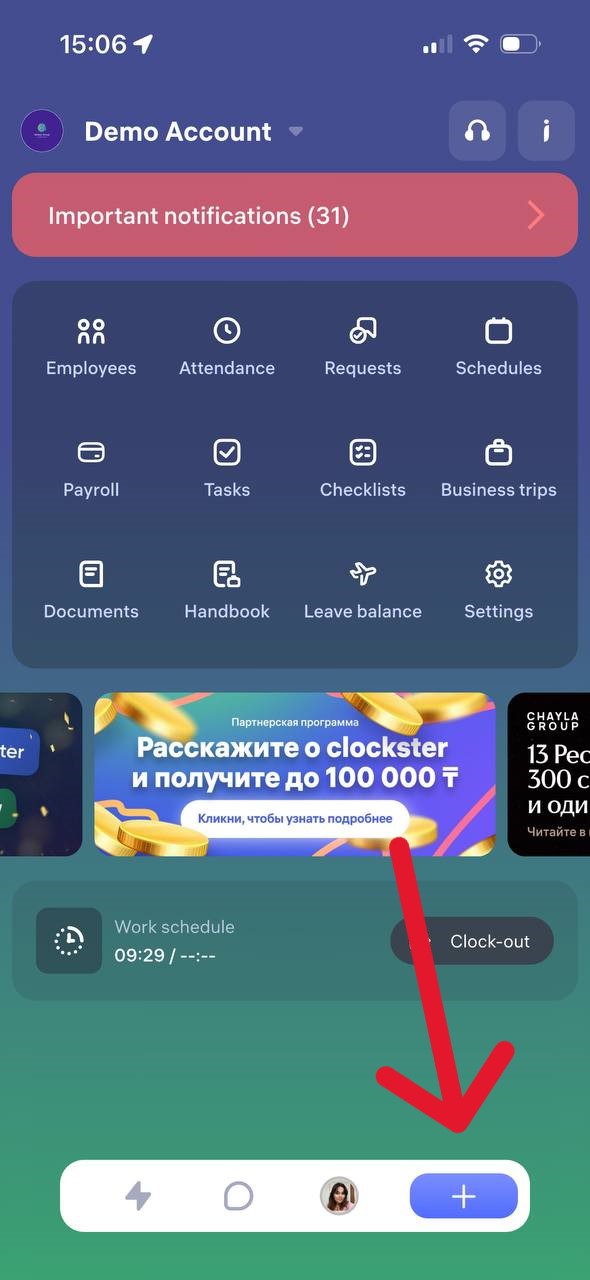
How to Clock In or Clock Out in the Clockster App
On the main page of the app, tap the “+” button at the bottom of the screen.
Select “Clock In/Out”
Tap “Clock In” or “Clock Out” depending on what you need to mark.
What to Remember:
– Make sure your location services (GPS) are enabled on your phone. Without it, the clock in/out may not be recorded.
– Important:
If you make only one mark — for example, only “Clock In” or only “Clock Out” — the day will not be counted as a full working day. The report will show incomplete hours.
To ensure your working hours are recorded correctly, you need to make both marks each day: “Clock In” and “Clock Out.”
– The app will offer you to send a request for missed clock-ins/outs for the last 14 days.
We recommend always sending such requests to keep your data complete.
– The app has a reminder feature for clock-ins/outs. Notifications are sent:
• 5 minutes before the start of your shift
• At the start of your shift
• 5 minutes after the start of your shift
The same notifications are sent at the end of the working day so you don’t forget to clock out.
Note:
Notifications work only if a work schedule has been created for you in the Clockster system.
What is there on the Attendance page?
On the “Attendance” page, you can:
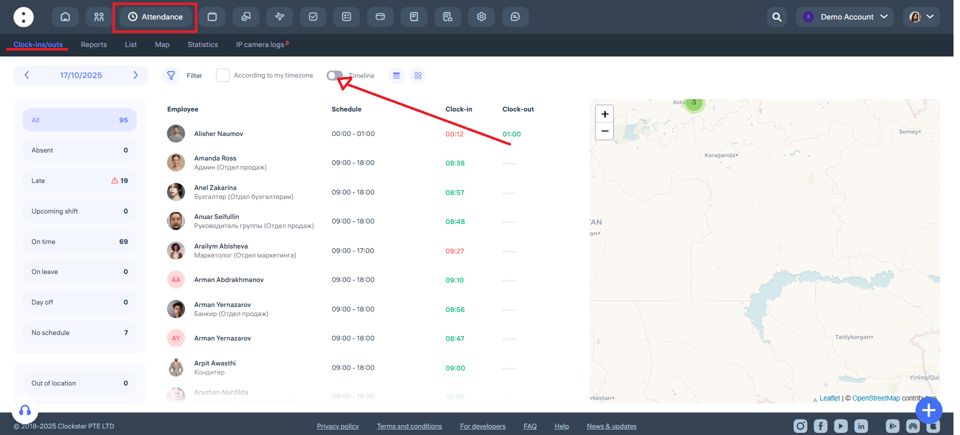
Monitor employee clock-ins
Here you can see all employee clock-ins: arrival and departure times for the selected day.
You’ll be able to see who has arrived today, who is absent, who is late, and who has not yet checked in.
Check schedule availability
You can view which employees have a schedule assigned for the selected day and who do not.
View employee status
For example, who is currently at work (present), who is on leave, has a day off, or has not yet started their shift.
Use filters
Filter employees by department, location, position, shift, and other parameters.
View the map
On the right side, you can see a map showing the geolocation of check-ins (if geolocation was used when marking attendance via the mobile app).
Analyze data in the timeline
When the “Timeline” feature is enabled, you can view a time chart showing when and who made check-ins throughout the day.
Download reports
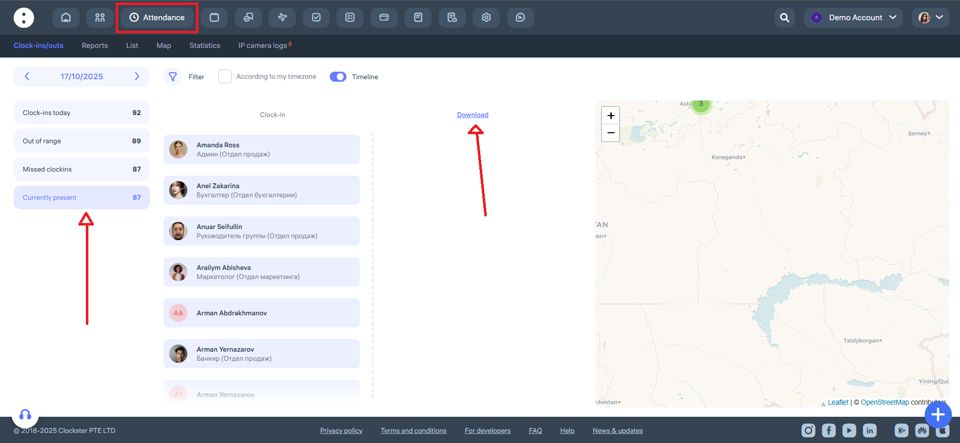
If necessary, you can generate and download a report of employees currently present at the location by selecting “Timeline” → “Currently present“
8. Switch between tabs
At the top of the page, you’ll find tabs: Clock-ins/outs, Reports, List, Map, Statistics.
This allows you to quickly access complete analytics on attendance for a day, week, month, or any selected period.
How does an admin create a manual clock-in in the web version for an employee?
How to Restore a Missed Check-In in Clockster
There are two ways to restore a missed check-in in Clockster:
An employee can submit a request for a missed check-in through the mobile app:
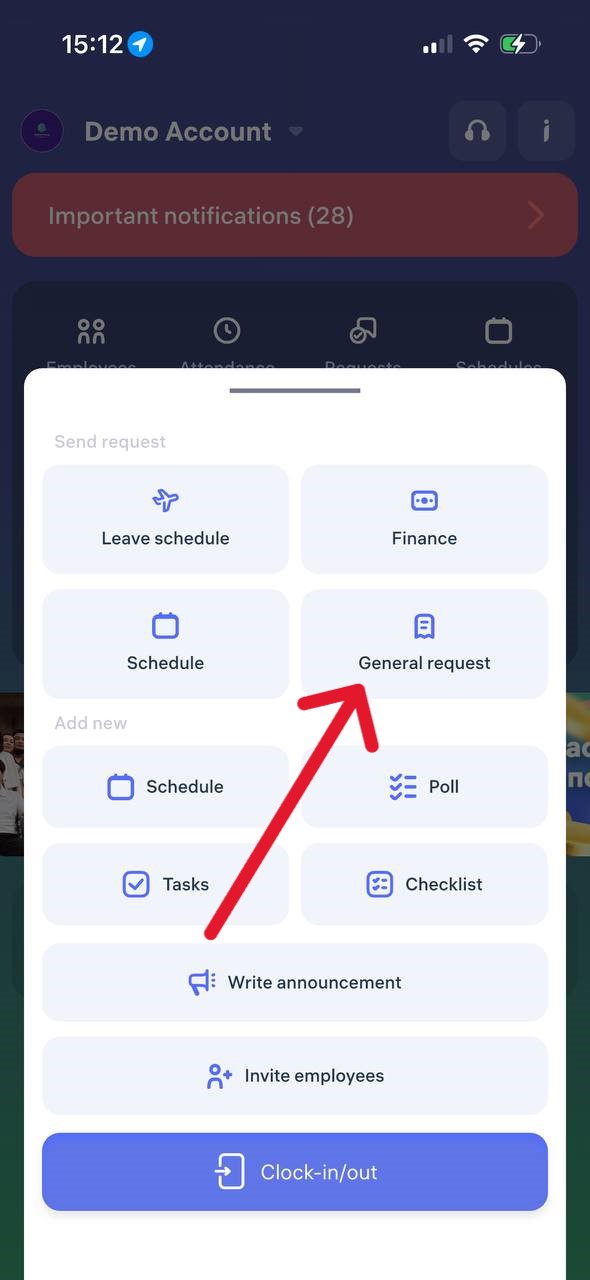
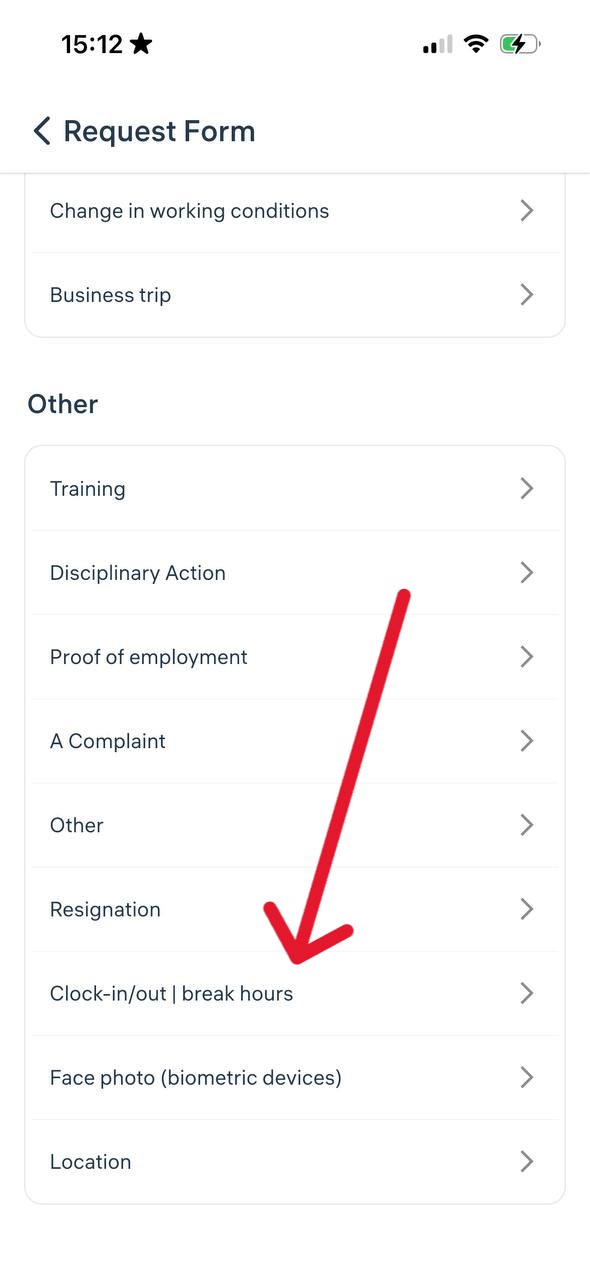
Tap the “+” button on the main screen.
Go to “General requests“
In “Other” section find “Clock-in/out | break hours“
Specify the date, time, and reason.
Send the request to the administrator.
🟢 If the administrator approves the request, the system will automatically create the check-in.
2. An administrator can manually add a check-in in the web version:
Go to Attendance → List;
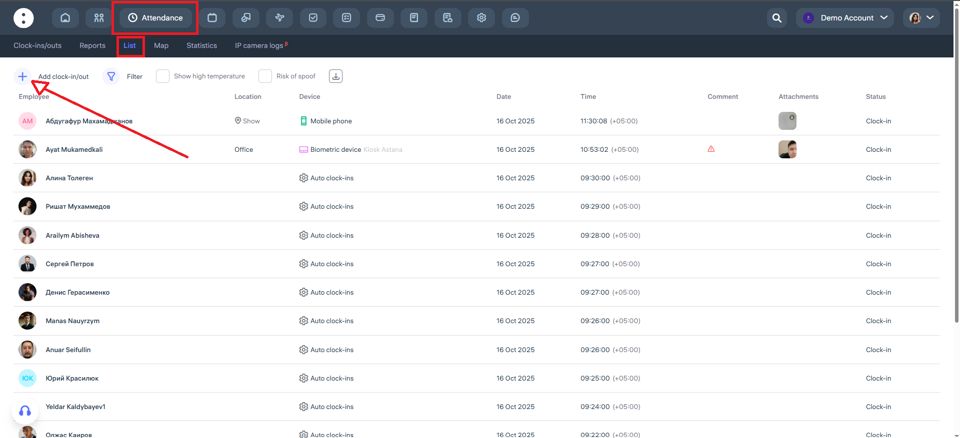
or open Schedules and click on the day cell;
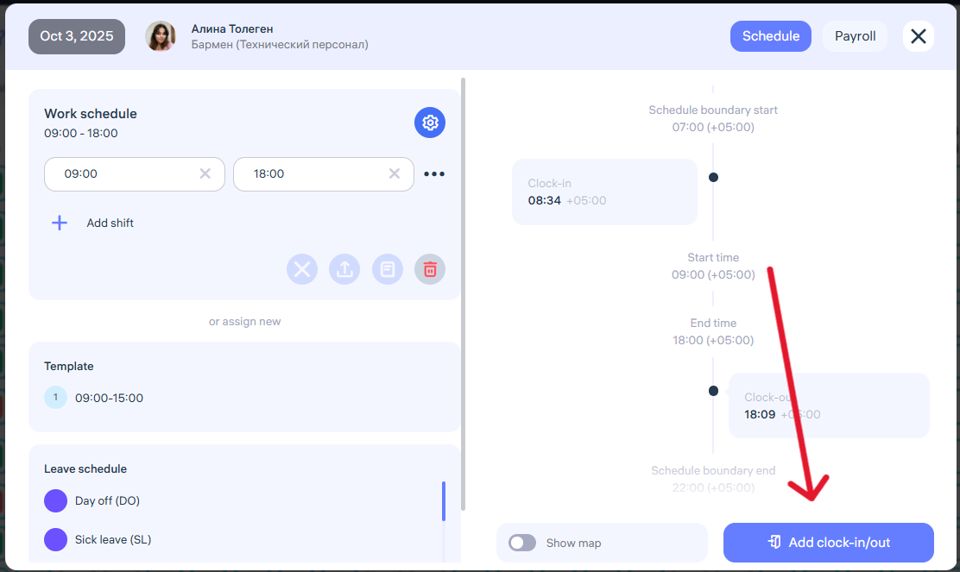
or open Employees, find the desired employee, and click Edit Profile.
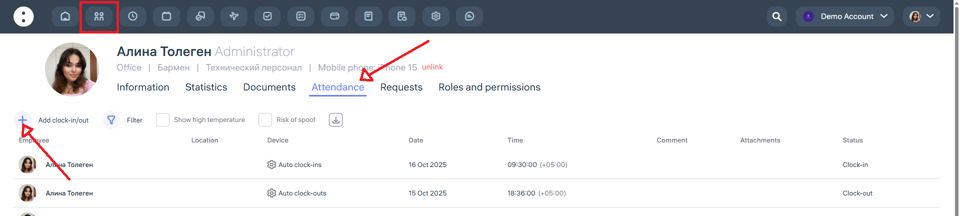
⚠️ The administrator can only perform this action if they have the appropriate system permission.
If neither option is available, please contact your company administrator or Clockster Support.
How do I view or download the Attendance report?
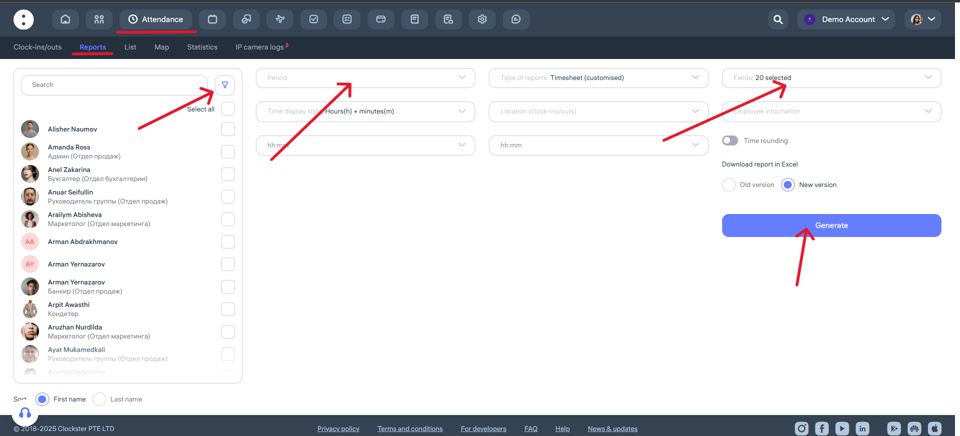
Go to Attendance → Reports
Choose the report type
The most flexible and commonly used option is the Timesheet (customizable) report.
Here you can select which data to include in the export:Clock-in/clock-out times
Total worked hours
Overtime
Late arrivals
Scheduled time
Absence reasons, etc.
Set the report period
Choose the start and end dates for the report (for example, from 01.07.2025 to 31.07.2025).Select employees and locations (if needed)
You can select specific employees or include all of them. Filtering by location is also available.Configure columns
In the Fields section, check the boxes for the data you want to display in the report, such as:Date
Employee
Location
Clock-in/out
Total worked time
Scheduled time
Difference (actual – planned)
Lateness, etc.
Generate the report
Click Generate — the report will appear below.Download the report
In the top-right corner of the table, click the Download icon to export the report.
Reports: what are days with incomplete records (clock-ins/outs) and how do they affect the effective time worked? / Employees have too much underworked time
Why is it important for an employee to clock in and out?
In the Clockster system, working hours are calculated based on employee check-ins and check-outs. One mark without the other is considered incomplete, and in such cases, the working time is not fully counted.
What happens if one of the marks is missing?
If an employee records only a check-in or only a check-out, the system considers the workday incomplete.
Such days appear in reports as days with missing marks.
Working hours are not counted, and the system assumes the employee did not complete the planned work time.
How does this affect reports and ratings?
Even if the employee was actually at the workplace, the report will show the day as underworked.
This also affects the employee’s rating in the system — accumulating such days will lower the overall rating.
For the Payroll and Attendance modules, these days may not be fully paid if wages are calculated by hours.
How to avoid issues?
Always record two marks per day: check-in and check-out.
If the employee forgets to mark the check-out, they can submit a request to add the missing mark (if company policy allows it).
Managers should regularly review reports and remind employees of the importance of both marks.
Where can I see my colleagues’ birthdays?
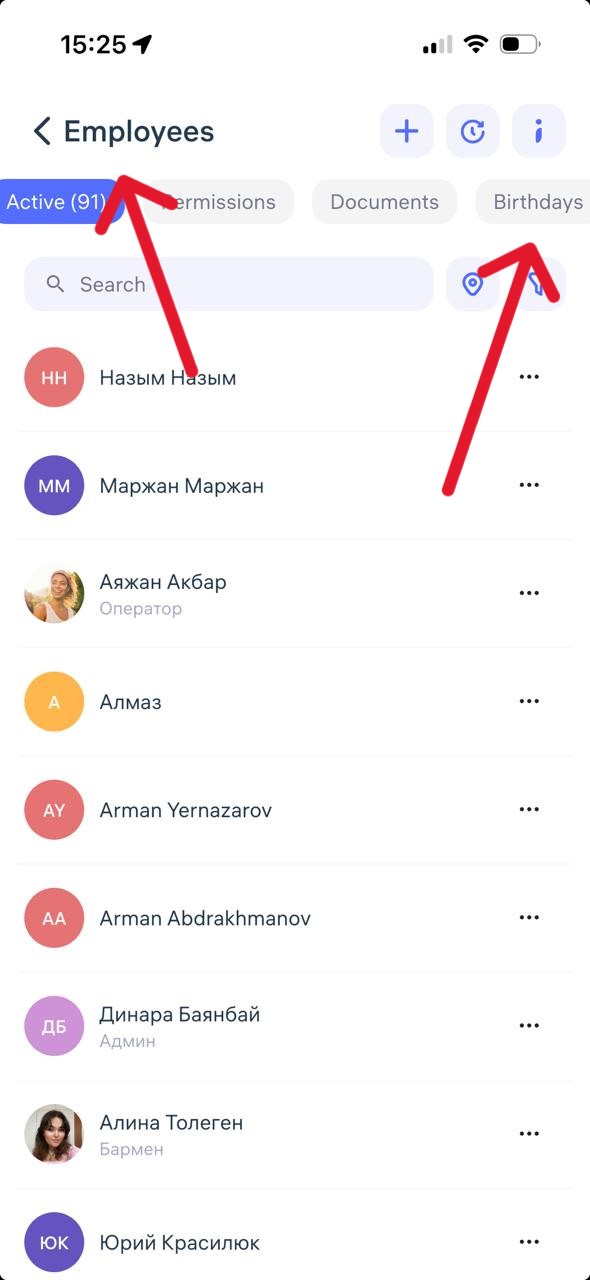
You can view your colleagues’ birthdays in the Clockster mobile app under the “Employees” section, in the “Birthdays” tab.
This section only shows upcoming birthdays, and the page is automatically updated on a regular basis.
If you don’t see the “Birthdays” tab, it’s possible that you don’t have permission to access this information. In that case, please contact your administrator to check whether you have access to the “Employees” section.
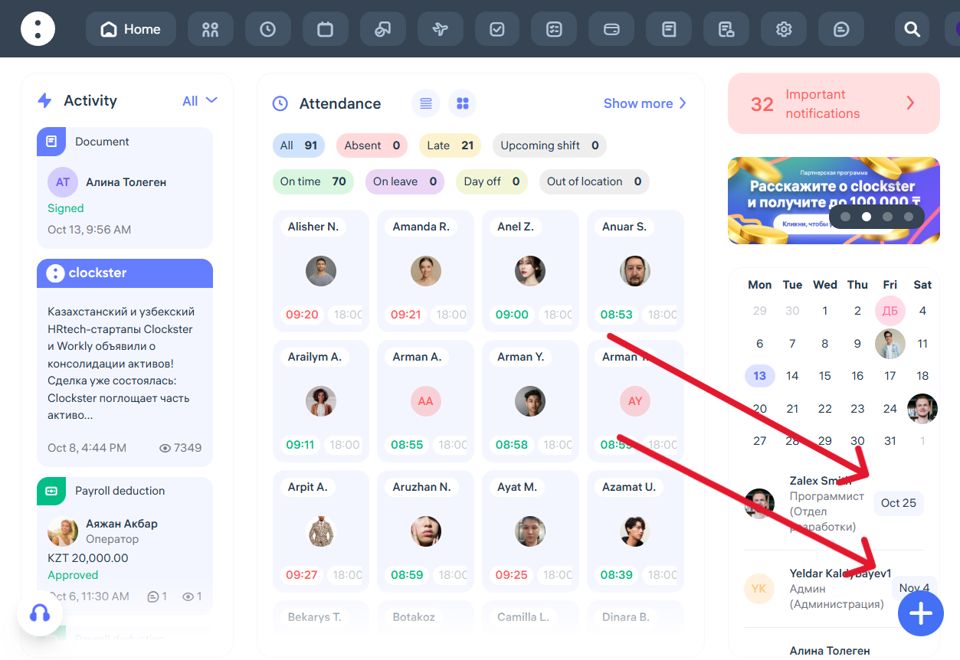
How can I view the list of upcoming birthdays in the web version?
Location: Right panel of the main screen (Clockster web version).
Display format:
Calendar icon labeled “Birthdays.”
List of employees with upcoming birthdays.
The date (e.g., Oct 25 or Nov 4) is shown to the right of the name.
The employee’s photo and position are also displayed.
Additional features:
You can switch months in the calendar to view future birthdays.
Clicking on an employee’s name may open their profile card (depending on access permissions).
In the mobile app:
Open the Clockster app and go to the Employees section.
At the top of the screen, select the Birthdays tab (located to the right of the Permissions and Documents tabs).
A list of all employees with upcoming birthdays will appear, showing the month and date.
Additional notes:
The birthday filter helps you remember to congratulate colleagues and is especially useful for HR and team leads.
The list is displayed in chronological order, starting with the nearest dates.
If you don’t see the Birthdays tab, make sure you have the latest version of the app installed.
How to set up a company logo?
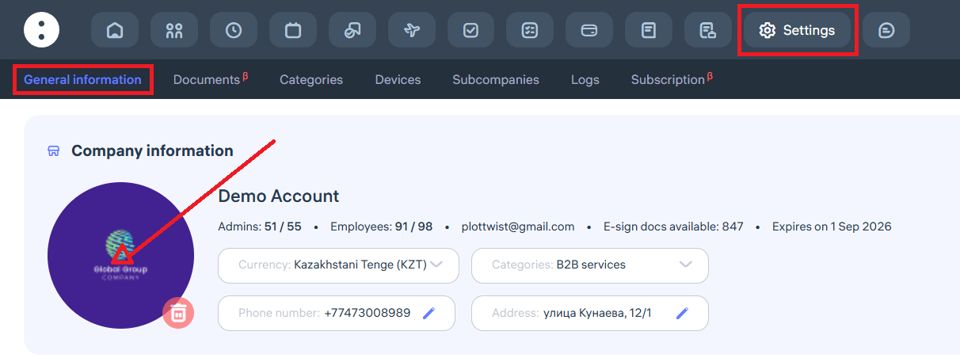
To upload your company logo in Clockster, follow these steps:
Go to:
Settings →General InformationClick the “+” button:
On the company settings page, you’ll see a “+” button on the left side of the screen if no logo has been uploaded yet. Click it to add your logo.Upload the logo:
In the pop-up window, click the logo icon and select an image from your device. If a logo is already uploaded and you want to replace it, click the delete (trash bin) icon first, then click “+” to upload a new one.
Image requirements:
Format: JPG, JPEG, or PNG
File size: up to 1 MB
Recommendation: Use a circular image for best display quality
What additional actions can be added to the company settings?
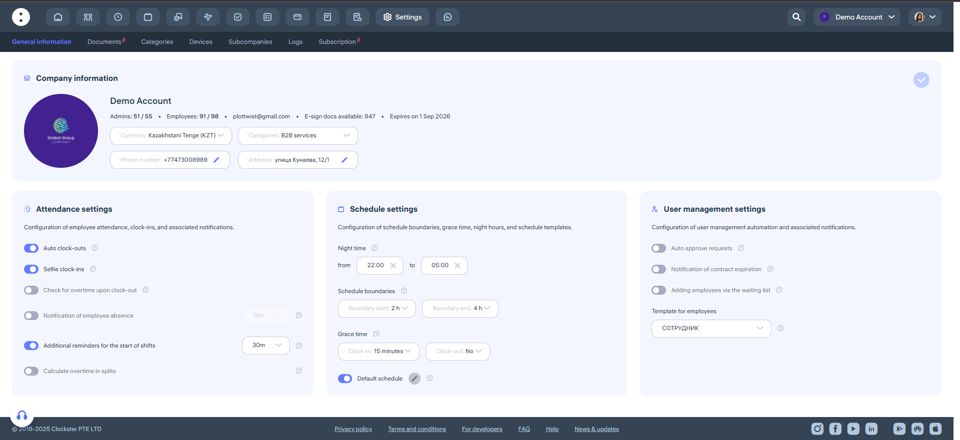
In the Settings → General Information section, you can define key parameters to ensure the system functions correctly.
Company Information
Company currency is used by default in the Payroll module. Salaries can still be assigned in different currencies if needed.
Categories, address, phone number, and email — editable fields that are displayed in the company profile.
Attendance Settings
Auto clock-outs — the system will automatically create a clock-out entry at the end of a scheduled shift if the employee hasn’t done it manually.
Selfie clock-ins — when enabled, employees must take a photo when clocking in and out via the mobile app.
Check for overtime upon clock-out — if an employee stays past their shift, the system will prompt them to send an overtime request.
Notification of employee absence — you can configure how many minutes after a shift starts administrators will be notified about an absent employee.
Additional reminders for the start of shifts — sends an extra reminder to employees before their shift begins, in addition to the default schedule notifications.
Calculate overtime in splits — useful for splitting overtime before and after a scheduled shift.
Schedule Settings
Night time — specify the start and end of the night period used for payroll calculations.
Schedule boundaries — define the allowed window for clock-ins and clock-outs relative to scheduled shift times.
Grace time — set time tolerances for late arrivals or early departures that will not count as violations.
Default schedule — automatically applies to new employees when they are added to the system.
Employee Management Settings
Auto approve requests — all employee requests will be automatically approved by the system.
Notification of contract expiration — enable alerts when an employee’s contract is nearing its end.
Adding employees via the waiting list — new employees can only be added after approval by a key administrator.
Template for employees — automatically applies predefined settings when adding a new employee.
It doesn’t find the address of the building.
If the address does not appear in the list when creating a new location in Clockster, you can manually enter the coordinates — latitude and longitude.
How to find the coordinates:
Open 2GIS or Google Maps.
Find the required building or point.
Right-click on the desired spot and select “What’s here?” or a similar option.
Copy the coordinates that appear — for example:
47.094681, 51.923315.
How to enter coordinates in Clockster:
Go to the Admin Web Dashboard.
Navigate to Settings → Categories → Locations, and click “+” to add location.
In the pop-up window, click on the location logo
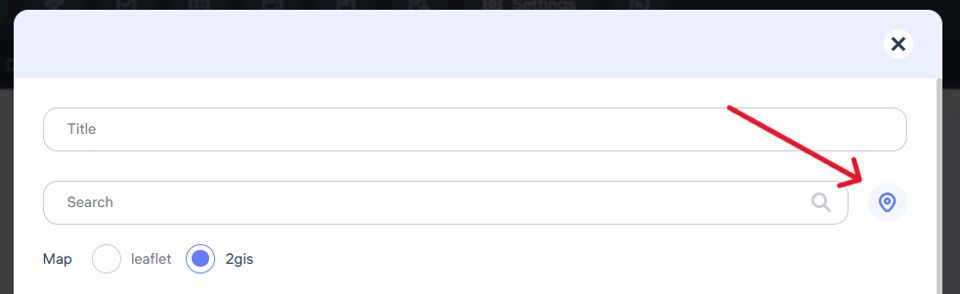
4. In the corresponding fields, paste the coordinates — for example: 47.094681, 51.923315.
5. The system will detect the location based on the coordinates and display it on the map.
How to add a position / department / location?
To manage elements such as positions, departments, locations, and custom categories specific to your company, go to the dedicated settings section.
Instructions:
On the main page of the Clockster web dashboard, click “Settings” (located at the top of the screen).
In the submenu, open the “Categories” tab.

Here you can:
Add new positions, departments, locations, etc.
Edit existing names.
Delete unnecessary categories (if they are not in use).
Why are these categories important?
To filter employees by position, department, or workplace.
To accurately assign access permissions.
For generating attendance and other analytical reports.
To configure schedules, notifications, and announcement filters.
How do devices work?
Clockster devices are based on facial recognition technology, which allows automatic tracking of employee check-ins and check-outs.
For the device to work correctly, follow these steps:
1. Add the device to the Clockster system.
— Link it to the correct location in the web dashboard (Settings → Devices).
— Make sure the correct server address and check-in mode are specified (version V1, V2, V3, V5, etc.).
2. Configure device parameters.
— Set the time zone manually.
— Specify the shift period.
— Choose the reading mode (single, static, or manual via buttons).
— Ensure the device is connected to the internet (via Wi-Fi, LAN, or SIM).
3. Upload correct employee photos to their profiles.
— The photo must meet all requirements (see “What kind of photo is needed for recognition?”).
4. Check data synchronization.
— The “Devices” section shows the last time the device connected to the internet.
— If the device hasn’t synced for a long time, attendance records may not be uploaded to the system.
5. Avoid direct sunlight.
— Neither the device nor the employee’s face should be exposed to bright sunlight.
— This reduces facial recognition accuracy.
Important:
All settings and step-by-step setup instructions for each device are described in detail in this section.
If you’ve just purchased a new device, make sure it is fully configured before use.
If you have any questions — the Clockster team is always ready to help!
What kind of photo is needed so that the device can recognize an employee? / Photo requirements
For the Clockster facial recognition device to accurately identify an employee, it’s important to upload a high-quality photo that meets all system requirements. Below are the exact guidelines to help you avoid recognition errors:
Photo requirements for facial recognition:
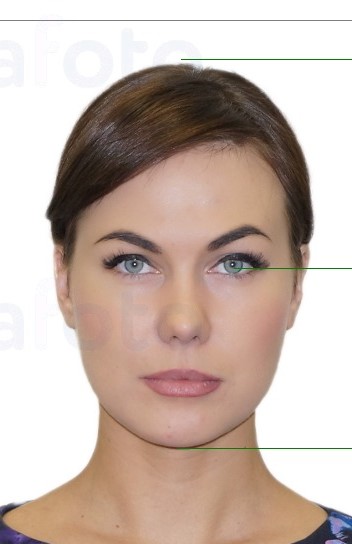
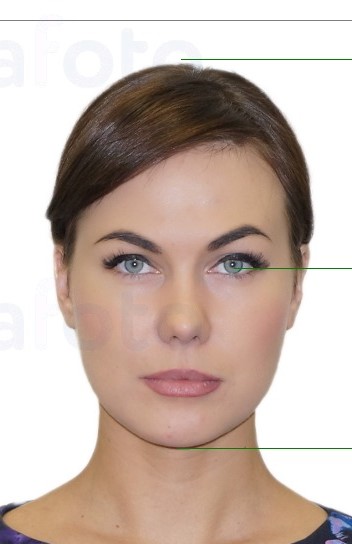
Face position must be strictly in the center of the frame.
The head should not be tilted, turned sideways, or thrown back.
The gaze should be directed straight at the camera.
Background – light and neutral.
The background must be solid and neutral. Ideally light (white or gray), without objects, shadows, or textures behind the person.
Photo type:
The photo should be frontal, like a passport photo.
Ears and forehead must be visible.
The face should occupy about 70–80% of the frame.
Accessories and clothing:
No headwear, glasses, masks, or headphones.
Exception: Religious head coverings are allowed if they do not cover the face.Sunglasses and even transparent glasses are not recommended.
Clothing — no hoods or scarves.
The neck and shoulders should be visible so as not to interfere with the recognition algorithm.
Lighting:
Good lighting.
No glare, strong shadows, or overexposure.
Lighting should be even, without colored lamps or neon effects.
Photo relevance:
The photo should be recent (not older than 1 year) and reflect the employee’s current appearance.
File format and size:
Format: JPG or PNG
File size: up to 5 MB
Recommended resolution: 480×640 px or higher
🔄 Tip: If the employee has significantly changed their appearance (e.g., new hairstyle, beard, weight change), it’s best to update the photo in the system for more reliable biometric recognition.
If you’re unsure whether a photo meets the requirements — send it to Clockster support, and we’ll be happy to check it for you!
Where can I upload a photo of an employee so that the device can recognize him?
To upload a photo:
Navigate to Employees section.
Click on employee’s name or click on (…) -> Edit.
Find Face photo (biometric devices) section on the bottom of the page and click on +
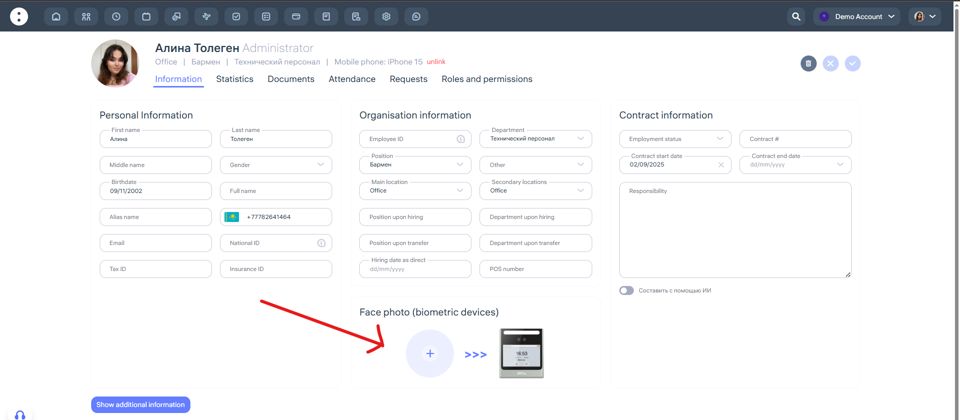
Note that:
File format and size:
JPG or PNG
Size: up to 5 MB
Recommended resolution: 480×640 px or higher
The image must be clear and high-quality, with the face occupying 70% of the frame.
What types of devices are there and how do they differ?
Types of Biometric Devices and Their Features
Clockster supports several models of facial recognition devices used for employee identification. Below are both discontinued and currently available models used by our clients.
Devices no longer manufactured but still in use by clients:
1. HF Security RA08
Recognizes faces and detects masks.
Compatible with turnstiles and electromagnetic locks.
Connections: RJ45, Wi-Fi, RS232, USB-host.
Equipped with NO+COM relay.
2. HF Security RA08T
Same as RA08, with an added temperature measurement feature.
Ideal for facilities with high security or hygiene requirements.
Connections: RJ45, Wi-Fi, RS232, USB-host, relay.
3. Sebury sFace-C
Facial recognition support.
Can be integrated with turnstiles and electric locks.
Connections: RJ45, USB-host (Wi-Fi available as an optional module).
Equipped with NO+COM relay.
4. Horus TL-1
Wi-Fi connection only.
The screen cannot be locked (the device reacts to any motion).
Suitable for simple entry points but less protected from accidental activation.
Current and popular models available for order:
5. Horus E-1
Connectivity: Wi-Fi and SIM card (ideal for areas without wired internet).
Screen lock feature — check-in occurs only after a swipe.
Highly reliable for high-traffic areas.
6. Eface 10
Connectivity: Wi-Fi and LAN cable.
Compatible with turnstiles and electromagnetic locks.
Universal and stable option for most workplaces.
7. Speed Face VL5
Interfaces: TCP/IP, dual USB ports, optional Wi-Fi, RS232/RS485, Wiegand input/output.
Supports turnstiles and locks.
Designed for complex integrations and high-load environments.
8. ZKTeco SpeedFace M4
Compact, modern device with high-quality facial recognition.
Connectivity: LAN, Wi-Fi, Wiegand, RS485.
Integrates with turnstiles, locks, and access control systems.
Operates in temperatures as low as –15°C.
Perfect for offices, warehouses, and locations with limited space.
Which device to choose?
For offices and cafés: Horus E-1 or Eface 10.
For factories and shopping centers: Speed Face VL5.
For mobile sites: Horus E-1 (with SIM card).
If you’re using an older model — it’s still supported, but we recommend planning an upgrade.
If you’re unsure which device suits your needs, contact Clockster Support — we’ll help you select the best option for your business and locations.
What device settings are available in your personal account?
1. Where can I find the device settings?
In the web version of Clockster, go to the “Settings” section, then open the “Devices” tab.
2. Main device parameters
Title
– This is the name you assign to the device.
– It will be displayed under this name in the Clockster system.
– It’s recommended to name it according to the location or installation point, for example: “Mega Mall, Main Entrance.”
Master password
– This is a special password used to access the settings directly on the device.
– Why is it needed? To prevent employees from accidentally or intentionally changing important parameters such as date and time.
– If the date or time are incorrect, all attendance records (clock-ins/clock-outs) will also be inaccurate.
Location
– The device must be linked to a specific location; otherwise, it won’t function properly.
– Linking the location allows:
Uploading employee photos assigned to that location to the device.
Transferring attendance records from the device to the Clockster system.
Shift period
– This setting defines the maximum number of hours in a single shift.
– Clockster needs to know how long a workday can last at most.
– The default value is 14 hours.
– Why is this important?
If an employee stays at work longer than the set limit (for example, during overtime or an overnight shift), the next check-in will be mistakenly recorded as a “Clock-in” instead of a “Clock-out,” causing an error in the work time calculation.
How to set the shift period correctly:
If the standard workday is 8 hours, it’s recommended to set at least 12 hours to account for:
– Early arrivals,
– Late departures,
– Overtime — without risking errors in attendance tracking.
Summary:
Before using the device, make sure to configure all parameters — title, master password, location, and shift period. This will help prevent attendance tracking errors and save you time on correcting employee records later.
What is Version on devices and which ones exist?
Question: How does the device check-in version work? What do versions V1, V2, V3, and V5 mean?
When you receive a facial recognition device from Clockster, our technical team pre-configures it in advance. The device is connected to the Clockster server, with the server address and required operating mode version set up. Once the client receives the device, connects it to the internet, and links it to the desired location, it automatically synchronizes with the Clockster system and begins recognizing employees using the photos uploaded in the admin panel.
Each version defines how the device records employee check-ins and check-outs. Below is a breakdown of each mode:
Version V1 — Automatic alternation of check-ins and check-outs
The first recognition is recorded as check-in, the second as check-out, the third as check-in again, and so on. The device alternates statuses automatically without user input. Best for employees with flexible or irregular schedules.
Version V2 — Fixed status: only check-in or only check-out
In this mode, the device can be configured (via the web panel) to record only one type of status — either all check-ins or all check-outs. This is convenient if the device is placed, for example, only at the building entrance or exit. Supported by the following models:
HF Security RA08 / RA08T
Sebury sFace-C
ZKTeco Horus TL1 / Eface 10
SpeedFace VL5
Version V3 — First record as check-in, all subsequent as check-outs
Within a single shift, the system automatically treats the first recognition as check-in, and all subsequent ones as check-outs. This prevents duplicate check-ins and records accidental re-scans as exits. Ideal for companies with fixed shift schedules. Supported by the same devices as V2.
Version V5 — Manual status selection on the device screen
The device screen displays two buttons: Check-in and Check-out. Employees manually select the desired status before being recognized. Offers more flexibility and is useful when employees manage their own check-ins.
Available only for:
Horus Eface 10
Horus E1
How to determine the device version
When connecting, the device uses a server address that includes the version code — for example, “/v1”, “/v2”, “/v3”, or “/v5”.
This version is configured by Clockster technical specialists during installation or setup.
If you need to change the version or are unsure which one is currently installed, please contact Clockster Support.
Our specialists will help configure the mode that best suits your work schedule and tracking setup.
I bought a device. What are the next steps?
After you purchase a device through Clockster, we link it to your company by its serial number. The device will automatically appear in your personal dashboard.
How to find the device:
Go to the Clockster web dashboard.
Open the Settings section.
Go to the Devices tab — here you’ll see all devices connected to your company.
If you purchased the device independently
If the device was not bought through Clockster, you need to add it to the system manually. To do this:
Contact Clockster Support.
Provide the following information:
Device serial number
Device model
Your company name in the system
After that, we will add the device to your account, and it will appear in the list of devices.
What to configure after adding the device
Once the device appears in the system, make sure to:
Assign the location to which the device will be linked
Connect the device to Wi-Fi or via Ethernet cable
Enter the Clockster server address in the device settings
Set the correct time zone
Check that the device has an active internet connection
The last connection time of the device to the internet is displayed in the same Devices section.
It is recommended to check this regularly — if the time hasn’t been updated for a while, the device may be offline and not transmitting data.
The Internet was disconnected from my device / Wi-Fi password has been changed and I need to reconnect the device.
If you’ve changed your Wi-Fi password, all biometric devices connected to that network will lose internet access. As a result:
Clock-in and clock-out records will not be sent to the Clockster system.
The device will not be able to update employee data.
The device’s clock may start drifting if time is not set manually.
What you need to do:
1. Connect the device to the new Wi-Fi manuallyи
For Horus E-1 / TL-1 / Eface-10:
On the main screen, tap “Settings.”
Go to “Network.”
Select the new Wi-Fi network and enter the new password.
Save the changes and make sure the device is connected.
If the settings menu is protected, use the master password (available in the Clockster web version under “Devices”).
2. Check the internet connection
After connecting, make sure that:
The device shows a network icon (note: Wi-Fi connection doesn’t always mean internet access!).
Attendance records start syncing (new data will appear in the web dashboard).
3. Sync the date and time
If the clock is incorrect after reconnecting:
Go to Settings → Date & Time.
Turn off auto-sync.
Set the correct time and time zone manually.
4. Verify cloud settings
For Horus devices:
Go to Settings → Cloud service.
Ensure the following server is entered:
https://api.clockster.com/device/horus/v3Make sure HTTPS and Domain name are enabled.
For Sebury devices:
Check the IP address in the network settings.
If you’ve completed all steps but the device still doesn’t send attendance data, restart the device manually and check the connection again.
If the problem persists, contact Clockster Support and provide:
The device name
The device serial number (found on the device screen or in the web dashboard)
I uploaded a photo, but the device does not recognize the employee.
There can be several reasons why a biometric device (face recognition) does not identify an employee. Below is a list of the most common issues and how to fix them:
1. Poor face capture during registration
During initial registration, the following issues may have occurred:
Poor lighting
Partially covered face (glasses, mask, cap)
Head turned too much to the side
What to do: Re-register the employee on the device in good lighting, with no objects covering the face, centered on the screen, following the example provided.
2. Changes in appearance
Significant changes in appearance may affect recognition, such as:
Shaved or grown beard
New hairstyle or hair color
Glasses or contact lenses that were not previously used
What to do: Update the employee’s facial recognition template.
3. Standing too close or too far from the camera
Devices are sensitive to distance:
For Horus, the optimal distance is 25–50 cm.
For Sebury, the distance is set in the device settings (for example, “Middle”).
What to do: Check the “Face detection size” and “Identification Distance” settings and adjust them according to real conditions.
4. Lighting conditions
Lighting that is too dark or too high in contrast can interfere with the camera’s performance.
What to do: Make sure the area around the device is evenly and well lit. Avoid backlighting.
5. Restriction on repeated scans
If an employee has already checked in recently, the device may ignore the next attempt.
Settings examples:
Horus: Duplicate verified time = 300 seconds
TL-1 / Eface10: Re-scan minimum interval = 4 minutes
What to do: Wait for the required time or change the parameter if it causes inconvenience.
6. Too many faces in the frame
The device may have multiple-face protection enabled.
What to do: In Horus, check:Preventing simultaneous face recognition from multiple entrances = On
Approach the device one person at a time, not in groups.
7. The device has not synchronized the employee’s photo
Possible causes:
The device was not connected to the correct location when the photo was added, or not connected at all.
The employee does not have a photo uploaded in the “Face photo (biometric devices)” section of their profile.
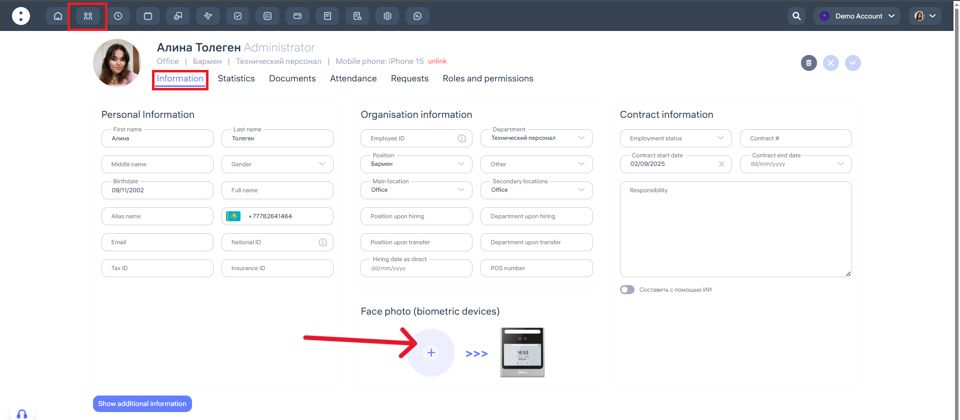
What to do:
In the Clockster web version, check if the employee’s photo is uploaded in the Employees section.
Verify that the device is linked to the correct location in its settings.
If everything is correct but the employee still isn’t recognized:
Restart the device.
Delete and re-register the employee’s face.
How do I set up (face recognition) devices?
Horus E-1
Interface Language
Go to System settings / Настройки
Open About device / Информация об устройстве
Tap several times on the line “Device name / Модель”
Select Android setting → System → Languages → Russian
Scheduled Restart
In the same About device section, tap several times on “Schedule restart”
Set the time to 5:30
Date and Time
System settings → Date and time
Select your regional time zone
Turn off automatic synchronization of time and time zone — everything should be set manually
Duplicate Reading
ATT parameters → Duplicate verified time
Set to 300 seconds (5 minutes)
Cloud Service
Cloud service settings
Enable domain name: On
Server address:
https://api.clockster.com/device/horus/v3Open HTTPS: On
Biometrics
Biometric parameters → Facial parameters
Face anti-counterfeiting threshold: 99
Face enroll threshold: 78
Moving detection threshold: 99999
Face detection size: 250
Prevent multiple face recognition: On
Horus TL-1 / Eface-10
Cloud Service
Communication → Cloud Service Settings:
Use domain name: On
HTTPS: On
Server address:
https://api.clockster.com/device/horus/v...
Biometrics
System → Face → Minimum face size: 180
Reading Settings
System → Event registration → Duplicate reading: 4 minutes
Statuses
Personalization → Event status → Status selection mode: Off
Date and Time
System → Date and time → Set time manually
Sebury sFace-C
Network Settings
WAN:
IP:
108.137.188.233/st/v3/cmdPort: 80
Req. Int.: 60
Push settings:
IP:
108.137.188.233/st/v3/attPort: 80
Main Settings
Date and time: Set the regional time zone
Auto SyncTime: On
Biometric Settings
Live Detection: High-Level
Identification Distance: Middle
Which formats can I upload into Documents?
The following formats are compatible with the section “Documents”: PDF, DOC, JPG, JPEG, PNG, XLSX.
Where is the “Documents” page in the web version?
What is it
The “Documents” section allows you to store, organize, and sign all important employee documents in the system. It is used to upload employment contracts, agreements, applications, and other files required for HR record management.
How to add a document
Go to the Documents section in the top menu.
Click Add Document.
Fill in the required fields:
Document name
Employee
Category
Employment status
Document start date
End date (if applicable)
Document number (if applicable)
Upload the necessary file.
If needed, enable the eGov signing option.
Click Send to sign or Save.
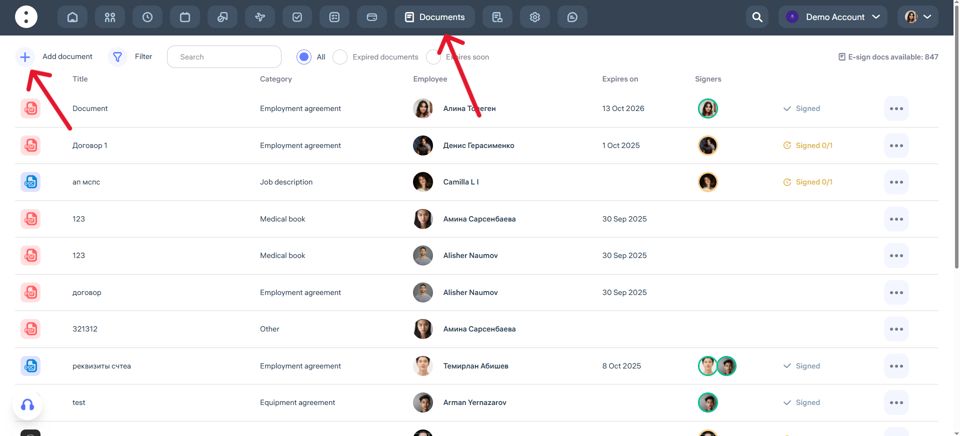
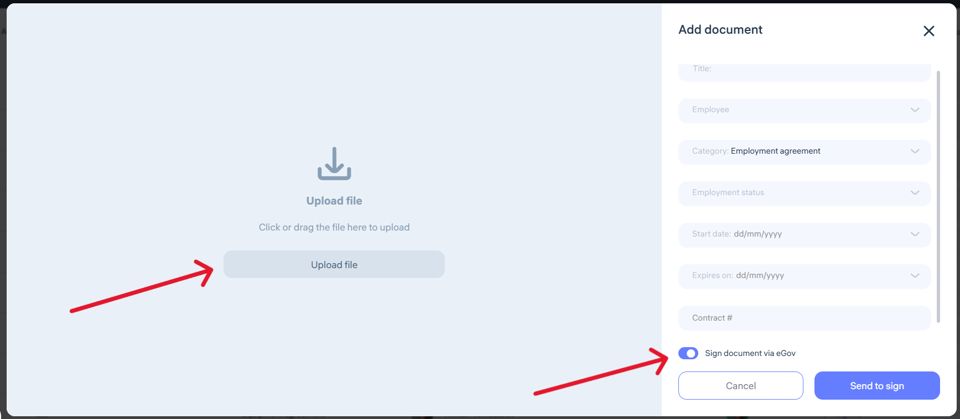
Supported formats:
You can upload files in the following formats:
PDF
DOC
JPG / JPEG
PNG
XLSX
Important: Not all mobile devices support opening Excel (XLSX) and Word (DOC) files.
How can I see my employees’ documents in the mobile app?
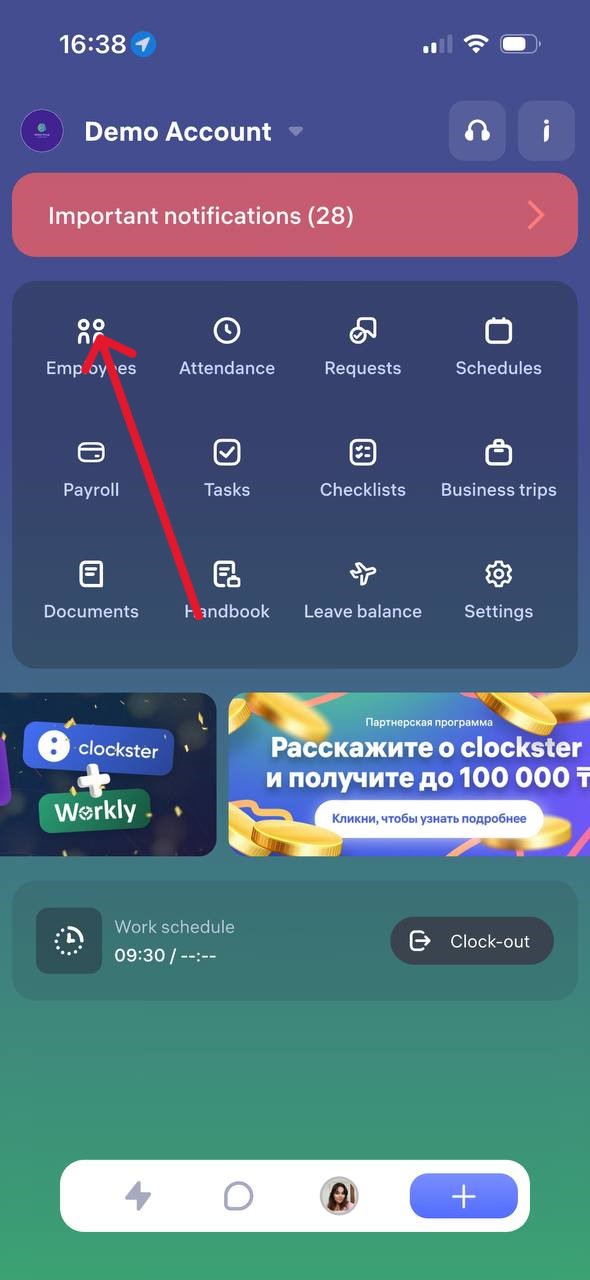
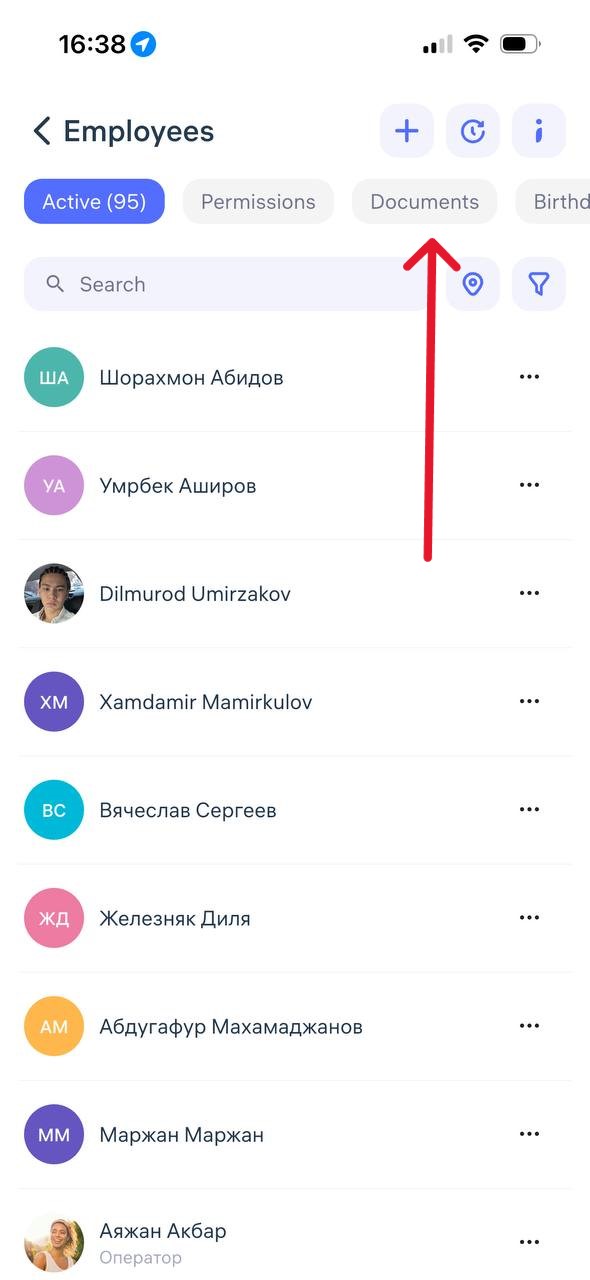
How to View Employee Documents in the Clockster Mobile App
To view employee documents in the Clockster mobile app, follow these steps:
Open the Clockster mobile app.
Go to the Employees section (as shown in the first image).
Select the desired employee from the list.
In the employee’s profile, find the Documents tab or section.
Here, you can view uploaded files such as ID cards, IIN, medical certificates, and other documents — if they were added earlier.
If you don’t see any documents:
Make sure you have the appropriate access rights (Administrator or HR permissions are required).
Check whether the documents were previously uploaded by the employee or an administrator.
Where can I get the “Invitation code”?
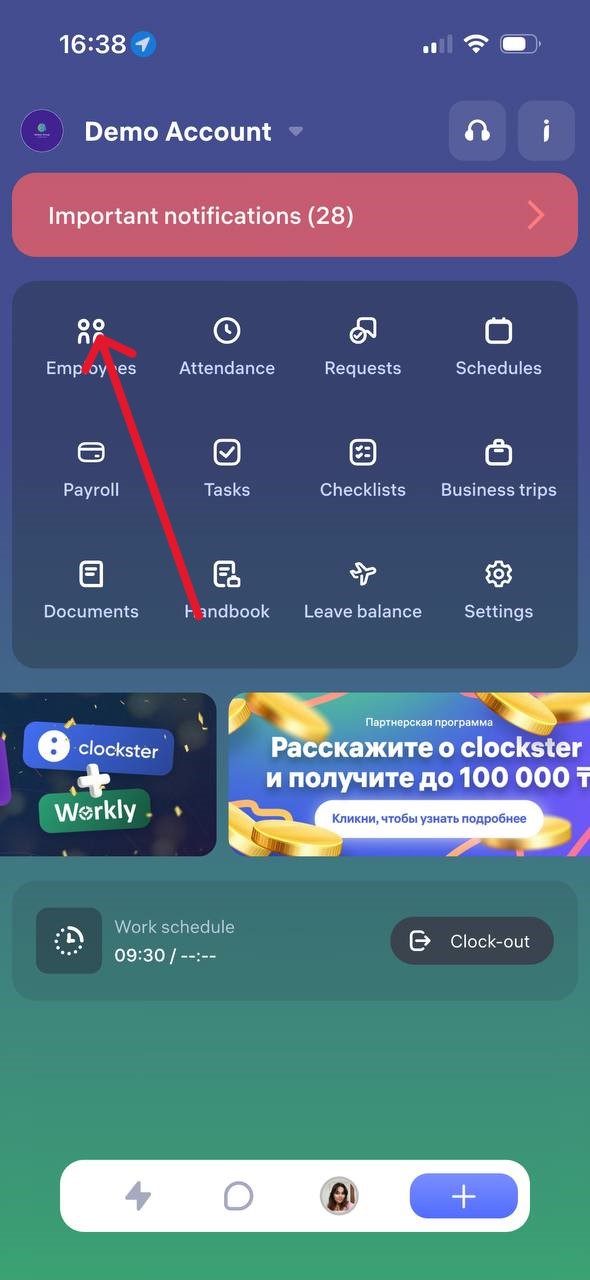
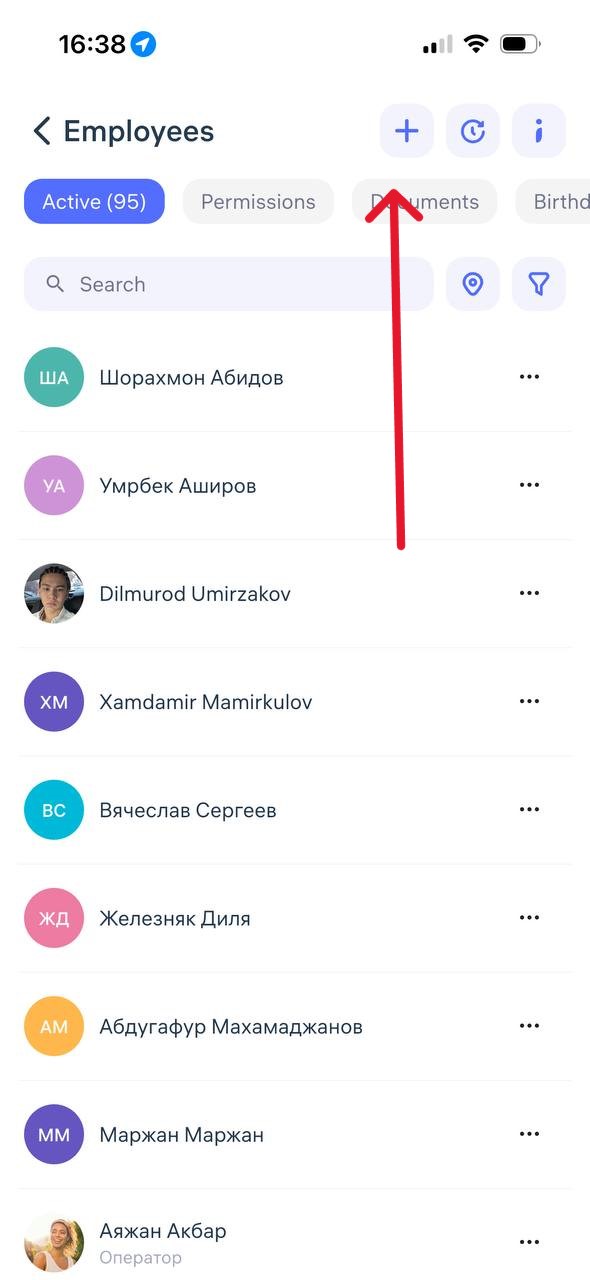
Where to find the “Invitation Code”
The invitation code is generated when adding a new employee in the Clockster mobile app.
To get it:
Open the Clockster app and go to the Employees tab.
Tap the “+” button in the top-right corner of the screen to add a new employee.
After filling in the employee’s details, an invitation code will appear — you can copy it or send it to the employee via any convenient method.
The employee must use this code during registration to join your company.
Note:
The code updates automatically every 2–3 weeks.
If an employee hasn’t used it in time, simply return to this section and resend the new code.
How to add a new employee?
Clockster supports three ways to add employees. The choice depends on your workflow — whether biometric devices are used, how many employees you need to add, and how employees will use the system.
1. Employee self-registration
If biometric devices are not used, the easiest way is to let the employee register independently:
The employee downloads the Clockster mobile app from Play Market or App Store, or follows the invitation link sent by the administrator.
Selects “Create account”, then “Join company.”
Enters personal details (first name, last name, phone number) and verifies the phone number.
Enters the invitation code (or it’s filled automatically via the link) and selects a location.
This method is convenient and secure, especially for companies that do not use facial recognition devices.
2. Administrator adds employee manually
If your company uses biometric devices, it is recommended to manually create an employee profile with a photo:
Go to the “Employees” section and click “+ Add employee” in the top-right corner.
Select “Add manually”
Enter employee details, including a photo if biometrics are used.
Save the profile.
Important:
Even after manual addition, the employee still needs to create an account in the app. The entered data (full name and phone number) must match exactly what the administrator entered, so the account links to the existing profile.
If the data differs, the system will create a duplicate employee profile.
3. Bulk upload via Excel
If you need to add many employees at once:
Go to the “Employees” section and download the Excel template.
Fill in the required fields: Full name and Location.
Upload the completed file back into the system by clicking on “+ Add employee” and choosing “mass upload”.
This method works the same way as manual addition (see option 2) and also requires employees to later create their own app accounts using exactly the same data entered in the Excel file.
How do I delete or edit employee information?
How to Manage Employee Status in Clockster
In the “Employees” section, you can see all employees in your company.
To simplify navigation, use the filters at the top of the page (for example, by status: Active, Former, etc.).
How to Edit or Dismiss an Employee
Go to the Employees section.
Find the needed employee.
Click the three dots (…) to the right of their name.
Choose an action:
Edit – to change the employee’s details.
Dismiss – if the employee no longer works in the company.
After dismissal, the employee will be moved to the “Former Employees” filter.
What Can Be Done with Former Employees
Go to the “Former Employees” filter (top of the page).
Here you can:
Restore the employee (if rehired).
Delete – if the employee’s data is no longer needed.
Important!
When deleted permanently, the system erases all employee data, including attendance, requests, payroll, and other records.
This information cannot be restored, even by technical support.
Therefore, it’s recommended to dismiss rather than delete employees — this keeps their full history if needed later.
How Does Employee Status Affect Billing?
You are not charged for inactive (dismissed) employees.
You can safely keep data on former employees without increasing your subscription cost.
If you still have questions — contact Clockster Support, we’ll be happy to help.
Can employee have multiple locations?
To allow an employee to clock in at multiple locations (for example, if they work in several branches or offices), you need to set up their profile correctly in Clockster. Here’s a step-by-step guide:
How to Give an Employee Access to Multiple Locations for Check-Ins
Step 1. Add an Additional Location to the Employee Profile
Open the web version of Clockster.
Go to the Employees section.
Find the employee and click their Name.
In the employee card, click Edit.
In the Secondary Locations field, select the extra location where the employee should be able to check in.
Click Save.
⚠️ In Clockster, an employee can have one Main Location and several Secondary Locations. They can check in at any of the assigned locations.
Step 2. Use the Correct Schedule
If you use schedules, make sure the correct location is specified in the schedule.
If you create a schedule for Location A but add an employee whose only assigned location is Location B, the system will automatically add Location A as an additional one in their profile — allowing them to check in there.
Step 3. Ensure Devices Are Synced at Each Location
If your company uses biometric devices, make sure that:
Devices are properly synced with the server;
The employee’s photo is uploaded and up to date;
The employee is linked to the location where the device is installed.
If everything is set up correctly, the employee will be able to:
Check in through the mobile app at all assigned locations;
Pass biometric identification on devices located at those sites.
If something doesn’t work or you’re unsure, contact Clockster Support — we’ll help you configure it.
How can I limit an employee’s record in a certain location?
The restriction on clocking in outside the location is enabled by default for all new employees. However, to ensure it works correctly, you need to complete a few setup steps.
Step 1: Set the office coordinates (location)
Log in to the Clockster web version.
Go to the Company Settings section.
In Categories open the Locations tab.
Find the required location and click Edit.
Select the exact office coordinates on the map.
Save your changes.
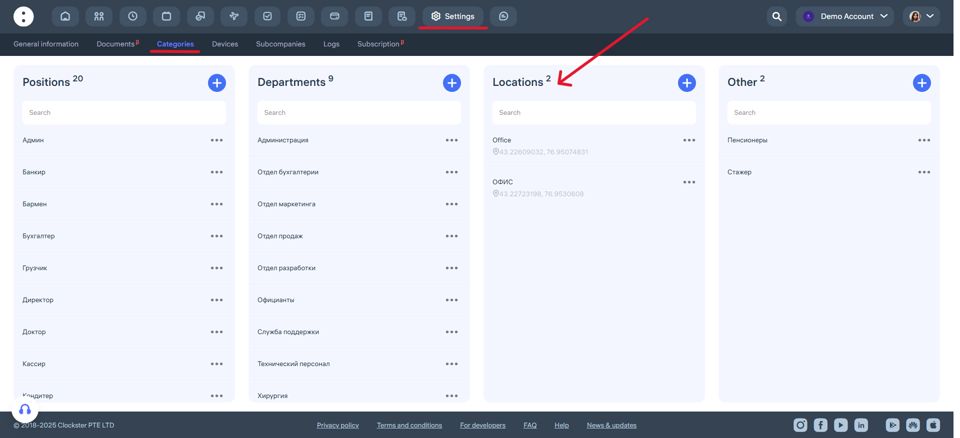
Step 2: Adjust permissions for a specific employee
Go to the Employees section.
Find the required employee.
Click the three dots to the right of their name and click Edit.
Navigate to Roles and Permissions.
Find the Attendance section.
Disable the option Create a check-in outside the locations.
After this, the employee will only be able to clock in within the coordinates specified in their assigned location.
Step 3: Important condition
For the new settings to take effect, the employee must restart the mobile app (fully close and reopen it).
Additional: Using permission templates
If you have multiple employees with the same restrictions, we recommend creating a permission template. This will make setup faster and simplify permission management.
You can create a template in:
Employees → Permissions → Templates
Once created, you can apply the template to individual employees or an entire group.
If you still have questions — contact our support team. We’re here to help.
If an employee resigns?
If an employee no longer works at your company, you can move them to the “Former employees” section instead of deleting their data. This allows you to keep their attendance history and access related reports.
How to dismiss an employee:
Go to the “Employees” section in the Clockster web version.
Find the employee you want to dismiss.
Click on the three dots (…) next to their name.
Select “Dismiss.”
After that, the employee will appear in the “Former employees” tab.
Why you shouldn’t delete an employee immediately
Deleting an employee permanently erases all their data — including attendance records, payroll documents, and other important information.
These records cannot be restored, even by the support team.
Therefore, it’s recommended to dismiss employees rather than delete them.
Is there a charge for former employees?
No, once an employee is moved to “Former employees”, you won’t be charged for their profile.
How to reactivate an employee?
If an employee returns to work:
Go to the “Former employees” section.
Find the person and click “Activate.”
Update their photo if you use biometric devices — this is necessary for proper recognition.
If you have any questions, please contact our support team — we’re always here to help.
How do I upload a photo of an employee to be recognized by a biometric device?
Prepare the photo
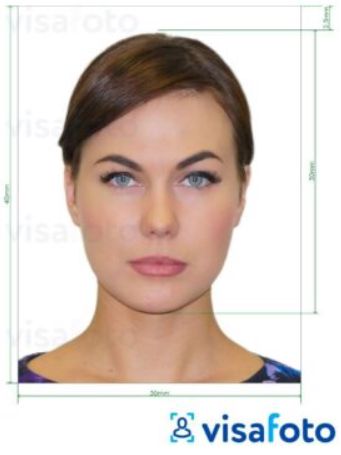
To ensure the photo works correctly for facial recognition, follow these requirements:
Clear, high-quality image.
Direct gaze at the camera (frontal view) with a neutral facial expression.
No headwear, sunglasses, masks, etc.
Good lighting without shadows on the face.
Only one face in the frame — no other people or objects.
Format: JPEG or PNG. File size: up to 5 MB.
2. Log in to the Clockster admin web panel
Go to the Employees section.
Find the required employee or add a new one.
Click the employee’s name to open their profile.
3. Upload the photo
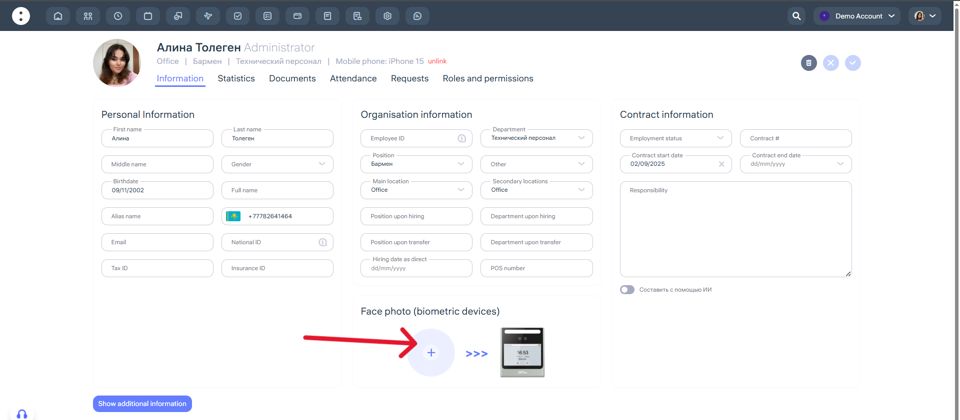
In the employee’s profile, click the photo area (Face Photo – Biometric Devices).
Select a file from your computer.
Make sure the image uploads correctly.
Save the changes.
After uploading, the system will automatically sync the photo with the biometric device if:
The device is connected to the internet,
It’s linked to the same location as the employee,
The correct Clockster server address is set in the device settings.
All done!
If everything is set up properly, the biometric device will start recognizing the employee within a few minutes.
If you encounter any issues, contact Clockster Support — we’re always here to help!
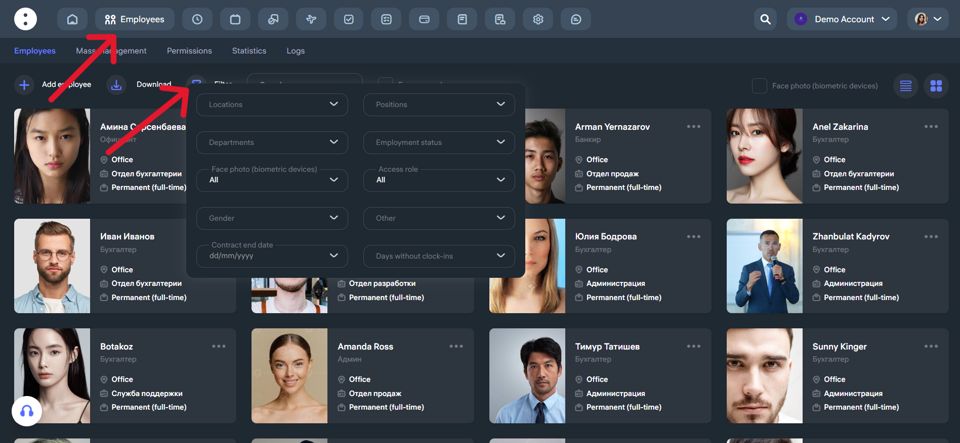
Which filters are available to me in the “Employees” section?
In the “Employees” section, you have access to advanced filters that allow you to efficiently manage the employee list and quickly find the information you need.
Here are the available filters:
Main Filters:
Locations — select employees working in a specific branch or city.
Positions — filter by specific job roles, such as “waiters” or “managers.”
Departments — search by department, for example “Kitchen,” “Office,” or “Marketing.”
Employment Status — full-time, contract-based, etc.
Access Role — filter by system access level: administrator, employee.
Face Photo (for biometric devices) — filter employees who have or haven’t uploaded a biometric photo.
Gender — male, female.
Contract End Date — helps track when employment contracts are set to expire.
Days Without clock-ins — view employees who haven’t made any attendance marks during the selected period.
Other — includes additional filtering options.
You can apply multiple filters at once to narrow down your search and quickly find the right employees. This is especially useful when managing a large workforce.
What types of roles do users have?
Clockster provides two user roles:
1. Employee
This user has limited access and can:
Submit requests (for vacation, leave, business trips, etc.);
View only their own attendance;
See only their approved payslips;
Send schedule creation requests;
View announcements.
2. Administrator
This user has extended permissions and can:
View attendance records of all company employees;
Approve or reject employee requests;
Add and approve payslips;
Create schedules independently;
Manage company settings;
Create and manage announcements.
Important: All employees who join the company using an invitation code are automatically assigned the “Employee” role.
To change a user’s role to Administrator, follow these steps:
Log in to the web version of Clockster.
Open the Employees section and click the “…” button next to the desired employee.
Select Edit and change their role in the Role and permissions field.
You can also bulk edit roles using a permission template.
Permission templates are created by an administrator in Employees → Permissions → Templates.
You can preconfigure the necessary access levels and quickly apply them to new or existing employees — a convenient way to simplify permission management and ensure consistent access for user groups.
Notification: “This phone number is already registered”
This message can appear both for employees during registration in the app and for administrators when editing a profile.
In both cases, the reason is the same — this phone number is already in use in the Clockster system.
For Employees
Most likely, the employee has already created an account earlier.
👉 In this case:
Open the Clockster mobile app.
Enter your phone number and password, or tap “Forgot password” if you don’t remember it.
For Administrators
If you see this message while trying to edit an employee’s profile, it means that:
Another profile in your company already uses this phone number.
The system blocks saving to prevent duplicates.
👉 What to do:
Go to the Employees section.
Use search by phone number.
Check the “Former Employees” tab — duplicates are often hidden there.
Delete the duplicate profile or restore it if necessary.
Then return to editing the required employee.
⚠️ Important:
In Clockster, each phone number can be linked to only one employee.
Before re-registering or transferring a number, always check for duplicates, including in the “Former Employees” section.
If you can’t resolve the issue yourself — contact Clockster Support, and we’ll help you find and fix it!
What should the admin do with the request?
When an employee submits a request through the Clockster mobile app (for example, for an advance payment, vacation, biometric photo, etc.), the administrator or assigned manager receives it in the admin panel. If the user has the appropriate access rights, they can perform the following actions with the request:
What actions are available to the administrator?
Approve — the request is approved, and the system automatically applies the corresponding changes.
Reject — the request will be declined, and the employee will receive a notification.
Add a comment — a note can be attached to any decision, for example, to provide the reason for rejection or clarify details.
Where are requests displayed?
The number of pending requests appears as a counter on the “Requests” section icon.
Open the section to see all new, approved, and rejected requests.
You can also filter requests by enabling the “Waiting for my approval” toggle.
What happens after a request is approved?
The employee receives a push notification about the approval or rejection.
Depending on the type of request, the action is applied automatically:
Advance payment → added to deductions in the Payroll module.
Biometric photo → added to the system and synchronized with devices.
Attendance marks → added to the schedule and reflected in reports.
Business trips, vacations, etc. → shown in the schedule and attendance records.
Tips for managing requests:
Regularly review and process new requests.
Use comments for feedback — this helps improve communication with employees.
If needed, delegate approval rights to other managers in the role settings.
How do I create a request for Advance payment?
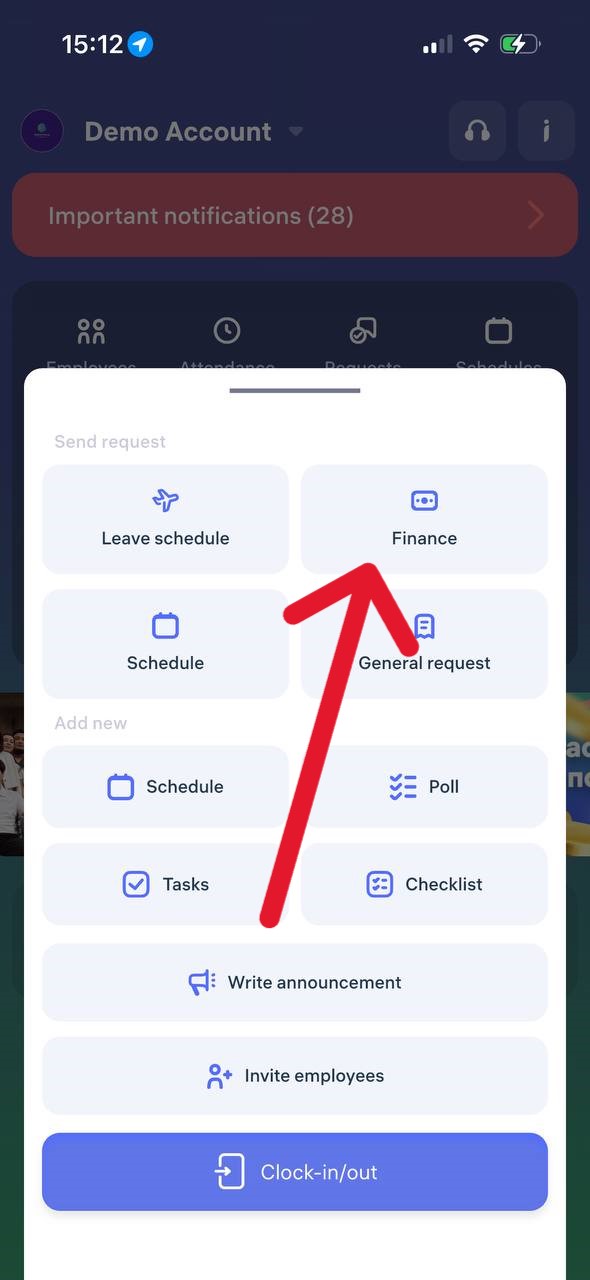
Open the Clockster mobile app.
On the main page, tap the “+” button at the bottom of the screen.
In the menu that appears, select “Finance”.
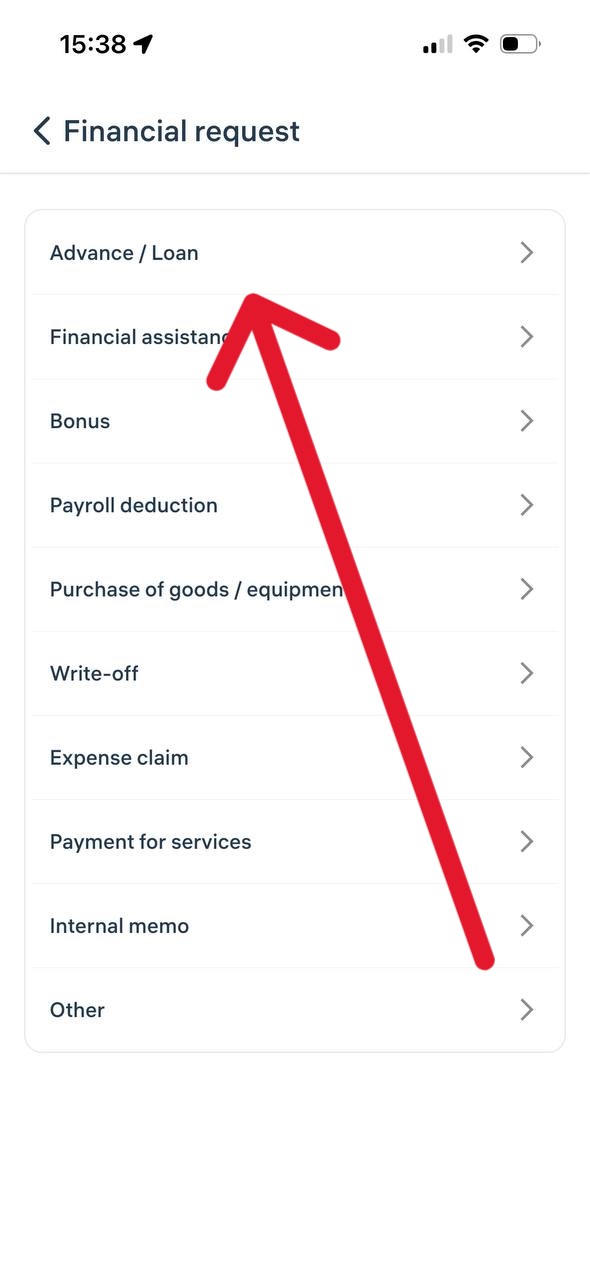
A list of financial request categories will open.
Choose the desired category, for example “Advance / Loan”.
Fill in all the required fields in the form (amount, description, and other details if necessary).
Tap “Send Request”.
Important:
– All financial requests are sent to your administrator or manager for review.
– You can track the status of your request in the “Requests” section to see whether it has been approved or not.
What should the admin do with the request?
Where to Find Requests
Go to the Clockster web dashboard.
In the top menu, click on the “Requests” section.
Types of requests
Financial requests (e.g., advance payment, loan, reimbursements).
General requests.
Work schedule requests.
Leave requests.
How to create a request
Click the plus (+) icon at the bottom right corner of the screen.
Select the required request type.
Fill in all the necessary fields.
Click Save.
Note: Requests can be created not only by employees through the mobile app but also by the administrator in the web dashboard — for example, if an employee made the request in person or via chat.
How to view requests?
Switch between request categories in the top menu (Financial, General, Absence Records, etc.).
Use the filter panel on the left to select:
Employee,
Request category,
Status (Pending approval, Approved, Rejected),
Position,
Request period.
To see only the requests that require your approval, enable the “Waiting for my approval” toggle.
How to approve or reject a request?
Click on the desired request in the list.
Review the details in the opened window.
Click Approve or Reject at the bottom.
How to download a request report?
In the Requests section, select the request category (e.g., Financial Requests).
Specify the period using the filter on the left.
After selecting both category and period, a Download button (downward arrow icon) will appear in the bottom-right corner.
Click it to download the report.
Summary
An administrator can create, approve, reject, view, and download reports for all types of requests.
Remember: The Download button will only appear after selecting both a category and a period.
How to create a request for a photo so that a biometric device recognizes it?
Step 1. Open a General equests
Open the Clockster app, tap the “+” button on the main screen, and select “General Request”
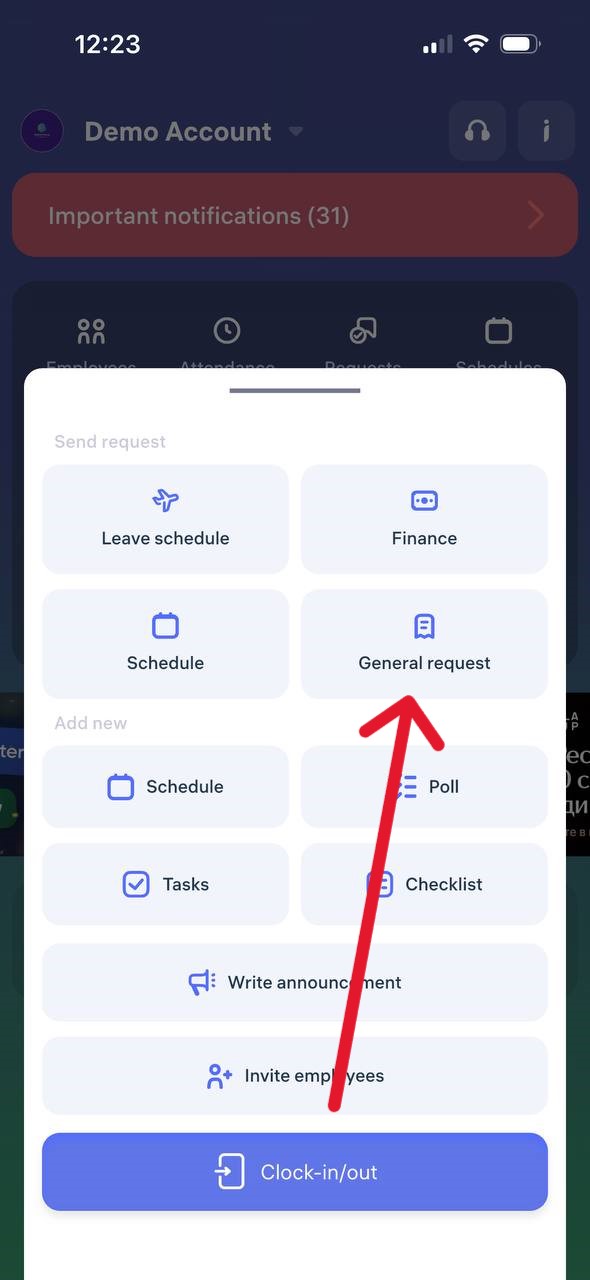
Step 2. Find the required request type
Scroll down the list of request types and select “Face photo (biometric devices)”
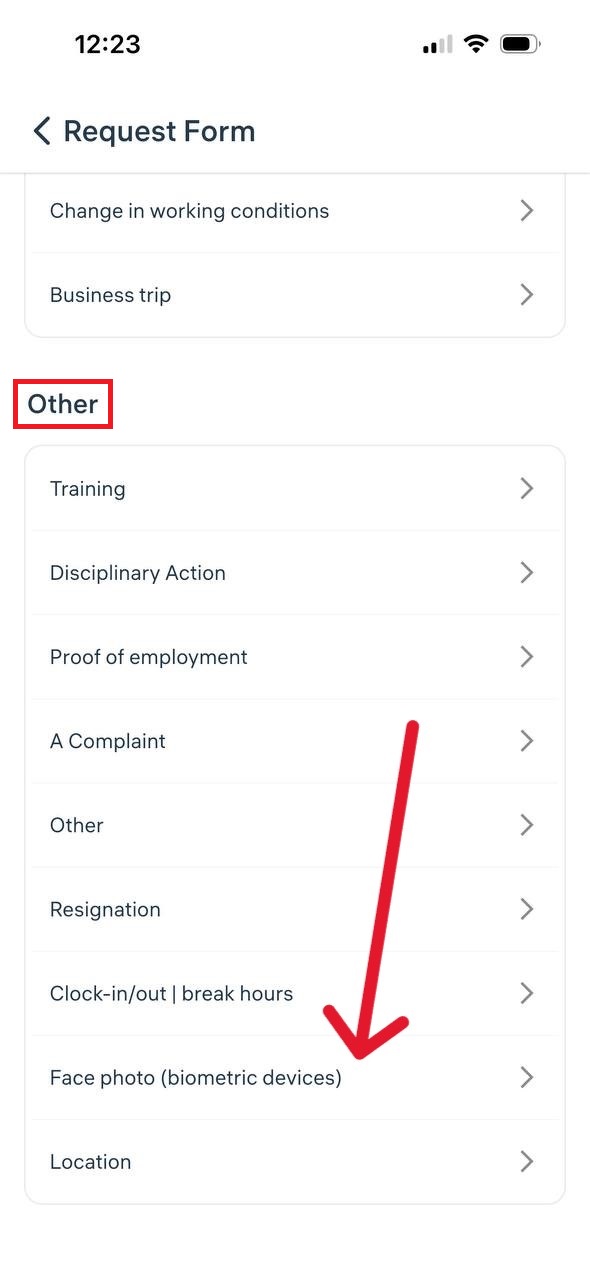
Step 3. Upload a photo and select a manager
Attach a proper photo (face centered, no headwear, neutral background).
Select the responsible manager (up to two can be chosen — for example, a director and an administrator).
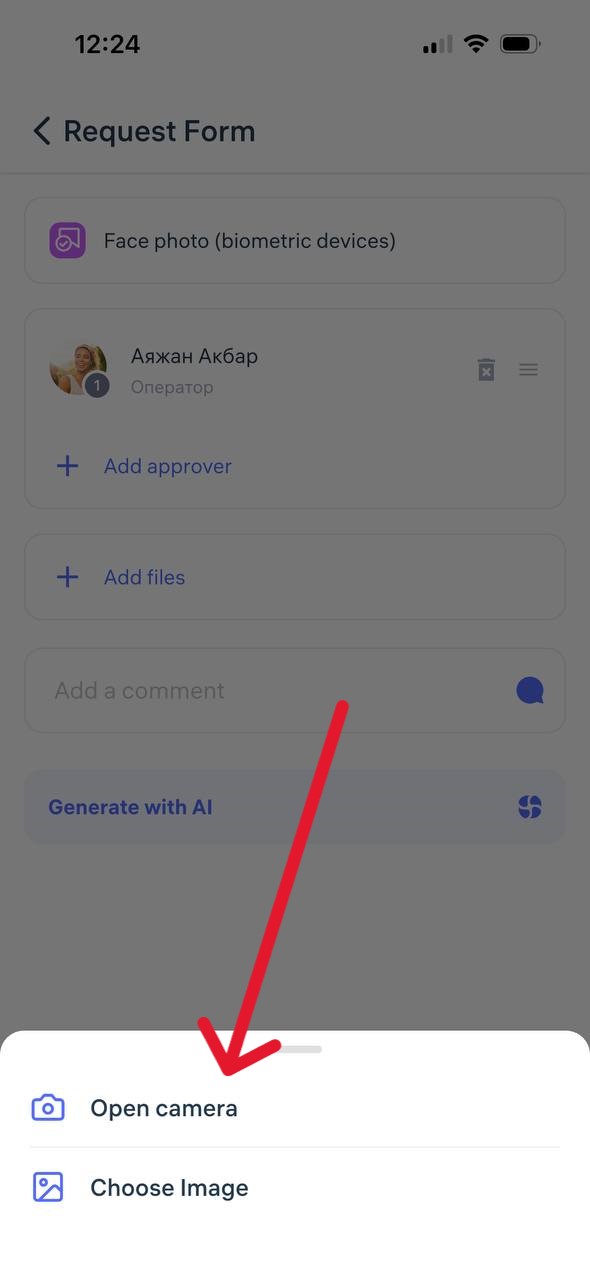
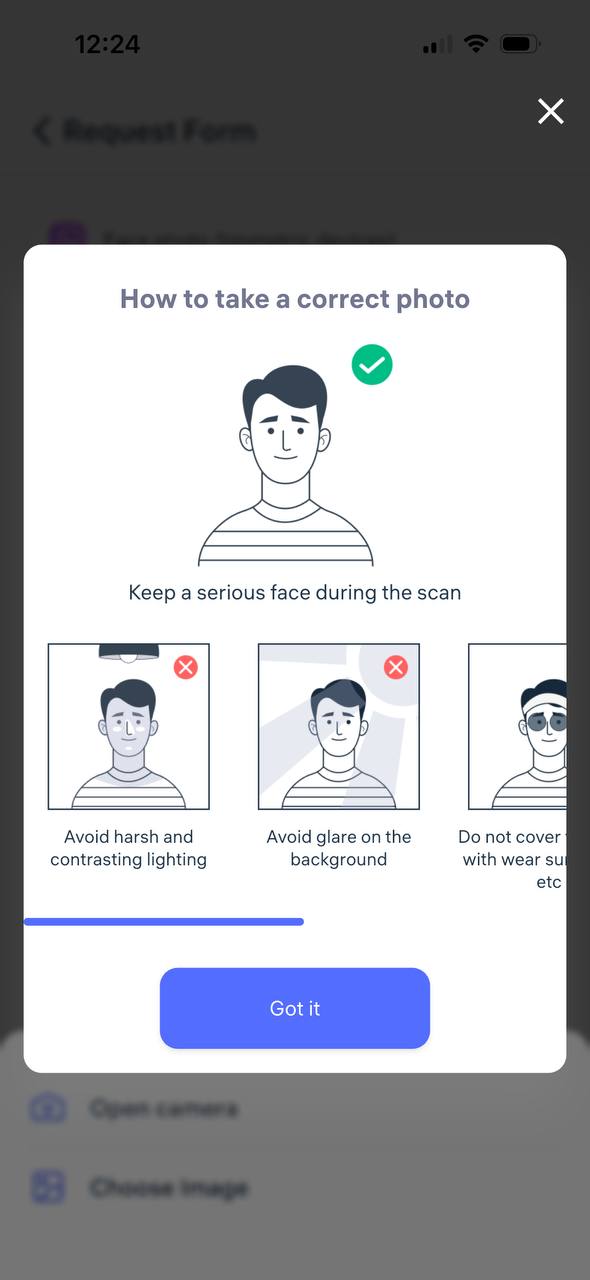
Step 4. Submit the request
Add a comment if needed and tap “Send request” The request will appear in the General Requests section and will be reviewed by the manager.
What happens next?
A push notification will be sent once the photo is approved or rejected.
After approval, the photo will be added to the system and used on the company’s biometric devices.
How to create a request for a missed record in your personal account (clock-in/out)?
If an employee forgets to clock in or clock out, a request can be submitted through the Clockster mobile app to add the missing record.
Step 1. Open the request form
Open the Clockster mobile app.
On the main screen, tap the “+” button.
Select “General Request.”
Step 2. Choose the request type
Scroll down the list.
Go to the “Clock-in/Clock-out” section.
Step 3. Fill out the form
Select the date and time for the missing record.
Make sure to choose the correct time zone — this ensures accurate working time calculations.
In the status field, select “Clock-in” or “Clock-out.” ⚠️ This step is crucial — it determines how the working hours will be calculated.
Step 4. Choose a manager and submit the request
Select one or two managers who should approve the request (for example, an administrator and a director).
If needed, attach a comment or photo (e.g., a screenshot confirming presence at work).
Tap “Send Request” and wait for approval.
Step 5. Check the request status
A push notification will appear once the request is approved or rejected.
You can also go to Requests → General Requests to view the status under the Approved or Rejected tabs.
Additional note
If several clock-ins or clock-outs were missed, the app will automatically suggest submitting requests for all missing records when the employee tries to clock in normally.
This helps ensure no shifts are lost and maintains attendance accuracy.
What’s an additional record and how to use it?
An additional clock-in is a special type of attendance mark that allows an employee to send an extra location update during the workday. It is only available after the employee has marked “Clock-in” but before they have marked “Clock-out.”
When it is used:
When it’s necessary to send an intermediate clock-in during the workday.
When the company requires tracking location throughout the shift.
When an employee moves between different work sites.
How to create an additional clock-in?
Open the Clockster mobile app.
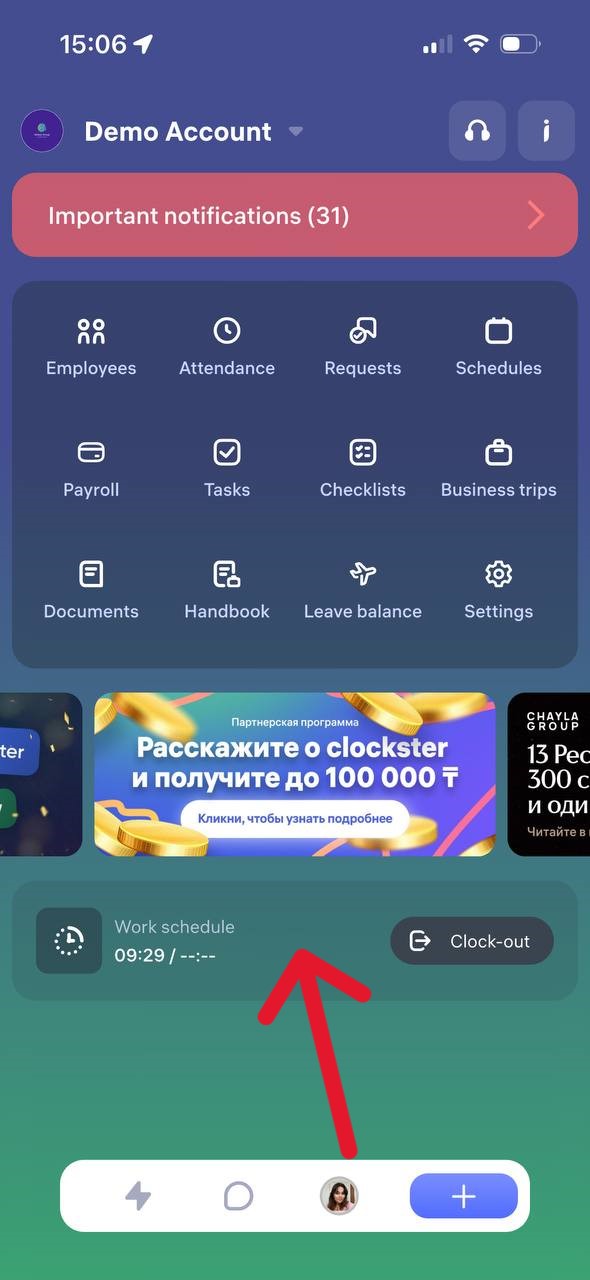
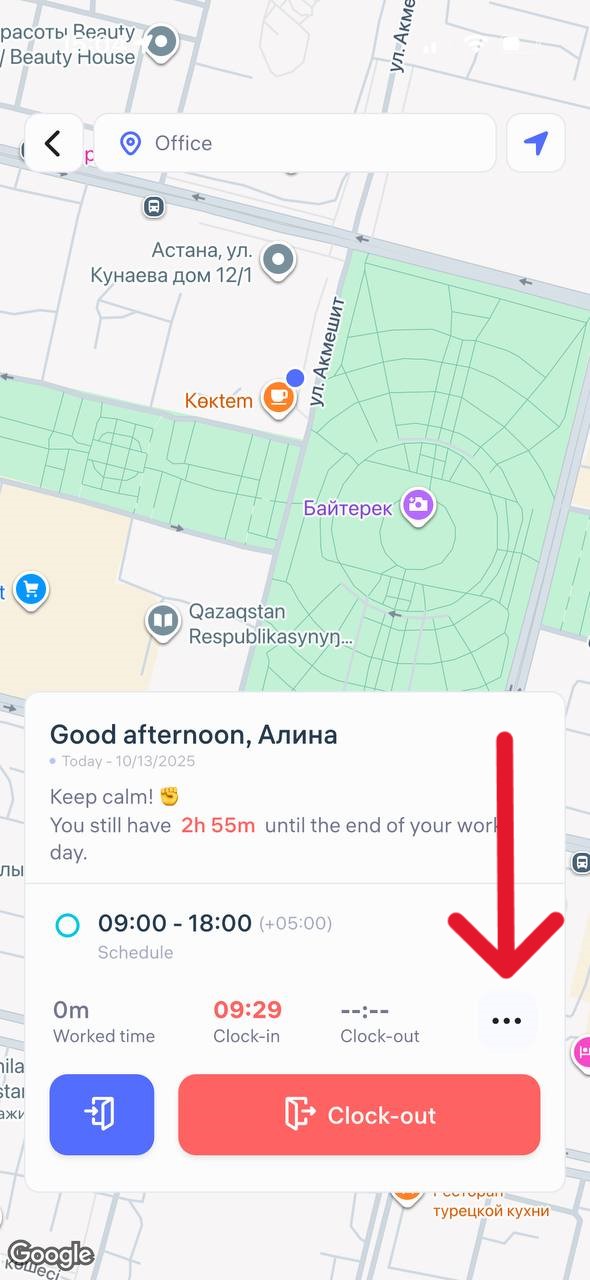
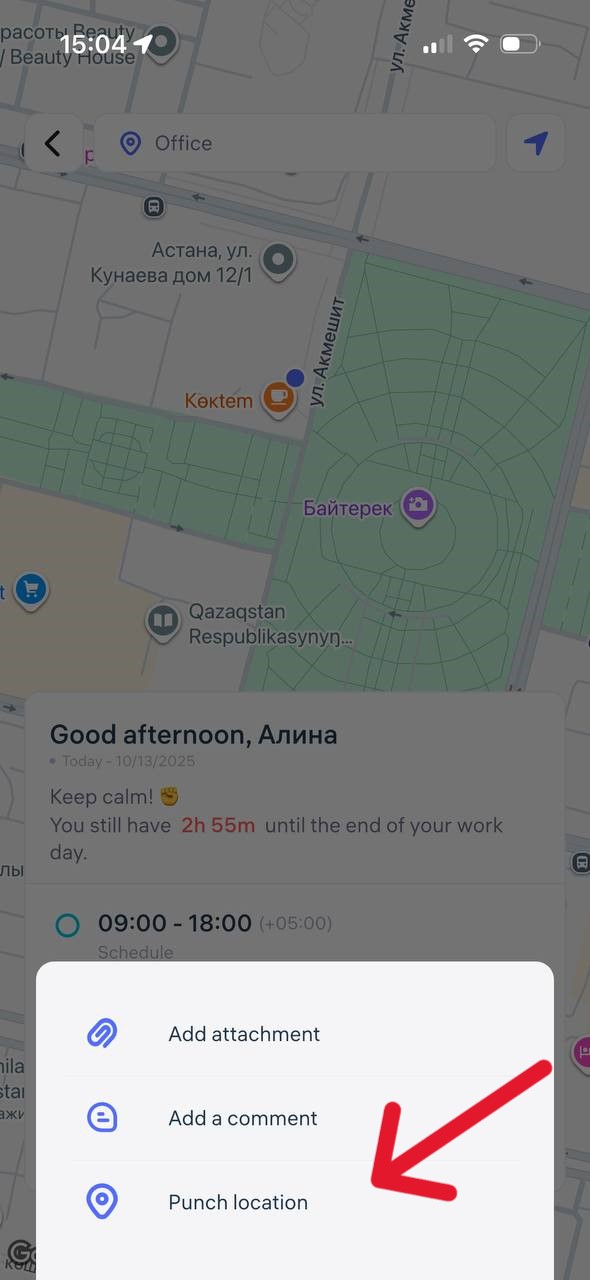
After marking “Clock-in,” a button with three dots (⋯) will appear on the main screen next to the main buttons.
Tap it and select “Punch location”
Add a comment (if needed).
Attach a photo or file, if required.
The system will automatically record your location and the time of the check-in.
Important
The additional clock-in is treated as a “Clock-in” type but does not close the workday.
It does not replace the main “Clock-out” mark.
Having an additional clock-in does not affect the calculation of working hours.
What is located on the Home page?
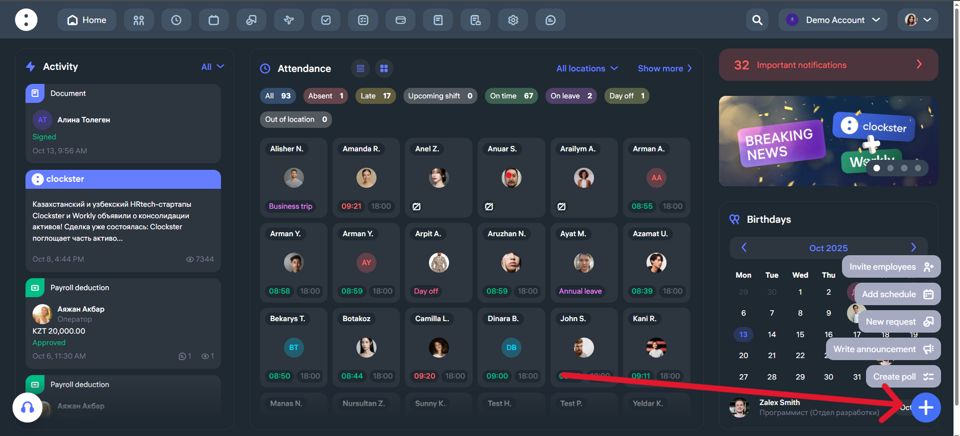
On the main page of Clockster, you can immediately get an overview of the most important company updates. Here’s what you’ll see:
What’s Displayed on the Main Page of Clockster
Events and Announcements (left side)
A full feed of key company news: webinar announcements, system notifications, and internal updates.
You can filter by categories such as Announcements, Requests, What’s New?, and Polls for easier navigation.
Employee Attendance (center)
A list of employees with their current statuses: On time, Late, Absent, On leave, etc.
You can also see each employee’s schedule for the day and the exact time they clocked in.
Filters and Toggles (top and right)
Filters by location.
The “Show more” button leads to a full analytics page, where you can filter employees by department, position, or other categories.
“Important Notifications” Block (top right)
This section shows critical events that need attention.
For example: unsynchronized or unlinked facial recognition devices at specific locations.
Upcoming Employee Birthdays (bottom right)
A convenient reminder so you never forget to congratulate your colleagues.
Quick Actions (bottom right corner, “+” button)
Add schedule
Invite an employees
Create poll
New request
Write announcement
This page is your team control center — everything important is visible at a glance.
How to switch between profiles?
Each Clockster user initially has a personal profile — this is a profile not linked to any company. In it, the user provides basic information such as full name, photo, contact details, and other personal settings.
When the user joins at least one company (a Clockster client), an employee profile is automatically created for that company. This profile gives access to all Clockster features, including:
Clock-in and clock-out tracking,
Submitting requests (for leave, sick days, etc.),
Viewing personal statistics and schedules.
If the user works for multiple companies, switching between profiles is simple depending on the context or task.
In the mobile app
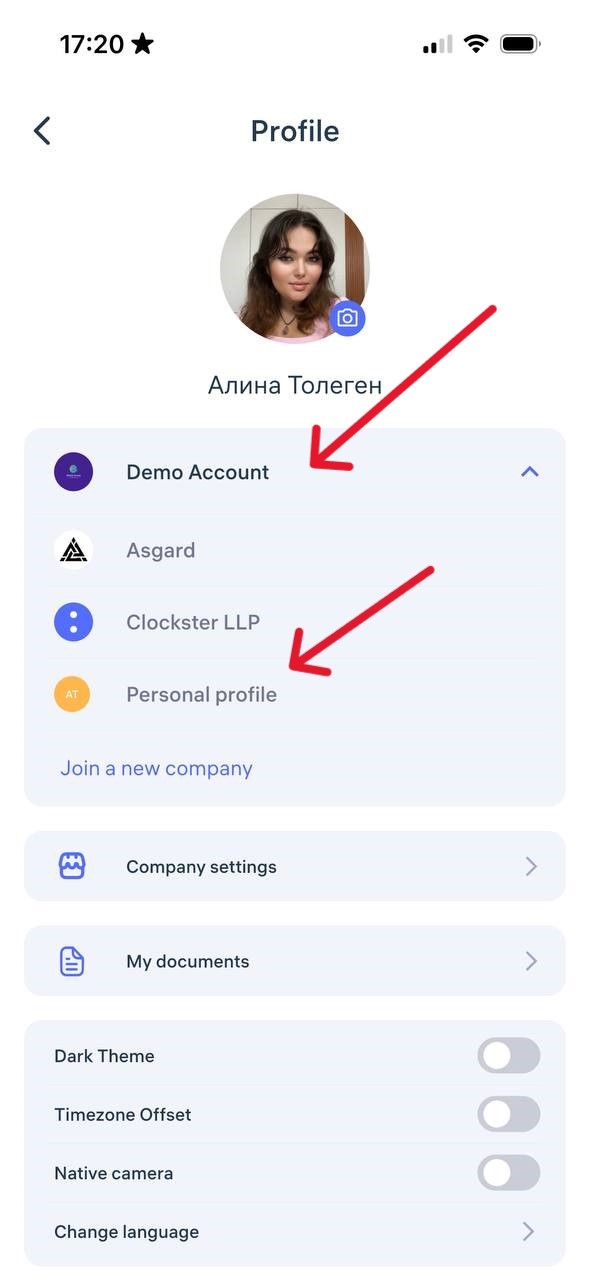
Go to the Profile section — the button is in the bottom-right corner.
At the top, you’ll see a list of all available profiles: the names of companies you’re connected to and your personal profile.
Tap the desired profile — the app will instantly switch to that work environment.
In the web version
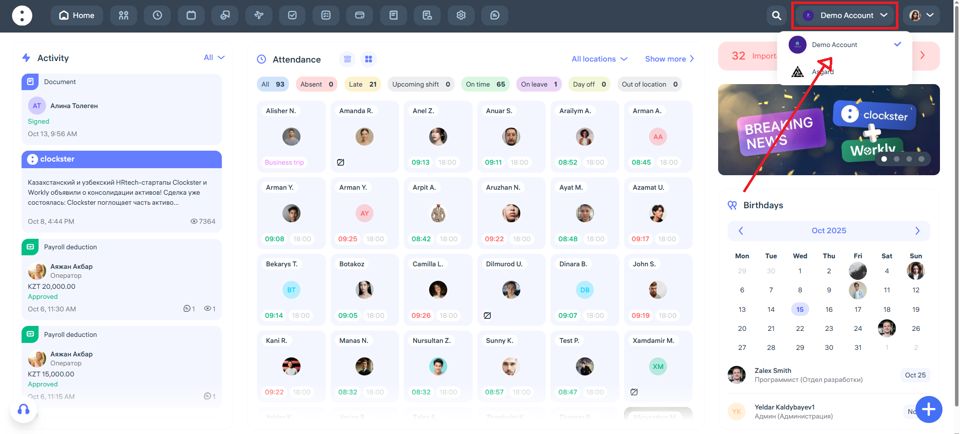
In the top-right corner, click on the name of the current company.
From the drop-down list, select the desired organization or personal profile.
To access personal profile settings (change photo, language, theme, etc.), click your name in the top-right corner.
💡 Note: Actions and data are not shared between companies. Each profile has its own record of attendance, requests, and schedules.
How do I create an absence request?
In Clockster, you can quickly send a request for day off, sick leave, or temporary absence through the mobile app.
1. Open the Clockster mobile app
After logging into your account, on the main screen, tap the “+” button at the bottom of the screen.
2. Select the request type
On the request selection screen, tap “Leave Schedule.”
3. Fill in the request details
Choose the reason for absence: sick leave, day off, unpaid leave, etc.
Specify the start and end dates.
If you selected “Partial day leave” specify the exact start and end time.
Assign the responsible manager who will approve your request.
Optionally, you can:
Add a photo/file (for example, a medical certificate);
Write a comment (reason for absence, additional notes, etc.).
4. Submit the request and wait for a response
Once the request is created, it will be sent to the selected manager for review.
The manager will receive a notification and can either approve or reject your request.
You will receive a push notification on your phone with the decision.
5. Track the status of your request
Go to the “Absence” tab.
Use filters: “Pending,” “Approved,” “Rejected” to quickly find the request you need.
Important to know:
The “Partial day leave” reason is not suitable for a full-day request. It is only intended for short-term absences (for an hour, several hours, or half a day).
If you need to be absent for a full day or several days, select “Day off“, “Sick leave,” etc.
What should the admin do with the request?
Where can I find requests?
Go to the Clockster web dashboard.
In the top menu, click on the Requests section.
What types of requests are there?
Financial requests (for example, advance payment, loan, compensation).
General requests
Leaves
Work schedule
How to create a request?
Click the “+” button at the bottom right of the screen.
Select the required type of request.
Fill in all the necessary fields.
Click Save.
Important:
Requests can be created not only by an employee through the mobile app, but also by the administrator via the web dashboard — for example, if the employee contacted them personally or through chat.
How to view requests?
Switch between request categories in the top menu (Financial, General, Leaves).
Use the filter panel on the left to:
Select an employee,
Choose a request category,
Set the status (Pending approval, Approved, Rejected),
Filter by position,
Specify the request period.
To see only the requests waiting for your approval, turn on the “Waiting for my approval” toggle.
How to approve or reject a request?
Click on the desired request in the list.
Review the details in the opened window.
Click Approve or Reject at the bottom.
How to download a report on requests?
In the Requests section, choose the request category (for example, Financial requests).
Make sure to set the period in the filter on the left.
After selecting the period and category, a Download button (down arrow icon) will appear in the bottom right corner.
Click it to download the report.
Summary
The administrator can create, approve, reject, view, and download reports on requests.
Note: The Download button will not be available unless both the category and period are selected.
What are the differences between “Main/Secondary Location” in an employee’s profile, “Location” in schedules, and “Location Manager” in permissions, and what are they used for?
Main and Secondary Locations in the employee profile
What it is:These are the locations specified in the employee’s personal profile.
Purpose:
Define where the employee can clock in and out in the app or via a biometric device.
Used to filter employees by location across the system.
Location in Schedules
What it is:This is the location you select when creating a schedule.
Purpose:
Shows which place or branch the schedule belongs to.
Defines for which location the work schedule is created.
Allows filtering schedules and employees by this location in the “Schedules” section.
If you create a schedule for one location but add employees from another, the system automatically adds the selected location to the employee’s profile as an secondary one so they can clock in there.
Location Manager in Permissions
What it is:This is an administrator access setting in the Clockster system.
Purpose:
If an administrator manages only specific locations, you can restrict their access.
In permission settings, uncheck “Access to all locations” and select the required ones.
Such a location manager will only see employees whose profiles include the same main or secondary location as in their access permissions.
Summary of differences:
Main/Secondary locations in the employee profile are the locations where the employee can clock in and out.
Location in the schedule is the place for which a specific work schedule is created.
Location manager is an administrator with access only to certain locations, allowing them to manage and view only their assigned employees.
How do I start using Payroll?
1. Checking employee clock-ins
The first and most important rule:
The system calculates salaries correctly only if all clock-in and clock-out records are present.
If an employee is missing even one record during a workday, it’s considered an incomplete workday, and a deduction will appear in the report for absence.
Such days are shown as unworked hours, which also affects the employee’s rating.
It’s recommended to regularly check the attendance report to identify and correct missing records in advance.
2. Filling in adjustments
Before setting up salaries and generating payroll reports, make sure to enter all necessary adjustments:
Additions — can be fixed, percentage-based, or template-based.
Deductions — fixed or percentage-based withholdings.
Rates — coefficients for overtime, night shifts, holidays, etc.
Holidays — preconfigured for Kazakhstan, Indonesia, and the Philippines.
For more detailed instructions on how to use the Payroll module, visit: https://app.clockster.com/help/payroll-for-administrators-help/payroll-calculation
What type of taxes can be added into Payroll?
Geographical Coverage
The Clockster tax system is available for companies registered in Kazakhstan and Indonesia.
Taxes are calculated according to local legislation and are automatically included in payslips based on the rules defined in the “Taxes” section.
Who Pays the Taxes
Employee taxes – deducted from the employee’s payroll.
Employer taxes – added to the company’s expenses and included in the total cost of the employee.
Other Countries
If you want to configure taxation for a country other than Kazakhstan or Indonesia, please contact support chat in the bottom-left corner of the Clockster admin web panel.
Your request will be reviewed individually.
Working with Currency
If an employee’s payroll is set in a specific currency, all related tax calculations will also be performed in that same currency.
What types of Additions can be added into Payroll?
Additions are extra payments that can be added to an employee’s salary. They can be applied either before or after taxation.
Types of additions
Additions can include, for example:
Benefits or stipends
13th salary
Annual bonus
Other types of payments
How can the addition amount be set?
An addition can be calculated in one of the following ways:
As a fixed amount
As a percentage of the base salary
Or as a combination of both
The addition will be calculated in the same currency as the employee’s salary.
Can I save an addition as a template?
Yes, you can save an addition as a template. Once saved, it will be automatically applied when creating or editing a salary record.
What does “before” and “after” taxation mean?
Before taxation: the addition affects the total amount on which taxes are calculated.
After taxation: the addition is added after taxes have been deducted, meaning it increases the employee’s net (take-home) pay.
What types of Deductions can be added into Payroll?
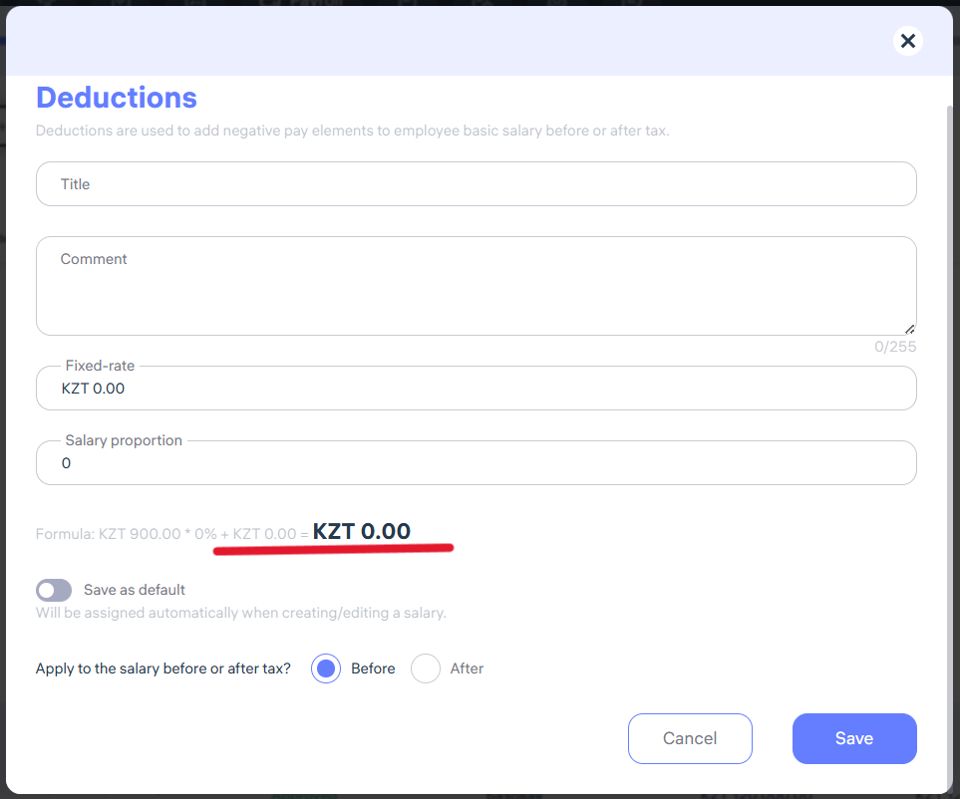
To add a deduction, follow these steps:
Go to the employee’s payroll settings section.
Click “Deduction.”
Enter the name of the deduction and, if needed, add a comment.
Set a fixed amount, a percentage of the salary, or a combination of both.
At the bottom of the form, choose whether the deduction applies before or after taxes.
Make sure the currency is correct — it should match the employee’s salary currency.
(Optional) You can save the deduction as a template — it will be automatically applied when setting up payroll in the future.
How do I create a Rate in Payroll?
What are rates and how do they work?
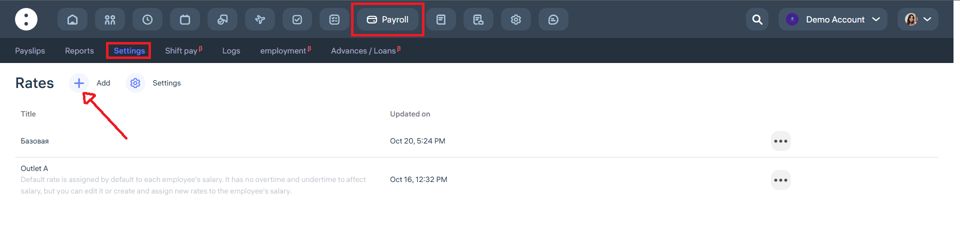
Rates are rules for calculating salaries based on the hours worked.
They are used to calculate payment for regular hours, overtime, undertime, night shifts, and public holidays.
The base rate is always equal to 1 and serves as a reference point.
Other rates act as multipliers, which are applied to the employee’s basic hourly wage.
How is overtime calculated?
Examples:
If an employee’s hourly rate is $10 and the overtime coefficient is 2,
then each overtime hour is paid as: $10 × 2 = $20If the overtime coefficient is 0.5,
then each overtime hour is paid as: $10 × 0.5 = $5
How are night hours and public holidays calculated?
The calculation follows the same logic:
hourly rate × corresponding coefficient
Example:
Hourly pay — $10
Public holiday coefficient — 3
Payment per hour on a public holiday = $10 × 3 = $30
For more detailed instructions on how to use the Payroll module, visit: https://app.clockster.com/help/payroll-for-administrators-help/guide-to-using-the-payroll-module
What are Night Hours (night shift) in Payroll and how do they work?
Night hours refer to the period of time during which, according to labor laws, an employer must pay employees at a higher rate for work performed at night.
How the Calculation Works
In Clockster, you can set:
The time range considered as night hours (for example, 10:00 PM – 6:00 AM)
The night shift pay multiplier (for example, 1.5 or 2.0)
Example
Let’s say:
Employee schedule: 6:00 PM – 12:00 AM
Hourly rate: $10
Night shift multiplier: 2.0
Night period: 10:00 PM – 6:00 AM
In this case:
From 6:00 PM – 10:00 PM, each hour is paid at the normal rate — $10/hour
From 10:00 PM – 12:00 AM, each hour is paid at the higher rate — $10 × 2 = $20/hour
Important Notes
If the employee does not work during the night period, the higher rate does not apply.
The multiplier can be adjusted according to your company’s policy.
Night hours are displayed separately in payroll calculations and included in payroll reports.
What’s the meaning of Holidays in Payroll?
Holidays are official non-working days that affect payroll calculations, especially if an employee works on those days. In Clockster, such days can be paid at an increased rate.
How it works
If an employee does not work on a public holiday, the day is simply skipped in payroll calculations (unless it is included in their work schedule).
If an employee does work on a holiday, their hours are paid at a higher rate (for example, ×2) specified in the Rates section.
Example:
If an employee’s rate is $10/hour and they work 8 hours on a holiday with a multiplier of 2.0, the total pay will be:
10 × 2 × 8 = $160
Holiday database
For Kazakhstan, Indonesia, and the Philippines, public holidays are already included in the system — no manual entry is required.
For other countries, holidays can be added manually in the Payroll module settings.
Where it’s used
Holidays affect:
Overtime calculations
Payroll calculation using holiday rates
Accurate reporting in the Payroll module
What types of salaries are there in Payroll and how to add salaries to employees?
Adding a salary is available on the “Payslips” page.
You can assign salaries in bulk or individually, depending on your needs.
Payment types:
Payment type | Description | Example |
Hourly | Payment for each hour worked; the system records actual worked hours. | $10 per hour |
Daily | A fixed amount per day, regardless of the number of hours worked. | $50 per day |
Monthly | A fixed amount per month, regardless of scheduled or actual hours. | $1000 per month |
Recommended type: Hourly, as it allows flexible rate and time tracking adjustments.
Bulk salary assignment
Go to the Payslips page.
Click the “+” button at the top of the page.
Select employees.
Specify:
Amount
Currency
Payment type
Configure:
Period
Payment frequency
Payroll calculation date
Distribute taxes between employee and employer.
Choose:
Bonuses
Deductions
Rate
Save changes.
Individual salary assignment
Find the employee.
Click the “+” icon next to “Salary not specified.”
Specify:
Amount
Currency
Payment type
Configure:
Payment schedule
Tax distribution
Bonuses and deductions
Rate
Save changes.
Additional information
All settings are automatically applied during payroll calculation and report generation.
What statuses do Payslips have in Payroll? / Important points on Payroll
Clockster provides three statuses for payslips, which indicate the current stage of payroll report processing:
Draft
When it applies:
The payslip has not gone through all the required steps.
What you can do:
Assign a salary and make necessary edits.
2. Waiting for approval
When it applies:
The salary has already been specified.
The report was edited but has not yet been approved.
What you can do:
Review and confirm the final data, then approve the report.
3. Approved
When it applies:
The salary has been specified.
The report has been edited and approved.
What you can do:
Editing is not possible.
Deletion is allowed if needed; the report can be recreated afterward.
Important notes
Once a payslip is approved, the report becomes final and its data is included in the final payroll sheet.
Always check employee clock-ins and clock-outs — if there are missed entries, the system will count them as absences and apply deductions.
Before approving, make sure that all bonuses, deductions, taxes, rates, and public holidays are entered correctly.
What is a Payroll schedule and how to use it?
The payroll schedule is a feature that automates the process of calculating and generating payroll reports by setting specific dates and calculation rules.
Why use a payroll schedule?
The payroll schedule helps to:
Automatically run salary calculations according to a chosen schedule.
Avoid missed or delayed payments.
Keep payroll periods consistent.
Simplify the work of accountants and HR staff.
Synchronize payroll with all adjustments, such as bonuses, deductions, taxes, rates, and overtime.
How to use it:
Go to the Payroll section.
When adding a salary for an employee, set the payment frequency as the second step.
Choose one of the options:
Once a month
Twice a month
Save your settings.
The system will now automatically calculate salaries on the selected dates.
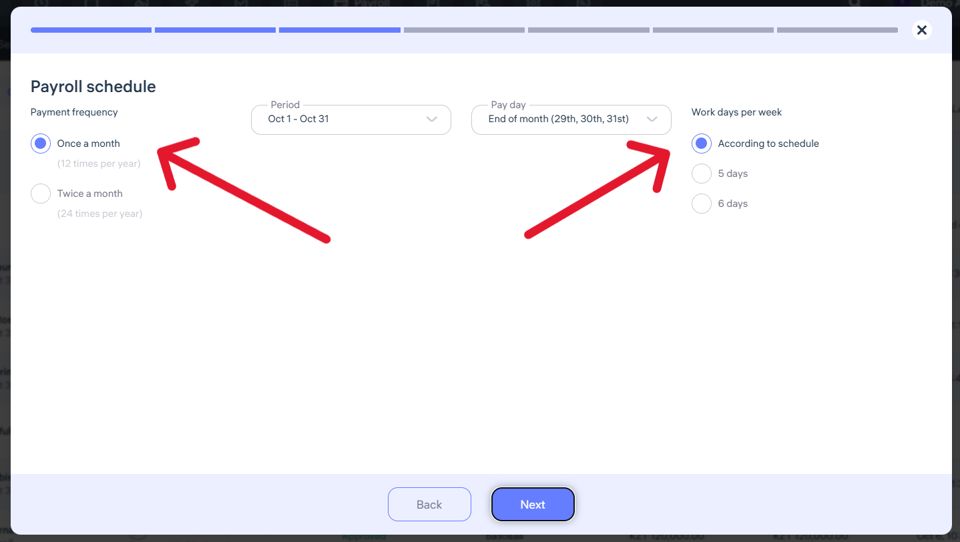
Important notes
If you select a 5-day or 6-day work week, Clockster will:
Automatically calculate the standard number of working hours based on the chosen schedule.
Include the actual worked hours from employees’ clock-in/clock-out records.
If you select “According to schedule”, the calculation is based on the employee’s individual work schedule, which defines working and non-working days.
Make sure all data such as bonuses, deductions, rates, and public holidays are filled in beforehand. Changes made later will not automatically apply to already created payroll calculations.
Automatic payroll calculation always considers actual worked time plus adjustments. Ensure that all employee clock-ins and clock-outs are recorded correctly — missing entries will result in deductions.
Each employee can have a different payroll schedule based on company policy or contract terms.
What is the “Payroll” module in Clockster?
The “Payroll” module is a tool for automatically calculating employees’ salaries based on data from the system.
Key features:
Automatic salary calculation based on work shifts, hours worked, and check-in/check-out records.
Accounting for bonuses and deductions (such as rewards, penalties, advances, sick leave, vacations, etc.).
Different payment systems — fixed rate, hourly pay, or daily pay.
Transparency for employees — they can view their earnings and deductions in their personal account.
Flexible settings: the system can account for night shifts, holiday work, overtime, and individual rates.
Why use it:
Saves time for accountants and HR — everything is calculated automatically.
Minimizes errors thanks to integration with schedules, attendance records, and requests.
Convenient for managers — always provides an up-to-date overview of personnel costs.
What types of schedules are there?
Types of Schedules in Clockster
Clockster offers several schedule types that help organize employee working hours flexibly depending on the work format, vacations, or business trips. Below are the main types:
1. Work Schedule
This is the standard type of schedule where an employee works on specific days and hours. It can include various modes such as:
Fixed schedule (e.g., 5/2, 6/1)
Shift work
Rotational schedule (e.g., 14/14)
Business trip (as a separate type within work shifts)
2. Free Schedule
Used when there are no strict start and end times for shifts. The system records actual working hours based on check-in and check-out marks. In this mode, late arrivals and early departures are not shown in reports.
(For details, see the section above about flexible schedules.)
3. Open Schedule (Open Shifts)
Allows employees to choose available shifts from a list. The administrator creates an “open shift,” and employees sign up for it via the app.
This is convenient for cafés, shops, warehouses, and other workplaces with fluctuating staffing needs.
4. Leave Schedule
Used to mark days when an employee is not working due to vacation, illness, or other reasons.
Includes the following types:
Day off
Sick leave
Annual leave
Unpaid leave
Compensatory leave
Special leave
Personal leave
Maternity leave
Paternity leave
Emergence leave
And others.
How to create a schedule 5/2 or 6/1? / Schedule – Days of the week.
If your company has a fixed weekly schedule, such as 5/2 (Monday–Friday — workdays, Saturday–Sunday — days off) or 6/1, Clockster makes it easy to use the “By days of the week” repeat type.
Step 1: Go to the “Schedules” section
In the web version, click the “+ Add Schedule” button in the top left corner of the screen.
Step 2: Select “Work Schedule”
Set the start date of the schedule — this will be the first working day.
Specify the period for which the schedule will apply (for example, 1 month).
In the repeat type, choose “Weekdays”
Step 3: Mark workdays and days off
For example:
For a 5/2 schedule — mark Mon–Fri as working days and Sat–Sun as days off.
For a 6/1 schedule — mark Mon–Sat as working days and Sun as the day off.
You can also set different shifts for different days — for example, a shorter shift on Saturday.
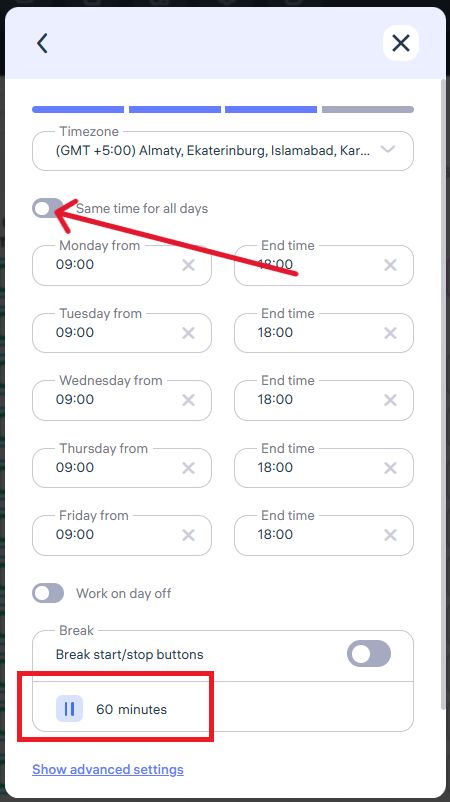
Step 4: Set working hours
Specify:
Start and end of the shift (e.g., 09:00–18:00).
Lunch break — 60 minutes (optional).
If no break is needed, enter 0.
Step 5: Assign employees
Check the boxes next to the employees you want to apply the schedule to.
If needed, specify the location to enable biometric tracking.
Click “Save.”
Important:
This method is ideal for employees with a stable schedule.
It is recommended not to change additional settings — they are predefined in Company Settings → Schedule Settings.
How to create a schedule 2/2 or 14/14? / Schedule – shift schedule.
Alternation of days is a feature that allows you to set up a shift or rotation schedule, such as 2/2 or 14/14. This is done using the “Alternation of days” repeat type in the schedule settings.
Step 1: Go to the “Schedules” section
In the web version, click “+ Add Schedule” in the top left corner of the screen.
Step 2: Choose the schedule type
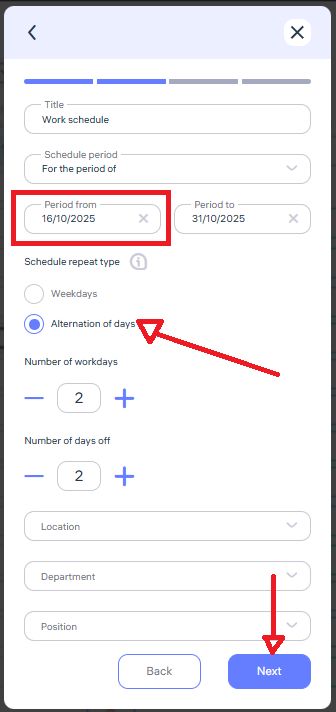
In the pop-up window, select “Work Schedule.”
Set the start date — this will be the first working day of the cycle.
Define the period for which the schedule will apply (for example, 1 month or 2 weeks).
In the Schedule Repeat Type field, select “Alternation of days.”
Step 3: Configure the schedule pattern
Enter the desired pattern, for example:
2 workdays / 2 days off — for waitstaff or shift workers.
14/14 — for rotational (fly-in/fly-out) schedules.
You can set the same working hours for all days or customize them individually.
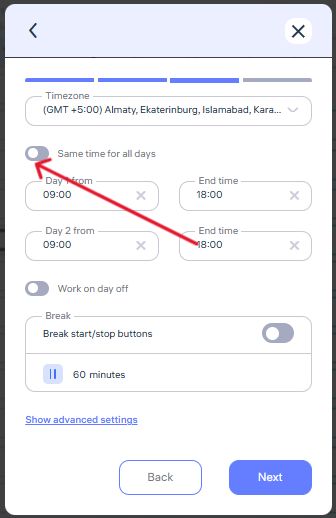
For example: Day 1 — 09:00 to 13:00, Day 2 — 13:00 to 17:00
To do this, disable the option “Same time for all days.”
Step 4: Set the lunch break
The standard duration is 60 or 90 minutes.
The system automatically deducts this break from total working hours.
Example: A schedule from 09:00–18:00 with a 1-hour break equals 8 working hours per day.
If no break is needed, enter 0 minutes.
Step 5: Assign a location
Specify the location if you want:
The employee to be recognized by a biometric device, and attendance records to be tied to that location.
Step 6: Assign employees
Check the boxes next to the employees you want to assign this schedule to.
Click “Save”
How do I create a day off/holiday/sick day schedule? / Leave schedule
You can create a leave schedule in Clockster in three ways:
1. Manually via the web version
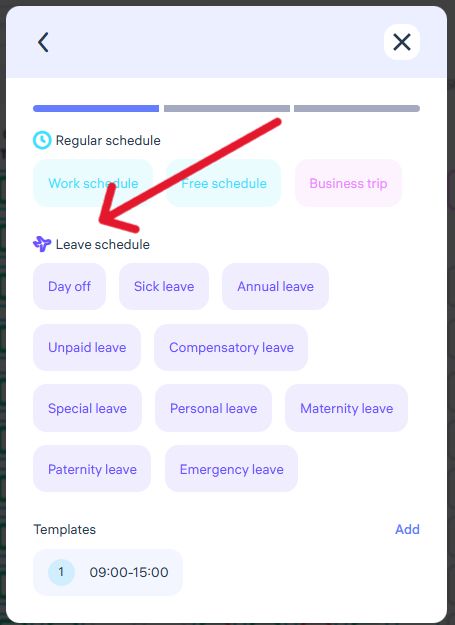
Go to the Schedules section, click + Add Schedule, and select Leave Schedule, specifying the reason (for example, Day Off, Sick Leave, etc.).
2. Using hotkeys in the web version
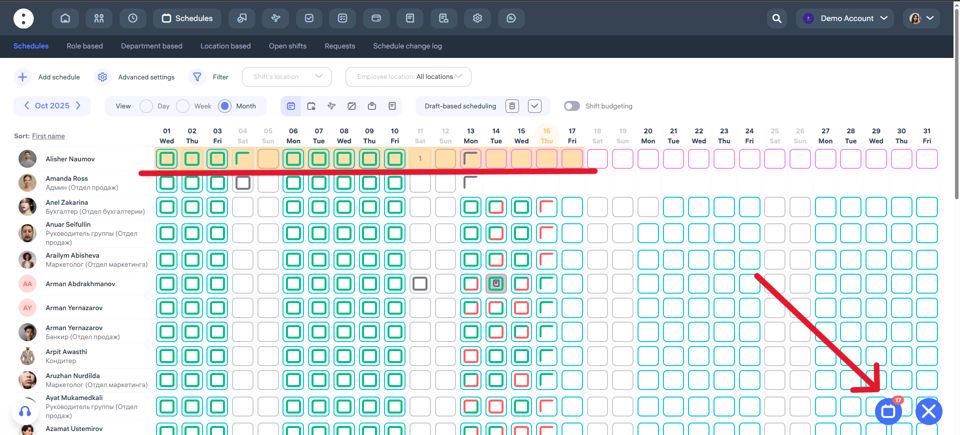
Hold Ctrl / Cmd and select several cells with the desired dates or hold Alt for choosing period. Then click the button in the lower right corner of the screen to create a leave schedule in bulk, selecting the appropriate reason.
3. Through the mobile app (employee request)
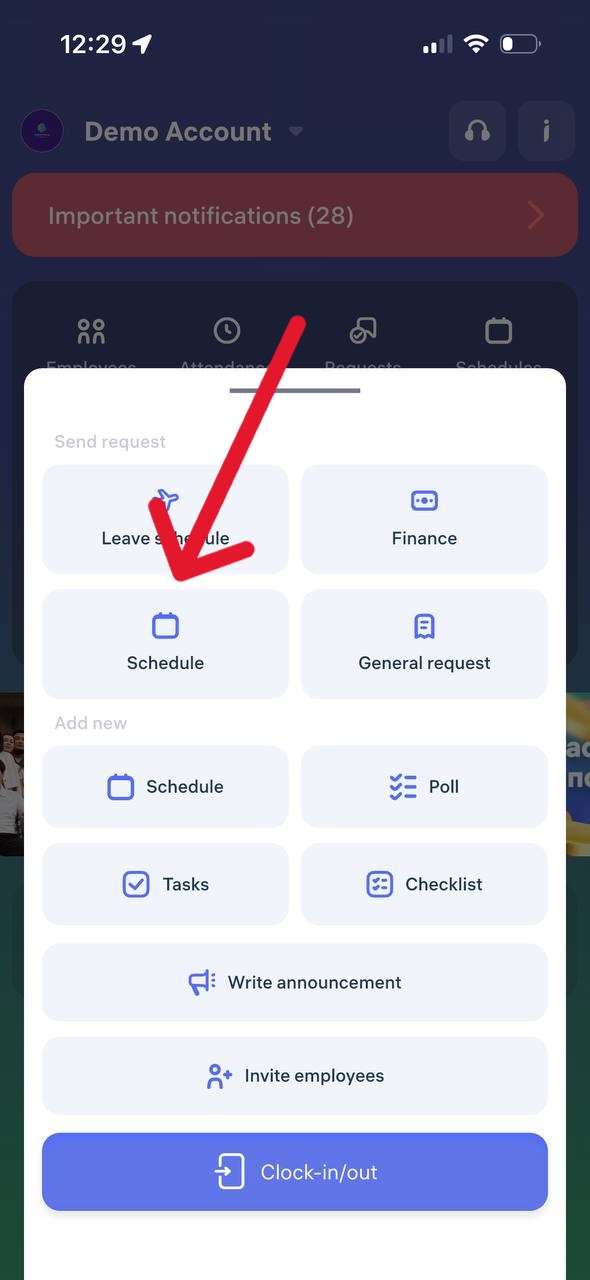
An employee can independently send a leave request through the app by choosing the appropriate category (for example, Sick Leave, Day Off, etc.). After approval by the administrator, the data will automatically appear in the schedule.
How do I create a schedule without a specific time period? / Free schedule
Free Schedule in Clockster
A Free Schedule is a shift type in Clockster that does not require specifying an exact start and end time for the workday.
This type of schedule is ideal for:
Project-based employees working by results
Staff with no fixed hours
Employees working on trust, without strict time control
How to Create a Flexible Schedule
Via the Web Admin Panel:
Go to the Schedules section.
Click Add Schedule.
In the shift type block, select Free Schedule (under “Regular Shift”).
Choose the desired period and employees.
Complete the setup.
Via the Mobile App:
Open Clockster and tap “+” on the main screen.
Select Schedule.
Set the dates and repeat type (e.g., “Days of the Week”).
Under shift type, select Free Schedule.
Choose a manager and send the request.
How the Flexible Schedule Works
Even though no fixed start or end times are set, the system accurately tracks the actual hours worked.
This makes it suitable for flexible hours, shift work, freelancing, or trust-based arrangements.
This is how it works:
1. Tracking Actual Hours Worked
The system calculates the total number of hours worked per day, subtracting break time if it’s specified in the schedule.
2. Integration with Biometric Devices
If an employee checks in via a biometric device, the system determines working time as segments between check-ins and check-outs:
The first segment is from the first check-in to the first check-out.
If there are multiple entries and exits throughout the day, all periods are counted and summed up.
3. No Late Arrivals or Early Departures
Since there are no fixed time boundaries, late arrivals and early departures are not recorded in reports — unlike in standard shifts.
4. Handling Early Check-ins
If a start time is still specified (e.g., 9:00 AM) but the employee checks in earlier, that mark will not be counted.
Work hours start counting only from the defined start time.
Summary
A Free Schedule is a convenient format for tracking working hours that:
Records actual worked hours
Does not display late arrivals or early departures
Supports multiple work segments with biometric tracking
Ignores early check-ins if they occur before the official start time
How to create a business trip?
Option 1: Through the Clockster Web Version (by Administrator)
If an employee is going on a business trip, the administrator can manually mark it in the schedule using the Clockster web dashboard.
Step 1. Go to the “Schedules” section
Open the admin panel.
In the top menu, select “Schedules”.
Click “+ Add Schedule.”
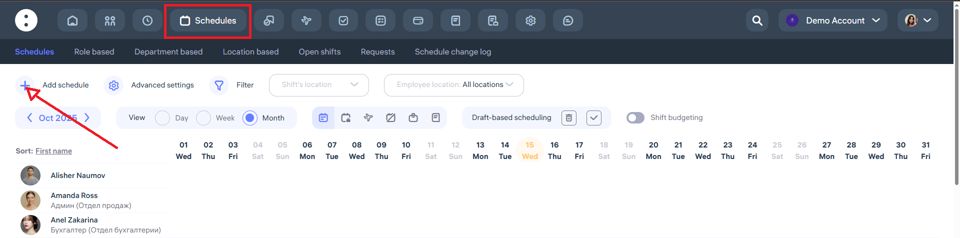
Step 2. Set up the business trip parameters
In the form that opens:
In the “Title“ field, select Business Trip.
In the “Schedule Period” field, choose For the period of.
Specify the start and end dates of the business trip (for example, from October 15, 2025 to October 31, 2025).
Select the location (for example, “Almaty Office”).
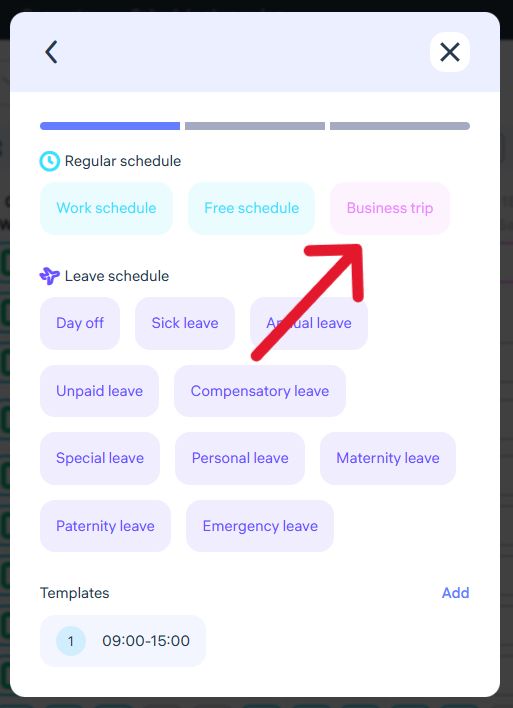
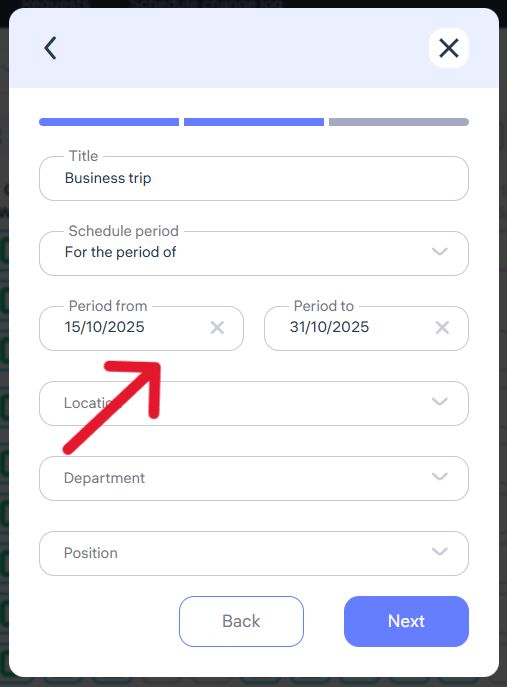
Step 3. Select employee(s)
Mark the employee who will be assigned the business trip.
One or multiple employees can be assigned.
Click “Save.”
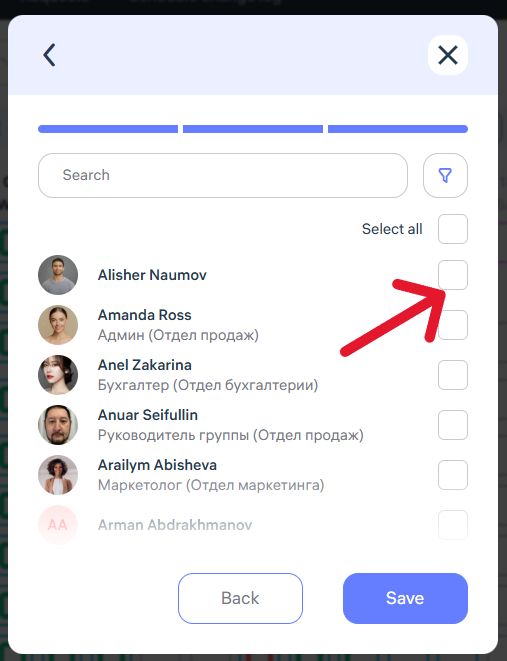
Option 2: Through the Mobile App (by Employee)
Employees can also submit a business trip request through the Clockster mobile app.
The request is automatically sent to the assigned manager for review.
Step 1. Go to “General Request”
Open the Clockster mobile app.
On the main page, tap the “+” button (at the bottom).
Select “General Request.”
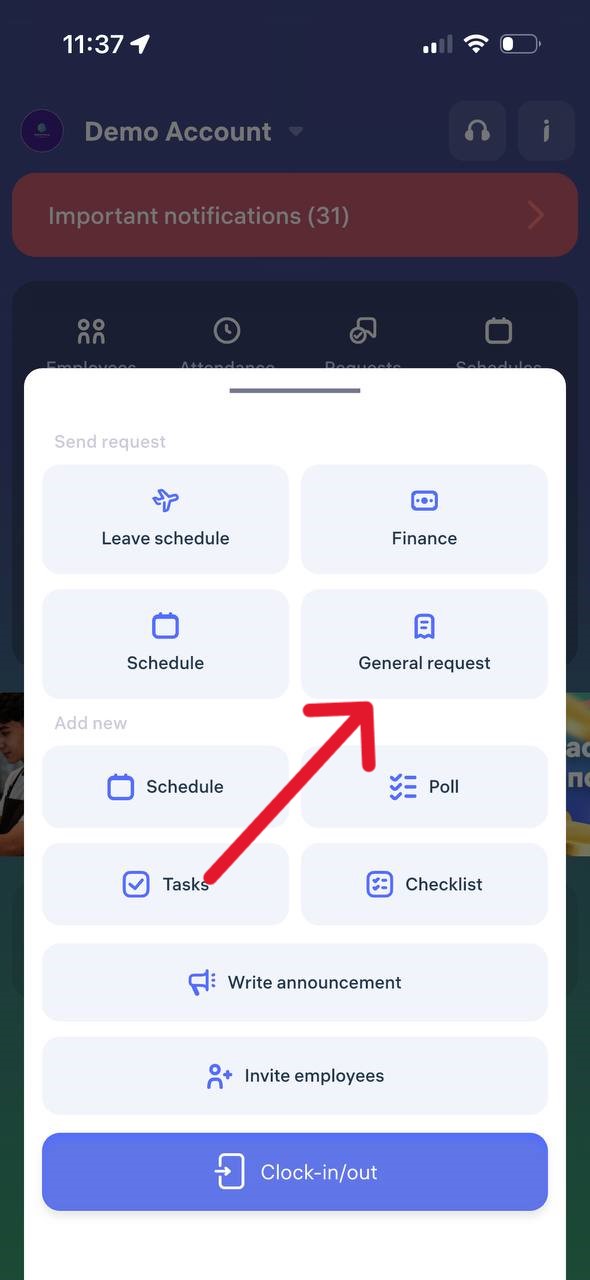
Step 2. Choose the request type — “Business Trip”
In the Work Schedule section, choose “Business Trip.”
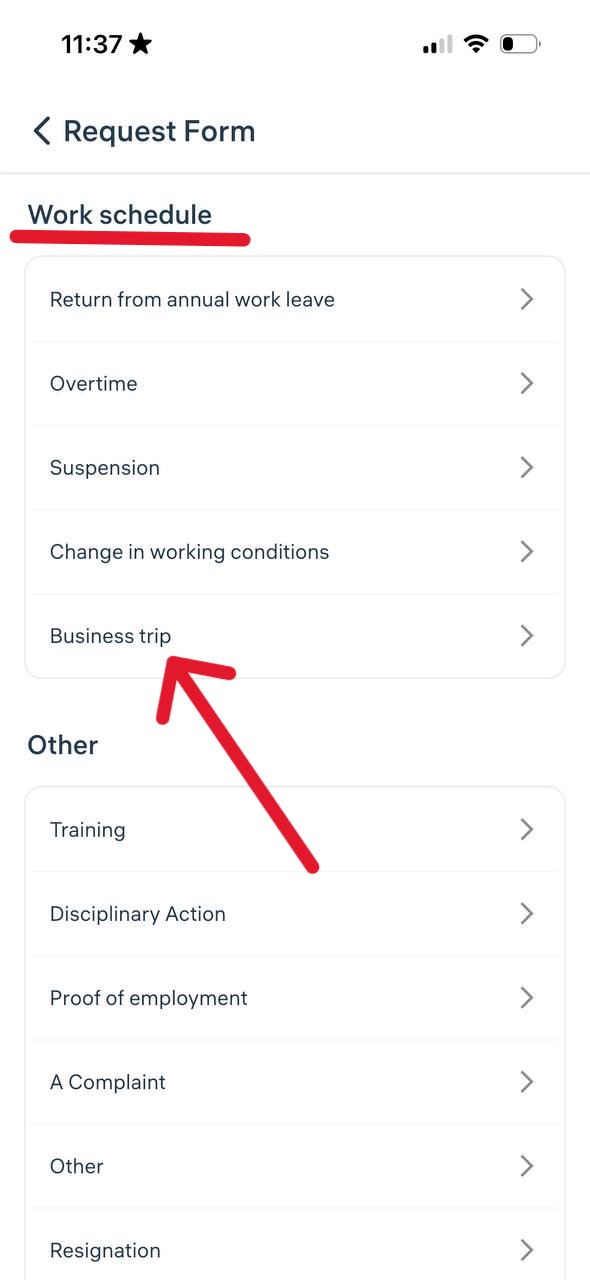
Step 3. Fill in trip details
Provide the following information:
Business trip dates (for example, Oct 15–20, 2025).
Departure and destination cities.
Purpose of the trip (e.g., audit, meeting, equipment installation).
Type of transport (plane, train, bus, etc.).
Route details, transfers, and ticket cost. You can also indicate whether the price includes a return ticket.
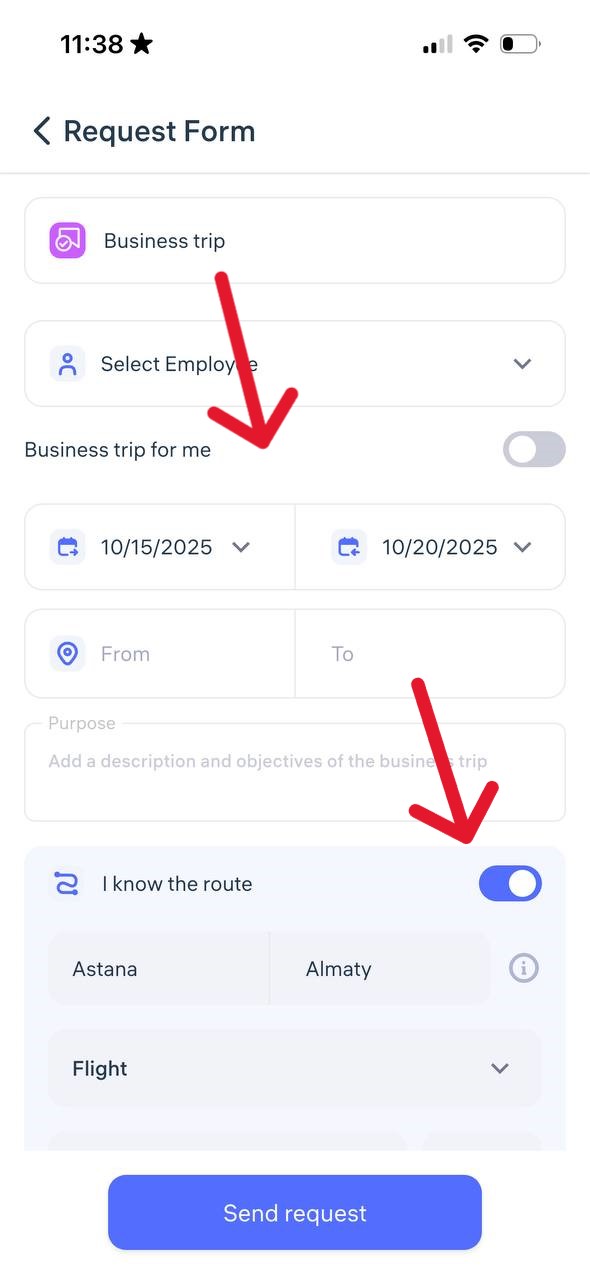
Step 4. Specify accommodation details (if known)
Enable the option “I know where I will stay.”
Enter the type of accommodation (e.g., hotel), dates, and total cost of stay.
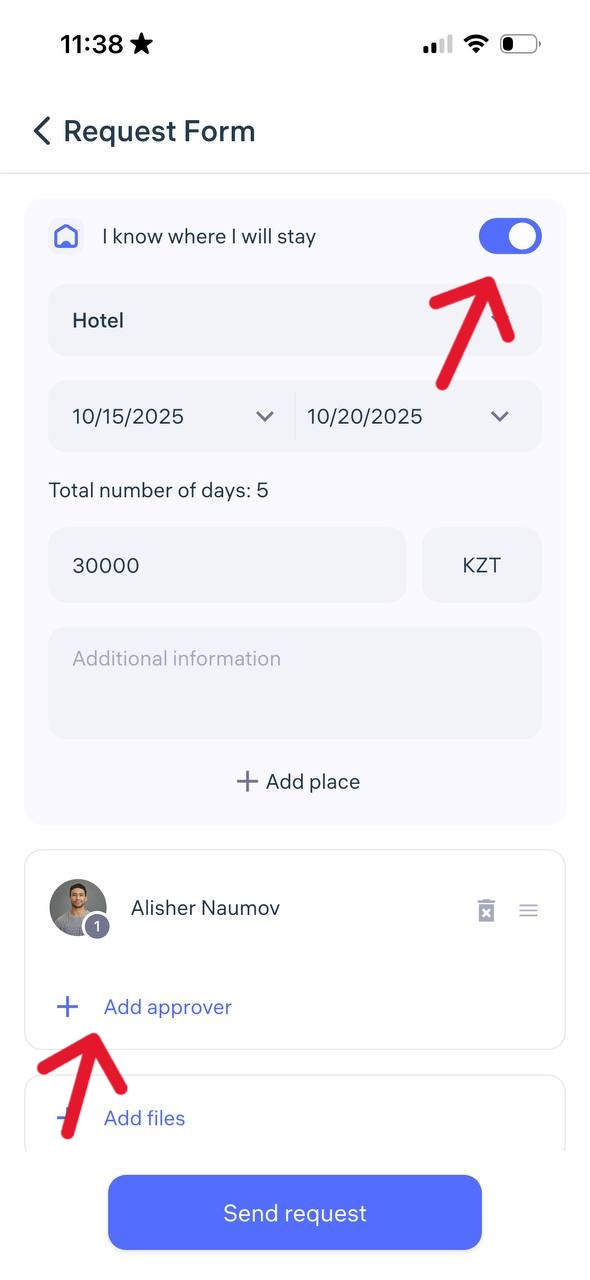
Step 5. Select a manager and submit the request
Assign the manager who should review the request.
Attach files if needed (e.g., booking confirmation or travel itinerary).
Add a comment, for example:
“Permission required for off-location check-ins” — especially important if the employee will be using mobile check-ins during the trip.Tap “Send Request.”
What happens next?
The manager will receive a notification and can either approve or reject the business trip request. Once approved, the trip will automatically appear in the employee’s schedule and will be counted toward working hours.
What is a Default schedule?
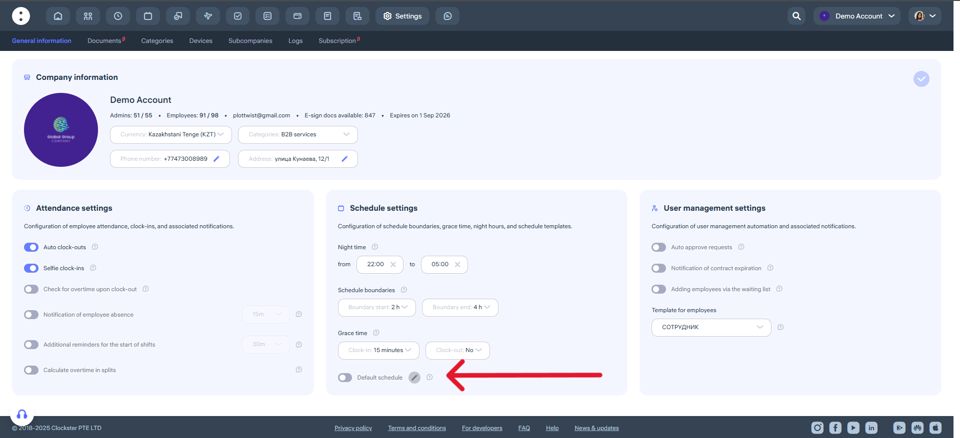
The default schedule is automatically set for all new employees. It is made so that each employee has a work schedule to display the correct data in the reports.
On the top menu go to “Settings” and in the Schedule settings section “Default schedule” toggle can be found.
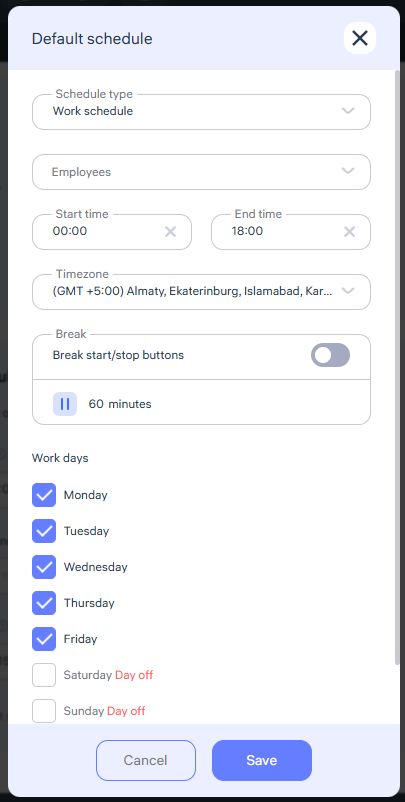
Fill in all the sections and click “Save”
The Default schedule functionality cannot be removed, this update prevents new employees from having no schedule (in case the employer may have forgotten to create a schedule).
Important!
The default schedule can be overridden by creating a new schedule.
If some employees have different schedules, you can adjust them manually in the Schedules section or employees can make a request to change the schedule. However, once a new employee is added and the toggle is enabled, the default schedule will be applied automatically.
How do I submit a request to create a work schedule?
Employees can send a schedule creation request directly through the Clockster mobile app.
This feature is useful for shift work, rotational schedules, or individual work hours.
Step 1. Open the request
Open the Clockster mobile app.
On the home screen, tap the “+” button.
Select the “Schedule” section.
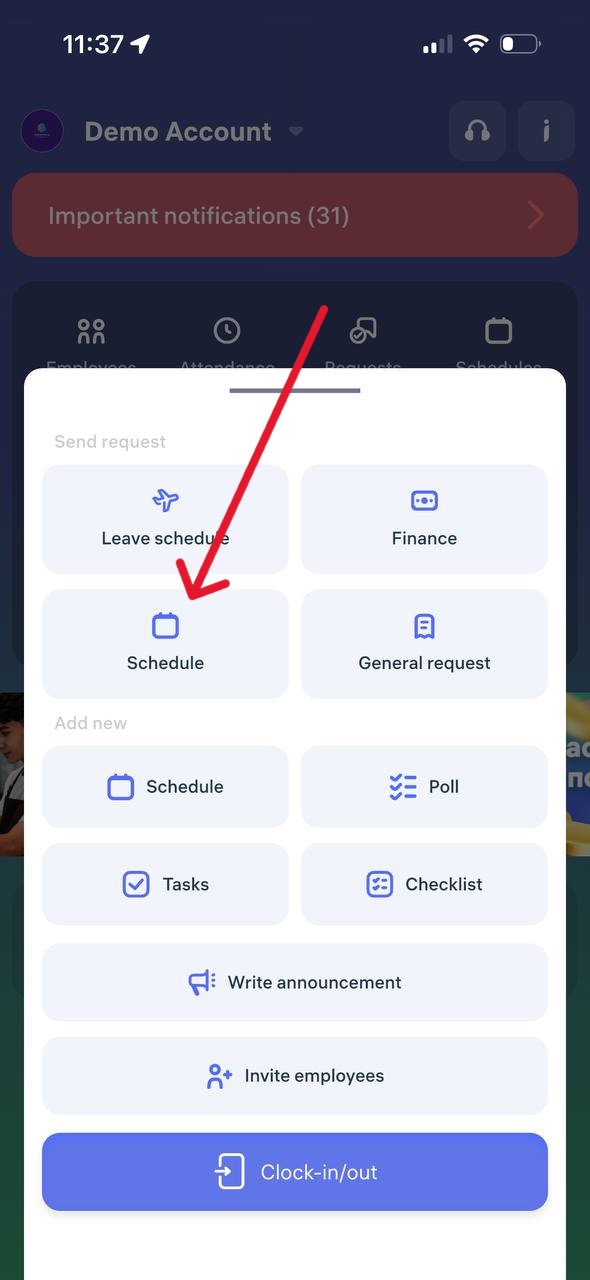
Step 2. Select the schedule period
For a period — if the employee works several days in a row (e.g., from 07.02.2025 to 10.12.2025).
Specific dates — if only certain days need to be set (e.g., March 1, March 10, March 30).
Tap “Next.”
Step 3. Set up repetition
Weekdays — for standard schedules (e.g., 5/2, 6/1).
Alternation of days — for shift or rotational work (e.g., 2/2, 14/14).
Step 4. Choose time
Specify:
working hours (start and end of the workday),
correct time zone,
lunch break duration (in minutes).
Step 5. Assign managers and add a comment
Select one or two managers who must approve the schedule (e.g., a director and an administrator).
Add a comment if needed.
Tap “Send request”
It’s recommended not to change additional settings unless you know their purpose.
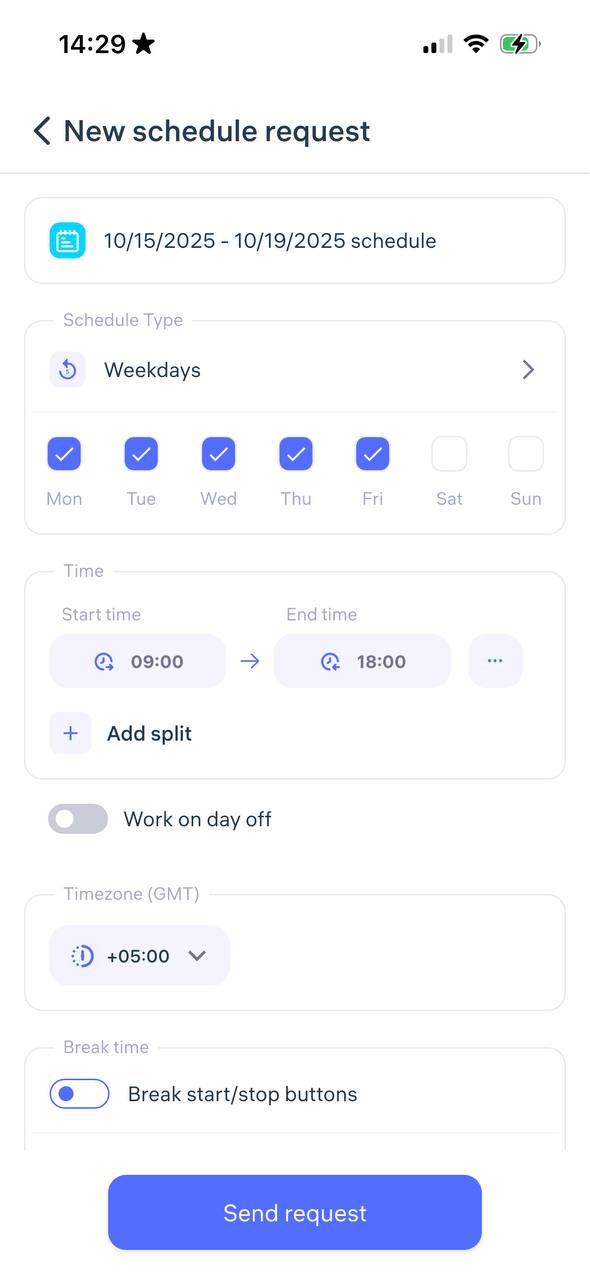
Step 6. Wait for approval
After submitting the request:
You’ll receive a push notification once it’s approved or rejected.
The request status can also be tracked in the Feed on the app’s home page.
How can I view the schedules of only the departments or positions I need?
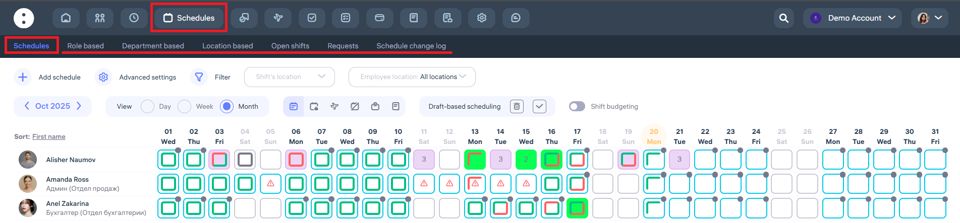
Where to view schedules
To view schedules, go to the “Schedules” section in the top menu of the Clockster system.How to switch between categories
At the top of the page, you’ll find the following tabs:By positions – shows schedules by selected employee positions.
By departments – shows schedules only for selected departments.
By locations – shows schedules of employees working at specific locations or branches.
Why this is useful
To quickly find employees and their shifts by the desired category.
To control planned shifts across departments, positions, or locations.
To simplify shift planning in large companies.
Important to remember
If you want to view schedules for only one category (for example, by location), make sure the correct tab is selected at the top of the screen. This way, the system will show only the information you need.How to filter
You can use the “Filter” button to narrow down the list by a specific location, position, or department and work only with the necessary data.
How can I add a leave schedule for the Holidays?
Why isn’t there a “Holidays” reason in the system when creating a vacation schedule?
Clockster does not include a separate vacation type called “Holidays.”
This is intentional — it helps keep the system universal and flexible for different countries and companies.
What to use instead of “Holidays”?
To mark public holidays or non-working days in employees’ schedules, use the “Day Off” type.
This option should be used when:
the company does not operate on official public holidays,
employees need to be released from work on a specific date.
Example:
If May 1st is an official holiday in your country and your company does not operate on that day, select “Day Off” in the employees’ schedule for May 1st.
What are Templates and how to use them?
Templates are predefined one-day schedules (working or free). Adding schedules using templates works as follows:

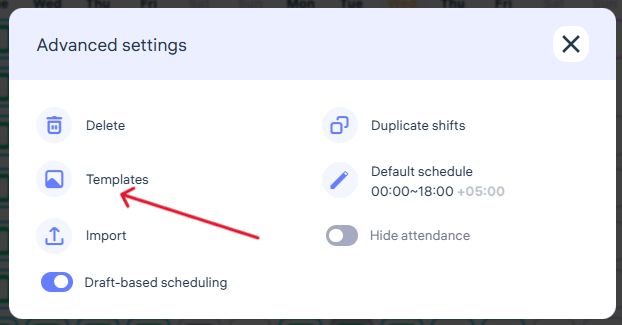
How to create and use a template
Create a template (for example, a working schedule from 9:00 to 18:00).
Select a date (click on the desired square).
Choose the template.
Templates are a very convenient feature, especially for mass scheduling.
You can select different dates for different employees (for example, the 1st and 16th for one employee, and the 3rd and 7th for another), then click the Add schedule button in the lower-right corner of the page and choose a template.
As a result, you’ll create schedules for multiple employees on different dates in one action.
Template codes and hotkeys
When creating templates, the Code field must contain numbers (1–9) or Latin letters (A–Z).
These codes can later be used as hotkeys when editing schedules.
How to quickly edit schedules using hotkeys
For Windows users:
Hold Ctrl to select individual days,
Or hold Alt to set the first day of a period, then click the last day to select the entire range.
After that, press the code of the template you want to apply.
For macOS users:
Hold Cmd to select individual days,
Or hold Alt to select the first and last day of a range.
Then press the template code to apply the desired schedule.
What is a Split shift and how to use it?
A split schedule allows you to set several separate work shifts within one day.
This is useful when an employee works with breaks — for example: 09:00–11:00, 12:00–14:00, and 15:00–17:00.
In the Mobile App:
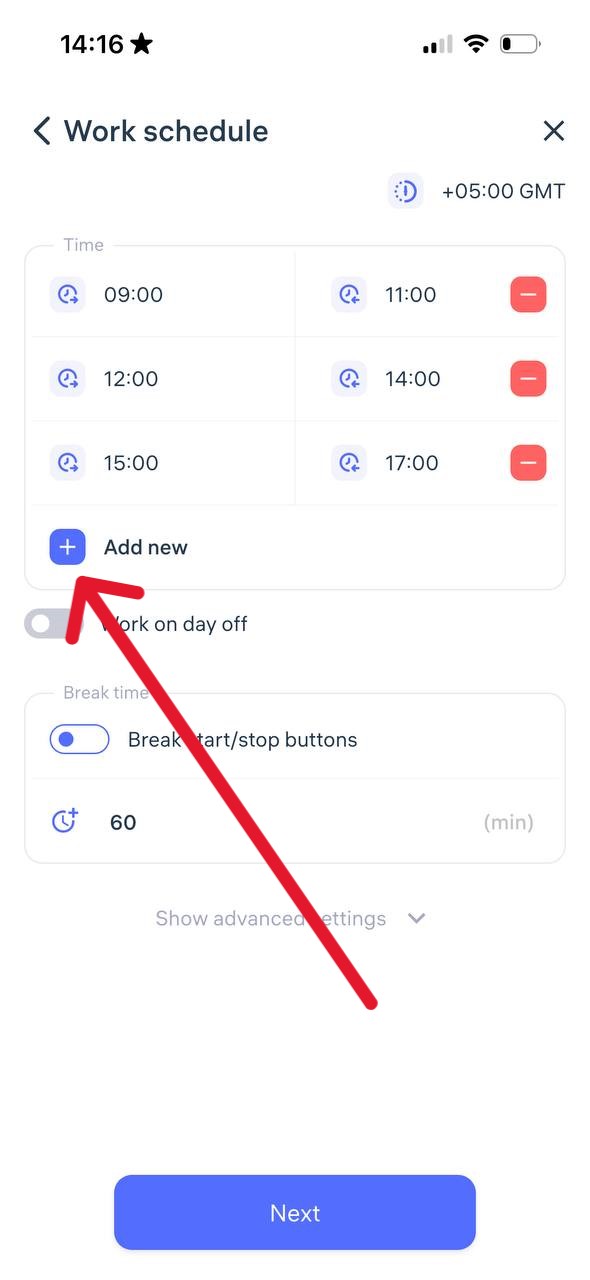
Go to the Work Schedule section.
Set the first shift by specifying its start and end time.
Tap + Add new to set the next shift.
You can add up to 8 shifts per day.
In the Web Version:
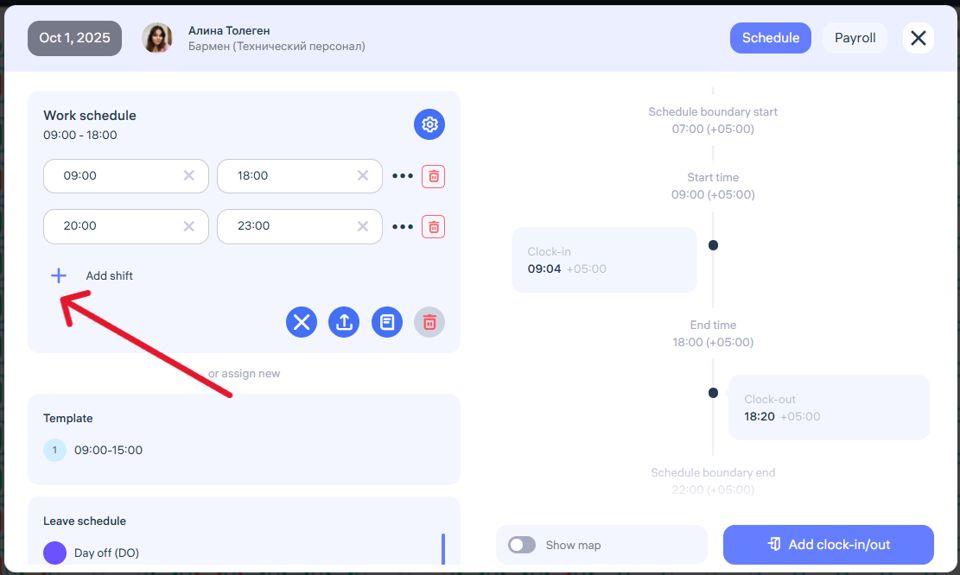
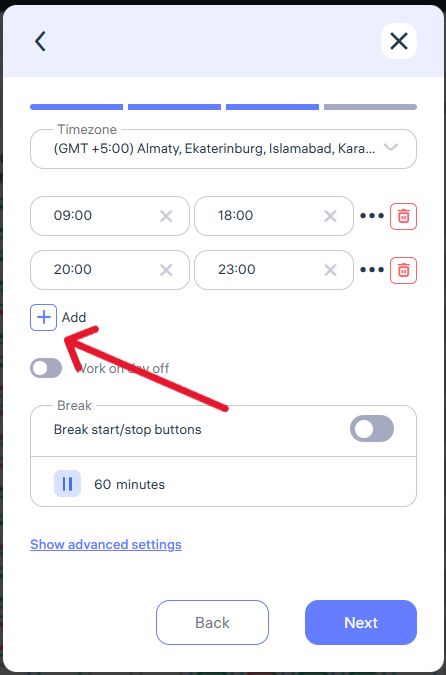
Go to the Schedules section, select the desired employee, and click on a day cell to edit that day’s schedule (Photo 1).
or Click + Add Schedule.
Choose the type Work Schedule.
Set the first shift (Photo 2).
Click + Add Shift to set additional ones.
You can set up to 8 shifts per day.
How does it work?
When clocking in, the employee selects which shift to start or end — this can only be done via the mobile app or Clockster Kiosk.
In the reports, the total working time per day is displayed regardless of the number of shifts.
How to enable breaktime records in the work schedule?
The Break clock-in function allows employees to record the start and end of their breaks.
When can be used:
Break clock-ins are only available if the employee has a work schedule assigned.
Instead of manually entering the number of minutes, the employee must use the “Start Break” and “End Break” options.
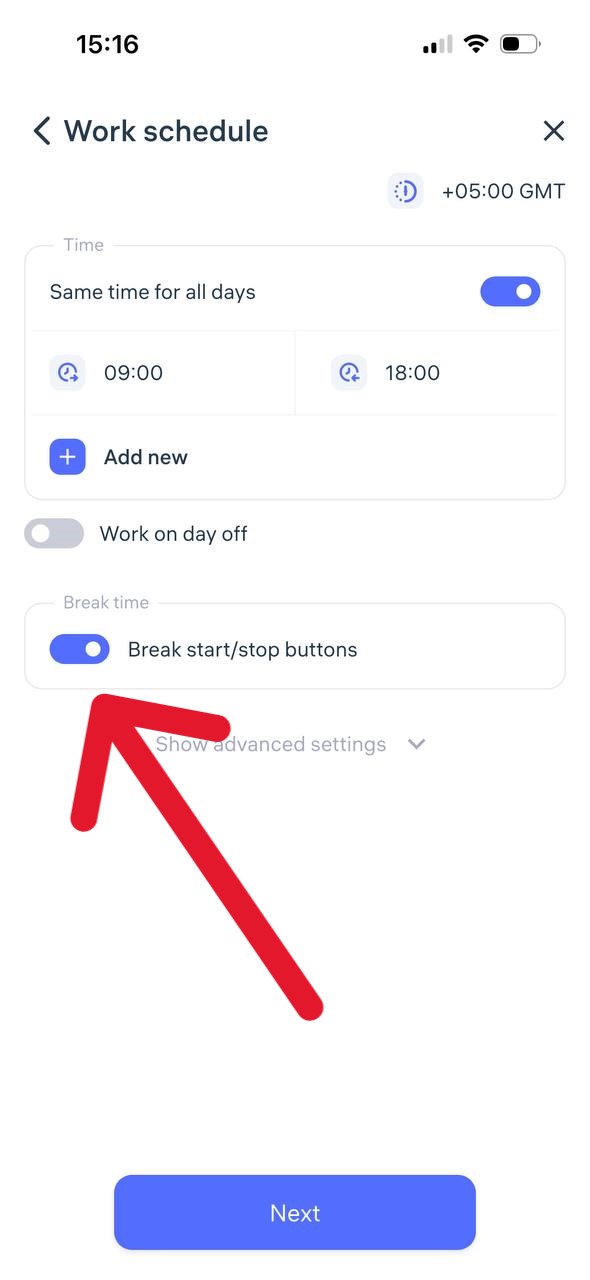
How it works in the mobile app:
On the clock-in creation page, the employee can select “Start Break” or “End Break.”
This function becomes available only after the employee has marked “Clock-in.”
For accurate tracking, both marks — the start and end of the break — must be recorded.
Time calculation:
The number of minutes spent on break is automatically subtracted from the employee’s total working hours.
How an employee’s rating is calculated?
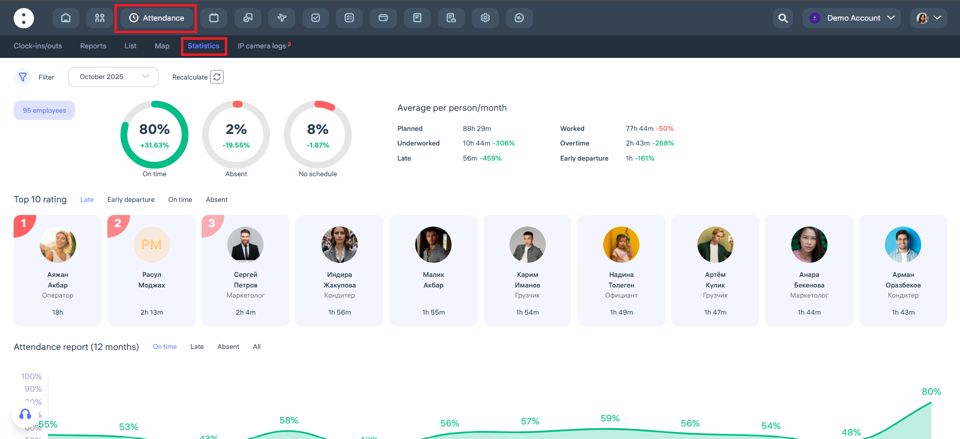
How the Employee Rating is Calculated in Clockster
The employee rating in the “Attendance → Statistics” section is calculated based on the total time of late arrivals, early departures, and absences recorded by the system.
The following parameters affect the rating:
Late arrivals – how many minutes or hours an employee arrived later than the scheduled time.
Early departures – how much earlier the employee left work before the end of the scheduled workday.
Absences – days or hours when the employee had no clock-in or clock-out records.
On time – the percentage of attendance without violations. This indicator positively affects the rating.
Calculation principle:
The fewer violations, the higher the employee’s rating. Therefore, an employee with fewer late arrivals, early departures, and absences will have a higher rating.
“Top 10 Rating” section:
This section displays a list of employees with the best attendance performance. For example, if one employee was late for 1 hour and 44 minutes during the month, their rating will be lower than that of an employee with less total lateness.
Where to find it:
Go to “Attendance” → “Statistics.”
At the top, you’ll see charts showing attendance percentages, and below — the Top 10 list of employees.
What are Tasks and how do I add a Task?
Tasks are a task management tool in Clockster. They allow you to automate task assignment and monitor their timely completion.
Any user with the appropriate permissions can create a task for themselves or for other employees. When creating a task, you can specify:
Start date and time
Deadline
Time zone (if the employee is in another region)
Subtasks with descriptions
Priority (normal or high) and reward amount
Requirement to define location upon completion
Time tracking option
Attach necessary files and instructions
How to add a task in the Clockster mobile app:
On the main page, tap Tasks.
Tap the + icon to create a new task.
Select the responsible employees.
Fill in the start date and time, deadline, and time zone.
If needed, add subtasks, priority, reward, comments, and attach files.
Save the task.
Additional information:
All tasks are visible to the assignee.
After completing a task, the employee can attach photos and comments.
The manager can see the task status: ongoing, finished, overdue, etc.
Permission in the role is required to work with tasks.
What parameters does a Task have?
Title — a required field. This is the name of the task. Without a title, the task will not be saved.
Description — an optional field. Here you can describe in detail what needs to be done.
Assignees — the users responsible for completing the task. You can select one or several people — there are no limits.
Due date — the date by which the task should be completed. You can leave it blank if the deadline is not important.
Priority — a required field. It helps indicate how important the task is for the assignees.
Time tracking — a feature that allows employees to log the start and completion time of the task.
You can attach a file to the task — such as a document, photo, or PDF.
When the task is closed, the system automatically generates a report, which can be viewed or downloaded.
What does Group mean in the Tasks section?
Group in the Tasks section means combining several tasks under one name.
Purpose of a Group in Tasks:
To organize tasks by topics or projects.
For example:
The group “Webinar Preparation” may include tasks like “Create a banner,” “Set up Zoom,” “Send a mailing.”
To make it easier to track progress on a specific topic or project.
To assign multiple tasks at once to employees belonging to the same group.
How it works:
You create a task group with a specific name.
Inside this group, you create tasks related to that topic.
When viewing tasks in Clockster, you can filter and see only tasks from a specific group, making it faster to find what you need.
Thus, the Group feature in the Tasks section helps you maintain order, organize work by projects, and prevent tasks from getting lost in the general list.