
Which formats can I upload into Documents?
The following formats are compatible with the section “Documents”: PDF, DOC, JPG, JPEG, PNG, XLSX.
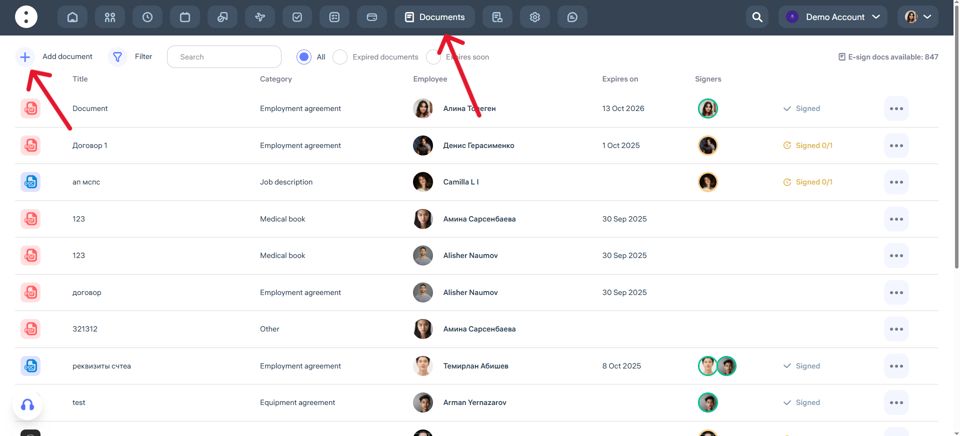
Where is the “Documents” page in the web version?
What is it
The “Documents” section allows you to store, organize, and sign all important employee documents in the system. It is used to upload employment contracts, agreements, applications, and other files required for HR record management.
How to add a document
Go to the Documents section in the top menu.
Click Add Document.
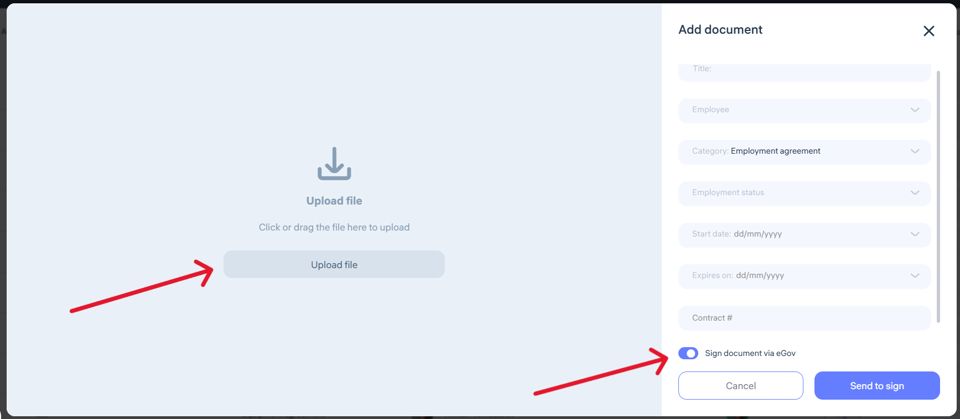
Fill in the required fields:
Document name
Employee
Category
Employment status
Document start date
End date (if applicable)
Document number (if applicable)
Upload the necessary file.
If needed, enable the eGov signing option.
Click Send to sign or Save.
Supported formats:
You can upload files in the following formats:
PDF
DOC
JPG / JPEG
PNG
XLSX
Important: Not all mobile devices support opening Excel (XLSX) and Word (DOC) files.
How can I see my employees’ documents in the mobile app?
How to View Employee Documents in the Clockster Mobile App
To view employee documents in the Clockster mobile app, follow these steps:
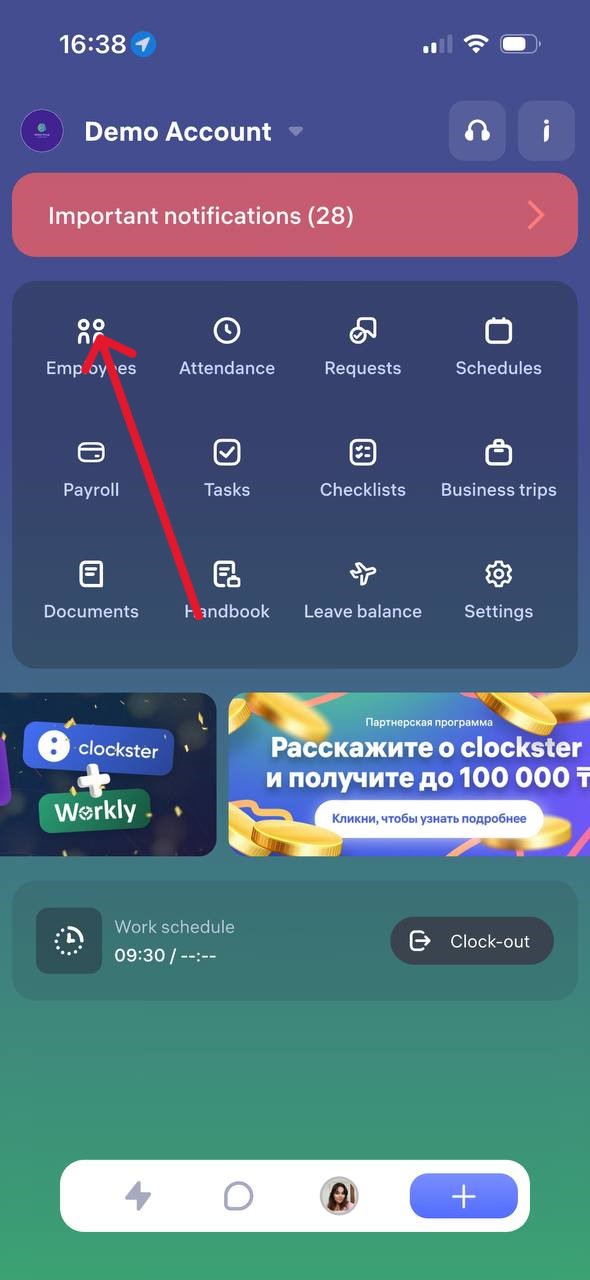
Open the Clockster mobile app.
Go to the Employees section (as shown in the first image).
Select the desired employee from the list.
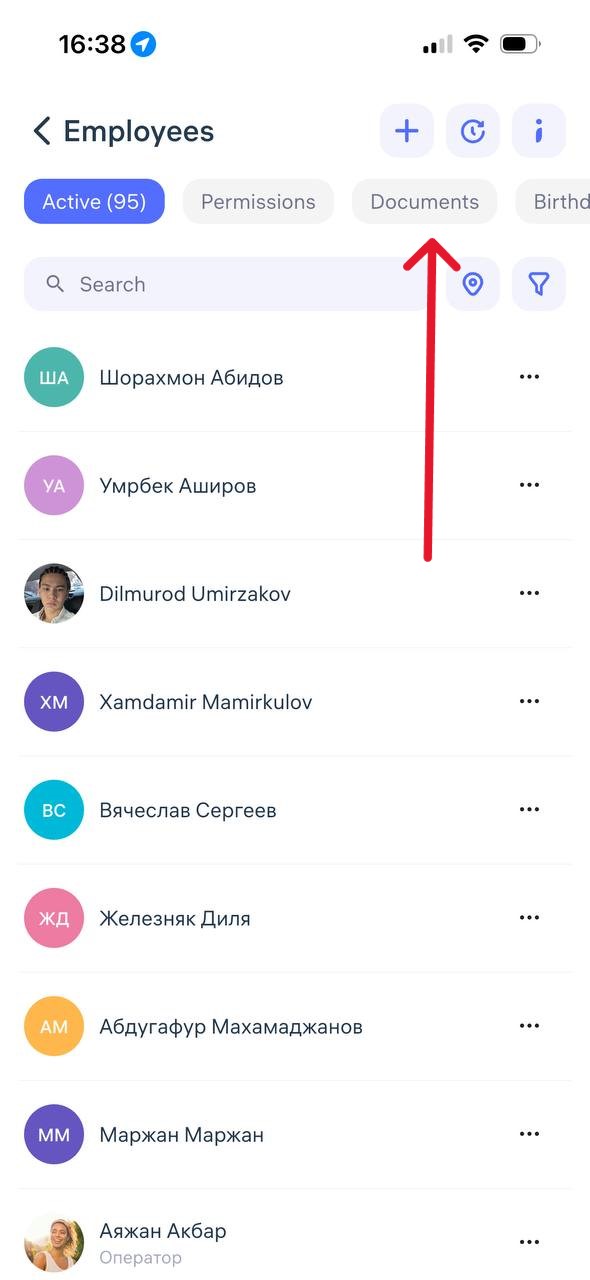
In the employee’s profile, find the Documents tab or section.
Here, you can view uploaded files such as ID cards, IIN, medical certificates, and other documents — if they were added earlier.
If you don’t see any documents:
Make sure you have the appropriate access rights (Administrator or HR permissions are required).
Check whether the documents were previously uploaded by the employee or an administrator.