
What should the admin do with the request?
When an employee submits a request through the Clockster mobile app (for example, for an advance payment, vacation, biometric photo, etc.), the administrator or assigned manager receives it in the admin panel. If the user has the appropriate access rights, they can perform the following actions with the request:
What actions are available to the administrator?
Approve — the request is approved, and the system automatically applies the corresponding changes.
Reject — the request will be declined, and the employee will receive a notification.
Add a comment — a note can be attached to any decision, for example, to provide the reason for rejection or clarify details.
Where are requests displayed?
The number of pending requests appears as a counter on the “Requests” section icon.
Open the section to see all new, approved, and rejected requests.
You can also filter requests by enabling the “Waiting for my approval” toggle.
What happens after a request is approved?
The employee receives a push notification about the approval or rejection.
Depending on the type of request, the action is applied automatically:
Advance payment → added to deductions in the Payroll module.
Biometric photo → added to the system and synchronized with devices.
Attendance marks → added to the schedule and reflected in reports.
Business trips, vacations, etc. → shown in the schedule and attendance records.
Tips for managing requests:
Regularly review and process new requests.
Use comments for feedback — this helps improve communication with employees.
If needed, delegate approval rights to other managers in the role settings.
How do I create a request for Advance payment?
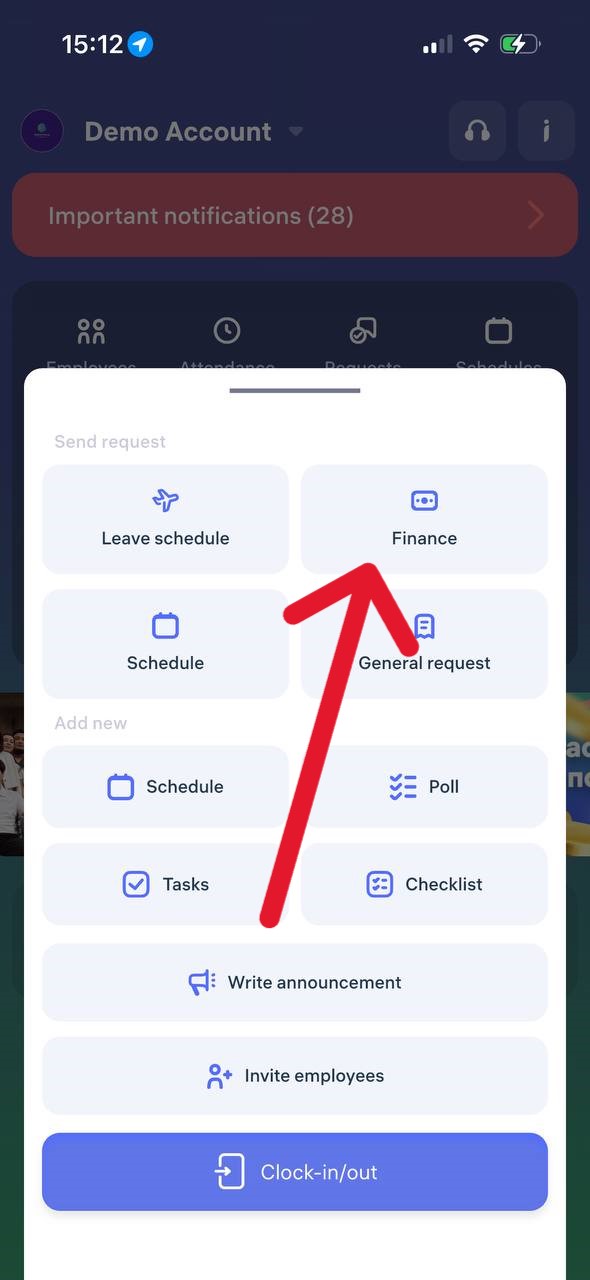
Open the Clockster mobile app.
On the main page, tap the “+” button at the bottom of the screen.
In the menu that appears, select “Finance”.
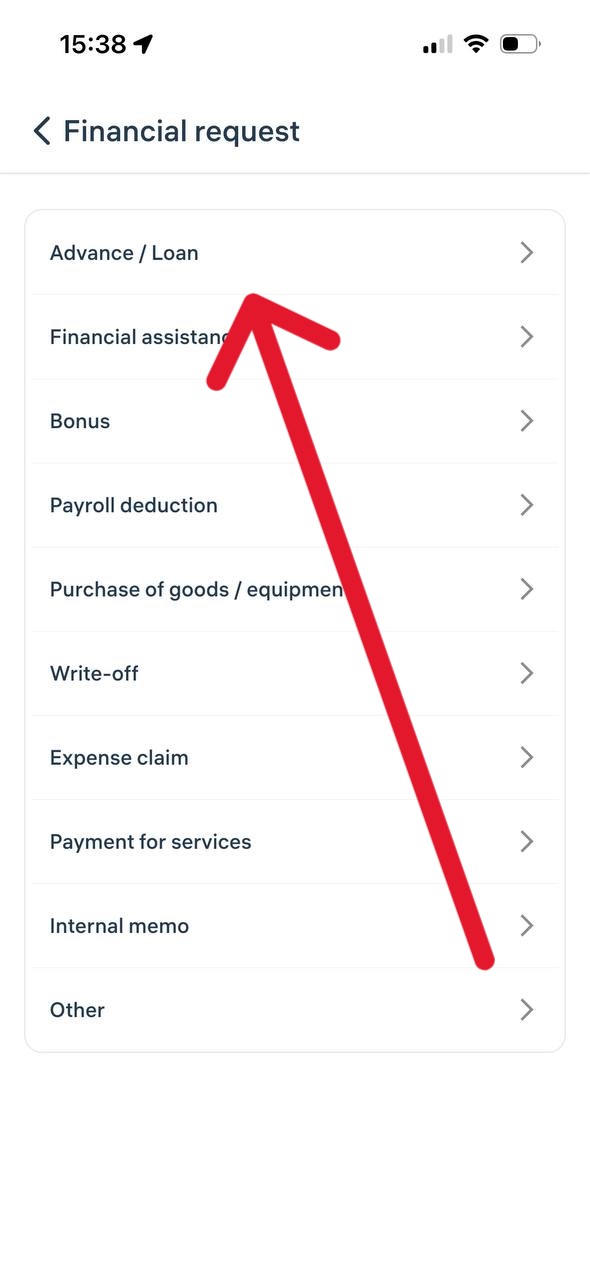
A list of financial request categories will open.
Choose the desired category, for example “Advance / Loan”.
Fill in all the required fields in the form (amount, description, and other details if necessary).
Tap “Send Request”.
Important:
– All financial requests are sent to your administrator or manager for review.
– You can track the status of your request in the “Requests” section to see whether it has been approved or not.