
How to set up a company logo?
To upload your company logo in Clockster, follow these steps:
Go to:
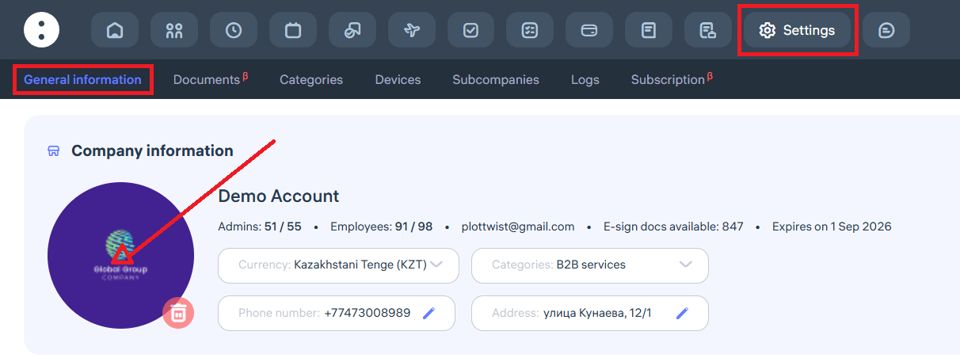
Settings →General InformationClick the “+” button:
On the company settings page, you’ll see a “+” button on the left side of the screen if no logo has been uploaded yet. Click it to add your logo.Upload the logo:
In the pop-up window, click the logo icon and select an image from your device. If a logo is already uploaded and you want to replace it, click the delete (trash bin) icon first, then click “+” to upload a new one.
Image requirements:
Format: JPG, JPEG, or PNG
File size: up to 1 MB
Recommendation: Use a circular image for best display quality
What additional actions can be added to the company settings?
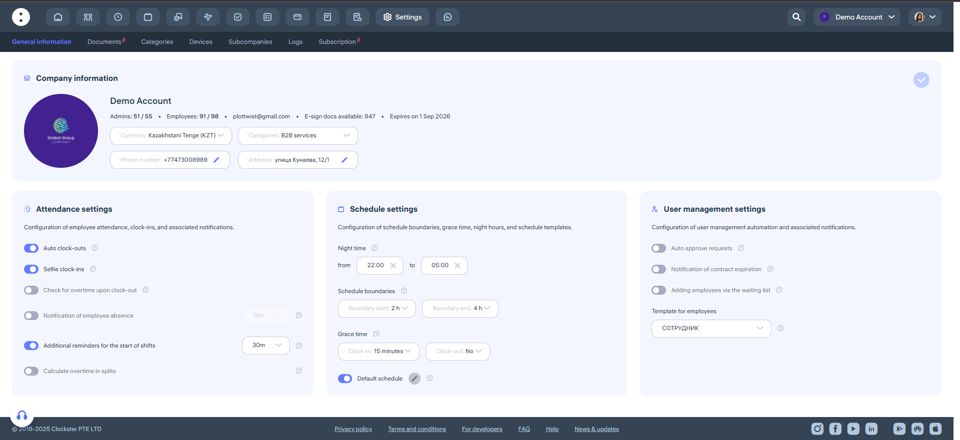
In the Settings → General Information section, you can define key parameters to ensure the system functions correctly.
Company Information
Company currency is used by default in the Payroll module. Salaries can still be assigned in different currencies if needed.
Categories, address, phone number, and email — editable fields that are displayed in the company profile.
Attendance Settings
Auto clock-outs — the system will automatically create a clock-out entry at the end of a scheduled shift if the employee hasn’t done it manually.
Selfie clock-ins — when enabled, employees must take a photo when clocking in and out via the mobile app.
Check for overtime upon clock-out — if an employee stays past their shift, the system will prompt them to send an overtime request.
Notification of employee absence — you can configure how many minutes after a shift starts administrators will be notified about an absent employee.
Additional reminders for the start of shifts — sends an extra reminder to employees before their shift begins, in addition to the default schedule notifications.
Calculate overtime in splits — useful for splitting overtime before and after a scheduled shift.
Schedule Settings
Night time — specify the start and end of the night period used for payroll calculations.
Schedule boundaries — define the allowed window for clock-ins and clock-outs relative to scheduled shift times.
Grace time — set time tolerances for late arrivals or early departures that will not count as violations.
Default schedule — automatically applies to new employees when they are added to the system.
Employee Management Settings
Auto approve requests — all employee requests will be automatically approved by the system.
Notification of contract expiration — enable alerts when an employee’s contract is nearing its end.
Adding employees via the waiting list — new employees can only be added after approval by a key administrator.
Template for employees — automatically applies predefined settings when adding a new employee.
It doesn’t find the address of the building.
If the address does not appear in the list when creating a new location in Clockster, you can manually enter the coordinates — latitude and longitude.
How to find the coordinates:
Open 2GIS or Google Maps.
Find the required building or point.
Right-click on the desired spot and select “What’s here?” or a similar option.
Copy the coordinates that appear — for example:
47.094681, 51.923315.
How to enter coordinates in Clockster:
Go to the Admin Web Dashboard.
Navigate to Settings → Categories → Locations, and click “+” to add location.
In the pop-up window, click on the location logo
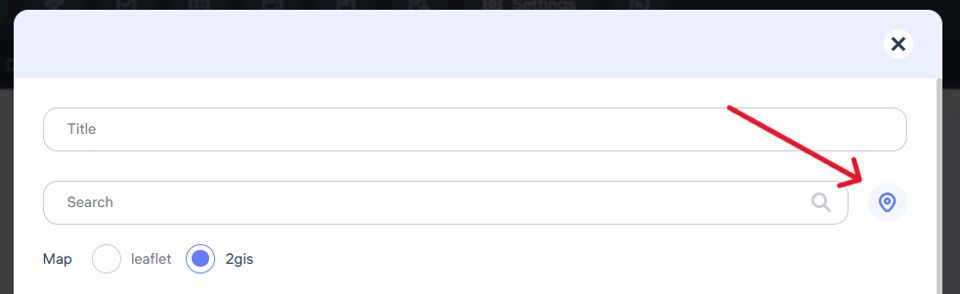
4. In the corresponding fields, paste the coordinates — for example: 47.094681, 51.923315.
5. The system will detect the location based on the coordinates and display it on the map.
How to add a position / department / location?
To manage elements such as positions, departments, locations, and custom categories specific to your company, go to the dedicated settings section.
Instructions:
On the main page of the Clockster web dashboard, click “Settings” (located at the top of the screen).
In the submenu, open the “Categories” tab.

Here you can:
Add new positions, departments, locations, etc.
Edit existing names.
Delete unnecessary categories (if they are not in use).
Why are these categories important?
To filter employees by position, department, or workplace.
To accurately assign access permissions.
For generating attendance and other analytical reports.
To configure schedules, notifications, and announcement filters.