
How do devices work?
Clockster devices are based on facial recognition technology, which allows automatic tracking of employee check-ins and check-outs.
For the device to work correctly, follow these steps:
1. Add the device to the Clockster system.
— Link it to the correct location in the web dashboard (Settings → Devices).
— Make sure the correct server address and check-in mode are specified (version V1, V2, V3, V5, etc.).
2. Configure device parameters.
— Set the time zone manually.
— Specify the shift period.
— Choose the reading mode (single, static, or manual via buttons).
— Ensure the device is connected to the internet (via Wi-Fi, LAN, or SIM).
3. Upload correct employee photos to their profiles.
— The photo must meet all requirements (see “What kind of photo is needed for recognition?”).
4. Check data synchronization.
— The “Devices” section shows the last time the device connected to the internet.
— If the device hasn’t synced for a long time, attendance records may not be uploaded to the system.
5. Avoid direct sunlight.
— Neither the device nor the employee’s face should be exposed to bright sunlight.
— This reduces facial recognition accuracy.
Important:
All settings and step-by-step setup instructions for each device are described in detail in this section.
If you’ve just purchased a new device, make sure it is fully configured before use.
If you have any questions — the Clockster team is always ready to help!
What kind of photo is needed so that the device can recognize an employee? / Photo requirements
For the Clockster facial recognition device to accurately identify an employee, it’s important to upload a high-quality photo that meets all system requirements. Below are the exact guidelines to help you avoid recognition errors:
Photo requirements for facial recognition:
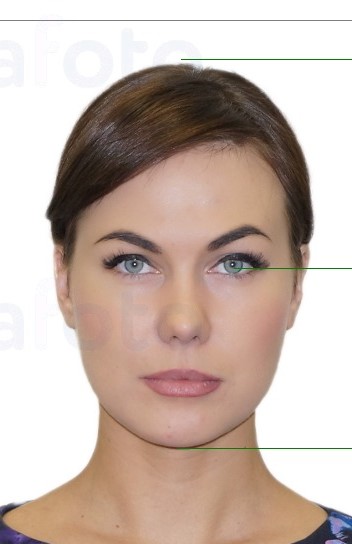
Face position must be strictly in the center of the frame.
The head should not be tilted, turned sideways, or thrown back.
The gaze should be directed straight at the camera.
Background – light and neutral.
The background must be solid and neutral. Ideally light (white or gray), without objects, shadows, or textures behind the person.
Photo type:
The photo should be frontal, like a passport photo.
Ears and forehead must be visible.
The face should occupy about 70–80% of the frame.
Accessories and clothing:
No headwear, glasses, masks, or headphones.
Exception: Religious head coverings are allowed if they do not cover the face.Sunglasses and even transparent glasses are not recommended.
Clothing — no hoods or scarves.
The neck and shoulders should be visible so as not to interfere with the recognition algorithm.
Lighting:
Good lighting.
No glare, strong shadows, or overexposure.
Lighting should be even, without colored lamps or neon effects.
Photo relevance:
The photo should be recent (not older than 1 year) and reflect the employee’s current appearance.
File format and size:
Format: JPG or PNG
File size: up to 5 MB
Recommended resolution: 480×640 px or higher
🔄 Tip: If the employee has significantly changed their appearance (e.g., new hairstyle, beard, weight change), it’s best to update the photo in the system for more reliable biometric recognition.
If you’re unsure whether a photo meets the requirements — send it to Clockster support, and we’ll be happy to check it for you!
Where can I upload a photo of an employee so that the device can recognize him?
To upload a photo:
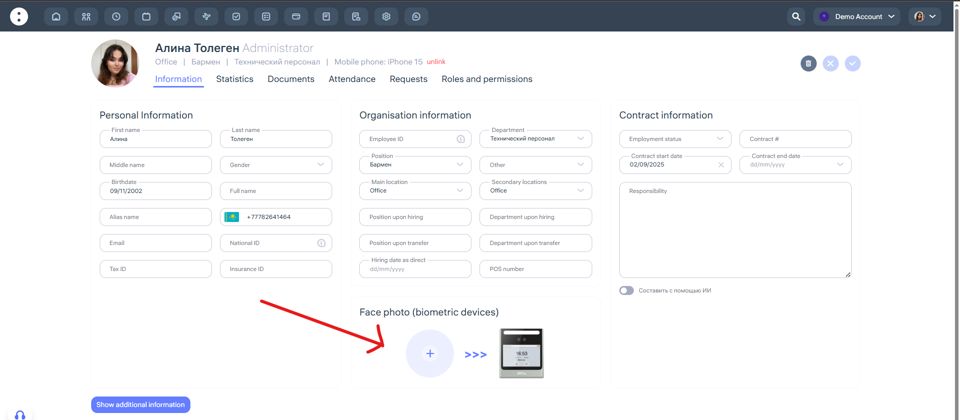
Navigate to Employees section.
Click on employee’s name or click on (…) -> Edit.
Find Face photo (biometric devices) section on the bottom of the page and click on +
Note that:
File format and size:
JPG or PNG
Size: up to 5 MB
Recommended resolution: 480×640 px or higher
The image must be clear and high-quality, with the face occupying 70% of the frame.
What types of devices are there and how do they differ?
Types of Biometric Devices and Their Features
Clockster supports several models of facial recognition devices used for employee identification. Below are both discontinued and currently available models used by our clients.
Devices no longer manufactured but still in use by clients:
1. HF Security RA08
Recognizes faces and detects masks.
Compatible with turnstiles and electromagnetic locks.
Connections: RJ45, Wi-Fi, RS232, USB-host.
Equipped with NO+COM relay.
2. HF Security RA08T
Same as RA08, with an added temperature measurement feature.
Ideal for facilities with high security or hygiene requirements.
Connections: RJ45, Wi-Fi, RS232, USB-host, relay.
3. Sebury sFace-C
Facial recognition support.
Can be integrated with turnstiles and electric locks.
Connections: RJ45, USB-host (Wi-Fi available as an optional module).
Equipped with NO+COM relay.
4. Horus TL-1
Wi-Fi connection only.
The screen cannot be locked (the device reacts to any motion).
Suitable for simple entry points but less protected from accidental activation.
Current and popular models available for order:
5. Horus E-1
Connectivity: Wi-Fi and SIM card (ideal for areas without wired internet).
Screen lock feature — check-in occurs only after a swipe.
Highly reliable for high-traffic areas.
6. Eface 10
Connectivity: Wi-Fi and LAN cable.
Compatible with turnstiles and electromagnetic locks.
Universal and stable option for most workplaces.
7. Speed Face VL5
Interfaces: TCP/IP, dual USB ports, optional Wi-Fi, RS232/RS485, Wiegand input/output.
Supports turnstiles and locks.
Designed for complex integrations and high-load environments.
8. ZKTeco SpeedFace M4
Compact, modern device with high-quality facial recognition.
Connectivity: LAN, Wi-Fi, Wiegand, RS485.
Integrates with turnstiles, locks, and access control systems.
Operates in temperatures as low as –15°C.
Perfect for offices, warehouses, and locations with limited space.
Which device to choose?
For offices and cafés: Horus E-1 or Eface 10.
For factories and shopping centers: Speed Face VL5.
For mobile sites: Horus E-1 (with SIM card).
If you’re using an older model — it’s still supported, but we recommend planning an upgrade.
If you’re unsure which device suits your needs, contact Clockster Support — we’ll help you select the best option for your business and locations.
What device settings are available in your personal account?
1. Where can I find the device settings?
In the web version of Clockster, go to the “Settings” section, then open the “Devices” tab.
2. Main device parameters
Title
– This is the name you assign to the device.
– It will be displayed under this name in the Clockster system.
– It’s recommended to name it according to the location or installation point, for example: “Mega Mall, Main Entrance.”
Master password
– This is a special password used to access the settings directly on the device.
– Why is it needed? To prevent employees from accidentally or intentionally changing important parameters such as date and time.
– If the date or time are incorrect, all attendance records (clock-ins/clock-outs) will also be inaccurate.
Location
– The device must be linked to a specific location; otherwise, it won’t function properly.
– Linking the location allows:
Uploading employee photos assigned to that location to the device.
Transferring attendance records from the device to the Clockster system.
Shift period
– This setting defines the maximum number of hours in a single shift.
– Clockster needs to know how long a workday can last at most.
– The default value is 14 hours.
– Why is this important?
If an employee stays at work longer than the set limit (for example, during overtime or an overnight shift), the next check-in will be mistakenly recorded as a “Clock-in” instead of a “Clock-out,” causing an error in the work time calculation.
How to set the shift period correctly:
If the standard workday is 8 hours, it’s recommended to set at least 12 hours to account for:
– Early arrivals,
– Late departures,
– Overtime — without risking errors in attendance tracking.
Summary:
Before using the device, make sure to configure all parameters — title, master password, location, and shift period. This will help prevent attendance tracking errors and save you time on correcting employee records later.
What is Version on devices and which ones exist?
Question: How does the device check-in version work? What do versions V1, V2, V3, and V5 mean?
When you receive a facial recognition device from Clockster, our technical team pre-configures it in advance. The device is connected to the Clockster server, with the server address and required operating mode version set up. Once the client receives the device, connects it to the internet, and links it to the desired location, it automatically synchronizes with the Clockster system and begins recognizing employees using the photos uploaded in the admin panel.
Each version defines how the device records employee check-ins and check-outs. Below is a breakdown of each mode:
Version V1 — Automatic alternation of check-ins and check-outs
The first recognition is recorded as check-in, the second as check-out, the third as check-in again, and so on. The device alternates statuses automatically without user input. Best for employees with flexible or irregular schedules.
Version V2 — Fixed status: only check-in or only check-out
In this mode, the device can be configured (via the web panel) to record only one type of status — either all check-ins or all check-outs. This is convenient if the device is placed, for example, only at the building entrance or exit. Supported by the following models:
HF Security RA08 / RA08T
Sebury sFace-C
ZKTeco Horus TL1 / Eface 10
SpeedFace VL5
Version V3 — First record as check-in, all subsequent as check-outs
Within a single shift, the system automatically treats the first recognition as check-in, and all subsequent ones as check-outs. This prevents duplicate check-ins and records accidental re-scans as exits. Ideal for companies with fixed shift schedules. Supported by the same devices as V2.
Version V5 — Manual status selection on the device screen
The device screen displays two buttons: Check-in and Check-out. Employees manually select the desired status before being recognized. Offers more flexibility and is useful when employees manage their own check-ins.
Available only for:
Horus Eface 10
Horus E1
How to determine the device version
When connecting, the device uses a server address that includes the version code — for example, “/v1”, “/v2”, “/v3”, or “/v5”.
This version is configured by Clockster technical specialists during installation or setup.
If you need to change the version or are unsure which one is currently installed, please contact Clockster Support.
Our specialists will help configure the mode that best suits your work schedule and tracking setup.
I bought a device. What are the next steps?
After you purchase a device through Clockster, we link it to your company by its serial number. The device will automatically appear in your personal dashboard.
How to find the device:
Go to the Clockster web dashboard.
Open the Settings section.
Go to the Devices tab — here you’ll see all devices connected to your company.
If you purchased the device independently
If the device was not bought through Clockster, you need to add it to the system manually. To do this:
Contact Clockster Support.
Provide the following information:
Device serial number
Device model
Your company name in the system
After that, we will add the device to your account, and it will appear in the list of devices.
What to configure after adding the device
Once the device appears in the system, make sure to:
Assign the location to which the device will be linked
Connect the device to Wi-Fi or via Ethernet cable
Enter the Clockster server address in the device settings
Set the correct time zone
Check that the device has an active internet connection
The last connection time of the device to the internet is displayed in the same Devices section.
It is recommended to check this regularly — if the time hasn’t been updated for a while, the device may be offline and not transmitting data.
The Internet was disconnected from my device / Wi-Fi password has been changed and I need to reconnect the device.
If you’ve changed your Wi-Fi password, all biometric devices connected to that network will lose internet access. As a result:
Clock-in and clock-out records will not be sent to the Clockster system.
The device will not be able to update employee data.
The device’s clock may start drifting if time is not set manually.
What you need to do:
1. Connect the device to the new Wi-Fi manuallyи
For Horus E-1 / TL-1 / Eface-10:
On the main screen, tap “Settings.”
Go to “Network.”
Select the new Wi-Fi network and enter the new password.
Save the changes and make sure the device is connected.
If the settings menu is protected, use the master password (available in the Clockster web version under “Devices”).
2. Check the internet connection
After connecting, make sure that:
The device shows a network icon (note: Wi-Fi connection doesn’t always mean internet access!).
Attendance records start syncing (new data will appear in the web dashboard).
3. Sync the date and time
If the clock is incorrect after reconnecting:
Go to Settings → Date & Time.
Turn off auto-sync.
Set the correct time and time zone manually.
4. Verify cloud settings
For Horus devices:
Go to Settings → Cloud service.
Ensure the following server is entered:
https://api.clockster.com/device/horus/v3Make sure HTTPS and Domain name are enabled.
For Sebury devices:
Check the IP address in the network settings.
If you’ve completed all steps but the device still doesn’t send attendance data, restart the device manually and check the connection again.
If the problem persists, contact Clockster Support and provide:
The device name
The device serial number (found on the device screen or in the web dashboard)
I uploaded a photo, but the device does not recognize the employee.
There can be several reasons why a biometric device (face recognition) does not identify an employee. Below is a list of the most common issues and how to fix them:
1. Poor face capture during registration
During initial registration, the following issues may have occurred:
Poor lighting
Partially covered face (glasses, mask, cap)
Head turned too much to the side
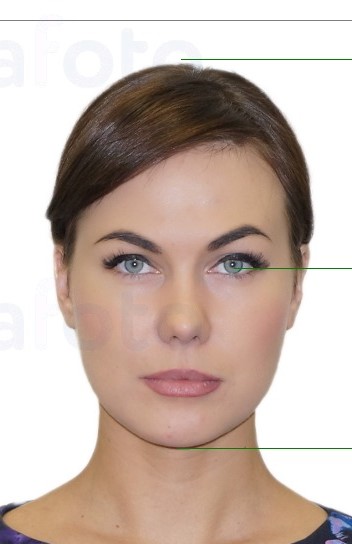
What to do: Re-register the employee on the device in good lighting, with no objects covering the face, centered on the screen, following the example provided.
2. Changes in appearance
Significant changes in appearance may affect recognition, such as:
Shaved or grown beard
New hairstyle or hair color
Glasses or contact lenses that were not previously used
What to do: Update the employee’s facial recognition template.
3. Standing too close or too far from the camera
Devices are sensitive to distance:
For Horus, the optimal distance is 25–50 cm.
For Sebury, the distance is set in the device settings (for example, “Middle”).
What to do: Check the “Face detection size” and “Identification Distance” settings and adjust them according to real conditions.
4. Lighting conditions
Lighting that is too dark or too high in contrast can interfere with the camera’s performance.
What to do: Make sure the area around the device is evenly and well lit. Avoid backlighting.
5. Restriction on repeated scans
If an employee has already checked in recently, the device may ignore the next attempt.
Settings examples:
Horus: Duplicate verified time = 300 seconds
TL-1 / Eface10: Re-scan minimum interval = 4 minutes
What to do: Wait for the required time or change the parameter if it causes inconvenience.
6. Too many faces in the frame
The device may have multiple-face protection enabled.
What to do: In Horus, check:Preventing simultaneous face recognition from multiple entrances = On
Approach the device one person at a time, not in groups.
7. The device has not synchronized the employee’s photo
Possible causes:
The device was not connected to the correct location when the photo was added, or not connected at all.
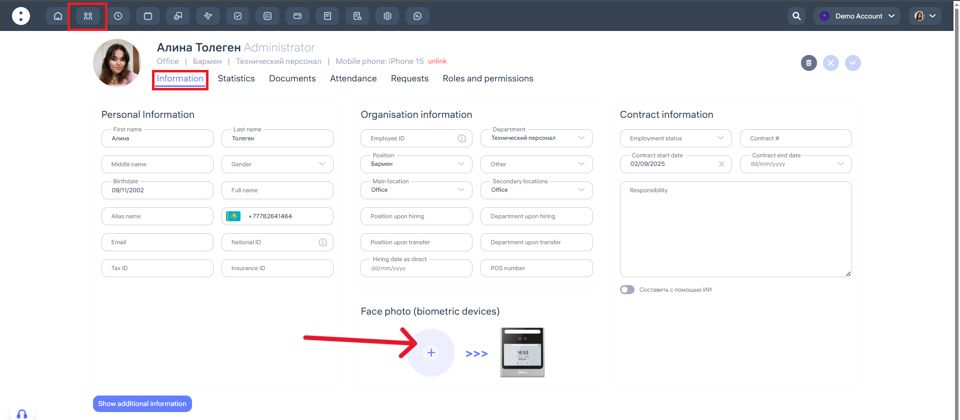
The employee does not have a photo uploaded in the “Face photo (biometric devices)” section of their profile.
What to do:
In the Clockster web version, check if the employee’s photo is uploaded in the Employees section.
Verify that the device is linked to the correct location in its settings.
If everything is correct but the employee still isn’t recognized:
Restart the device.
Delete and re-register the employee’s face.
How do I set up (face recognition) devices?
Horus E-1
Interface Language
Go to System settings / Настройки
Open About device / Информация об устройстве
Tap several times on the line “Device name / Модель”
Select Android setting → System → Languages → Russian
Scheduled Restart
In the same About device section, tap several times on “Schedule restart”
Set the time to 5:30
Date and Time
System settings → Date and time
Select your regional time zone
Turn off automatic synchronization of time and time zone — everything should be set manually
Duplicate Reading
ATT parameters → Duplicate verified time
Set to 300 seconds (5 minutes)
Cloud Service
Cloud service settings
Enable domain name: On
Server address:
https://api.clockster.com/device/horus/v3Open HTTPS: On
Biometrics
Biometric parameters → Facial parameters
Face anti-counterfeiting threshold: 99
Face enroll threshold: 78
Moving detection threshold: 99999
Face detection size: 250
Prevent multiple face recognition: On
Horus TL-1 / Eface-10
Cloud Service
Communication → Cloud Service Settings:
Use domain name: On
HTTPS: On
Server address:
https://api.clockster.com/device/horus/v...
Biometrics
System → Face → Minimum face size: 180
Reading Settings
System → Event registration → Duplicate reading: 4 minutes
Statuses
Personalization → Event status → Status selection mode: Off
Date and Time
System → Date and time → Set time manually
Sebury sFace-C
Network Settings
WAN:
IP:
108.137.188.233/st/v3/cmdPort: 80
Req. Int.: 60
Push settings:
IP:
108.137.188.233/st/v3/attPort: 80
Main Settings
Date and time: Set the regional time zone
Auto SyncTime: On
Biometric Settings
Live Detection: High-Level
Identification Distance: Middle