
Where can I get the “Invitation code”?
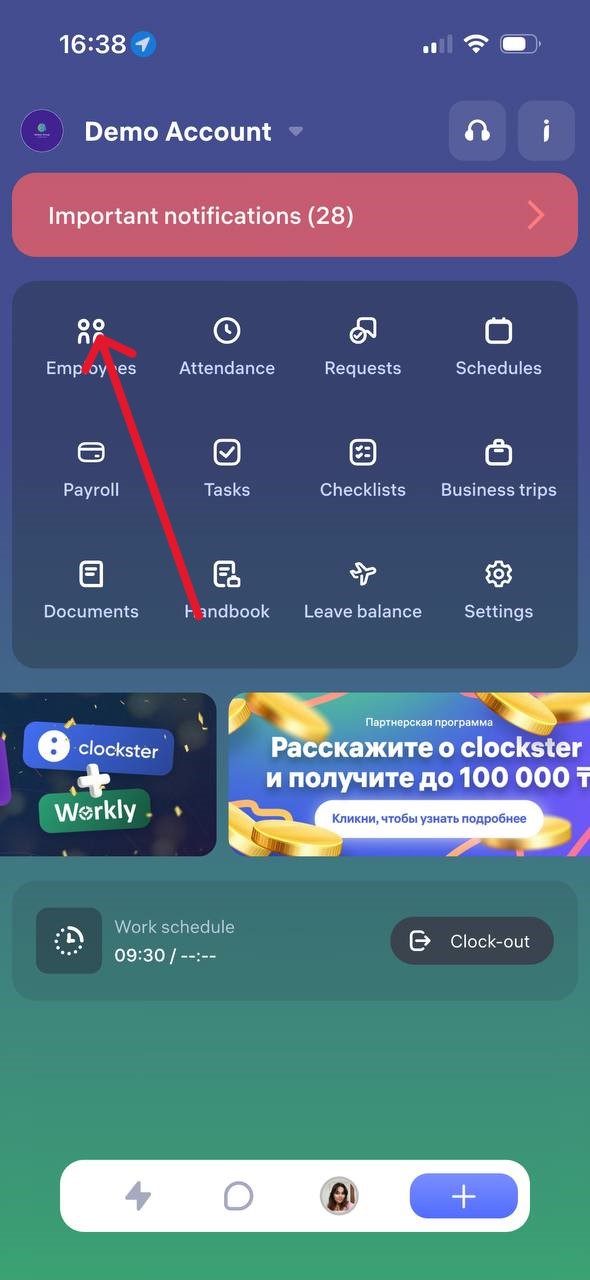
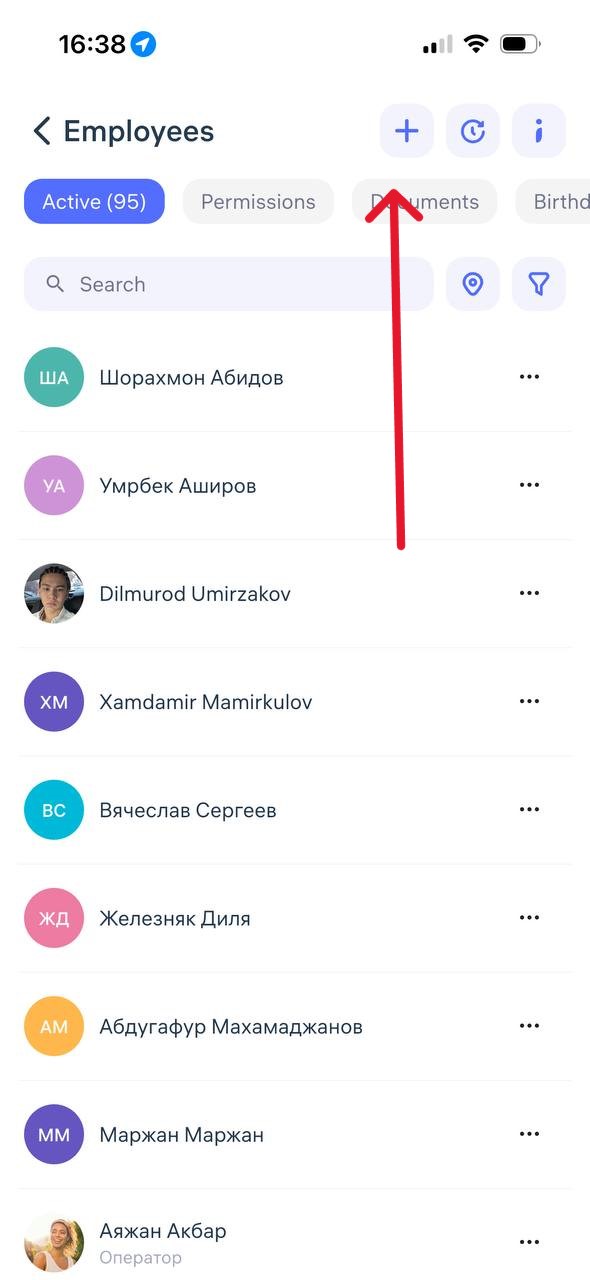
Where to find the “Invitation Code”
The invitation code is generated when adding a new employee in the Clockster mobile app.
To get it:
Open the Clockster app and go to the Employees tab.
Tap the “+” button in the top-right corner of the screen to add a new employee.
After filling in the employee’s details, an invitation code will appear — you can copy it or send it to the employee via any convenient method.
The employee must use this code during registration to join your company.
Note:
The code updates automatically every 2–3 weeks.
If an employee hasn’t used it in time, simply return to this section and resend the new code.
How to add a new employee?
Clockster supports three ways to add employees. The choice depends on your workflow — whether biometric devices are used, how many employees you need to add, and how employees will use the system.
1. Employee self-registration
If biometric devices are not used, the easiest way is to let the employee register independently:
The employee downloads the Clockster mobile app from Play Market or App Store, or follows the invitation link sent by the administrator.
Selects “Create account”, then “Join company.”
Enters personal details (first name, last name, phone number) and verifies the phone number.
Enters the invitation code (or it’s filled automatically via the link) and selects a location.
This method is convenient and secure, especially for companies that do not use facial recognition devices.
2. Administrator adds employee manually
If your company uses biometric devices, it is recommended to manually create an employee profile with a photo:
Go to the “Employees” section and click “+ Add employee” in the top-right corner.
Select “Add manually”
Enter employee details, including a photo if biometrics are used.
Save the profile.
Important:
Even after manual addition, the employee still needs to create an account in the app. The entered data (full name and phone number) must match exactly what the administrator entered, so the account links to the existing profile.
If the data differs, the system will create a duplicate employee profile.
3. Bulk upload via Excel
If you need to add many employees at once:
Go to the “Employees” section and download the Excel template.
Fill in the required fields: Full name and Location.
Upload the completed file back into the system by clicking on “+ Add employee” and choosing “mass upload”.
This method works the same way as manual addition (see option 2) and also requires employees to later create their own app accounts using exactly the same data entered in the Excel file.
How do I delete or edit employee information?
How to Manage Employee Status in Clockster
In the “Employees” section, you can see all employees in your company.
To simplify navigation, use the filters at the top of the page (for example, by status: Active, Former, etc.).
How to Edit or Dismiss an Employee
Go to the Employees section.
Find the needed employee.
Click the three dots (…) to the right of their name.
Choose an action:
Edit – to change the employee’s details.
Dismiss – if the employee no longer works in the company.
After dismissal, the employee will be moved to the “Former Employees” filter.
What Can Be Done with Former Employees
Go to the “Former Employees” filter (top of the page).
Here you can:
Restore the employee (if rehired).
Delete – if the employee’s data is no longer needed.
Important!
When deleted permanently, the system erases all employee data, including attendance, requests, payroll, and other records.
This information cannot be restored, even by technical support.
Therefore, it’s recommended to dismiss rather than delete employees — this keeps their full history if needed later.
How Does Employee Status Affect Billing?
You are not charged for inactive (dismissed) employees.
You can safely keep data on former employees without increasing your subscription cost.
If you still have questions — contact Clockster Support, we’ll be happy to help.
Can employee have multiple locations?
To allow an employee to clock in at multiple locations (for example, if they work in several branches or offices), you need to set up their profile correctly in Clockster. Here’s a step-by-step guide:
How to Give an Employee Access to Multiple Locations for Check-Ins
Step 1. Add an Additional Location to the Employee Profile
Open the web version of Clockster.
Go to the Employees section.
Find the employee and click their Name.
In the employee card, click Edit.
In the Secondary Locations field, select the extra location where the employee should be able to check in.
Click Save.
⚠️ In Clockster, an employee can have one Main Location and several Secondary Locations. They can check in at any of the assigned locations.
Step 2. Use the Correct Schedule
If you use schedules, make sure the correct location is specified in the schedule.
If you create a schedule for Location A but add an employee whose only assigned location is Location B, the system will automatically add Location A as an additional one in their profile — allowing them to check in there.
Step 3. Ensure Devices Are Synced at Each Location
If your company uses biometric devices, make sure that:
Devices are properly synced with the server;
The employee’s photo is uploaded and up to date;
The employee is linked to the location where the device is installed.
If everything is set up correctly, the employee will be able to:
Check in through the mobile app at all assigned locations;
Pass biometric identification on devices located at those sites.
If something doesn’t work or you’re unsure, contact Clockster Support — we’ll help you configure it.
How can I limit an employee’s record in a certain location?
The restriction on clocking in outside the location is enabled by default for all new employees. However, to ensure it works correctly, you need to complete a few setup steps.
Step 1: Set the office coordinates (location)
Log in to the Clockster web version.
Go to the Company Settings section.
In Categories open the Locations tab.
Find the required location and click Edit.
Select the exact office coordinates on the map.
Save your changes.
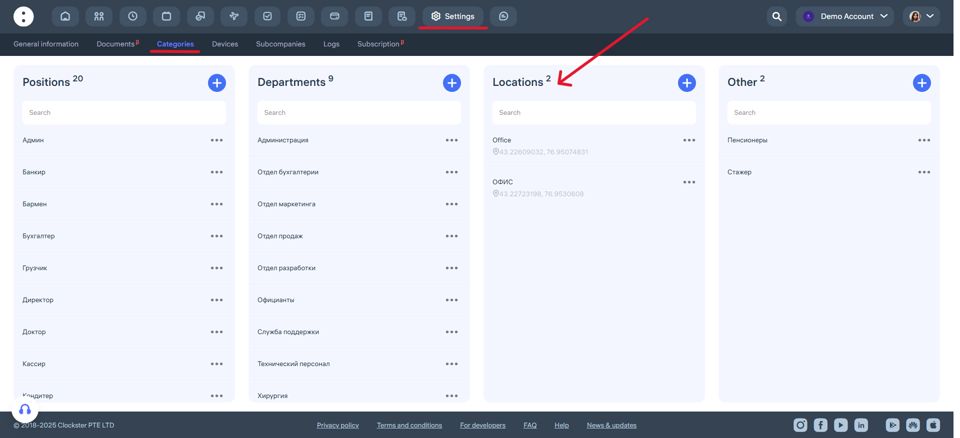
Step 2: Adjust permissions for a specific employee
Go to the Employees section.
Find the required employee.
Click the three dots to the right of their name and click Edit.
Navigate to Roles and Permissions.
Find the Attendance section.
Disable the option Create a check-in outside the locations.
After this, the employee will only be able to clock in within the coordinates specified in their assigned location.
Step 3: Important condition
For the new settings to take effect, the employee must restart the mobile app (fully close and reopen it).
Additional: Using permission templates
If you have multiple employees with the same restrictions, we recommend creating a permission template. This will make setup faster and simplify permission management.
You can create a template in:
Employees → Permissions → Templates
Once created, you can apply the template to individual employees or an entire group.
If you still have questions — contact our support team. We’re here to help.
If an employee resigns?
If an employee no longer works at your company, you can move them to the “Former employees” section instead of deleting their data. This allows you to keep their attendance history and access related reports.
How to dismiss an employee:
Go to the “Employees” section in the Clockster web version.
Find the employee you want to dismiss.
Click on the three dots (…) next to their name.
Select “Dismiss.”
After that, the employee will appear in the “Former employees” tab.
Why you shouldn’t delete an employee immediately
Deleting an employee permanently erases all their data — including attendance records, payroll documents, and other important information.
These records cannot be restored, even by the support team.
Therefore, it’s recommended to dismiss employees rather than delete them.
Is there a charge for former employees?
No, once an employee is moved to “Former employees”, you won’t be charged for their profile.
How to reactivate an employee?
If an employee returns to work:
Go to the “Former employees” section.
Find the person and click “Activate.”
Update their photo if you use biometric devices — this is necessary for proper recognition.
If you have any questions, please contact our support team — we’re always here to help.
How do I upload a photo of an employee to be recognized by a biometric device?
Prepare the photo
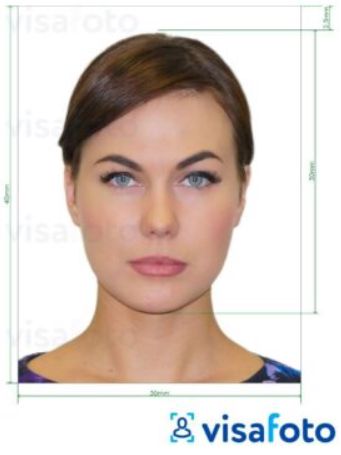
To ensure the photo works correctly for facial recognition, follow these requirements:
Clear, high-quality image.
Direct gaze at the camera (frontal view) with a neutral facial expression.
No headwear, sunglasses, masks, etc.
Good lighting without shadows on the face.
Only one face in the frame — no other people or objects.
Format: JPEG or PNG. File size: up to 5 MB.
2. Log in to the Clockster admin web panel
Go to the Employees section.
Find the required employee or add a new one.
Click the employee’s name to open their profile.
3. Upload the photo
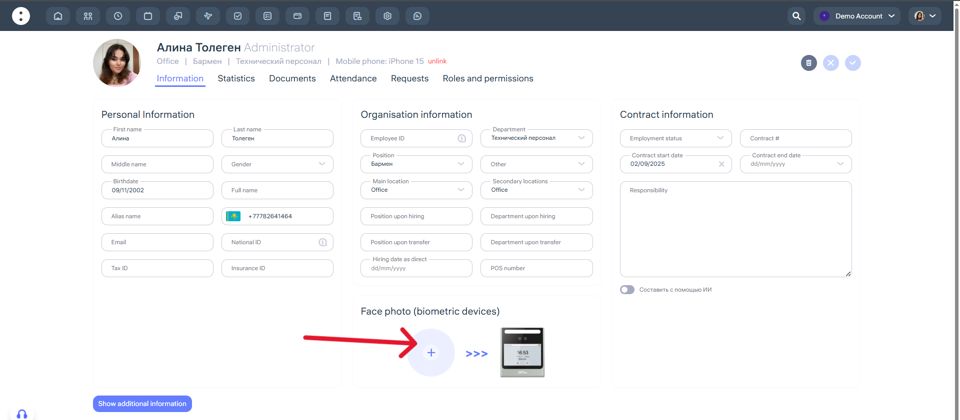
In the employee’s profile, click the photo area (Face Photo – Biometric Devices).
Select a file from your computer.
Make sure the image uploads correctly.
Save the changes.
After uploading, the system will automatically sync the photo with the biometric device if:
The device is connected to the internet,
It’s linked to the same location as the employee,
The correct Clockster server address is set in the device settings.
All done!
If everything is set up properly, the biometric device will start recognizing the employee within a few minutes.
If you encounter any issues, contact Clockster Support — we’re always here to help!
Which filters are available to me in the “Employees” section?
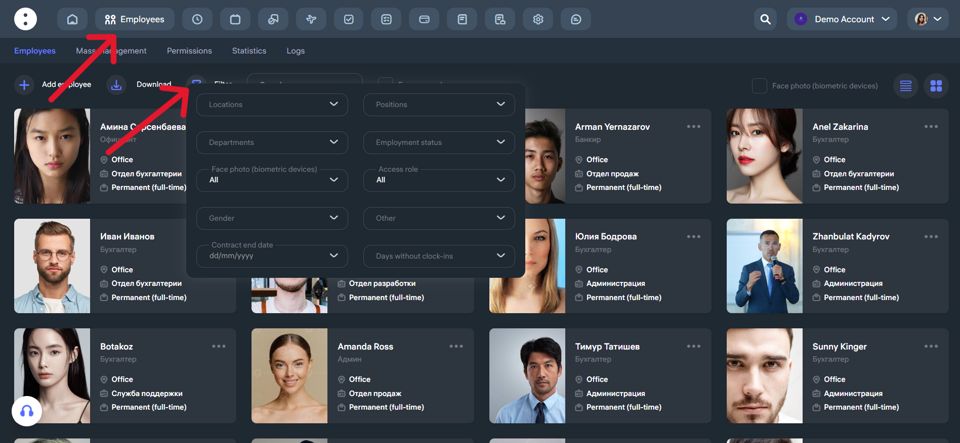
In the “Employees” section, you have access to advanced filters that allow you to efficiently manage the employee list and quickly find the information you need.
Here are the available filters:
Main Filters:
Locations — select employees working in a specific branch or city.
Positions — filter by specific job roles, such as “waiters” or “managers.”
Departments — search by department, for example “Kitchen,” “Office,” or “Marketing.”
Employment Status — full-time, contract-based, etc.
Access Role — filter by system access level: administrator, employee.
Face Photo (for biometric devices) — filter employees who have or haven’t uploaded a biometric photo.
Gender — male, female.
Contract End Date — helps track when employment contracts are set to expire.
Days Without clock-ins — view employees who haven’t made any attendance marks during the selected period.
Other — includes additional filtering options.
You can apply multiple filters at once to narrow down your search and quickly find the right employees. This is especially useful when managing a large workforce.
How can I see my employees’ documents in the mobile app?
How to View Employee Documents in the Clockster Mobile App
To view employee documents in the Clockster mobile app, follow these steps:
Open the Clockster mobile app.
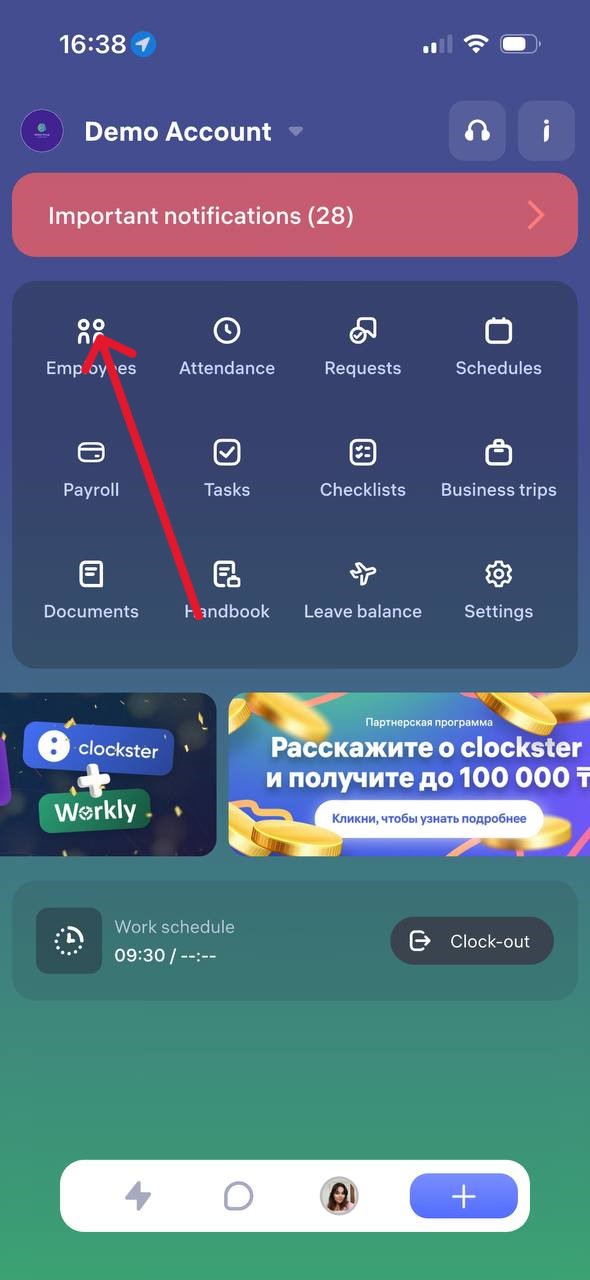
Go to the Employees section (as shown in the first image).
Select the desired employee from the list.
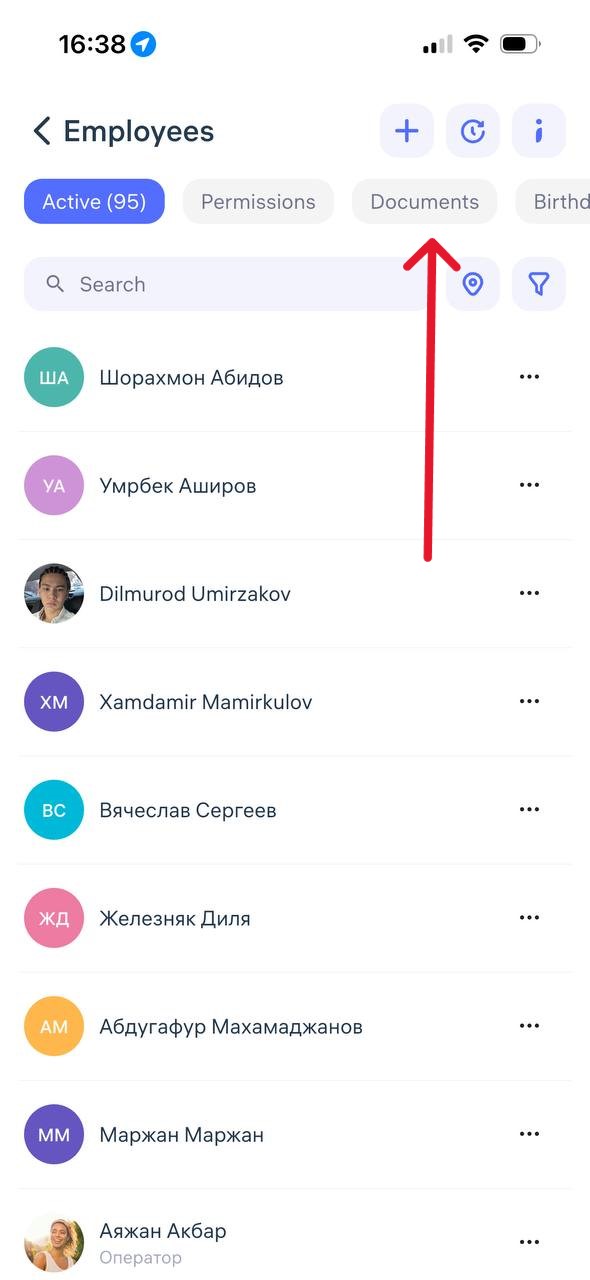
In the employee’s profile, find the Documents tab or section.
Here, you can view uploaded files such as ID cards, IIN, medical certificates, and other documents — if they were added earlier.
If you don’t see any documents:
Make sure you have the appropriate access rights (Administrator or HR permissions are required).
Check whether the documents were previously uploaded by the employee or an administrator.
What types of roles do users have?
Clockster provides two user roles:
1. Employee
This user has limited access and can:
Submit requests (for vacation, leave, business trips, etc.);
View only their own attendance;
See only their approved payslips;
Send schedule creation requests;
View announcements.
2. Administrator
This user has extended permissions and can:
View attendance records of all company employees;
Approve or reject employee requests;
Add and approve payslips;
Create schedules independently;
Manage company settings;
Create and manage announcements.
Important: All employees who join the company using an invitation code are automatically assigned the “Employee” role.
To change a user’s role to Administrator, follow these steps:
Log in to the web version of Clockster.
Open the Employees section and click the “…” button next to the desired employee.
Select Edit and change their role in the Role and permissions field.
You can also bulk edit roles using a permission template.
Permission templates are created by an administrator in Employees → Permissions → Templates.
You can preconfigure the necessary access levels and quickly apply them to new or existing employees — a convenient way to simplify permission management and ensure consistent access for user groups.
Notification: “This phone number is already registered”
This message can appear both for employees during registration in the app and for administrators when editing a profile.
In both cases, the reason is the same — this phone number is already in use in the Clockster system.
For Employees
Most likely, the employee has already created an account earlier.
👉 In this case:
Open the Clockster mobile app.
Enter your phone number and password, or tap “Forgot password” if you don’t remember it.
For Administrators
If you see this message while trying to edit an employee’s profile, it means that:
Another profile in your company already uses this phone number.
The system blocks saving to prevent duplicates.
👉 What to do:
Go to the Employees section.
Use search by phone number.
Check the “Former Employees” tab — duplicates are often hidden there.
Delete the duplicate profile or restore it if necessary.
Then return to editing the required employee.
⚠️ Important:
In Clockster, each phone number can be linked to only one employee.
Before re-registering or transferring a number, always check for duplicates, including in the “Former Employees” section.
If you can’t resolve the issue yourself — contact Clockster Support, and we’ll help you find and fix it!