
What is there on the Attendance page?
On the “Attendance” page, you can:
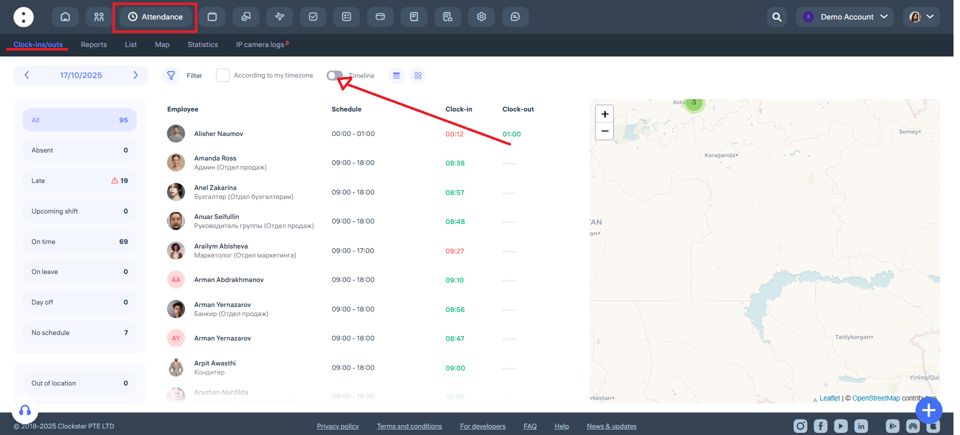
Monitor employee clock-ins
Here you can see all employee clock-ins: arrival and departure times for the selected day.
You’ll be able to see who has arrived today, who is absent, who is late, and who has not yet checked in.
Check schedule availability
You can view which employees have a schedule assigned for the selected day and who do not.
View employee status
For example, who is currently at work (present), who is on leave, has a day off, or has not yet started their shift.
Use filters
Filter employees by department, location, position, shift, and other parameters.
View the map
On the right side, you can see a map showing the geolocation of check-ins (if geolocation was used when marking attendance via the mobile app).
Analyze data in the timeline
When the “Timeline” feature is enabled, you can view a time chart showing when and who made check-ins throughout the day.
Download reports
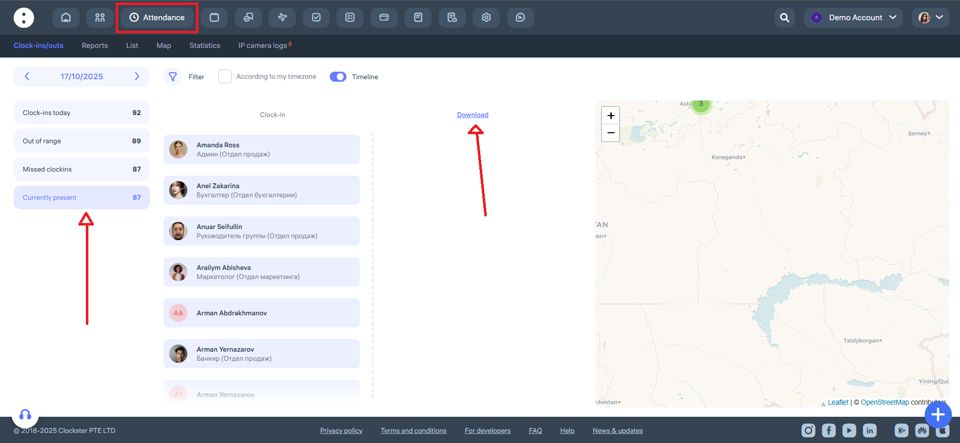
If necessary, you can generate and download a report of employees currently present at the location by selecting “Timeline” → “Currently present“
8. Switch between tabs
At the top of the page, you’ll find tabs: Clock-ins/outs, Reports, List, Map, Statistics.
This allows you to quickly access complete analytics on attendance for a day, week, month, or any selected period.
How does an admin create a manual clock-in in the web version for an employee?
How to Restore a Missed Check-In in Clockster
There are two ways to restore a missed check-in in Clockster:
An employee can submit a request for a missed check-in through the mobile app:
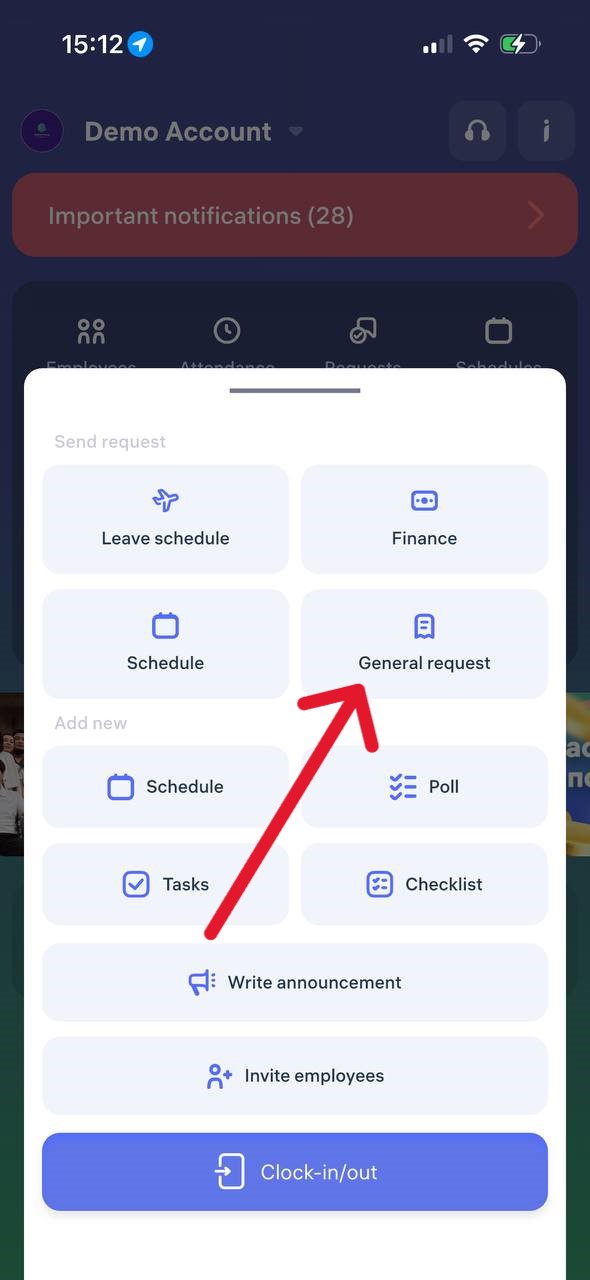
Tap the “+” button on the main screen.
Go to “General requests“
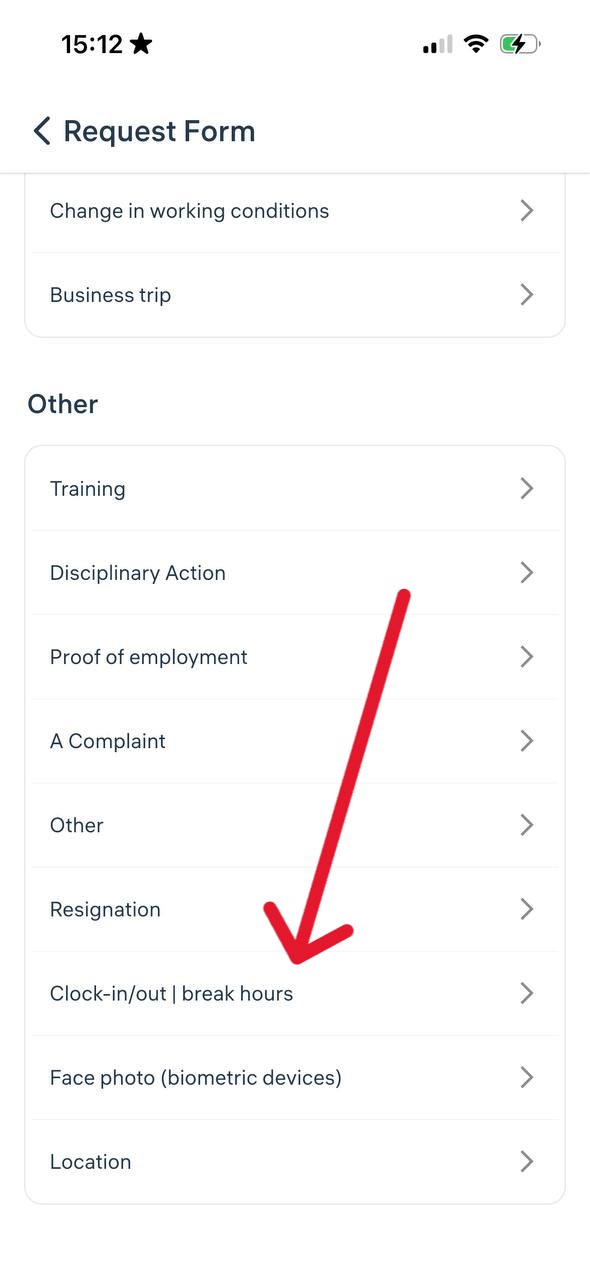
In “Other” section find “Clock-in/out | break hours“
Specify the date, time, and reason.
Send the request to the administrator.
🟢 If the administrator approves the request, the system will automatically create the check-in.
2. An administrator can manually add a check-in in the web version:
Go to Attendance → List;
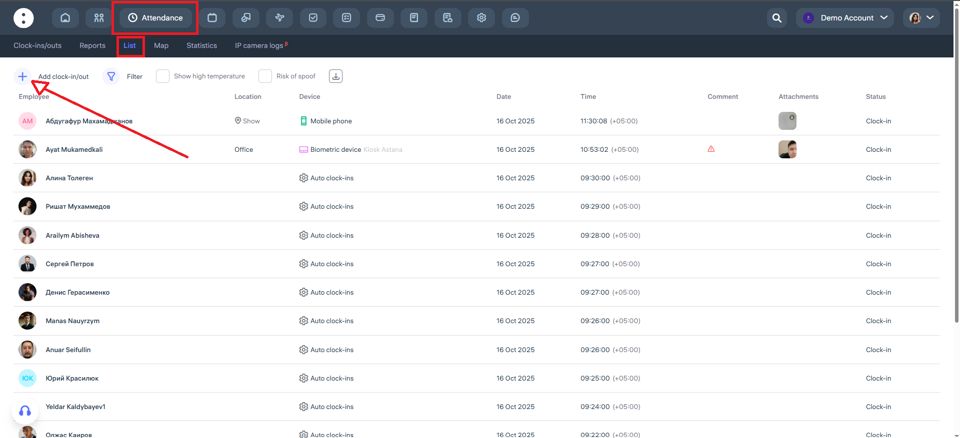
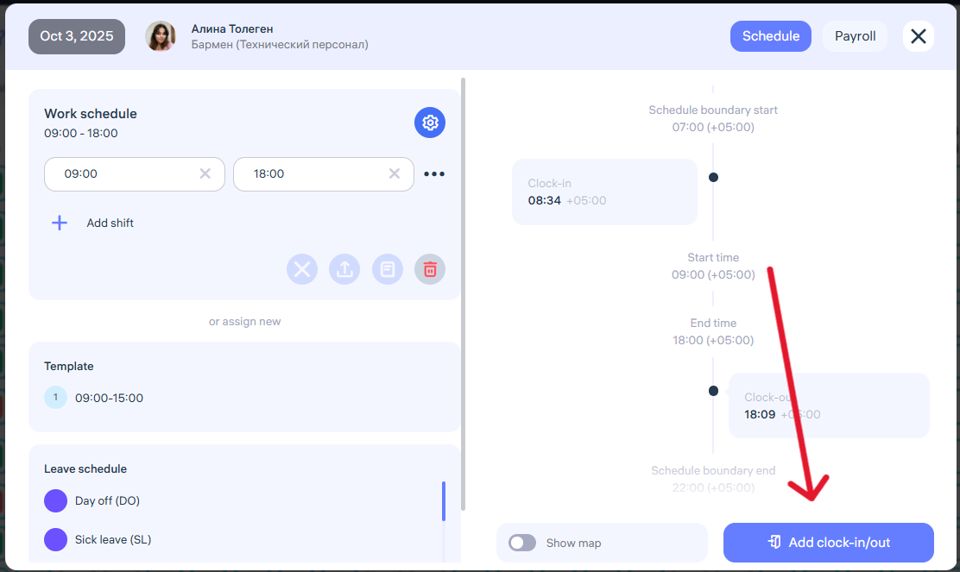
or open Schedules and click on the day cell;
or open Employees, find the desired employee, and click Edit Profile.
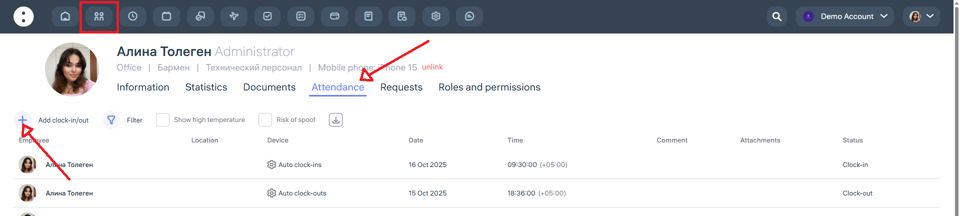
⚠️ The administrator can only perform this action if they have the appropriate system permission.
If neither option is available, please contact your company administrator or Clockster Support.
How do I view or download the Attendance report?
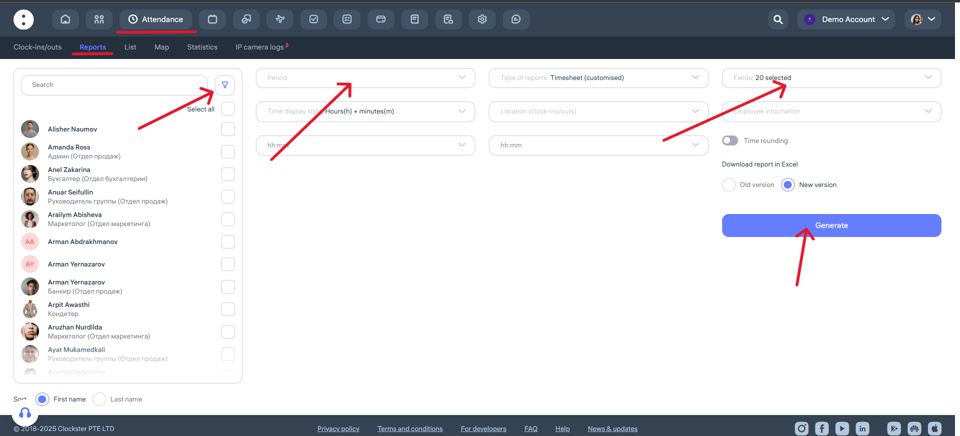
Go to Attendance → Reports
Choose the report type
The most flexible and commonly used option is the Timesheet (customizable) report.
Here you can select which data to include in the export:Clock-in/clock-out times
Total worked hours
Overtime
Late arrivals
Scheduled time
Absence reasons, etc.
Set the report period
Choose the start and end dates for the report (for example, from 01.07.2025 to 31.07.2025).Select employees and locations (if needed)
You can select specific employees or include all of them. Filtering by location is also available.Configure columns
In the Fields section, check the boxes for the data you want to display in the report, such as:Date
Employee
Location
Clock-in/out
Total worked time
Scheduled time
Difference (actual – planned)
Lateness, etc.
Generate the report
Click Generate — the report will appear below.Download the report
In the top-right corner of the table, click the Download icon to export the report.
Reports: what are days with incomplete records (clock-ins/outs) and how do they affect the effective time worked? / Employees have too much underworked time
Why is it important for an employee to clock in and out?
In the Clockster system, working hours are calculated based on employee check-ins and check-outs. One mark without the other is considered incomplete, and in such cases, the working time is not fully counted.
What happens if one of the marks is missing?
If an employee records only a check-in or only a check-out, the system considers the workday incomplete.
Such days appear in reports as days with missing marks.
Working hours are not counted, and the system assumes the employee did not complete the planned work time.
How does this affect reports and ratings?
Even if the employee was actually at the workplace, the report will show the day as underworked.
This also affects the employee’s rating in the system — accumulating such days will lower the overall rating.
For the Payroll and Attendance modules, these days may not be fully paid if wages are calculated by hours.
How to avoid issues?
Always record two marks per day: check-in and check-out.
If the employee forgets to mark the check-out, they can submit a request to add the missing mark (if company policy allows it).
Managers should regularly review reports and remind employees of the importance of both marks.