
How do I start using Payroll?
1. Checking employee clock-ins
The first and most important rule:
The system calculates salaries correctly only if all clock-in and clock-out records are present.
If an employee is missing even one record during a workday, it’s considered an incomplete workday, and a deduction will appear in the report for absence.
Such days are shown as unworked hours, which also affects the employee’s rating.
It’s recommended to regularly check the attendance report to identify and correct missing records in advance.
2. Filling in adjustments
Before setting up salaries and generating payroll reports, make sure to enter all necessary adjustments:
Additions — can be fixed, percentage-based, or template-based.
Deductions — fixed or percentage-based withholdings.
Rates — coefficients for overtime, night shifts, holidays, etc.
Holidays — preconfigured for Kazakhstan, Indonesia, and the Philippines.
For more detailed instructions on how to use the Payroll module, visit: https://app.clockster.com/help/payroll-for-administrators-help/payroll-calculation
What type of taxes can be added into Payroll?
Geographical Coverage
The Clockster tax system is available for companies registered in Kazakhstan and Indonesia.
Taxes are calculated according to local legislation and are automatically included in payslips based on the rules defined in the “Taxes” section.
Who Pays the Taxes
Employee taxes – deducted from the employee’s payroll.
Employer taxes – added to the company’s expenses and included in the total cost of the employee.
Other Countries
If you want to configure taxation for a country other than Kazakhstan or Indonesia, please contact support chat in the bottom-left corner of the Clockster admin web panel.
Your request will be reviewed individually.
Working with Currency
If an employee’s payroll is set in a specific currency, all related tax calculations will also be performed in that same currency.
What types of Additions can be added into Payroll?
Additions are extra payments that can be added to an employee’s salary. They can be applied either before or after taxation.
Types of additions
Additions can include, for example:
Benefits or stipends
13th salary
Annual bonus
Other types of payments
How can the addition amount be set?
An addition can be calculated in one of the following ways:
As a fixed amount
As a percentage of the base salary
Or as a combination of both
The addition will be calculated in the same currency as the employee’s salary.
Can I save an addition as a template?
Yes, you can save an addition as a template. Once saved, it will be automatically applied when creating or editing a salary record.
What does “before” and “after” taxation mean?
Before taxation: the addition affects the total amount on which taxes are calculated.
After taxation: the addition is added after taxes have been deducted, meaning it increases the employee’s net (take-home) pay.
What types of Deductions can be added into Payroll?
To add a deduction, follow these steps:
Go to the employee’s payroll settings section.
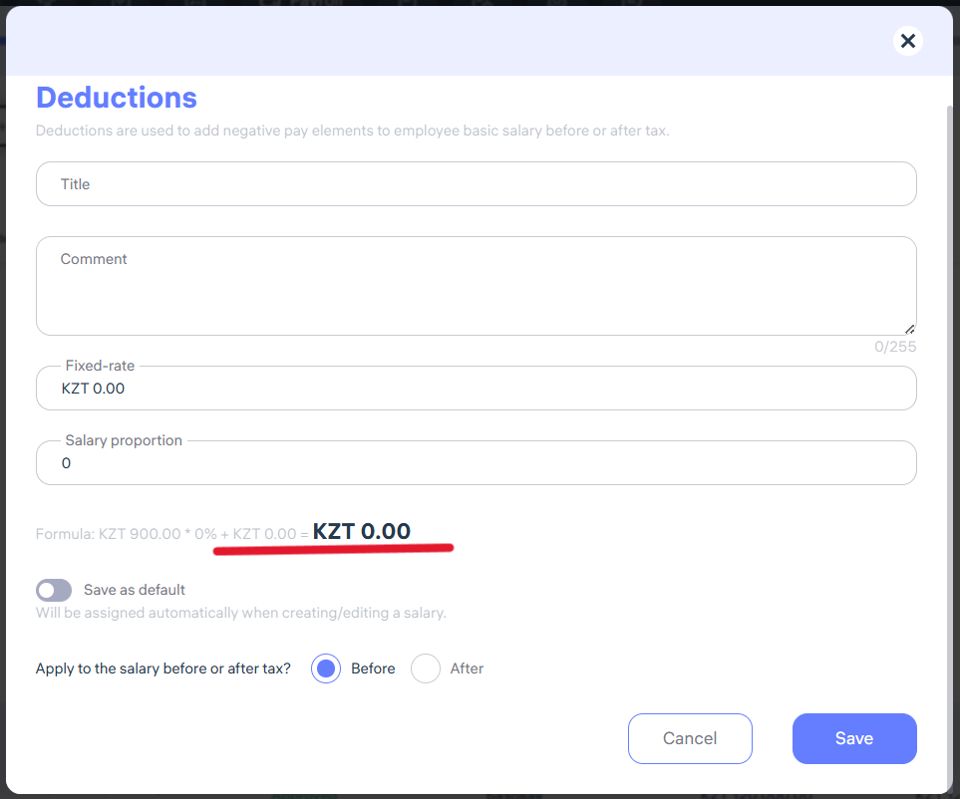
Click “Deduction.”
Enter the name of the deduction and, if needed, add a comment.
Set a fixed amount, a percentage of the salary, or a combination of both.
At the bottom of the form, choose whether the deduction applies before or after taxes.
Make sure the currency is correct — it should match the employee’s salary currency.
(Optional) You can save the deduction as a template — it will be automatically applied when setting up payroll in the future.
How do I create a Rate in Payroll?
What are rates and how do they work?
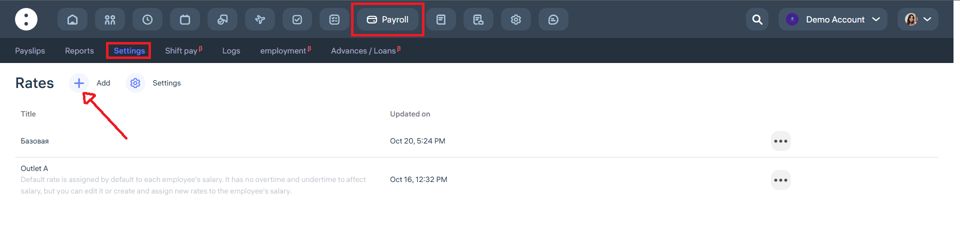
Rates are rules for calculating salaries based on the hours worked.
They are used to calculate payment for regular hours, overtime, undertime, night shifts, and public holidays.
The base rate is always equal to 1 and serves as a reference point.
Other rates act as multipliers, which are applied to the employee’s basic hourly wage.
How is overtime calculated?
Examples:
If an employee’s hourly rate is $10 and the overtime coefficient is 2,
then each overtime hour is paid as: $10 × 2 = $20If the overtime coefficient is 0.5,
then each overtime hour is paid as: $10 × 0.5 = $5
How are night hours and public holidays calculated?
The calculation follows the same logic:
hourly rate × corresponding coefficient
Example:
Hourly pay — $10
Public holiday coefficient — 3
Payment per hour on a public holiday = $10 × 3 = $30
For more detailed instructions on how to use the Payroll module, visit: https://app.clockster.com/help/payroll-for-administrators-help/guide-to-using-the-payroll-module
What are Night Hours (night shift) in Payroll and how do they work?
Night hours refer to the period of time during which, according to labor laws, an employer must pay employees at a higher rate for work performed at night.
How the Calculation Works
In Clockster, you can set:
The time range considered as night hours (for example, 10:00 PM – 6:00 AM)
The night shift pay multiplier (for example, 1.5 or 2.0)
Example
Let’s say:
Employee schedule: 6:00 PM – 12:00 AM
Hourly rate: $10
Night shift multiplier: 2.0
Night period: 10:00 PM – 6:00 AM
In this case:
From 6:00 PM – 10:00 PM, each hour is paid at the normal rate — $10/hour
From 10:00 PM – 12:00 AM, each hour is paid at the higher rate — $10 × 2 = $20/hour
Important Notes
If the employee does not work during the night period, the higher rate does not apply.
The multiplier can be adjusted according to your company’s policy.
Night hours are displayed separately in payroll calculations and included in payroll reports.
What’s the meaning of Holidays in Payroll?
Holidays are official non-working days that affect payroll calculations, especially if an employee works on those days. In Clockster, such days can be paid at an increased rate.
How it works
If an employee does not work on a public holiday, the day is simply skipped in payroll calculations (unless it is included in their work schedule).
If an employee does work on a holiday, their hours are paid at a higher rate (for example, ×2) specified in the Rates section.
Example:
If an employee’s rate is $10/hour and they work 8 hours on a holiday with a multiplier of 2.0, the total pay will be:
10 × 2 × 8 = $160
Holiday database
For Kazakhstan, Indonesia, and the Philippines, public holidays are already included in the system — no manual entry is required.
For other countries, holidays can be added manually in the Payroll module settings.
Where it’s used
Holidays affect:
Overtime calculations
Payroll calculation using holiday rates
Accurate reporting in the Payroll module
What types of salaries are there in Payroll and how to add salaries to employees?
Adding a salary is available on the “Payslips” page.
You can assign salaries in bulk or individually, depending on your needs.
Payment types:
Payment type | Description | Example |
Hourly | Payment for each hour worked; the system records actual worked hours. | $10 per hour |
Daily | A fixed amount per day, regardless of the number of hours worked. | $50 per day |
Monthly | A fixed amount per month, regardless of scheduled or actual hours. | $1000 per month |
Recommended type: Hourly, as it allows flexible rate and time tracking adjustments.
Bulk salary assignment
Go to the Payslips page.
Click the “+” button at the top of the page.
Select employees.
Specify:
Amount
Currency
Payment type
Configure:
Period
Payment frequency
Payroll calculation date
Distribute taxes between employee and employer.
Choose:
Bonuses
Deductions
Rate
Save changes.
Individual salary assignment
Find the employee.
Click the “+” icon next to “Salary not specified.”
Specify:
Amount
Currency
Payment type
Configure:
Payment schedule
Tax distribution
Bonuses and deductions
Rate
Save changes.
Additional information
All settings are automatically applied during payroll calculation and report generation.
What statuses do Payslips have in Payroll? / Important points on Payroll
Clockster provides three statuses for payslips, which indicate the current stage of payroll report processing:
Draft
When it applies:
The payslip has not gone through all the required steps.
What you can do:
Assign a salary and make necessary edits.
2. Waiting for approval
When it applies:
The salary has already been specified.
The report was edited but has not yet been approved.
What you can do:
Review and confirm the final data, then approve the report.
3. Approved
When it applies:
The salary has been specified.
The report has been edited and approved.
What you can do:
Editing is not possible.
Deletion is allowed if needed; the report can be recreated afterward.
Important notes
Once a payslip is approved, the report becomes final and its data is included in the final payroll sheet.
Always check employee clock-ins and clock-outs — if there are missed entries, the system will count them as absences and apply deductions.
Before approving, make sure that all bonuses, deductions, taxes, rates, and public holidays are entered correctly.
What is a Payroll schedule and how to use it?
The payroll schedule is a feature that automates the process of calculating and generating payroll reports by setting specific dates and calculation rules.
Why use a payroll schedule?
The payroll schedule helps to:
Automatically run salary calculations according to a chosen schedule.
Avoid missed or delayed payments.
Keep payroll periods consistent.
Simplify the work of accountants and HR staff.
Synchronize payroll with all adjustments, such as bonuses, deductions, taxes, rates, and overtime.
How to use it:
Go to the Payroll section.
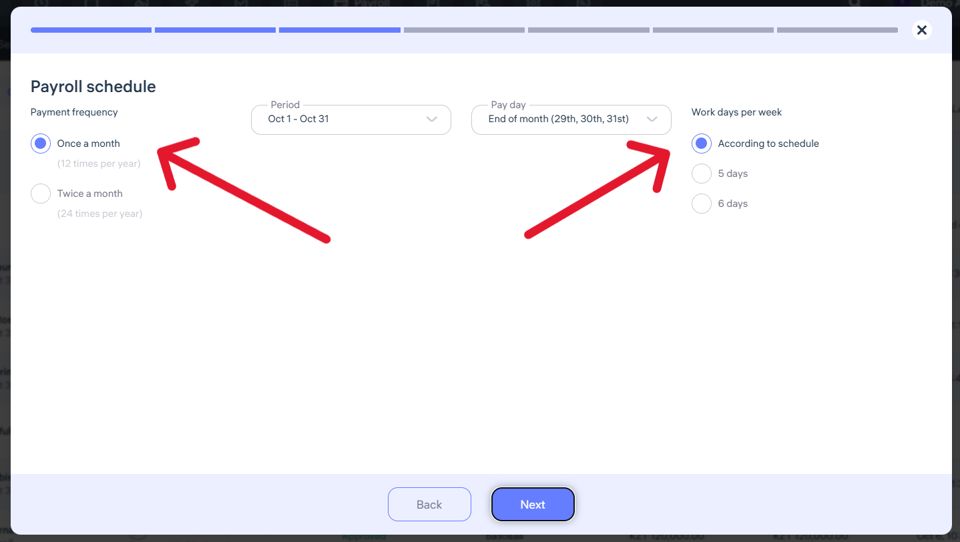
When adding a salary for an employee, set the payment frequency as the second step.
Choose one of the options:
Once a month
Twice a month
Save your settings.
The system will now automatically calculate salaries on the selected dates.
Important notes
If you select a 5-day or 6-day work week, Clockster will:
Automatically calculate the standard number of working hours based on the chosen schedule.
Include the actual worked hours from employees’ clock-in/clock-out records.
If you select “According to schedule”, the calculation is based on the employee’s individual work schedule, which defines working and non-working days.
Make sure all data such as bonuses, deductions, rates, and public holidays are filled in beforehand. Changes made later will not automatically apply to already created payroll calculations.
Automatic payroll calculation always considers actual worked time plus adjustments. Ensure that all employee clock-ins and clock-outs are recorded correctly — missing entries will result in deductions.
Each employee can have a different payroll schedule based on company policy or contract terms.
What is the “Payroll” module in Clockster?
The “Payroll” module is a tool for automatically calculating employees’ salaries based on data from the system.
Key features:
Automatic salary calculation based on work shifts, hours worked, and check-in/check-out records.
Accounting for bonuses and deductions (such as rewards, penalties, advances, sick leave, vacations, etc.).
Different payment systems — fixed rate, hourly pay, or daily pay.
Transparency for employees — they can view their earnings and deductions in their personal account.
Flexible settings: the system can account for night shifts, holiday work, overtime, and individual rates.
Why use it:
Saves time for accountants and HR — everything is calculated automatically.
Minimizes errors thanks to integration with schedules, attendance records, and requests.
Convenient for managers — always provides an up-to-date overview of personnel costs.