
What should the admin do with the request?
Where to Find Requests
Go to the Clockster web dashboard.
In the top menu, click on the “Requests” section.
Types of requests
Financial requests (e.g., advance payment, loan, reimbursements).
General requests.
Work schedule requests.
Leave requests.
How to create a request
Click the plus (+) icon at the bottom right corner of the screen.
Select the required request type.
Fill in all the necessary fields.
Click Save.
Note: Requests can be created not only by employees through the mobile app but also by the administrator in the web dashboard — for example, if an employee made the request in person or via chat.
How to view requests?
Switch between request categories in the top menu (Financial, General, Absence Records, etc.).
Use the filter panel on the left to select:
Employee,
Request category,
Status (Pending approval, Approved, Rejected),
Position,
Request period.
To see only the requests that require your approval, enable the “Waiting for my approval” toggle.
How to approve or reject a request?
Click on the desired request in the list.
Review the details in the opened window.
Click Approve or Reject at the bottom.
How to download a request report?
In the Requests section, select the request category (e.g., Financial Requests).
Specify the period using the filter on the left.
After selecting both category and period, a Download button (downward arrow icon) will appear in the bottom-right corner.
Click it to download the report.
Summary
An administrator can create, approve, reject, view, and download reports for all types of requests.
Remember: The Download button will only appear after selecting both a category and a period.
How to create a request for a photo so that a biometric device recognizes it?
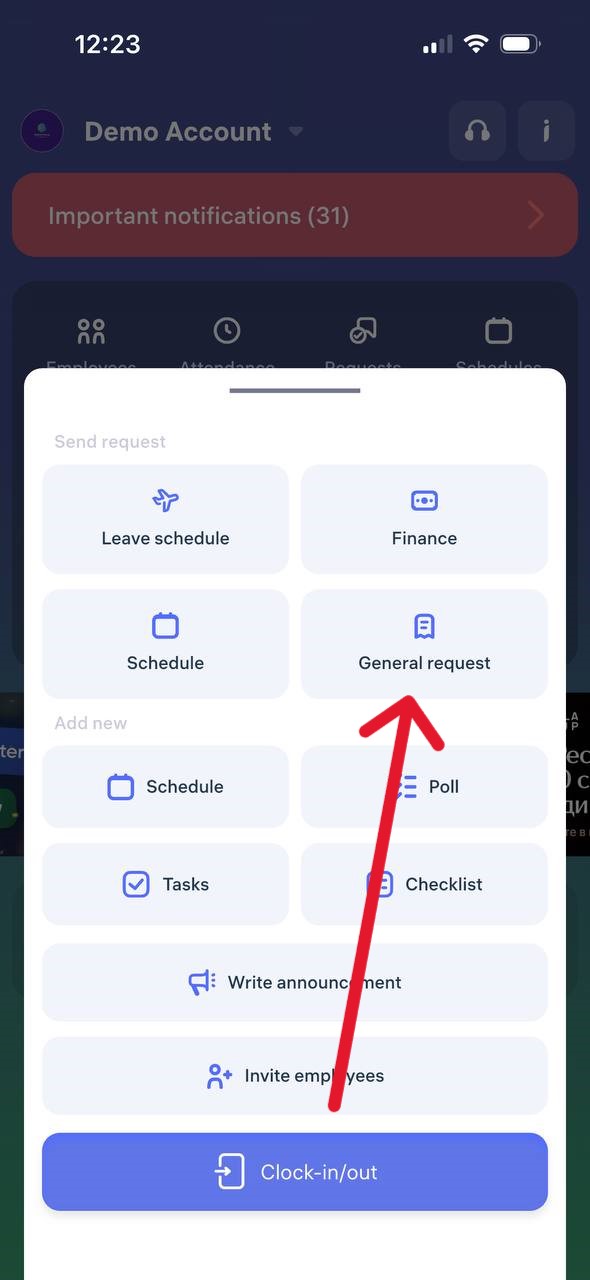
Step 1. Open a General equests
Open the Clockster app, tap the “+” button on the main screen, and select “General Request”
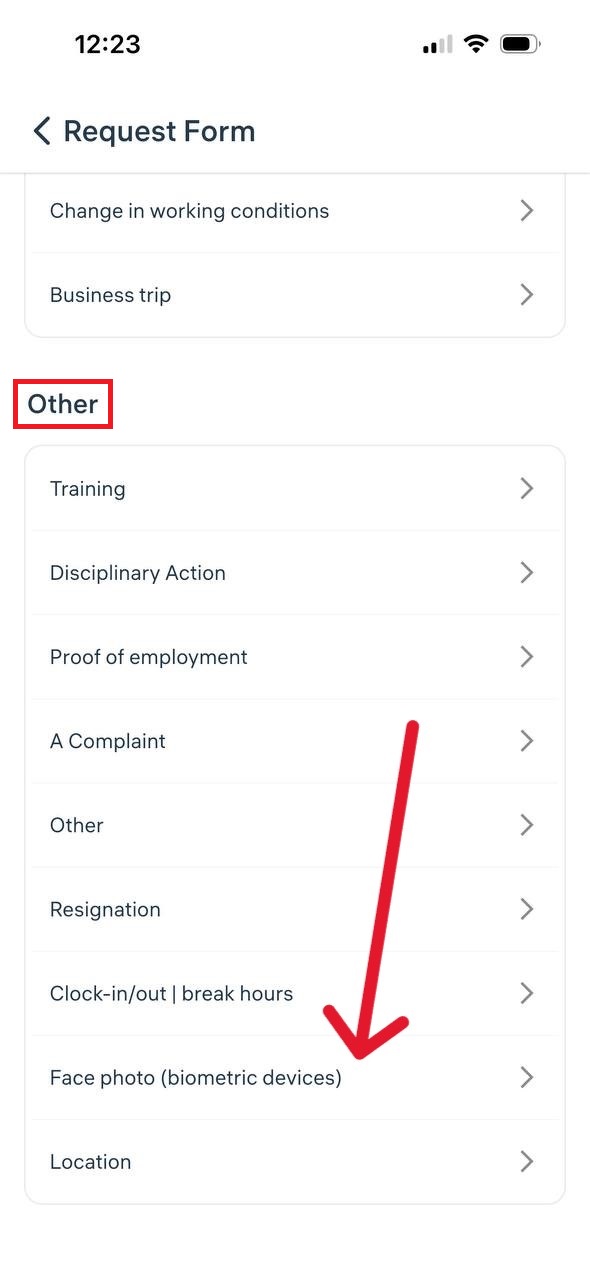
Step 2. Find the required request type
Scroll down the list of request types and select “Face photo (biometric devices)”
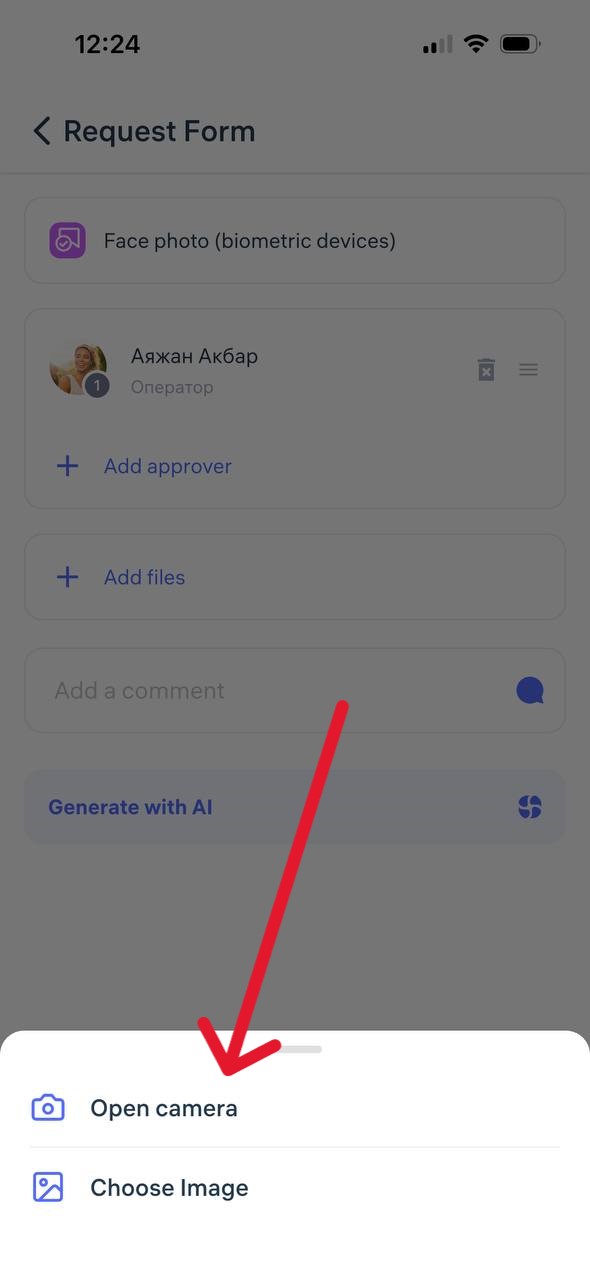
Step 3. Upload a photo and select a manager
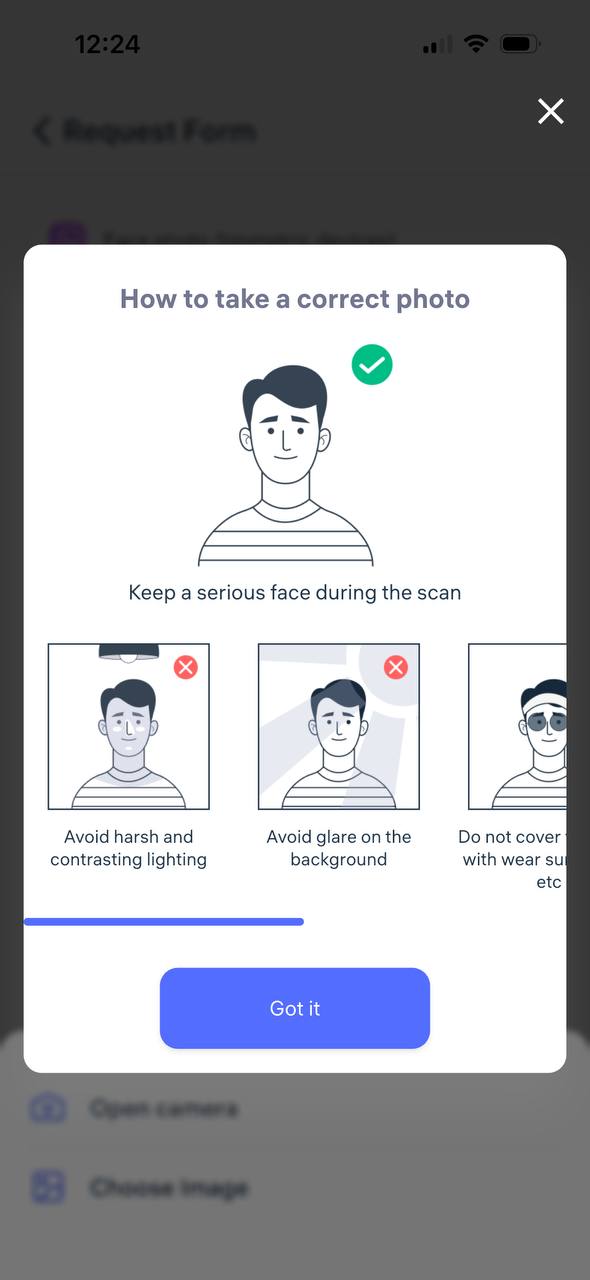
Attach a proper photo (face centered, no headwear, neutral background).
Select the responsible manager (up to two can be chosen — for example, a director and an administrator).
Step 4. Submit the request
Add a comment if needed and tap “Send request” The request will appear in the General Requests section and will be reviewed by the manager.
What happens next?
A push notification will be sent once the photo is approved or rejected.
After approval, the photo will be added to the system and used on the company’s biometric devices.
How to create a request for a missed record in your personal account (clock-in/out)?
If an employee forgets to clock in or clock out, a request can be submitted through the Clockster mobile app to add the missing record.
Step 1. Open the request form
Open the Clockster mobile app.
On the main screen, tap the “+” button.
Select “General Request.”
Step 2. Choose the request type
Scroll down the list.
Go to the “Clock-in/Clock-out” section.
Step 3. Fill out the form
Select the date and time for the missing record.
Make sure to choose the correct time zone — this ensures accurate working time calculations.
In the status field, select “Clock-in” or “Clock-out.” ⚠️ This step is crucial — it determines how the working hours will be calculated.
Step 4. Choose a manager and submit the request
Select one or two managers who should approve the request (for example, an administrator and a director).
If needed, attach a comment or photo (e.g., a screenshot confirming presence at work).
Tap “Send Request” and wait for approval.
Step 5. Check the request status
A push notification will appear once the request is approved or rejected.
You can also go to Requests → General Requests to view the status under the Approved or Rejected tabs.
Additional note
If several clock-ins or clock-outs were missed, the app will automatically suggest submitting requests for all missing records when the employee tries to clock in normally.
This helps ensure no shifts are lost and maintains attendance accuracy.