
How to create a request for a photo so that a biometric device recognizes it?
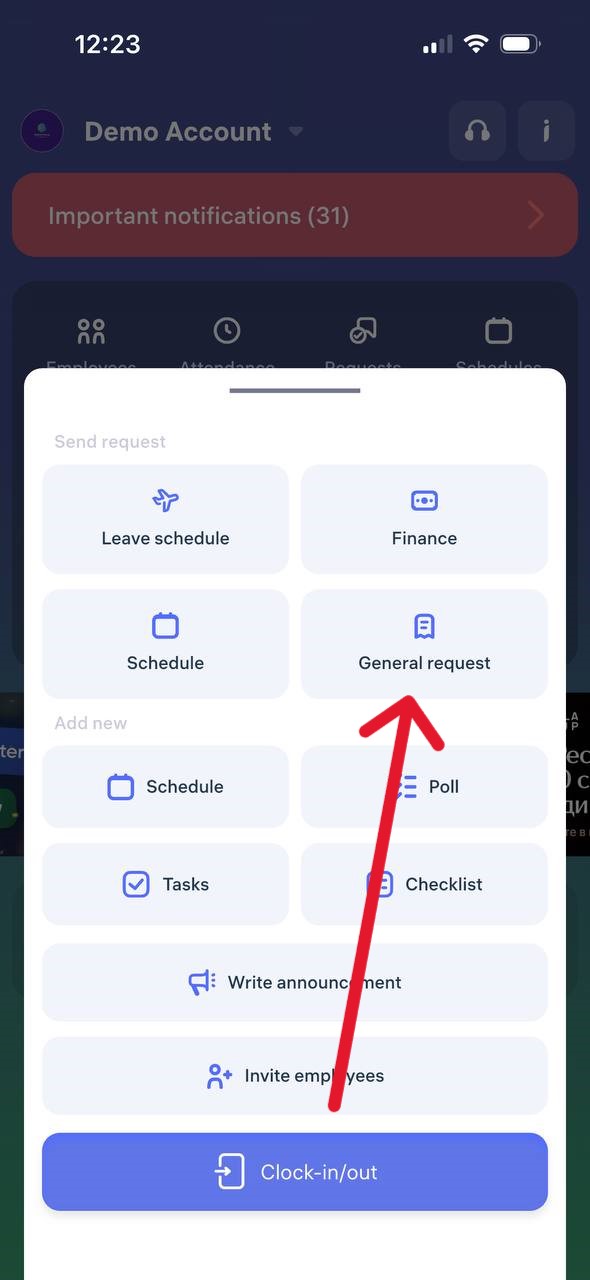
Step 1. Open a General equests
Open the Clockster app, tap the “+” button on the main screen, and select “General Request”
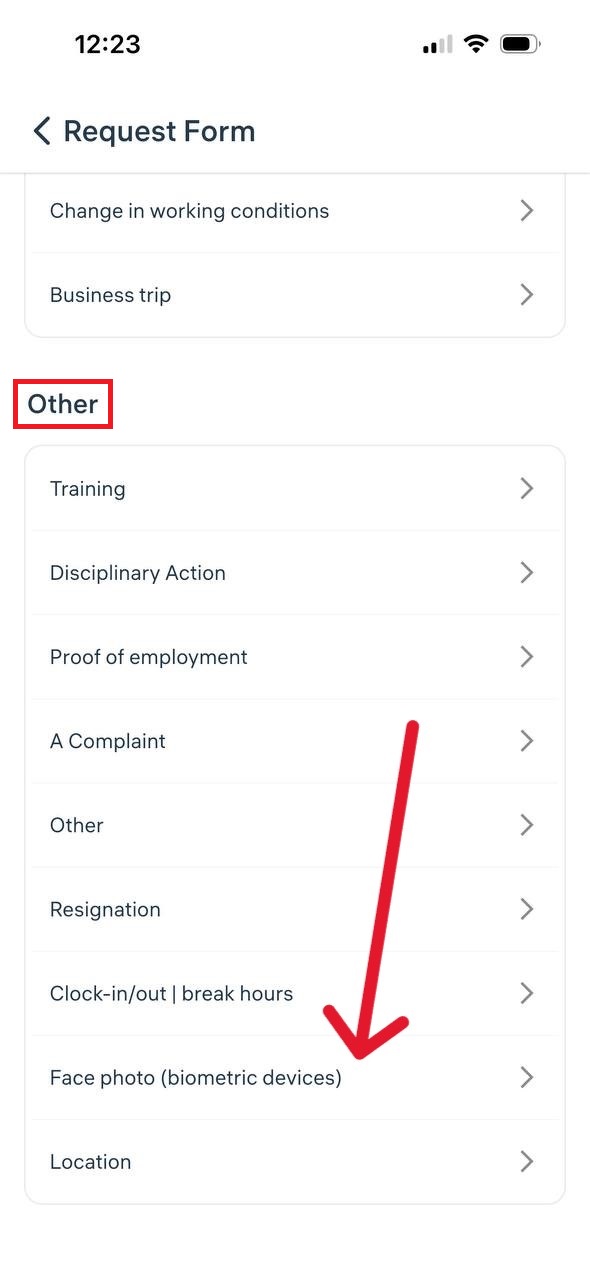
Step 2. Find the required request type
Scroll down the list of request types and select “Face photo (biometric devices)”
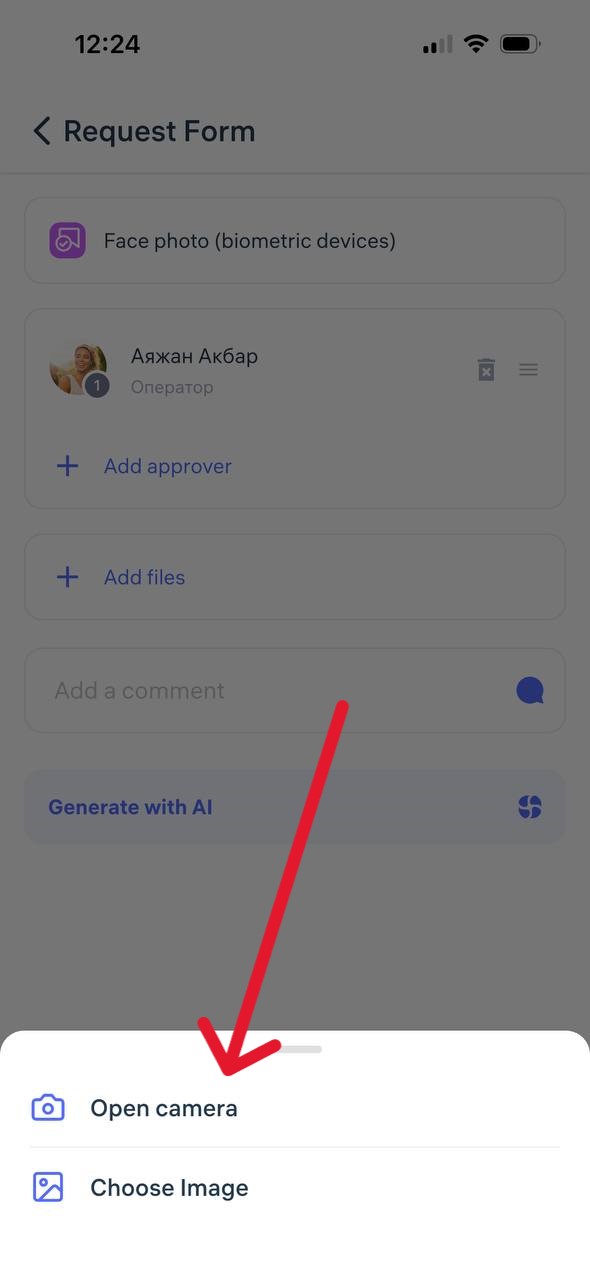
Step 3. Upload a photo and select a manager
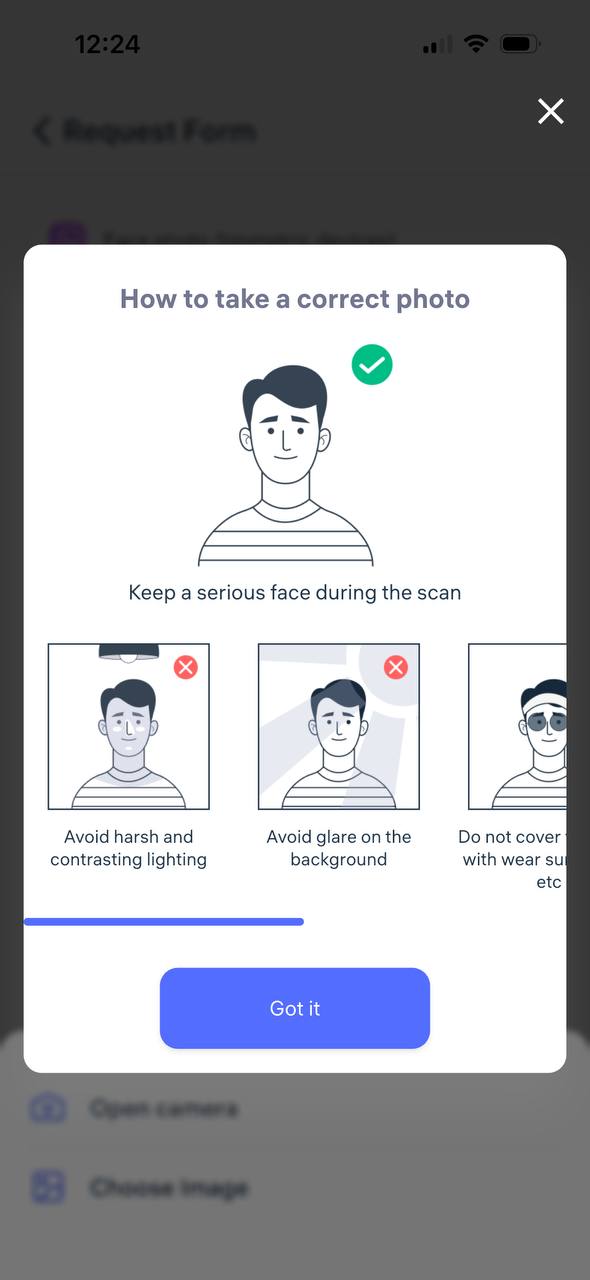
Attach a proper photo (face centered, no headwear, neutral background).
Select the responsible manager (up to two can be chosen — for example, a director and an administrator).
Step 4. Submit the request
Add a comment if needed and tap “Send request” The request will appear in the General Requests section and will be reviewed by the manager.
What happens next?
A push notification will be sent once the photo is approved or rejected.
After approval, the photo will be added to the system and used on the company’s biometric devices.
Updated at