
What types of schedules are there?
Types of Schedules in Clockster
Clockster offers several schedule types that help organize employee working hours flexibly depending on the work format, vacations, or business trips. Below are the main types:
1. Work Schedule
This is the standard type of schedule where an employee works on specific days and hours. It can include various modes such as:
Fixed schedule (e.g., 5/2, 6/1)
Shift work
Rotational schedule (e.g., 14/14)
Business trip (as a separate type within work shifts)
2. Free Schedule
Used when there are no strict start and end times for shifts. The system records actual working hours based on check-in and check-out marks. In this mode, late arrivals and early departures are not shown in reports.
(For details, see the section above about flexible schedules.)
3. Open Schedule (Open Shifts)
Allows employees to choose available shifts from a list. The administrator creates an “open shift,” and employees sign up for it via the app.
This is convenient for cafés, shops, warehouses, and other workplaces with fluctuating staffing needs.
4. Leave Schedule
Used to mark days when an employee is not working due to vacation, illness, or other reasons.
Includes the following types:
Day off
Sick leave
Annual leave
Unpaid leave
Compensatory leave
Special leave
Personal leave
Maternity leave
Paternity leave
Emergence leave
And others.
How to create a schedule 5/2 or 6/1? / Schedule – Days of the week.
If your company has a fixed weekly schedule, such as 5/2 (Monday–Friday — workdays, Saturday–Sunday — days off) or 6/1, Clockster makes it easy to use the “By days of the week” repeat type.
Step 1: Go to the “Schedules” section
In the web version, click the “+ Add Schedule” button in the top left corner of the screen.
Step 2: Select “Work Schedule”
Set the start date of the schedule — this will be the first working day.
Specify the period for which the schedule will apply (for example, 1 month).
In the repeat type, choose “Weekdays”
Step 3: Mark workdays and days off
For example:
For a 5/2 schedule — mark Mon–Fri as working days and Sat–Sun as days off.
For a 6/1 schedule — mark Mon–Sat as working days and Sun as the day off.
You can also set different shifts for different days — for example, a shorter shift on Saturday.
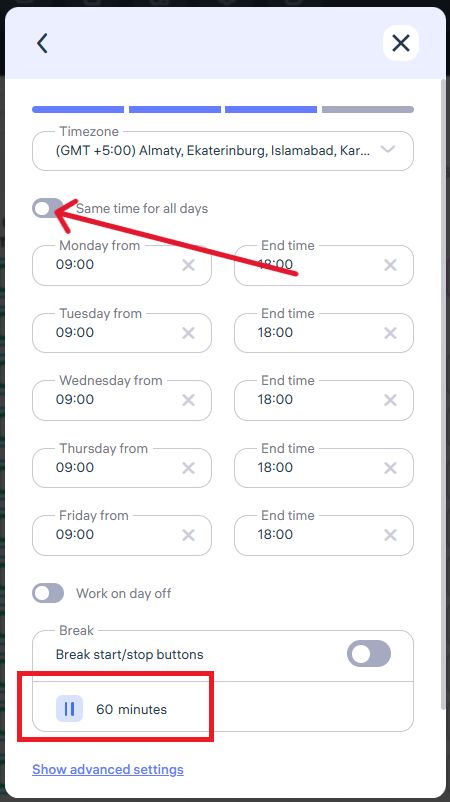
Step 4: Set working hours
Specify:
Start and end of the shift (e.g., 09:00–18:00).
Lunch break — 60 minutes (optional).
If no break is needed, enter 0.
Step 5: Assign employees
Check the boxes next to the employees you want to apply the schedule to.
If needed, specify the location to enable biometric tracking.
Click “Save.”
Important:
This method is ideal for employees with a stable schedule.
It is recommended not to change additional settings — they are predefined in Company Settings → Schedule Settings.
How to create a schedule 2/2 or 14/14? / Schedule – shift schedule.
Alternation of days is a feature that allows you to set up a shift or rotation schedule, such as 2/2 or 14/14. This is done using the “Alternation of days” repeat type in the schedule settings.
Step 1: Go to the “Schedules” section
In the web version, click “+ Add Schedule” in the top left corner of the screen.
Step 2: Choose the schedule type
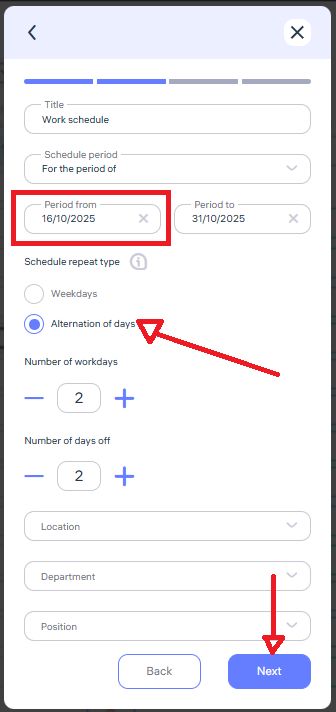
In the pop-up window, select “Work Schedule.”
Set the start date — this will be the first working day of the cycle.
Define the period for which the schedule will apply (for example, 1 month or 2 weeks).
In the Schedule Repeat Type field, select “Alternation of days.”
Step 3: Configure the schedule pattern
Enter the desired pattern, for example:
2 workdays / 2 days off — for waitstaff or shift workers.
14/14 — for rotational (fly-in/fly-out) schedules.
You can set the same working hours for all days or customize them individually.
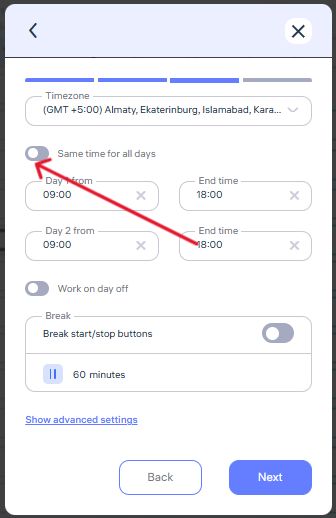
For example: Day 1 — 09:00 to 13:00, Day 2 — 13:00 to 17:00
To do this, disable the option “Same time for all days.”
Step 4: Set the lunch break
The standard duration is 60 or 90 minutes.
The system automatically deducts this break from total working hours.
Example: A schedule from 09:00–18:00 with a 1-hour break equals 8 working hours per day.
If no break is needed, enter 0 minutes.
Step 5: Assign a location
Specify the location if you want:
The employee to be recognized by a biometric device, and attendance records to be tied to that location.
Step 6: Assign employees
Check the boxes next to the employees you want to assign this schedule to.
Click “Save”
How do I create a day off/holiday/sick day schedule? / Leave schedule
You can create a leave schedule in Clockster in three ways:
1. Manually via the web version
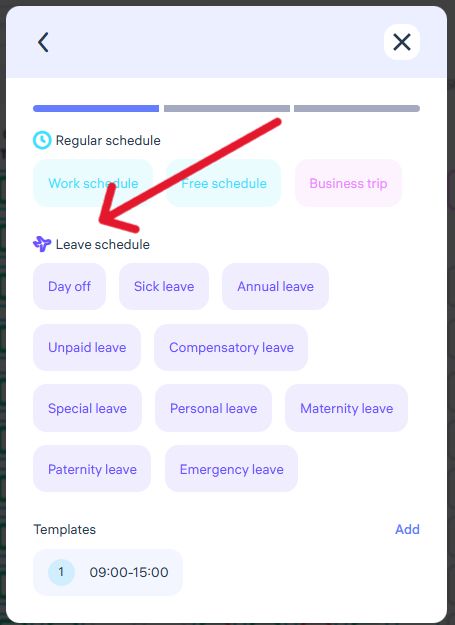
Go to the Schedules section, click + Add Schedule, and select Leave Schedule, specifying the reason (for example, Day Off, Sick Leave, etc.).
2. Using hotkeys in the web version
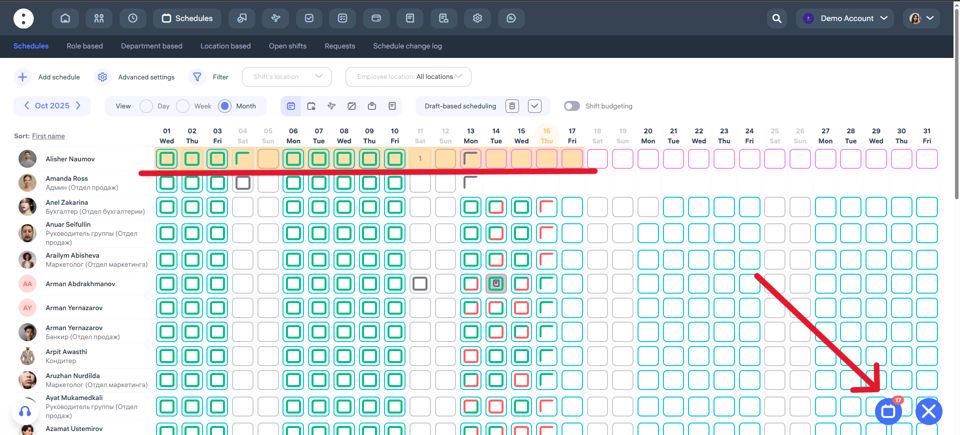
Hold Ctrl / Cmd and select several cells with the desired dates or hold Alt for choosing period. Then click the button in the lower right corner of the screen to create a leave schedule in bulk, selecting the appropriate reason.
3. Through the mobile app (employee request)
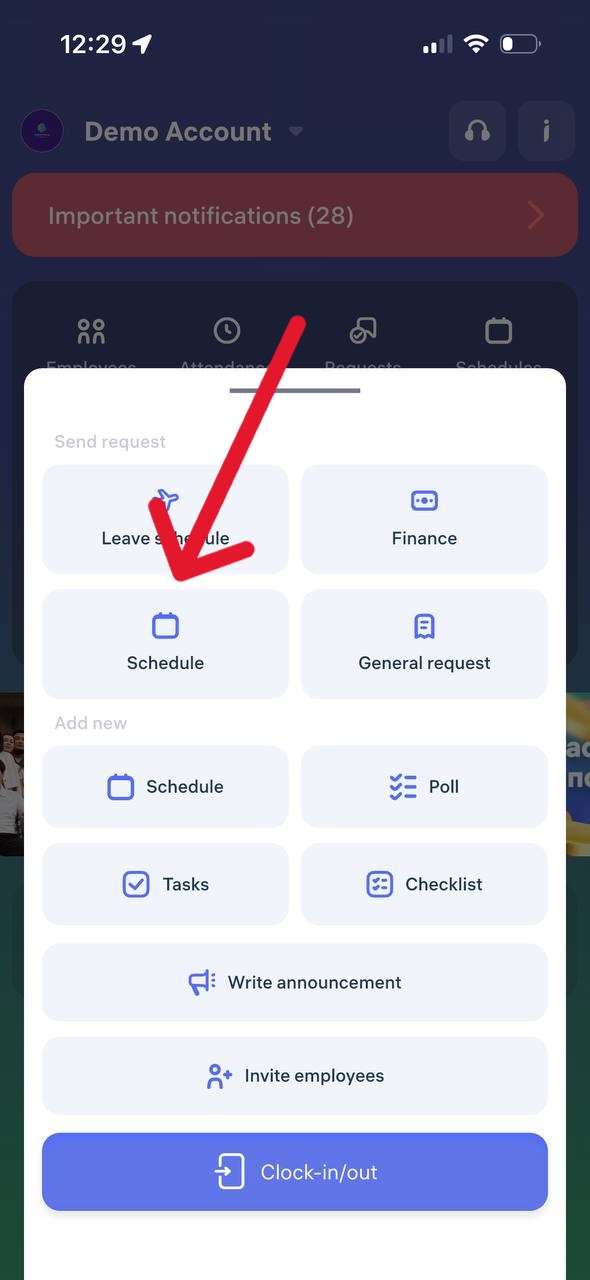
An employee can independently send a leave request through the app by choosing the appropriate category (for example, Sick Leave, Day Off, etc.). After approval by the administrator, the data will automatically appear in the schedule.
How do I create a schedule without a specific time period? / Free schedule
Free Schedule in Clockster
A Free Schedule is a shift type in Clockster that does not require specifying an exact start and end time for the workday.
This type of schedule is ideal for:
Project-based employees working by results
Staff with no fixed hours
Employees working on trust, without strict time control
How to Create a Flexible Schedule
Via the Web Admin Panel:
Go to the Schedules section.
Click Add Schedule.
In the shift type block, select Free Schedule (under “Regular Shift”).
Choose the desired period and employees.
Complete the setup.
Via the Mobile App:
Open Clockster and tap “+” on the main screen.
Select Schedule.
Set the dates and repeat type (e.g., “Days of the Week”).
Under shift type, select Free Schedule.
Choose a manager and send the request.
How the Flexible Schedule Works
Even though no fixed start or end times are set, the system accurately tracks the actual hours worked.
This makes it suitable for flexible hours, shift work, freelancing, or trust-based arrangements.
This is how it works:
1. Tracking Actual Hours Worked
The system calculates the total number of hours worked per day, subtracting break time if it’s specified in the schedule.
2. Integration with Biometric Devices
If an employee checks in via a biometric device, the system determines working time as segments between check-ins and check-outs:
The first segment is from the first check-in to the first check-out.
If there are multiple entries and exits throughout the day, all periods are counted and summed up.
3. No Late Arrivals or Early Departures
Since there are no fixed time boundaries, late arrivals and early departures are not recorded in reports — unlike in standard shifts.
4. Handling Early Check-ins
If a start time is still specified (e.g., 9:00 AM) but the employee checks in earlier, that mark will not be counted.
Work hours start counting only from the defined start time.
Summary
A Free Schedule is a convenient format for tracking working hours that:
Records actual worked hours
Does not display late arrivals or early departures
Supports multiple work segments with biometric tracking
Ignores early check-ins if they occur before the official start time
How to create a business trip?
Option 1: Through the Clockster Web Version (by Administrator)
If an employee is going on a business trip, the administrator can manually mark it in the schedule using the Clockster web dashboard.
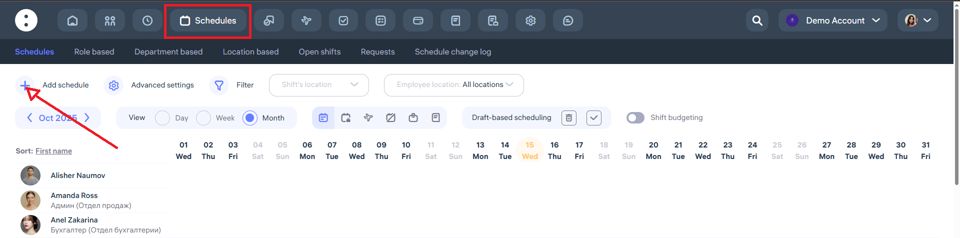
Step 1. Go to the “Schedules” section
Open the admin panel.
In the top menu, select “Schedules”.
Click “+ Add Schedule.”
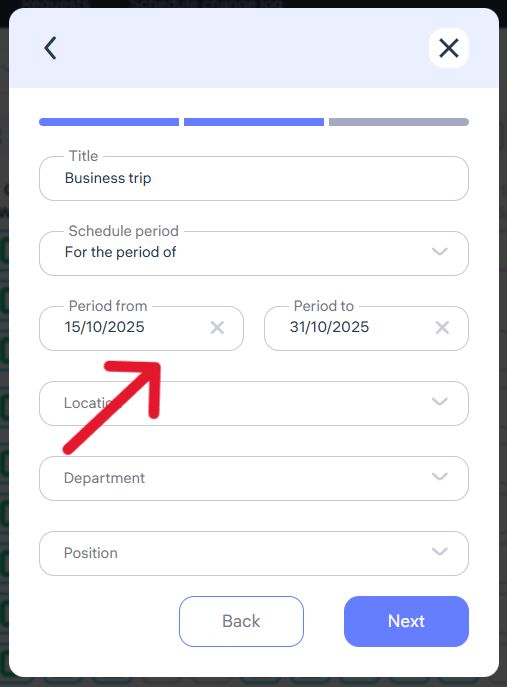
Step 2. Set up the business trip parameters
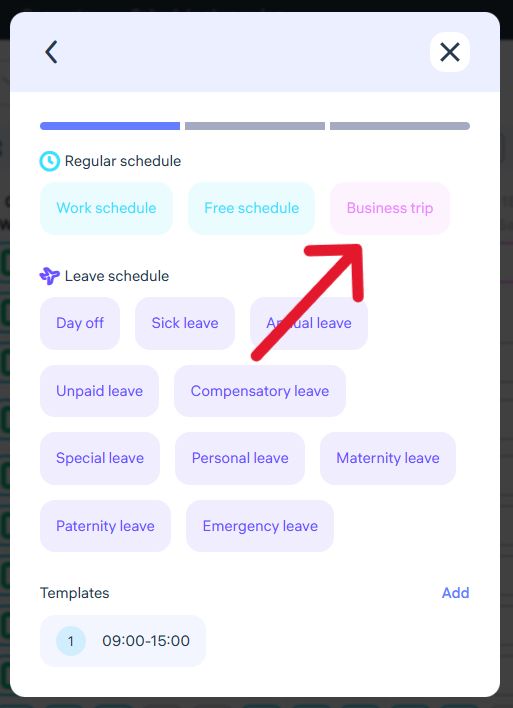
In the form that opens:
In the “Title“ field, select Business Trip.
In the “Schedule Period” field, choose For the period of.
Specify the start and end dates of the business trip (for example, from October 15, 2025 to October 31, 2025).
Select the location (for example, “Almaty Office”).
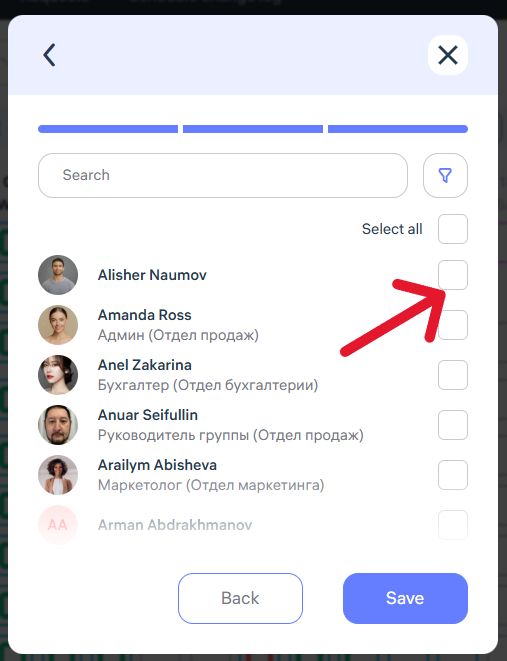
Step 3. Select employee(s)
Mark the employee who will be assigned the business trip.
One or multiple employees can be assigned.
Click “Save.”
Option 2: Through the Mobile App (by Employee)
Employees can also submit a business trip request through the Clockster mobile app.
The request is automatically sent to the assigned manager for review.
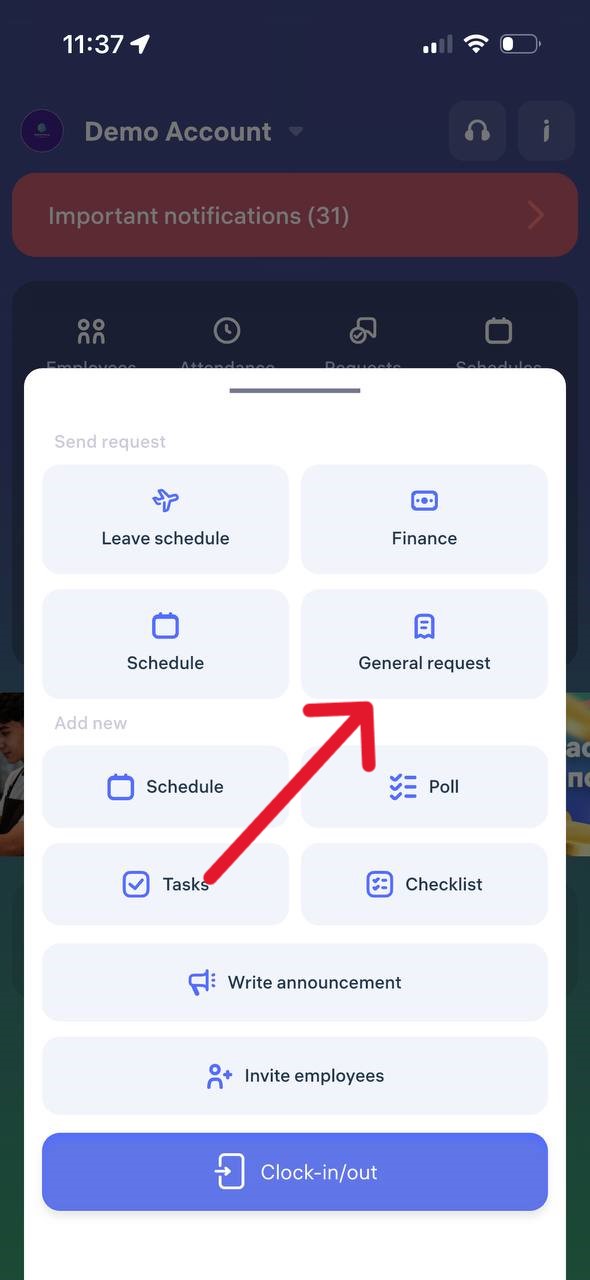
Step 1. Go to “General Request”
Open the Clockster mobile app.
On the main page, tap the “+” button (at the bottom).
Select “General Request.”
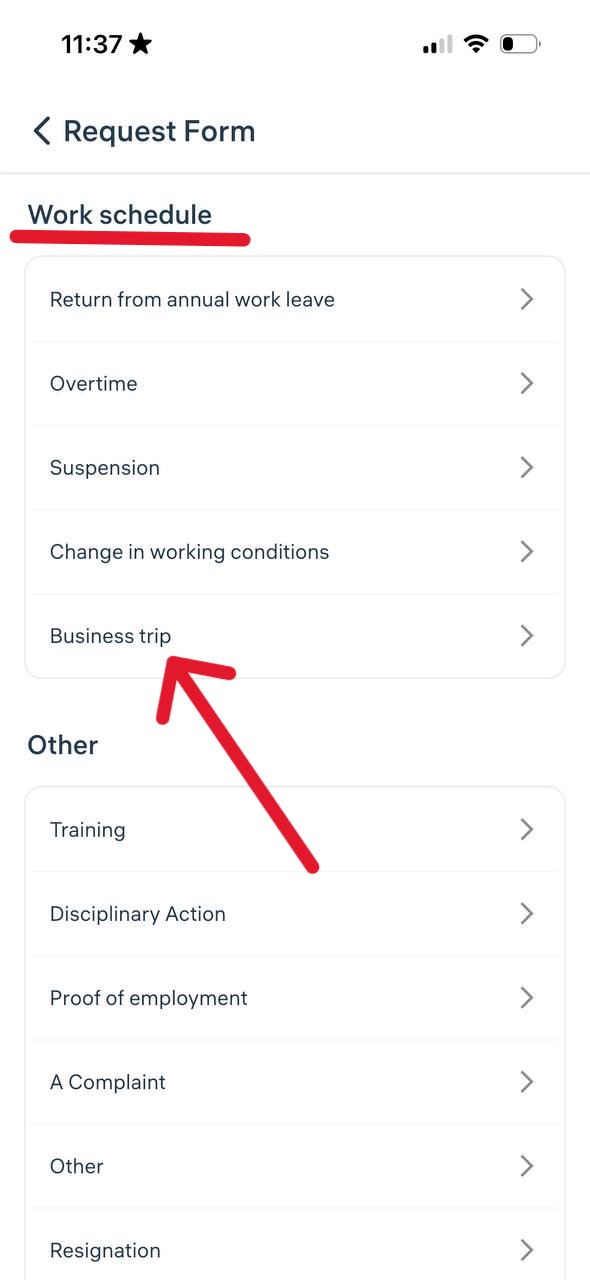
Step 2. Choose the request type — “Business Trip”
In the Work Schedule section, choose “Business Trip.”
Step 3. Fill in trip details
Provide the following information:
Business trip dates (for example, Oct 15–20, 2025).
Departure and destination cities.
Purpose of the trip (e.g., audit, meeting, equipment installation).
Type of transport (plane, train, bus, etc.).
Route details, transfers, and ticket cost. You can also indicate whether the price includes a return ticket.
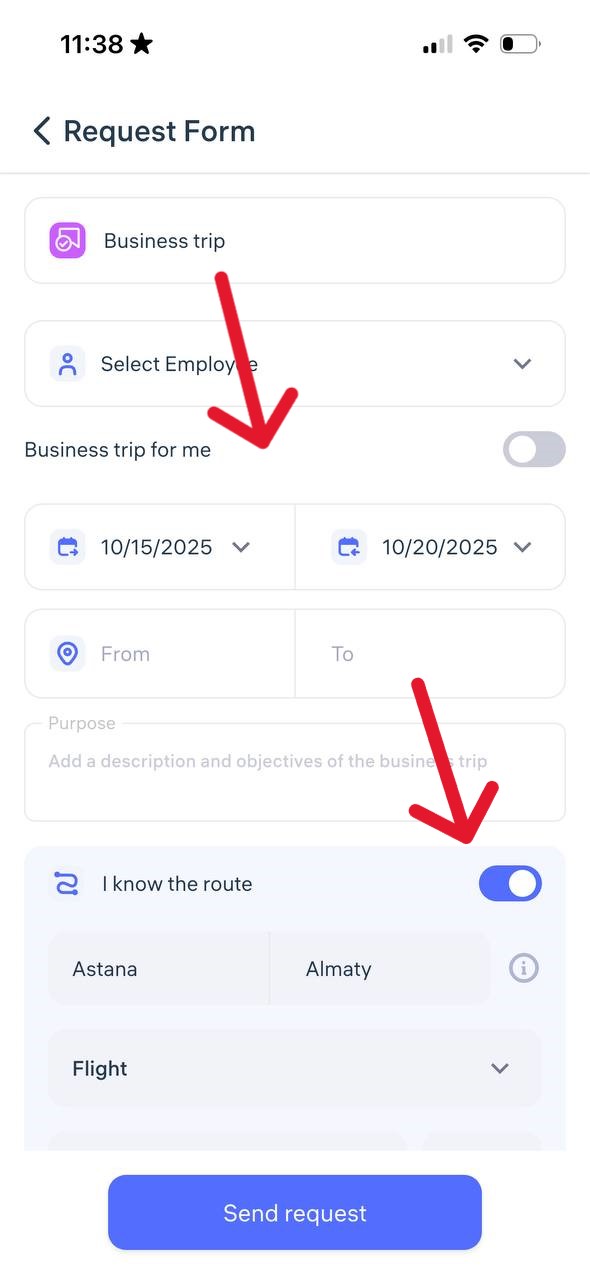
Step 4. Specify accommodation details (if known)
Enable the option “I know where I will stay.”
Enter the type of accommodation (e.g., hotel), dates, and total cost of stay.
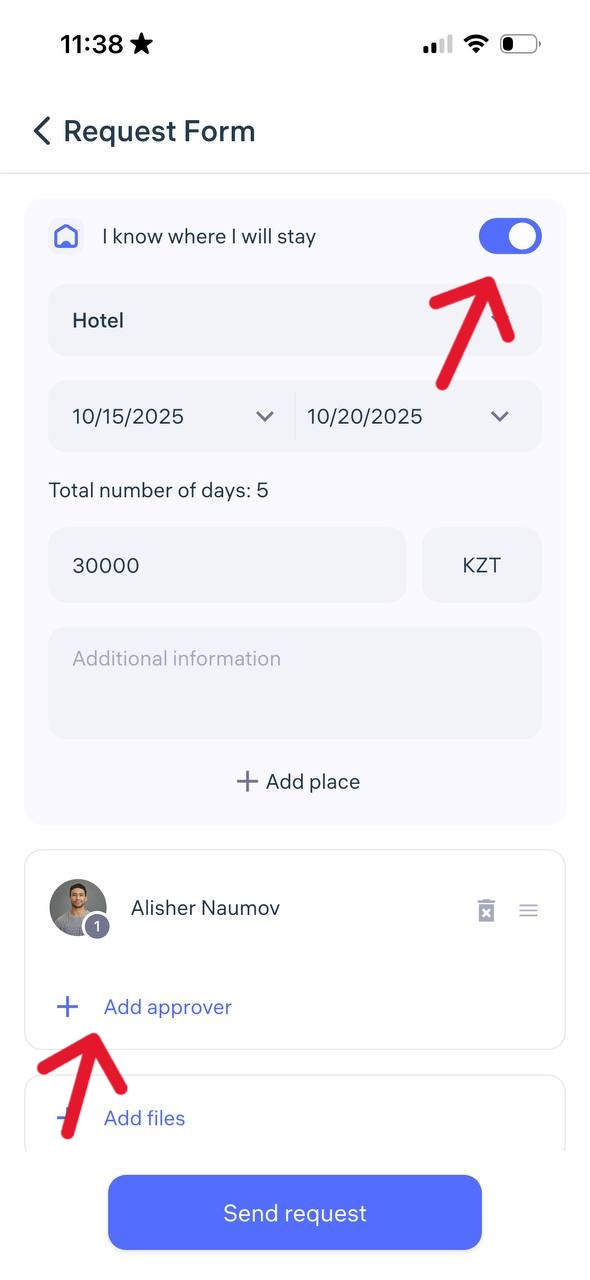
Step 5. Select a manager and submit the request
Assign the manager who should review the request.
Attach files if needed (e.g., booking confirmation or travel itinerary).
Add a comment, for example:
“Permission required for off-location check-ins” — especially important if the employee will be using mobile check-ins during the trip.Tap “Send Request.”
What happens next?
The manager will receive a notification and can either approve or reject the business trip request. Once approved, the trip will automatically appear in the employee’s schedule and will be counted toward working hours.
What is a Default schedule?
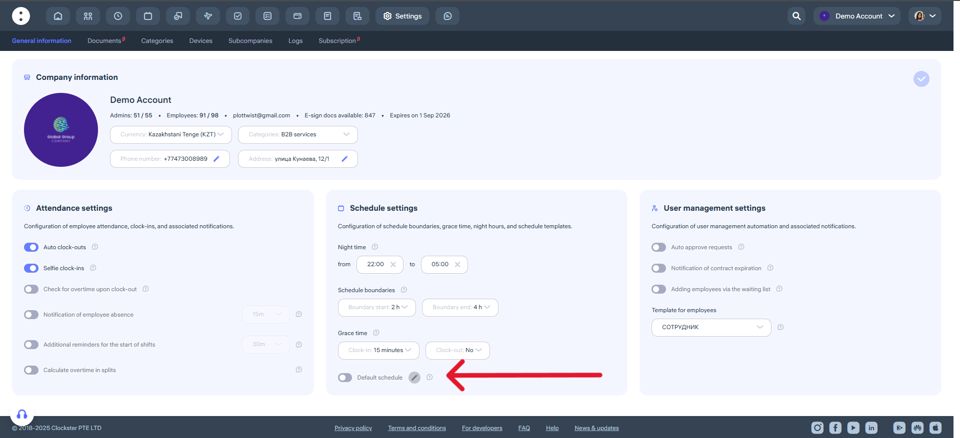
The default schedule is automatically set for all new employees. It is made so that each employee has a work schedule to display the correct data in the reports.
On the top menu go to “Settings” and in the Schedule settings section “Default schedule” toggle can be found.
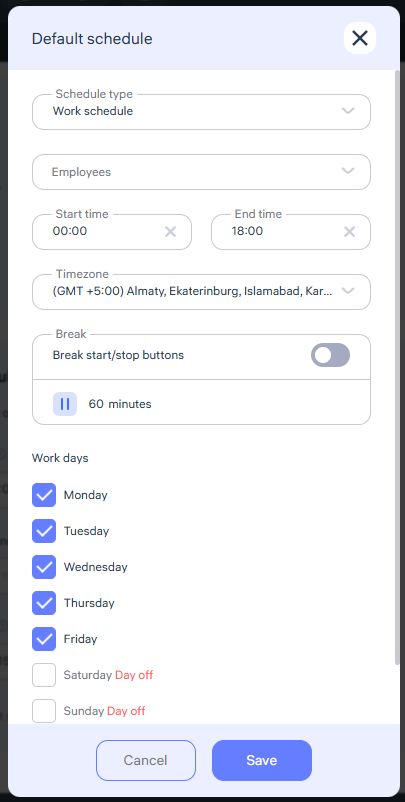
Fill in all the sections and click “Save”
The Default schedule functionality cannot be removed, this update prevents new employees from having no schedule (in case the employer may have forgotten to create a schedule).
Important!
The default schedule can be overridden by creating a new schedule.
If some employees have different schedules, you can adjust them manually in the Schedules section or employees can make a request to change the schedule. However, once a new employee is added and the toggle is enabled, the default schedule will be applied automatically.
How do I submit a request to create a work schedule?
Employees can send a schedule creation request directly through the Clockster mobile app.
This feature is useful for shift work, rotational schedules, or individual work hours.
Step 1. Open the request
Open the Clockster mobile app.
On the home screen, tap the “+” button.
Select the “Schedule” section.
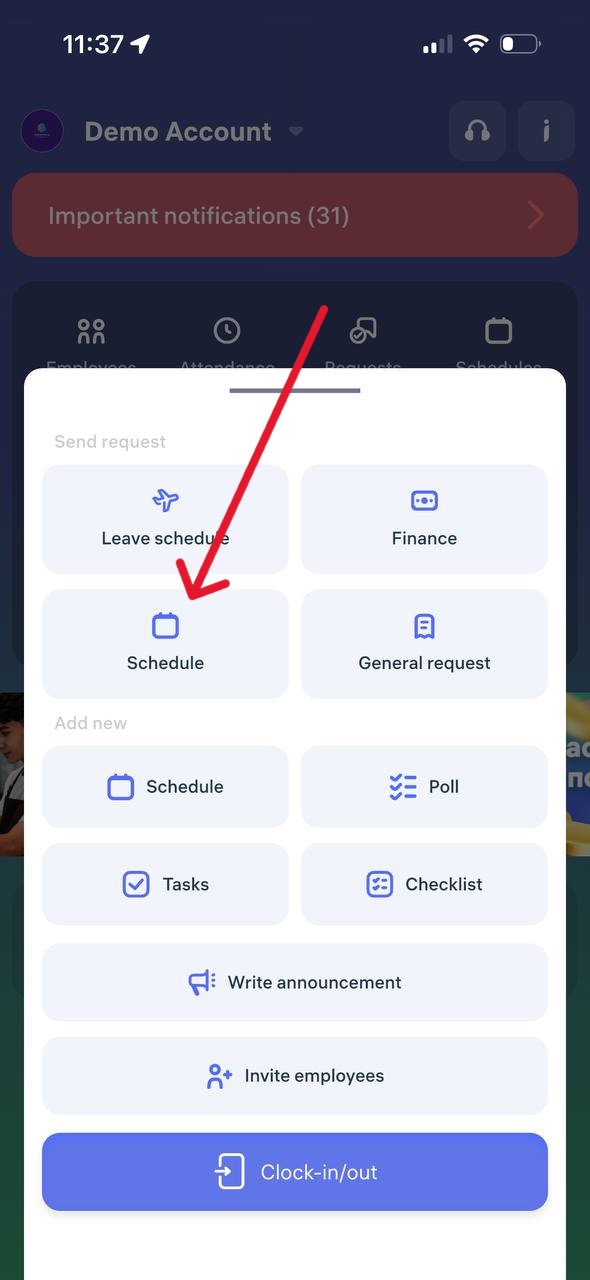
Step 2. Select the schedule period
For a period — if the employee works several days in a row (e.g., from 07.02.2025 to 10.12.2025).
Specific dates — if only certain days need to be set (e.g., March 1, March 10, March 30).
Tap “Next.”
Step 3. Set up repetition
Weekdays — for standard schedules (e.g., 5/2, 6/1).
Alternation of days — for shift or rotational work (e.g., 2/2, 14/14).
Step 4. Choose time
Specify:
working hours (start and end of the workday),
correct time zone,
lunch break duration (in minutes).
Step 5. Assign managers and add a comment
Select one or two managers who must approve the schedule (e.g., a director and an administrator).
Add a comment if needed.
Tap “Send request”
It’s recommended not to change additional settings unless you know their purpose.
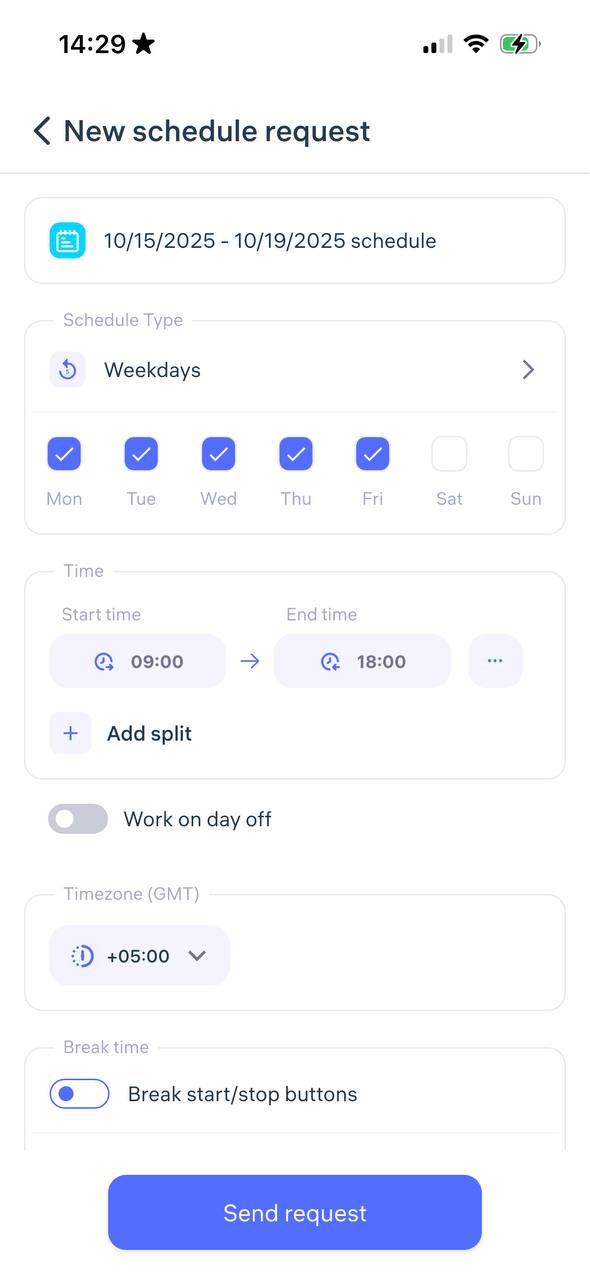
Step 6. Wait for approval
After submitting the request:
You’ll receive a push notification once it’s approved or rejected.
The request status can also be tracked in the Feed on the app’s home page.
How can I view the schedules of only the departments or positions I need?
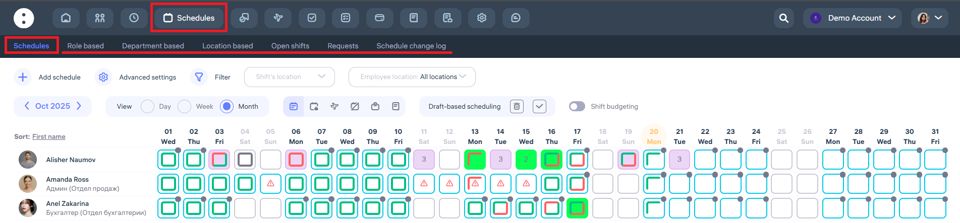
Where to view schedules
To view schedules, go to the “Schedules” section in the top menu of the Clockster system.How to switch between categories
At the top of the page, you’ll find the following tabs:By positions – shows schedules by selected employee positions.
By departments – shows schedules only for selected departments.
By locations – shows schedules of employees working at specific locations or branches.
Why this is useful
To quickly find employees and their shifts by the desired category.
To control planned shifts across departments, positions, or locations.
To simplify shift planning in large companies.
Important to remember
If you want to view schedules for only one category (for example, by location), make sure the correct tab is selected at the top of the screen. This way, the system will show only the information you need.How to filter
You can use the “Filter” button to narrow down the list by a specific location, position, or department and work only with the necessary data.
How can I add a leave schedule for the Holidays?
Why isn’t there a “Holidays” reason in the system when creating a vacation schedule?
Clockster does not include a separate vacation type called “Holidays.”
This is intentional — it helps keep the system universal and flexible for different countries and companies.
What to use instead of “Holidays”?
To mark public holidays or non-working days in employees’ schedules, use the “Day Off” type.
This option should be used when:
the company does not operate on official public holidays,
employees need to be released from work on a specific date.
Example:
If May 1st is an official holiday in your country and your company does not operate on that day, select “Day Off” in the employees’ schedule for May 1st.
What are Templates and how to use them?
Templates are predefined one-day schedules (working or free). Adding schedules using templates works as follows:

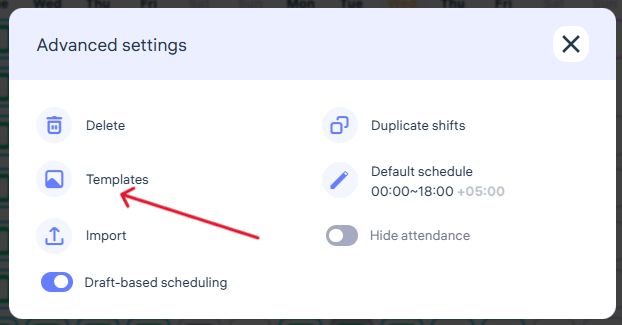
How to create and use a template
Create a template (for example, a working schedule from 9:00 to 18:00).
Select a date (click on the desired square).
Choose the template.
Templates are a very convenient feature, especially for mass scheduling.
You can select different dates for different employees (for example, the 1st and 16th for one employee, and the 3rd and 7th for another), then click the Add schedule button in the lower-right corner of the page and choose a template.
As a result, you’ll create schedules for multiple employees on different dates in one action.
Template codes and hotkeys
When creating templates, the Code field must contain numbers (1–9) or Latin letters (A–Z).
These codes can later be used as hotkeys when editing schedules.
How to quickly edit schedules using hotkeys
For Windows users:
Hold Ctrl to select individual days,
Or hold Alt to set the first day of a period, then click the last day to select the entire range.
After that, press the code of the template you want to apply.
For macOS users:
Hold Cmd to select individual days,
Or hold Alt to select the first and last day of a range.
Then press the template code to apply the desired schedule.
What is a Split shift and how to use it?
A split schedule allows you to set several separate work shifts within one day.
This is useful when an employee works with breaks — for example: 09:00–11:00, 12:00–14:00, and 15:00–17:00.
In the Mobile App:
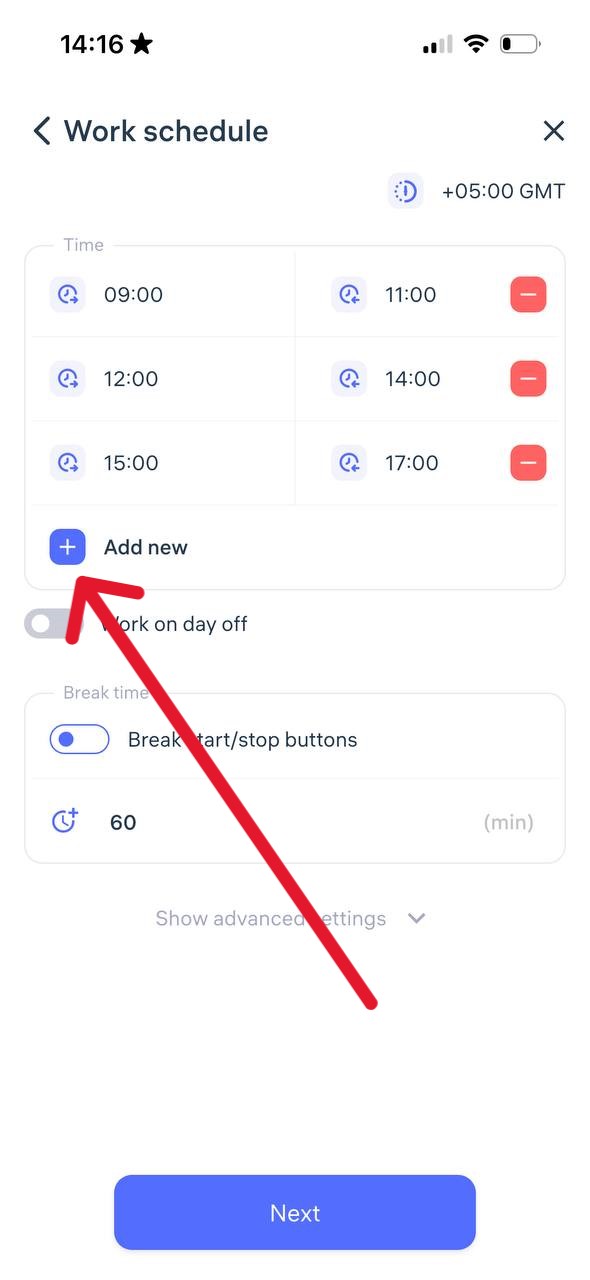
Go to the Work Schedule section.
Set the first shift by specifying its start and end time.
Tap + Add new to set the next shift.
You can add up to 8 shifts per day.
In the Web Version:
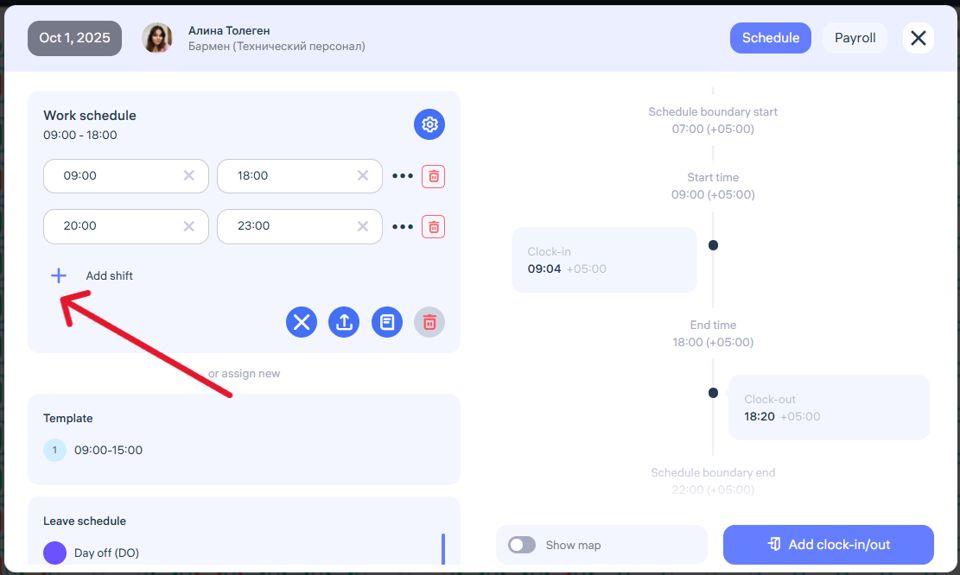
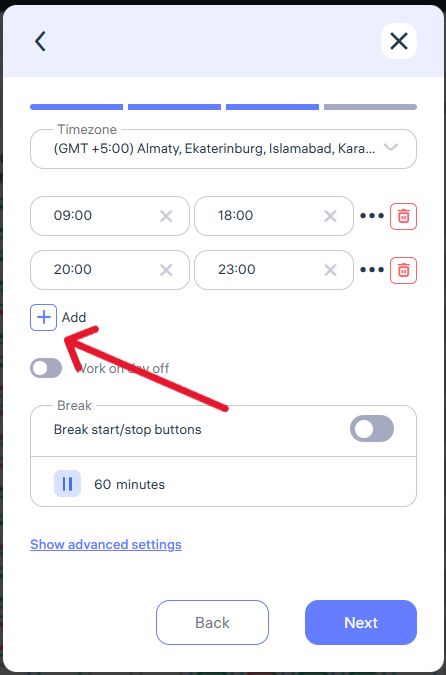
Go to the Schedules section, select the desired employee, and click on a day cell to edit that day’s schedule (Photo 1).
or Click + Add Schedule.
Choose the type Work Schedule.
Set the first shift (Photo 2).
Click + Add Shift to set additional ones.
You can set up to 8 shifts per day.
How does it work?
When clocking in, the employee selects which shift to start or end — this can only be done via the mobile app or Clockster Kiosk.
In the reports, the total working time per day is displayed regardless of the number of shifts.
How to enable breaktime records in the work schedule?
The Break clock-in function allows employees to record the start and end of their breaks.
When can be used:
Break clock-ins are only available if the employee has a work schedule assigned.
Instead of manually entering the number of minutes, the employee must use the “Start Break” and “End Break” options.
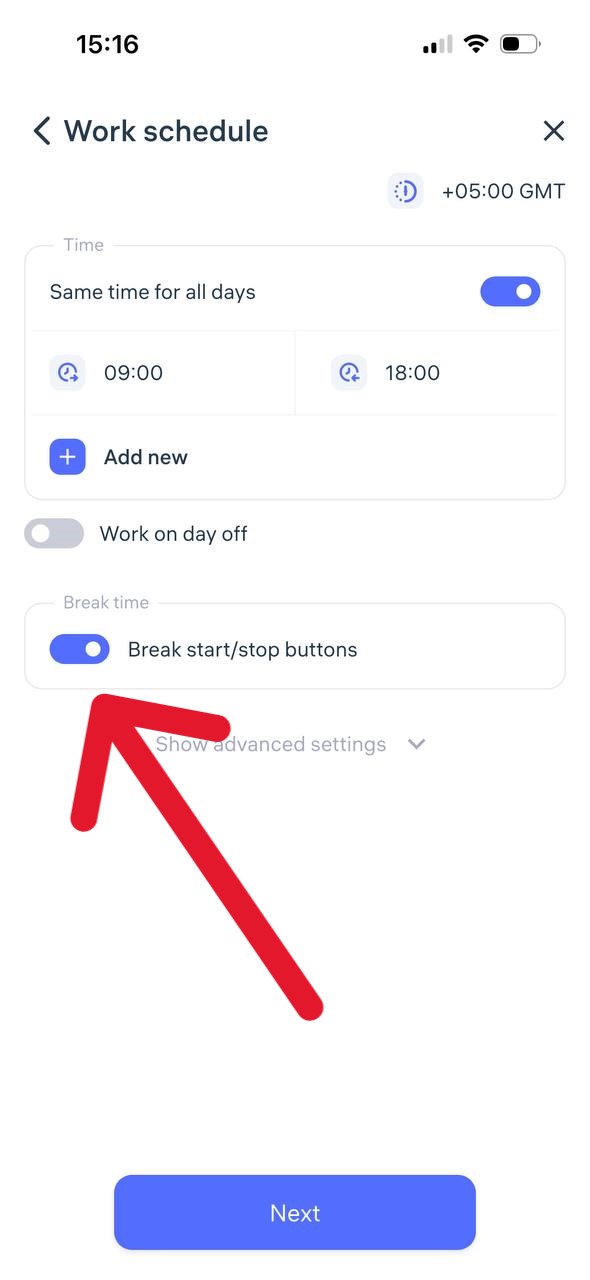
How it works in the mobile app:
On the clock-in creation page, the employee can select “Start Break” or “End Break.”
This function becomes available only after the employee has marked “Clock-in.”
For accurate tracking, both marks — the start and end of the break — must be recorded.
Time calculation:
The number of minutes spent on break is automatically subtracted from the employee’s total working hours.