
How to create a schedule 2/2 or 14/14? / Schedule – shift schedule.
Alternation of days is a feature that allows you to set up a shift or rotation schedule, such as 2/2 or 14/14. This is done using the “Alternation of days” repeat type in the schedule settings.
Step 1: Go to the “Schedules” section
In the web version, click “+ Add Schedule” in the top left corner of the screen.
Step 2: Choose the schedule type
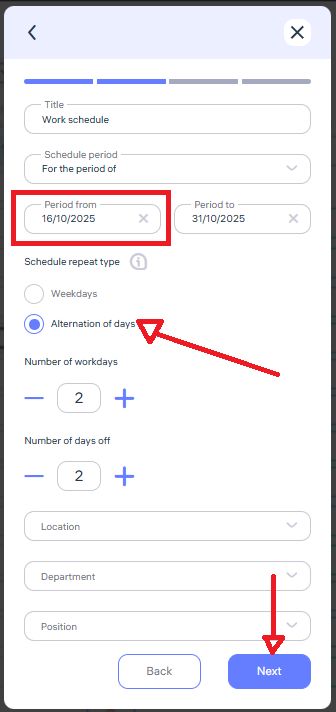
In the pop-up window, select “Work Schedule.”
Set the start date — this will be the first working day of the cycle.
Define the period for which the schedule will apply (for example, 1 month or 2 weeks).
In the Schedule Repeat Type field, select “Alternation of days.”
Step 3: Configure the schedule pattern
Enter the desired pattern, for example:
2 workdays / 2 days off — for waitstaff or shift workers.
14/14 — for rotational (fly-in/fly-out) schedules.
You can set the same working hours for all days or customize them individually.
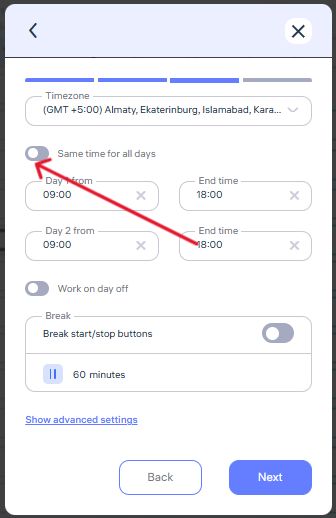
For example: Day 1 — 09:00 to 13:00, Day 2 — 13:00 to 17:00
To do this, disable the option “Same time for all days.”
Step 4: Set the lunch break
The standard duration is 60 or 90 minutes.
The system automatically deducts this break from total working hours.
Example: A schedule from 09:00–18:00 with a 1-hour break equals 8 working hours per day.
If no break is needed, enter 0 minutes.
Step 5: Assign a location
Specify the location if you want:
The employee to be recognized by a biometric device, and attendance records to be tied to that location.
Step 6: Assign employees
Check the boxes next to the employees you want to assign this schedule to.
Click “Save”
Updated at