
The app is properly installed, I am inside my account. How do I make clock-ins/outs?
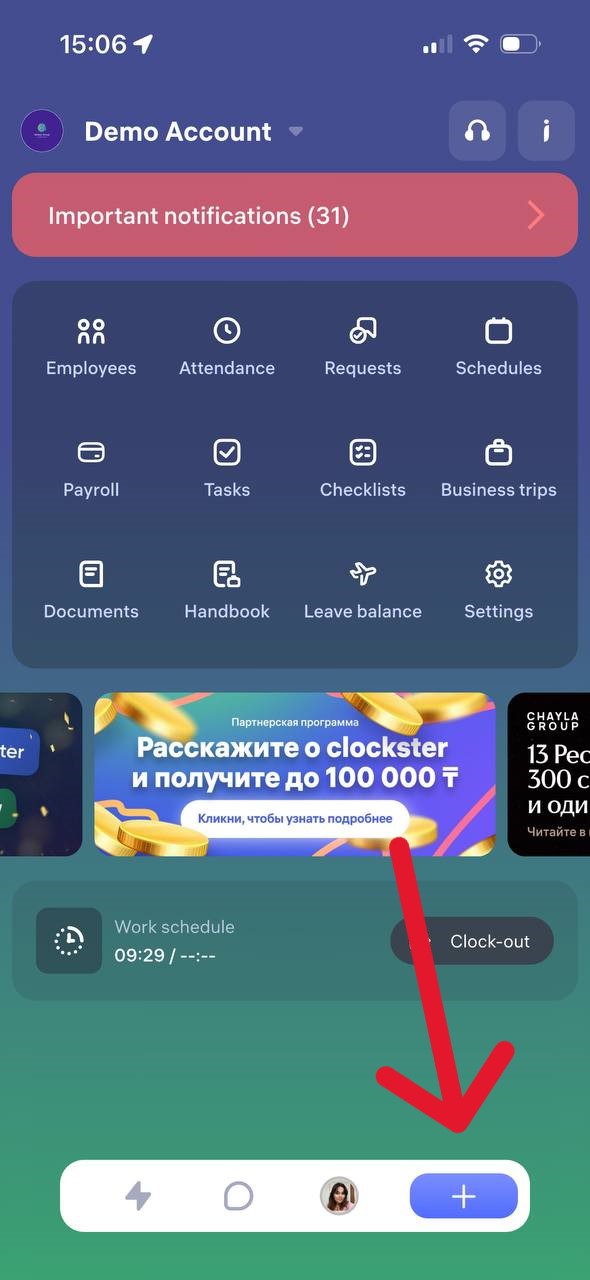
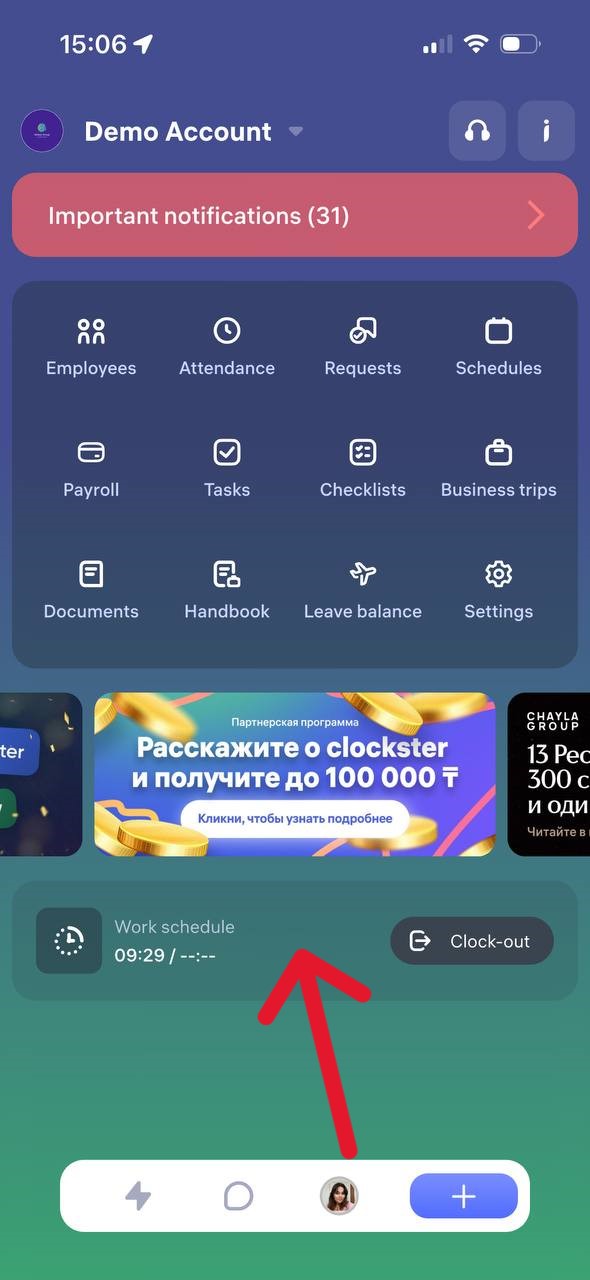
How to Clock In or Clock Out in the Clockster App
On the main page of the app, tap the “+” button at the bottom of the screen.
Select “Clock In/Out”
Tap “Clock In” or “Clock Out” depending on what you need to mark.
What to Remember:
– Make sure your location services (GPS) are enabled on your phone. Without it, the clock in/out may not be recorded.
– Important:
If you make only one mark — for example, only “Clock In” or only “Clock Out” — the day will not be counted as a full working day. The report will show incomplete hours.
To ensure your working hours are recorded correctly, you need to make both marks each day: “Clock In” and “Clock Out.”
– The app will offer you to send a request for missed clock-ins/outs for the last 14 days.
We recommend always sending such requests to keep your data complete.
– The app has a reminder feature for clock-ins/outs. Notifications are sent:
• 5 minutes before the start of your shift
• At the start of your shift
• 5 minutes after the start of your shift
The same notifications are sent at the end of the working day so you don’t forget to clock out.
Note:
Notifications work only if a work schedule has been created for you in the Clockster system.
What’s an additional record and how to use it?
An additional clock-in is a special type of attendance mark that allows an employee to send an extra location update during the workday. It is only available after the employee has marked “Clock-in” but before they have marked “Clock-out.”
When it is used:
When it’s necessary to send an intermediate clock-in during the workday.
When the company requires tracking location throughout the shift.
When an employee moves between different work sites.
How to create an additional clock-in?
Open the Clockster mobile app.
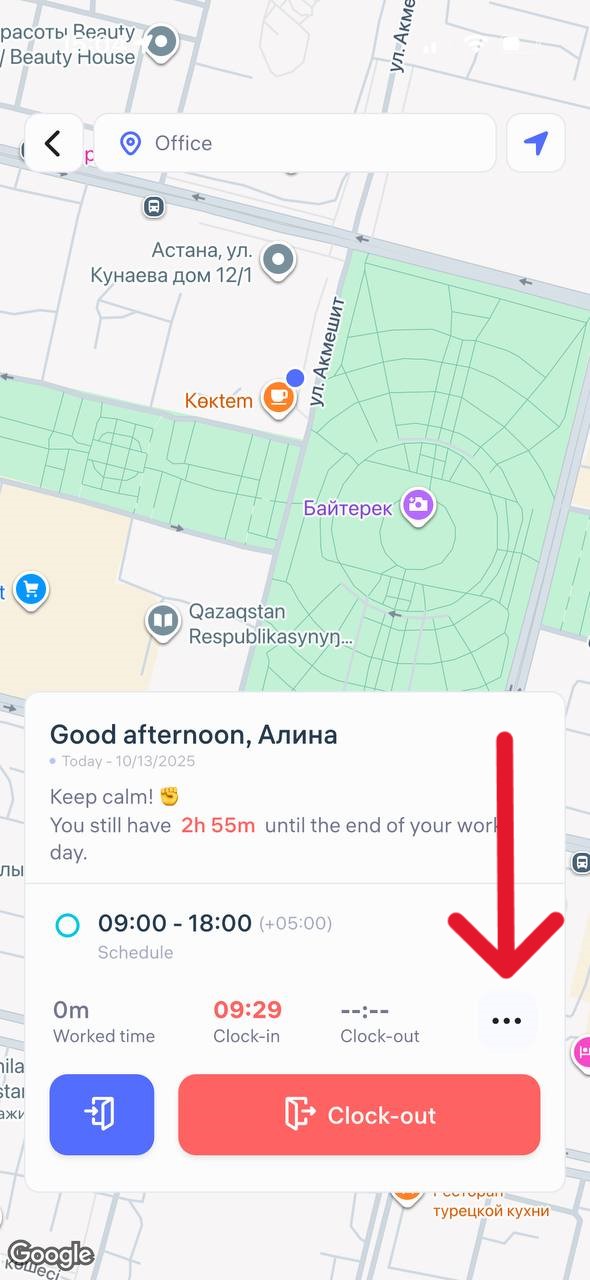
After marking “Clock-in,” a button with three dots (⋯) will appear on the main screen next to the main buttons.
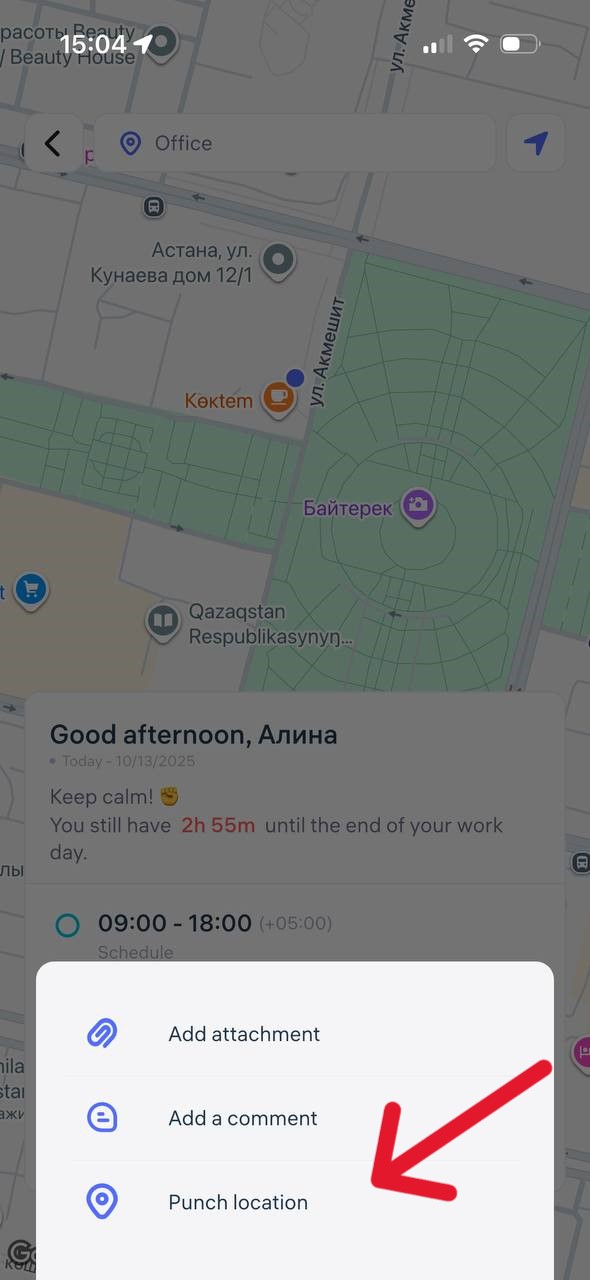
Tap it and select “Punch location”
Add a comment (if needed).
Attach a photo or file, if required.
The system will automatically record your location and the time of the check-in.
Important
The additional clock-in is treated as a “Clock-in” type but does not close the workday.
It does not replace the main “Clock-out” mark.
Having an additional clock-in does not affect the calculation of working hours.
What do I need for the mobile app to work properly? / Geolocation is not working correctly.
To ensure the Clockster app runs smoothly, make sure all required permissions and settings are enabled on your phone.
Location Access Permission
Android:
Open Settings → Apps → Clockster.
Go to Permissions → Location.
Select Allow all the time or Allow only while using the app.
iPhone (iOS):
Open Settings → Clockster.
Tap Location and choose Always or While Using the App.
Turn on Precise Location.
Camera Access Permission
(Required for selfie check-ins, if enabled by the employer)
Android & iOS:
Open Settings → Apps → Clockster.
Go to Permissions → Camera.
Select Allow.
Notification Permission
Android & iOS:
Open Settings → Clockster.
Tap Notifications and turn them on.
Make sure sound alerts are enabled.
What is located on the Home page?
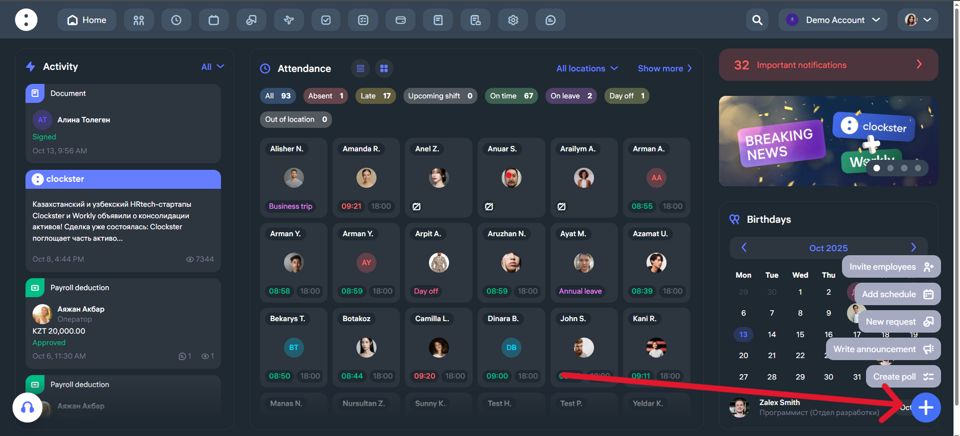
On the main page of Clockster, you can immediately get an overview of the most important company updates. Here’s what you’ll see:
What’s Displayed on the Main Page of Clockster
Events and Announcements (left side)
A full feed of key company news: webinar announcements, system notifications, and internal updates.
You can filter by categories such as Announcements, Requests, What’s New?, and Polls for easier navigation.
Employee Attendance (center)
A list of employees with their current statuses: On time, Late, Absent, On leave, etc.
You can also see each employee’s schedule for the day and the exact time they clocked in.
Filters and Toggles (top and right)
Filters by location.
The “Show more” button leads to a full analytics page, where you can filter employees by department, position, or other categories.
“Important Notifications” Block (top right)
This section shows critical events that need attention.
For example: unsynchronized or unlinked facial recognition devices at specific locations.
Upcoming Employee Birthdays (bottom right)
A convenient reminder so you never forget to congratulate your colleagues.
Quick Actions (bottom right corner, “+” button)
Add schedule
Invite an employees
Create poll
New request
Write announcement
This page is your team control center — everything important is visible at a glance.
Where can I get the “Invitation code”?
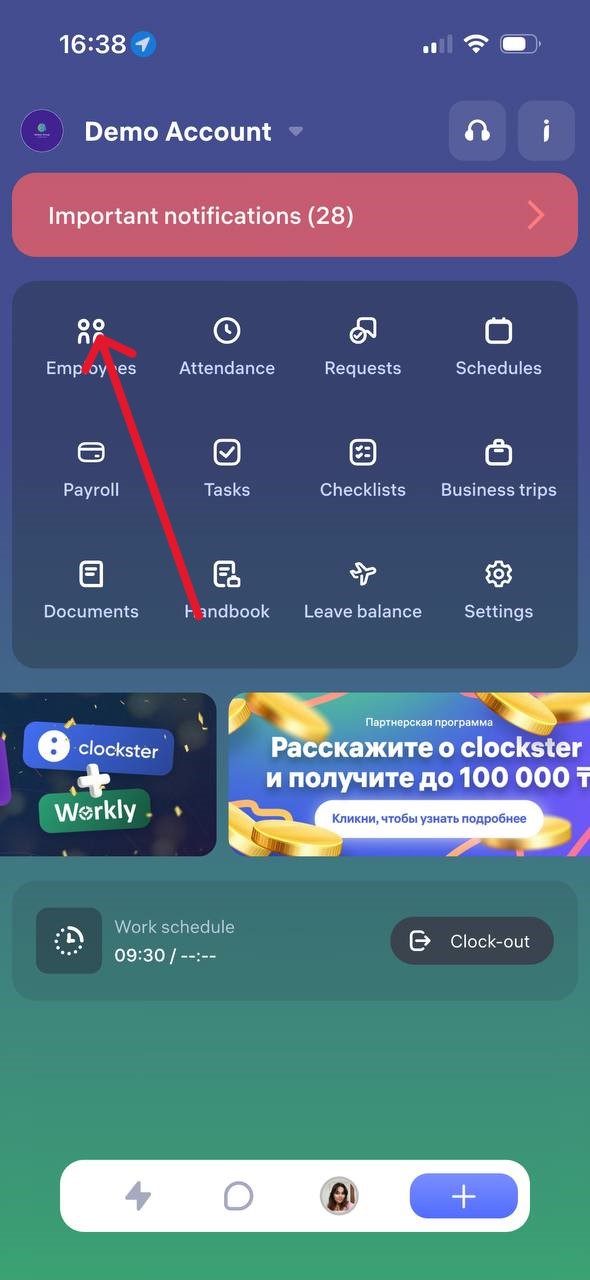
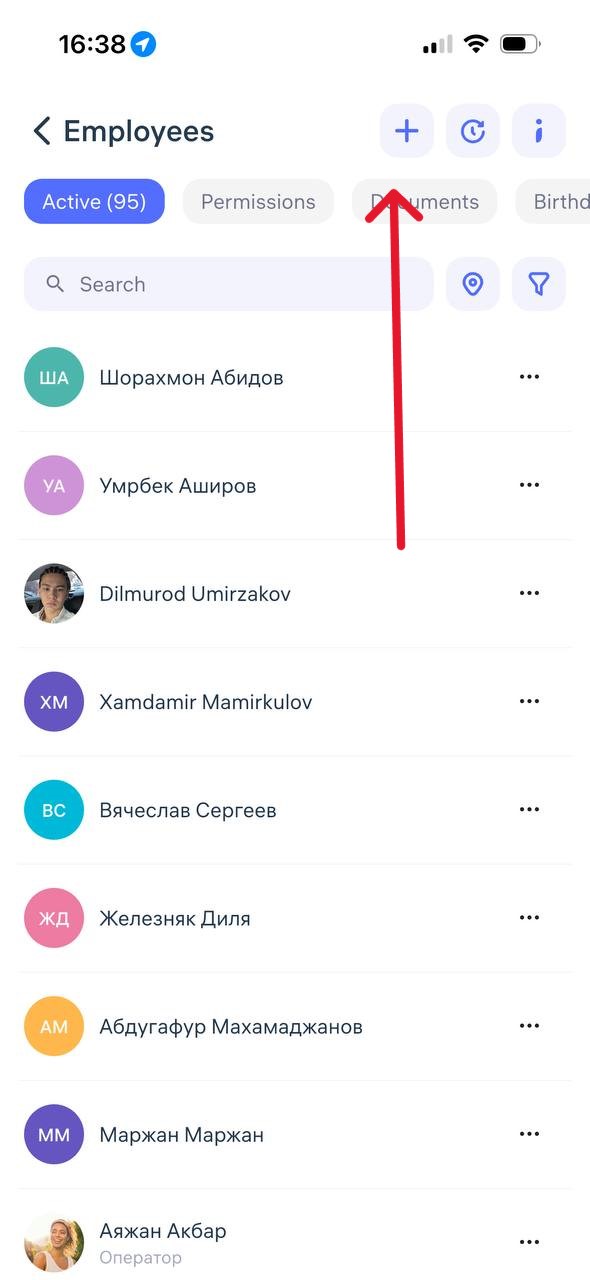
Where to find the “Invitation Code”
The invitation code is generated when adding a new employee in the Clockster mobile app.
To get it:
Open the Clockster app and go to the Employees tab.
Tap the “+” button in the top-right corner of the screen to add a new employee.
After filling in the employee’s details, an invitation code will appear — you can copy it or send it to the employee via any convenient method.
The employee must use this code during registration to join your company.
Note:
The code updates automatically every 2–3 weeks.
If an employee hasn’t used it in time, simply return to this section and resend the new code.
Notification: “Account does not exist or the password is incorrect”.
Why does the “Invalid data” notification appear?
This means that you entered an incorrect phone number or password when logging into the app.
Step-by-step what to do
1. Check your phone number.
Make sure you enter it in the international format, for example +7… or +9….
2. If you still can’t log in – reset your password.
Tap “Forgot password?” and choose a recovery method:
Via email:
An email will be sent to you with a link to reset your password.Via phone number:
First, a message with a code will be sent to your WhatsApp (check your WhatsApp).
If you don’t have WhatsApp installed, tap “Resend” — then you’ll receive an SMS with the code.
If you don’t get the SMS, the system may call you and dictate the code.
If you see “Account does not exist” during password recovery
This means that your account hasn’t been created yet. In that case:
Go back to the main screen and tap “Create account.”
Enter the same name, surname, and phone number that are listed in your employee profile in the company.
After registration, you’ll need to join the company by entering the invitation code provided by your administrator (HR, accountant, or business owner).
Important to understand
“Account” and “Employee” are two different things.
A Clockster account is created by you in the mobile app using your phone number and password.
An employee profile can be created manually by the Clockster admin in the web dashboard and is not automatically linked to your account.
To avoid duplicate profiles, the admin must enter the employee’s current phone number in their profile before the user joins the company via an invitation code.
If you use the same details as your employee profile when creating your account, the system will automatically link your account to your employee profile.
Additional info
One Clockster account can be linked to multiple companies.
For example, if you work at two jobs, you can clock-in/out at both companies through a single app — just switch between them.
Notification: “This device is already assigned to (user). Please contact your administrator.”
In Clockster, only one employee can be linked to one mobile device.
This is done to ensure data transparency and prevent anyone from clocking in or out on behalf of someone else.
If you receive a notification that login is not possible, there may be two reasons:
1. You changed or purchased a new phone.
In this case, your profile in the system is still linked to the old device.
To allow you to log into the app on your new phone, the administrator must unlink the old device.
How the administrator can unlink the old device:
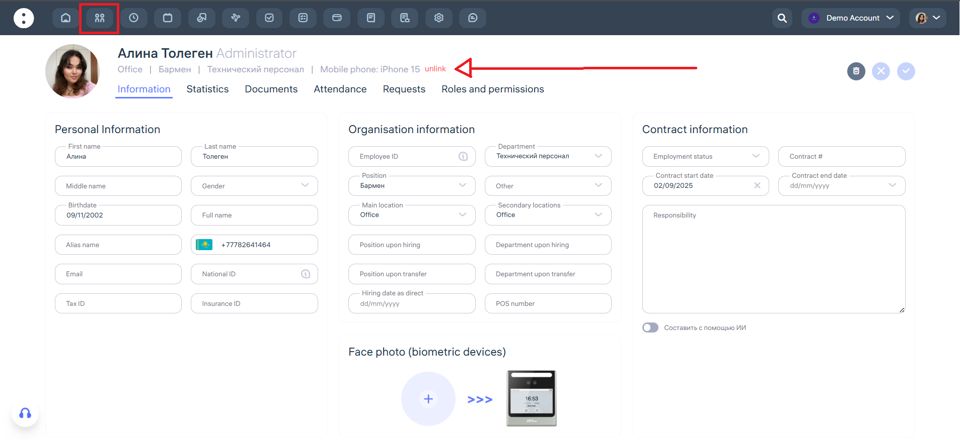
Through the web version:
– Go to the “Employees” section.
– Find the employee you need.
– Click on their name.
– The employee profile will open, including the “Mobile Phone” field showing the device make and model.
– Click the “unlink” next to the device to remove it.
After that, the employee will be able to log in to the app on the new phone.
Through the mobile app:
– Go to the “Employees” section.
– Find the needed employee.
– Tap on their name.
– In the profile, find the “Phone model” field showing the device make and model.
– Tap the Unlink button to remove the device.
After removing it, the employee will be able to log in to the app on their new phone.
2. Another employee previously logged into Clockster from your device.
In this case, the notification will display the name of the employee who was previously logged in from this phone.
What to do:
The administrator must follow the same steps described above, but this time remove the device from the profile of the employee who was previously linked to that phone.
How to switch between profiles?
Each Clockster user initially has a personal profile — this is a profile not linked to any company. In it, the user provides basic information such as full name, photo, contact details, and other personal settings.
When the user joins at least one company (a Clockster client), an employee profile is automatically created for that company. This profile gives access to all Clockster features, including:
Clock-in and clock-out tracking,
Submitting requests (for leave, sick days, etc.),
Viewing personal statistics and schedules.
If the user works for multiple companies, switching between profiles is simple depending on the context or task.
In the mobile app
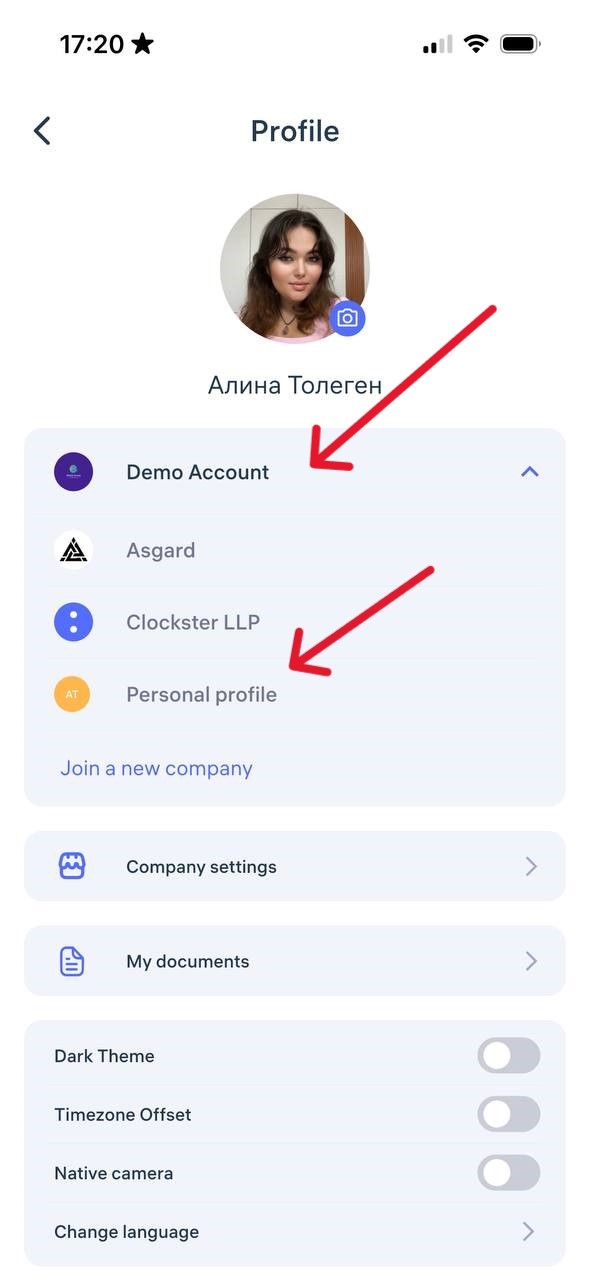
Go to the Profile section — the button is in the bottom-right corner.
At the top, you’ll see a list of all available profiles: the names of companies you’re connected to and your personal profile.
Tap the desired profile — the app will instantly switch to that work environment.
In the web version
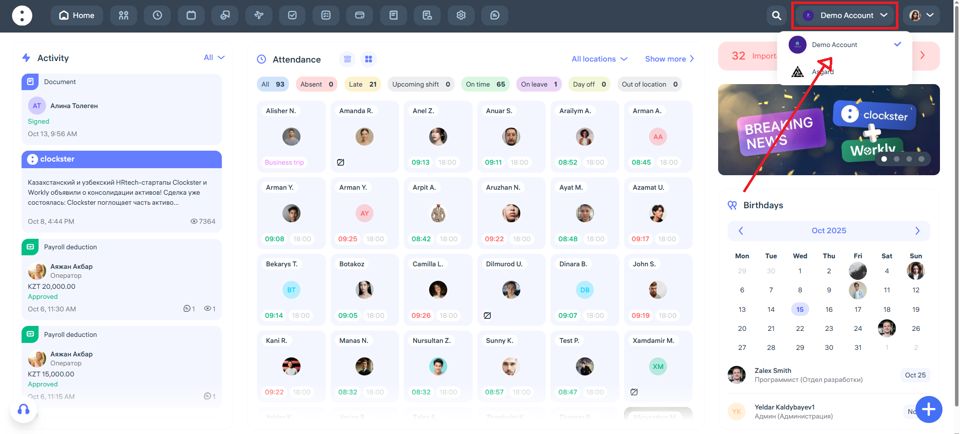
In the top-right corner, click on the name of the current company.
From the drop-down list, select the desired organization or personal profile.
To access personal profile settings (change photo, language, theme, etc.), click your name in the top-right corner.
💡 Note: Actions and data are not shared between companies. Each profile has its own record of attendance, requests, and schedules.
How to add a position / department / location?
To manage elements such as positions, departments, locations, and custom categories specific to your company, go to the dedicated settings section.
Instructions:
On the main page of the Clockster web dashboard, click “Settings” (located at the top of the screen).
In the submenu, open the “Categories” tab.

Here you can:
Add new positions, departments, locations, etc.
Edit existing names.
Delete unnecessary categories (if they are not in use).
Why are these categories important?
To filter employees by position, department, or workplace.
To accurately assign access permissions.
For generating attendance and other analytical reports.
To configure schedules, notifications, and announcement filters.