
Notification: “This device is already assigned to (user). Please contact your administrator.”
In Clockster, only one employee can be linked to one mobile device.
This is done to ensure data transparency and prevent anyone from clocking in or out on behalf of someone else.
If you receive a notification that login is not possible, there may be two reasons:
1. You changed or purchased a new phone.
In this case, your profile in the system is still linked to the old device.
To allow you to log into the app on your new phone, the administrator must unlink the old device.
How the administrator can unlink the old device:
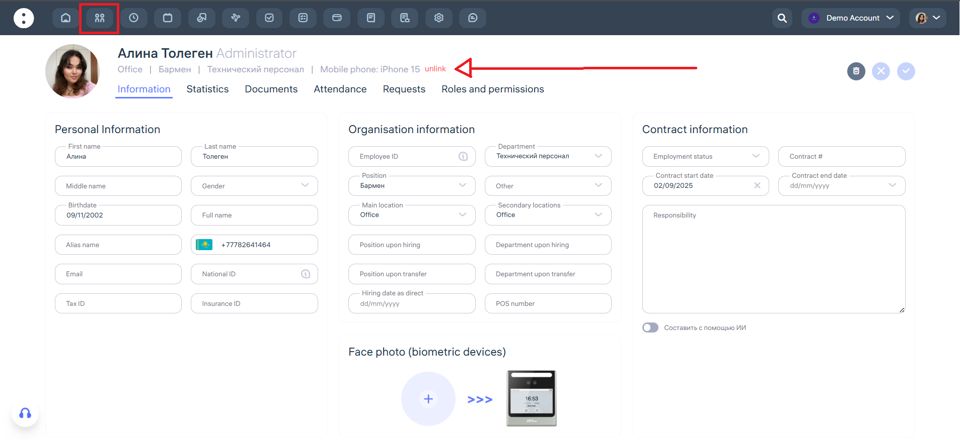
Through the web version:
– Go to the “Employees” section.
– Find the employee you need.
– Click on their name.
– The employee profile will open, including the “Mobile Phone” field showing the device make and model.
– Click the “unlink” next to the device to remove it.
After that, the employee will be able to log in to the app on the new phone.
Through the mobile app:
– Go to the “Employees” section.
– Find the needed employee.
– Tap on their name.
– In the profile, find the “Phone model” field showing the device make and model.
– Tap the Unlink button to remove the device.
After removing it, the employee will be able to log in to the app on their new phone.
2. Another employee previously logged into Clockster from your device.
In this case, the notification will display the name of the employee who was previously logged in from this phone.
What to do:
The administrator must follow the same steps described above, but this time remove the device from the profile of the employee who was previously linked to that phone.
Updated at