
The app is properly installed, I am inside my account. How do I make clock-ins/outs?
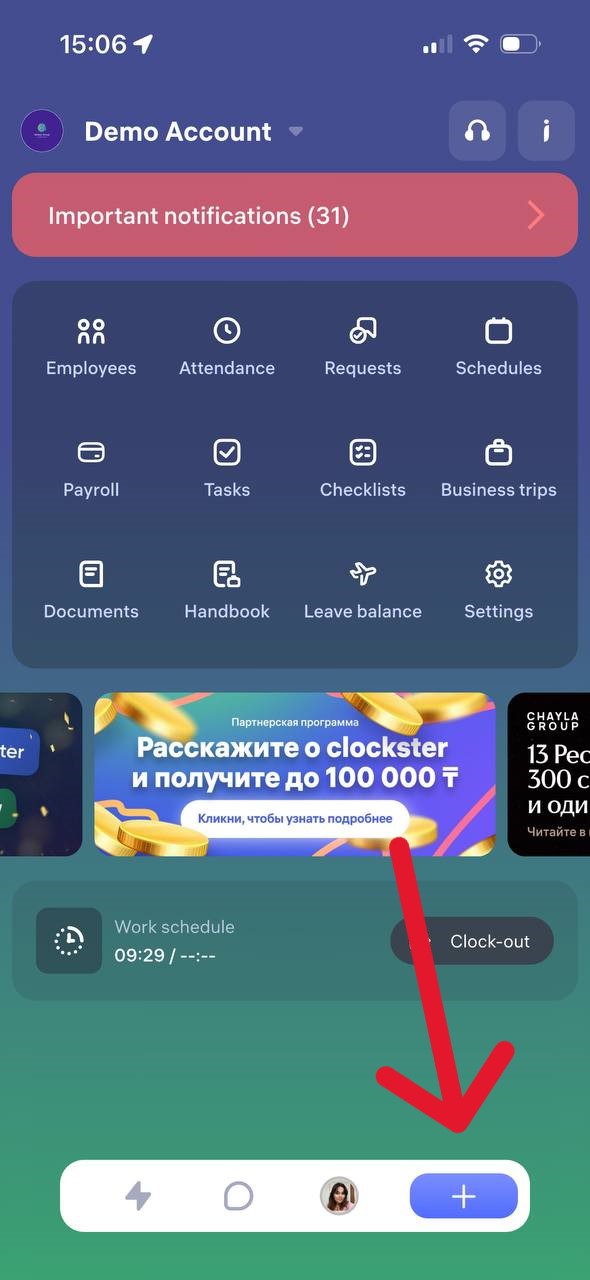
How to Clock In or Clock Out in the Clockster App
On the main page of the app, tap the “+” button at the bottom of the screen.
Select “Clock In/Out”
Tap “Clock In” or “Clock Out” depending on what you need to mark.
What to Remember:
– Make sure your location services (GPS) are enabled on your phone. Without it, the clock in/out may not be recorded.
– Important:
If you make only one mark — for example, only “Clock In” or only “Clock Out” — the day will not be counted as a full working day. The report will show incomplete hours.
To ensure your working hours are recorded correctly, you need to make both marks each day: “Clock In” and “Clock Out.”
– The app will offer you to send a request for missed clock-ins/outs for the last 14 days.
We recommend always sending such requests to keep your data complete.
– The app has a reminder feature for clock-ins/outs. Notifications are sent:
• 5 minutes before the start of your shift
• At the start of your shift
• 5 minutes after the start of your shift
The same notifications are sent at the end of the working day so you don’t forget to clock out.
Note:
Notifications work only if a work schedule has been created for you in the Clockster system.
Updated at