
For Employees
Notification: “Account does not exist or the password is incorrect”.
Why does the “Invalid data” notification appear?
This means that you entered an incorrect phone number or password when logging into the app.
Step-by-step what to do
1. Check your phone number.
Make sure you enter it in the international format, for example +7… or +9….
2. If you still can’t log in – reset your password.
Tap “Forgot password?” and choose a recovery method:
Via email:
An email will be sent to you with a link to reset your password.Via phone number:
First, a message with a code will be sent to your WhatsApp (check your WhatsApp).
If you don’t have WhatsApp installed, tap “Resend” — then you’ll receive an SMS with the code.
If you don’t get the SMS, the system may call you and dictate the code.
If you see “Account does not exist” during password recovery
This means that your account hasn’t been created yet. In that case:
Go back to the main screen and tap “Create account.”
Enter the same name, surname, and phone number that are listed in your employee profile in the company.
After registration, you’ll need to join the company by entering the invitation code provided by your administrator (HR, accountant, or business owner).
Important to understand
“Account” and “Employee” are two different things.
A Clockster account is created by you in the mobile app using your phone number and password.
An employee profile can be created manually by the Clockster admin in the web dashboard and is not automatically linked to your account.
To avoid duplicate profiles, the admin must enter the employee’s current phone number in their profile before the user joins the company via an invitation code.
If you use the same details as your employee profile when creating your account, the system will automatically link your account to your employee profile.
Additional info
One Clockster account can be linked to multiple companies.
For example, if you work at two jobs, you can clock-in/out at both companies through a single app — just switch between them.
What can I do in the “Announcements” section?
The Announcements section is where the company publishes important news, updates, and notifications for employees.
What you can do in the “Announcements” section:
Read corporate news and management messages
Receive push notifications about new posts
View the full announcement text directly in the app
Participate in discussions: leave comments and ask questions
See who has already read the post
Examples:
Meeting notifications
Holiday greetings
Information about new rules or project
👉 In short, Announcements serve as the company’s internal news feed, helping employees stay informed about important events.
How can an employee check worked hours?
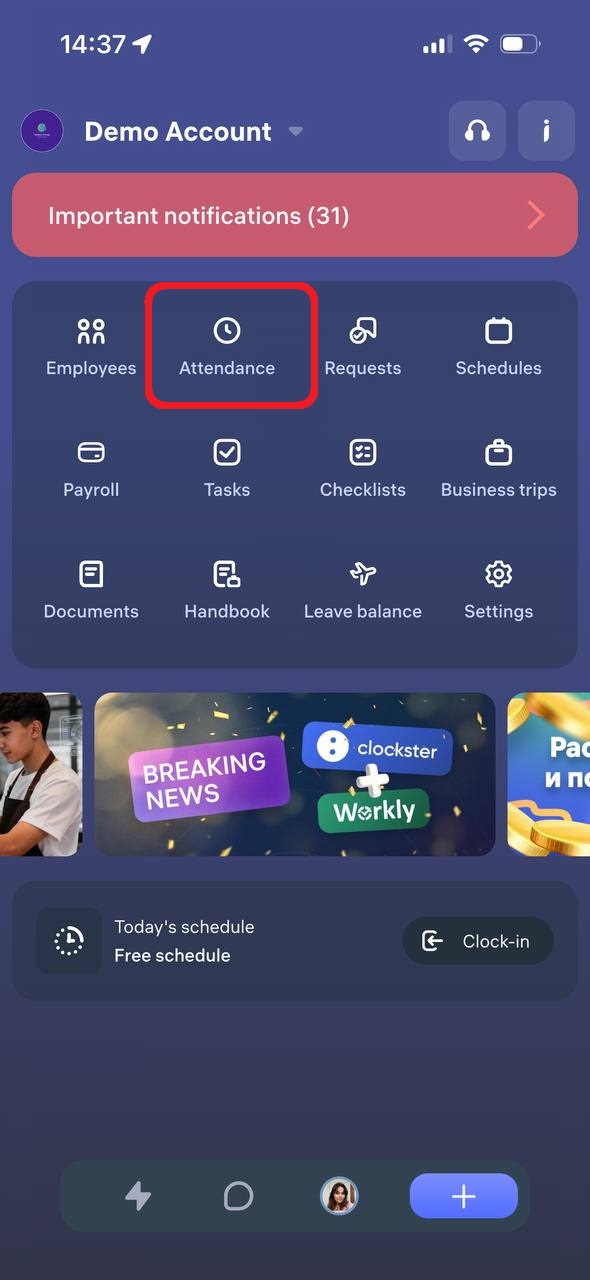
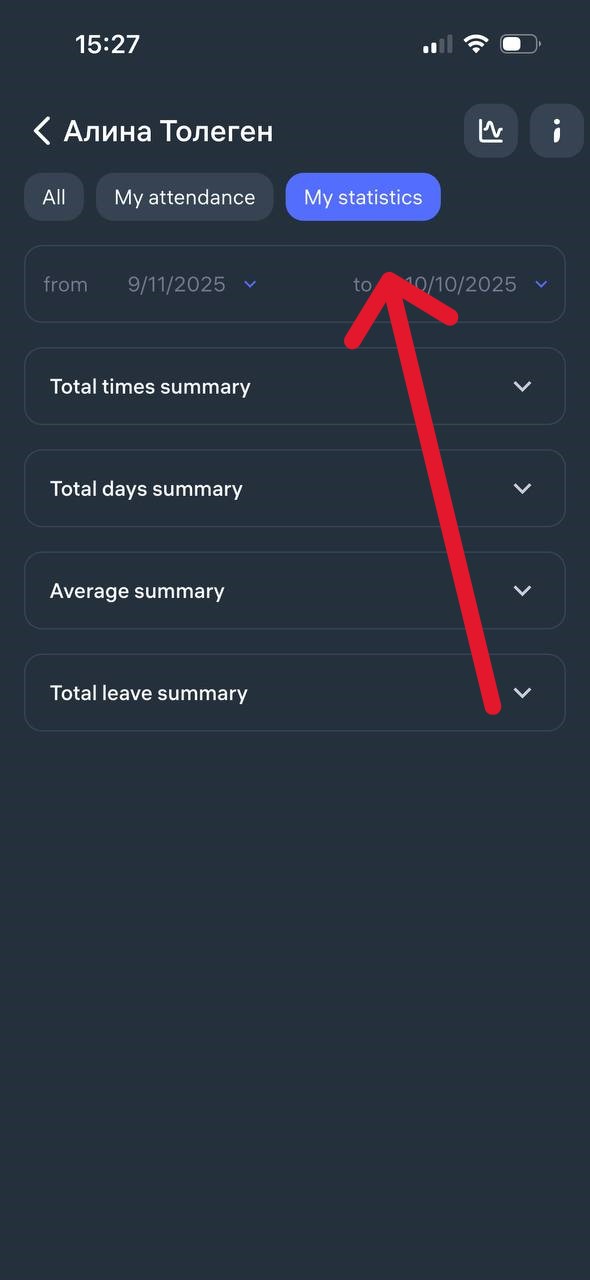
An employee can open the Clockster mobile app and go to the “Attendance” → “My Statistics” tab.
In the “My Statistics” section, they can view:
Total times summary
Total days summary
Average summary
Total leave summary
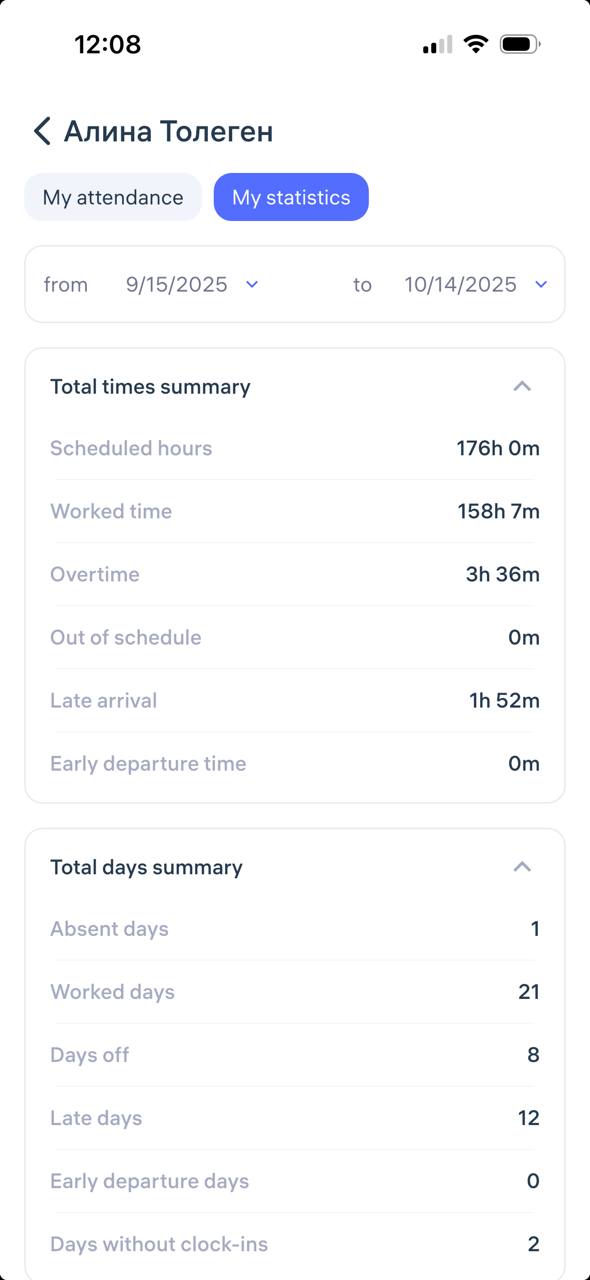
How to view your check-ins in the Clockster mobile app
You can view your check-ins in the “Attendance” section of the Clockster mobile app.
On the main page of the app, tap the “Attendance” icon.
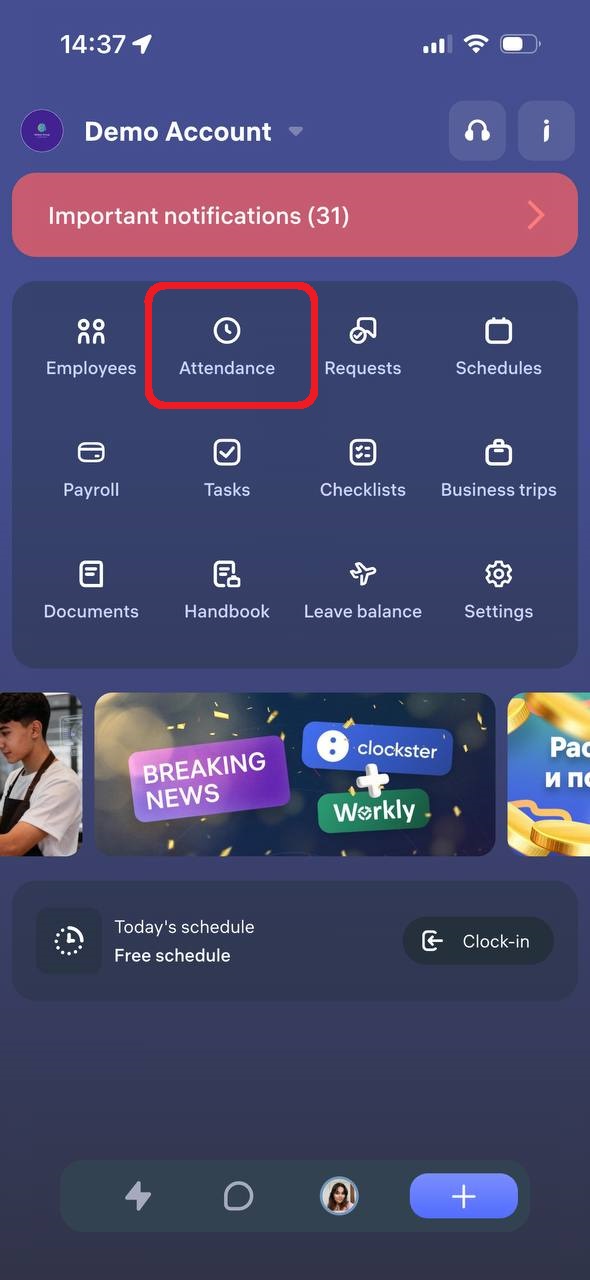
2. In the window that opens, select the “My Attendance” tab.
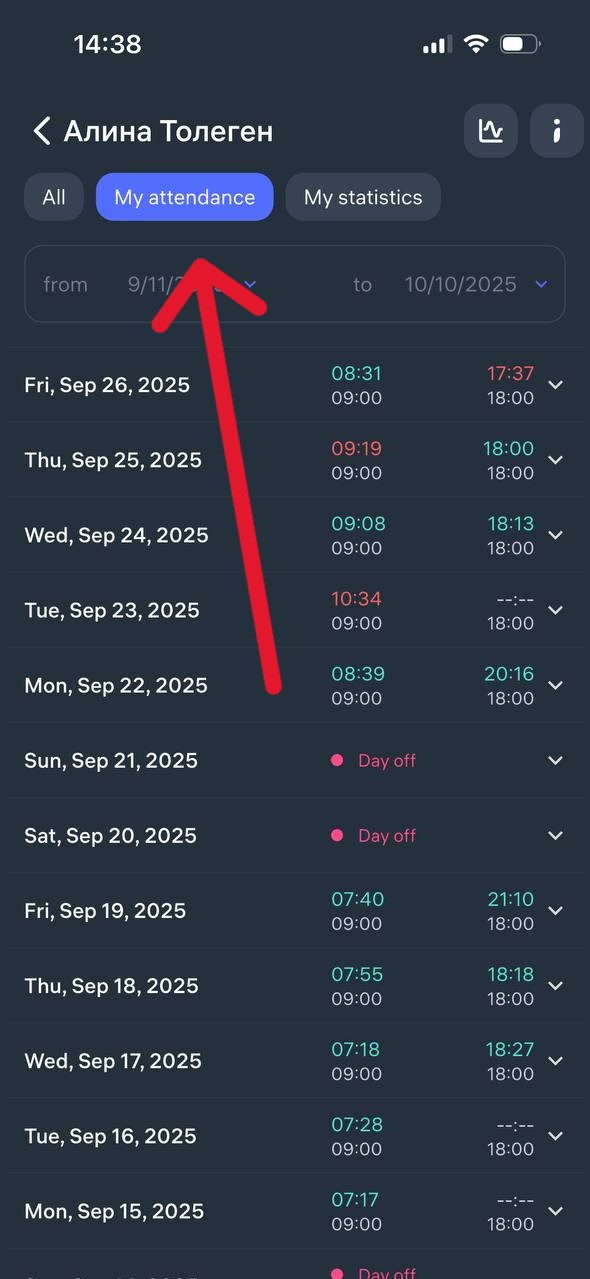
3. Here you’ll see all your check-ins for the selected period — including clock-in and clock-out times, as well as dates.
If needed, you can change the date range at the top using the filter (for example, to view attendance for a week, a month, or any custom period).
Where can I see my colleagues’ birthdays?
You can view your colleagues’ birthdays in the Clockster mobile app under the “Employees” section, in the “Birthdays” tab.
This section only shows upcoming birthdays, and the page is automatically updated on a regular basis.
If you don’t see the “Birthdays” tab, it’s possible that you don’t have permission to access this information. In that case, please contact your administrator to check whether you have access to the “Employees” section.
Which formats can I upload into Documents?
The following formats are compatible with the section “Documents”: PDF, DOC, JPG, JPEG, PNG, XLSX.
How to Sign a Document via EDS (eGov)
To sign a document in Clockster using your Electronic Digital Signature (EDS):
Open the document in the “Documents” section.
Click “Sign document via eGov.”
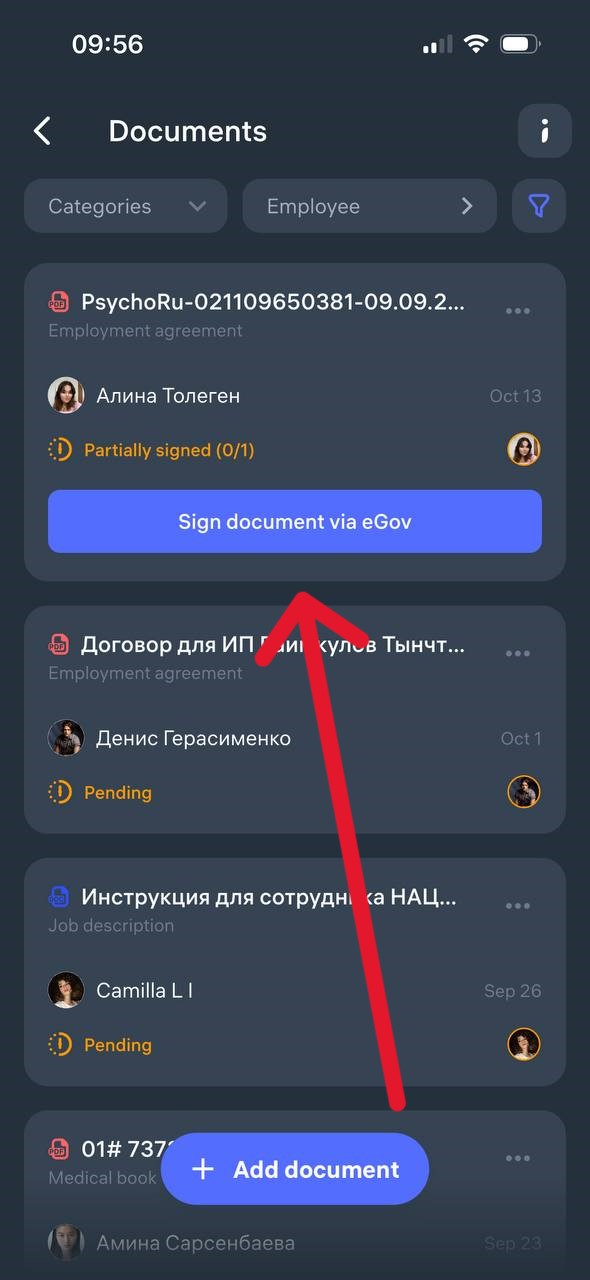
3. In the pop-up window, click “Sign” again.
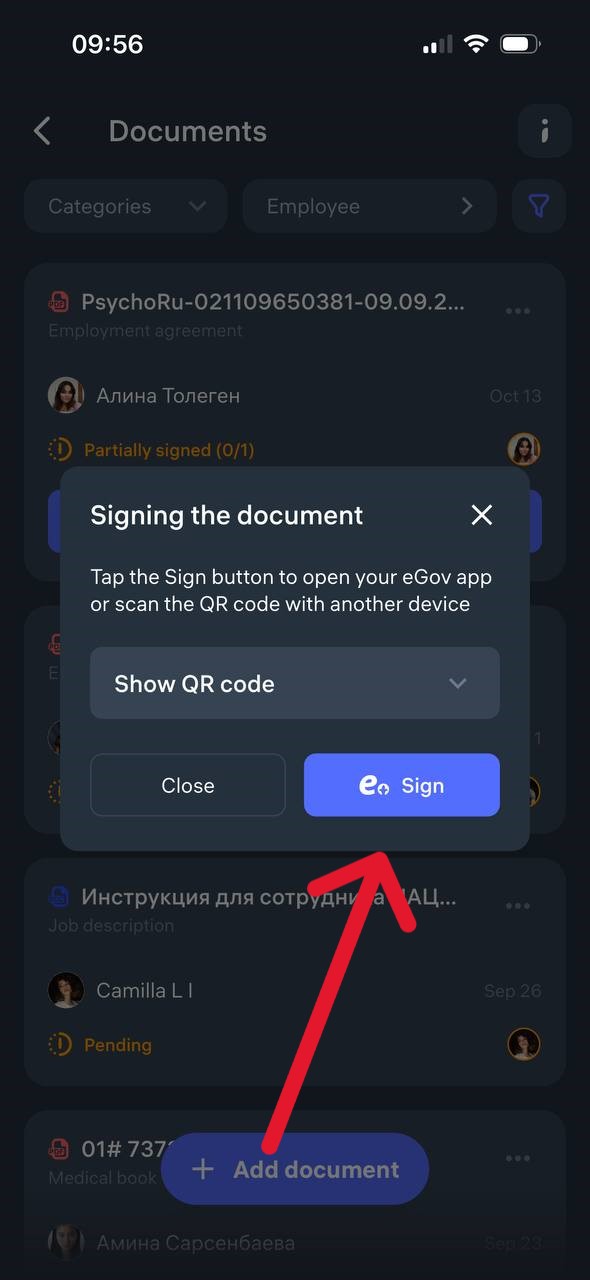
4. You will be automatically redirected to the eGov mobile application.
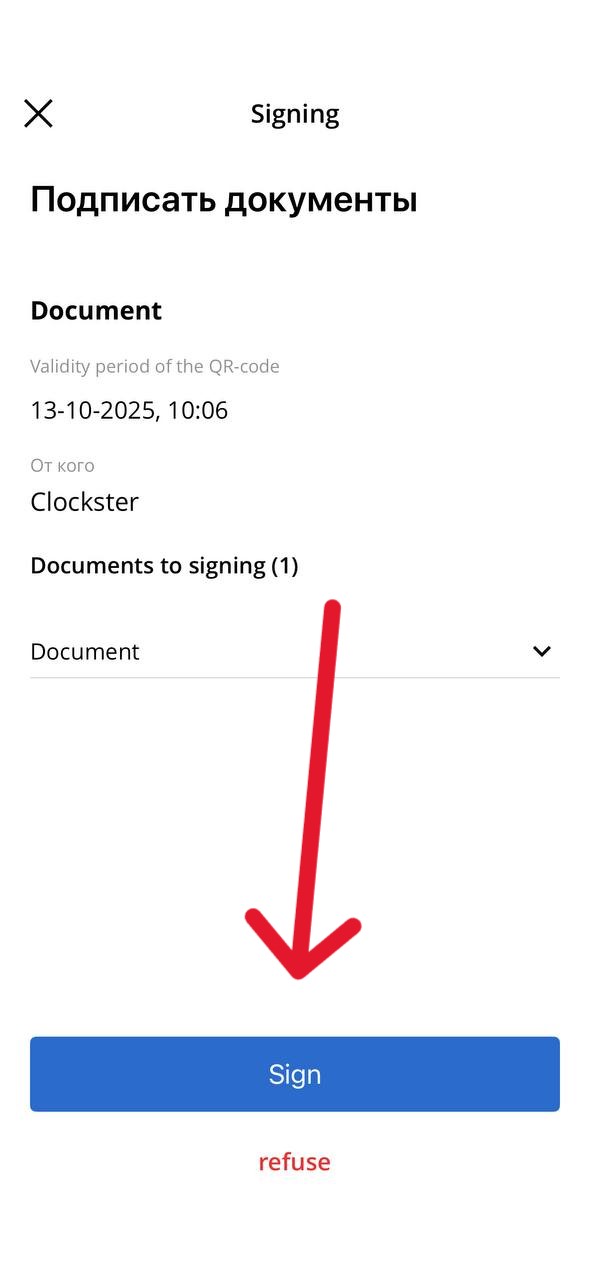
5. Review the data and confirm the signing by entering your EDS PIN code or using biometrics.
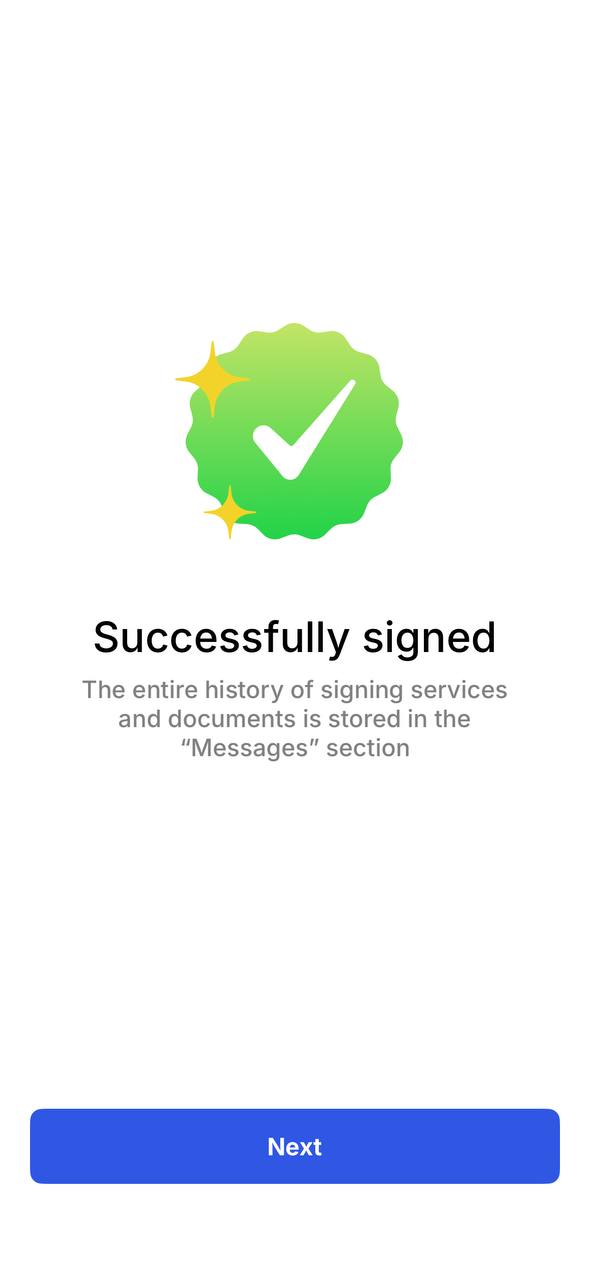
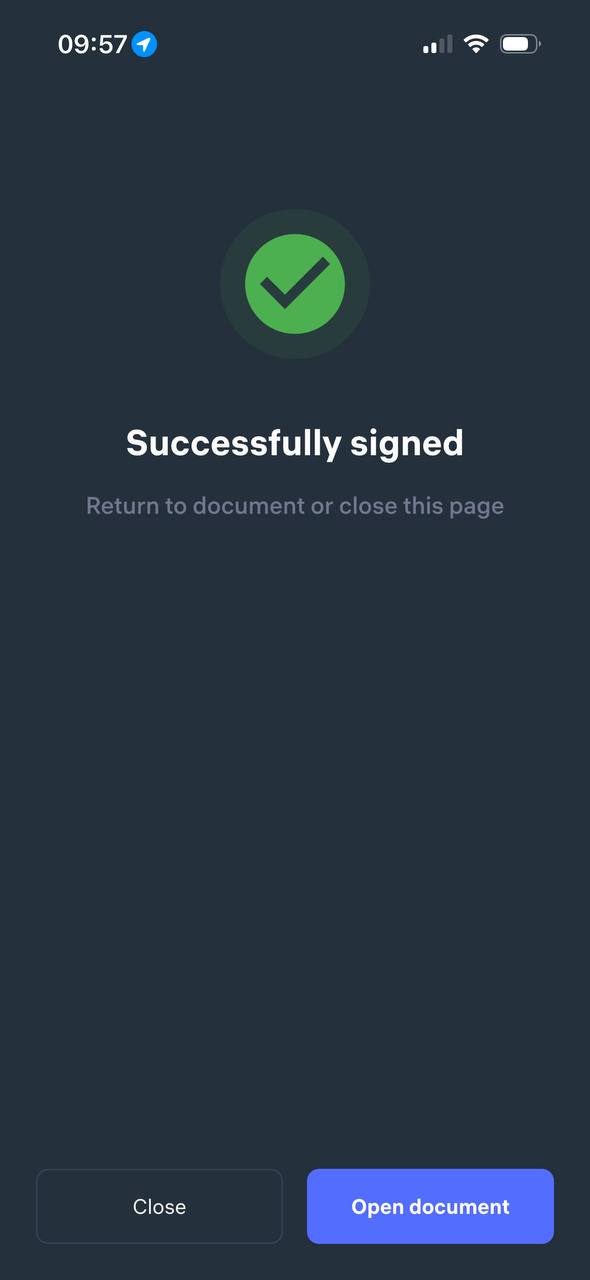
After successful confirmation, you will see the message “Successfully signed” and the document status in Clockster will change to “Successfully signed.”
What can I do in the “Employees” section?
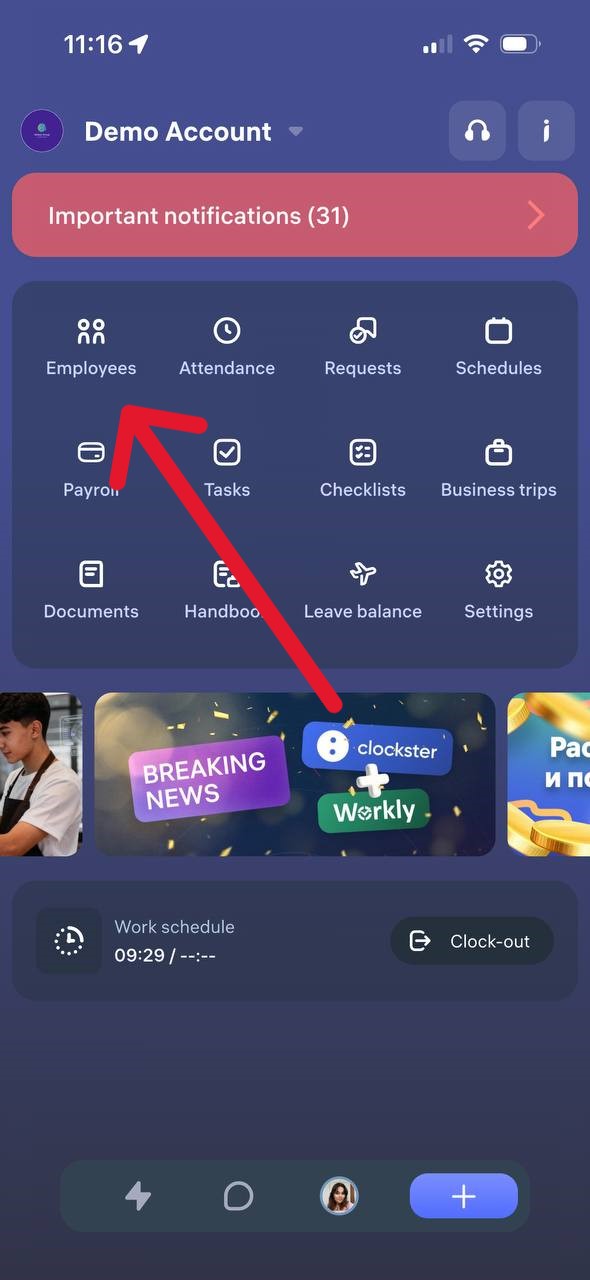
When the “View the list of employees” permission is enabled, the “Employees” section in the Clockster mobile app provides the following features:
View Employees
You can open the list of all active company employees.
The list displays names, positions, and initials.
View Birthdays
A separate tab shows upcoming employee birthdays.
Search and Filter
You can search by an employee’s first or last name and use filters by location.
Employee Profile Card
By tapping on an employee’s name, you can open their profile card, which displays:
phone number (if specified)
gender
employee number
department
position
main and additional locations
This information helps you quickly find the right colleague and access their basic details.
Can I add another employee (my colleague) into the company where I’m employed?
No, in Clockster, only the administrator has the ability to add employees.
How do I create a request for Advance payment?
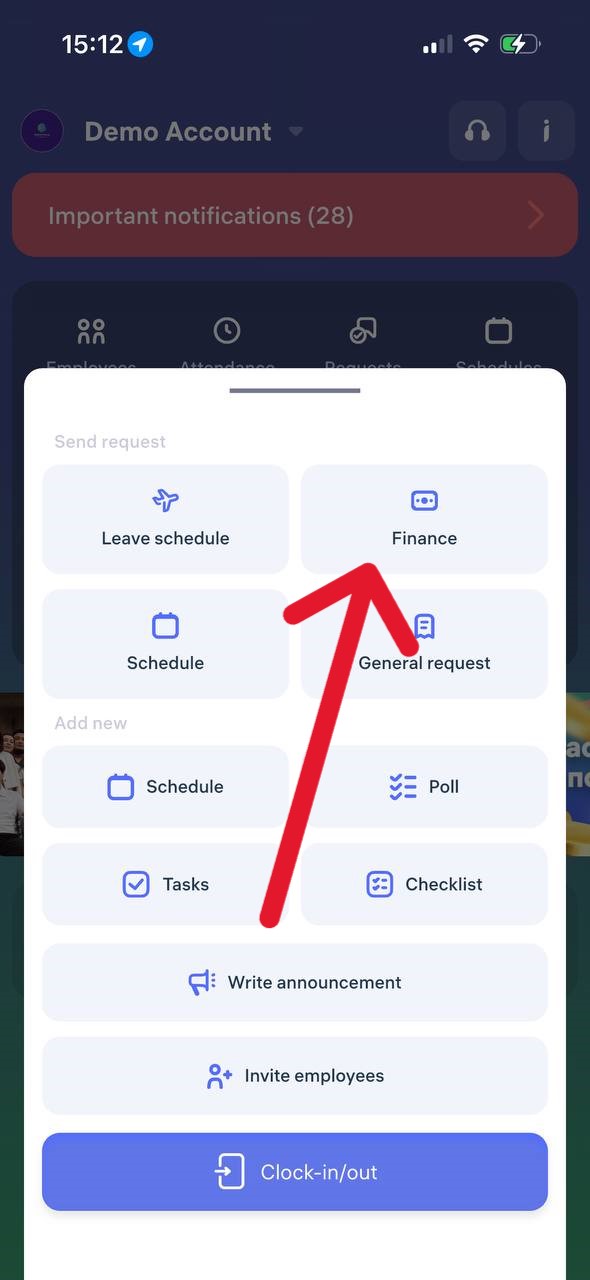
Open the Clockster mobile app.
On the main page, tap the “+” button at the bottom of the screen.
In the menu that appears, select “Finance”.
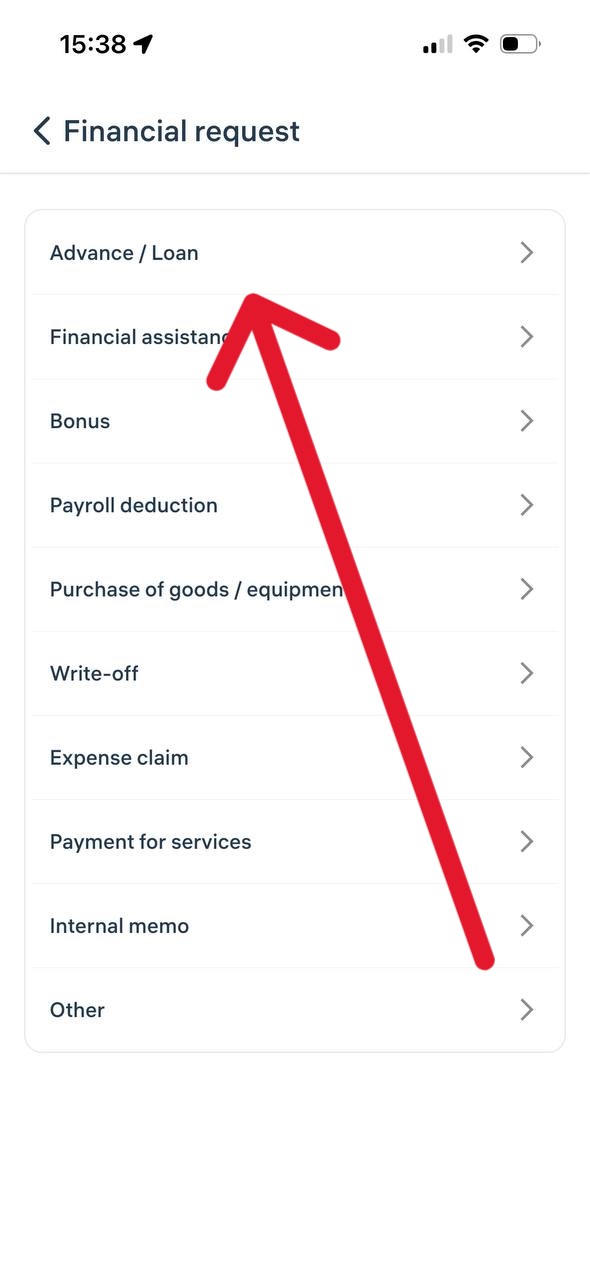
A list of financial request categories will open.
Choose the desired category, for example “Advance / Loan”.
Fill in all the required fields in the form (amount, description, and other details if necessary).
Tap “Send Request”.
Important:
– All financial requests are sent to your administrator or manager for review.
– You can track the status of your request in the “Requests” section to see whether it has been approved or not.
How to create a request for a photo so that a biometric device recognizes it?
Step 1. Open a General equests
Open the Clockster app, tap the “+” button on the main screen, and select “General Request”
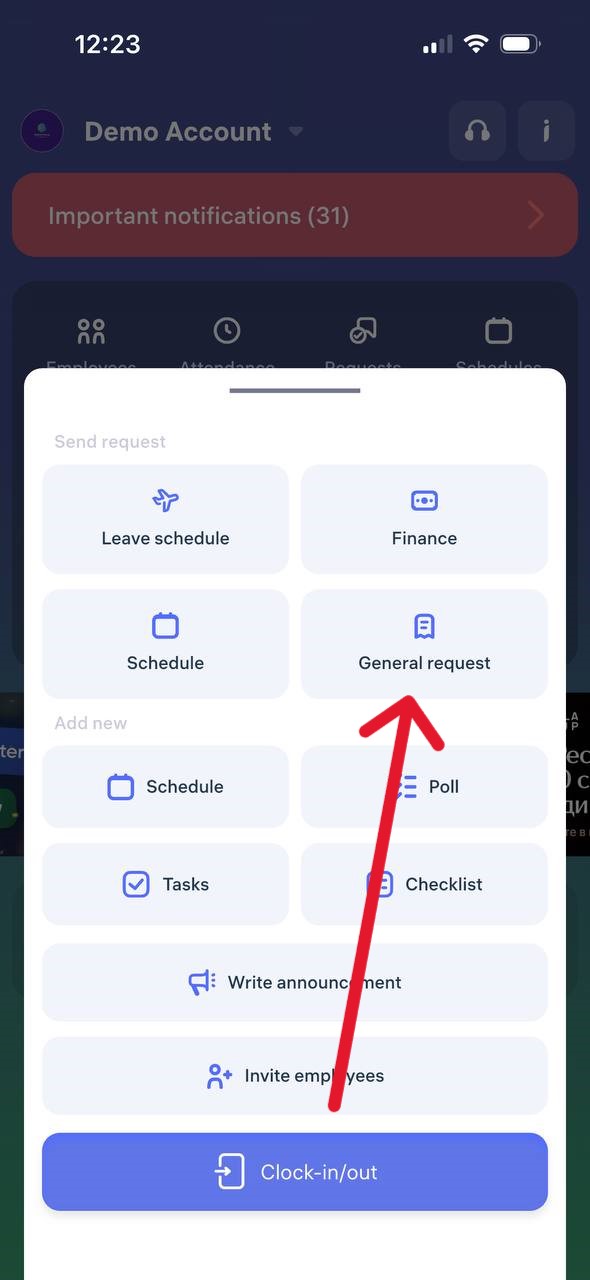
Step 2. Find the required request type
Scroll down the list of request types and select “Face photo (biometric devices)”
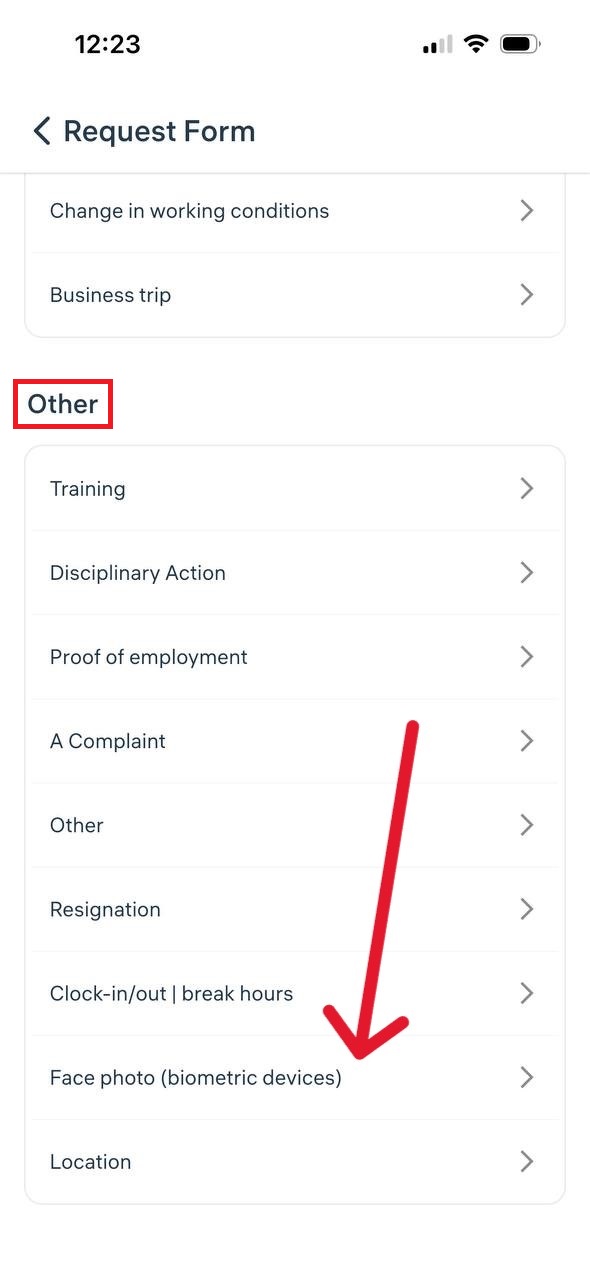
Step 3. Upload a photo and select a manager
Attach a proper photo (face centered, no headwear, neutral background).
Select the responsible manager (up to two can be chosen — for example, a director and an administrator).
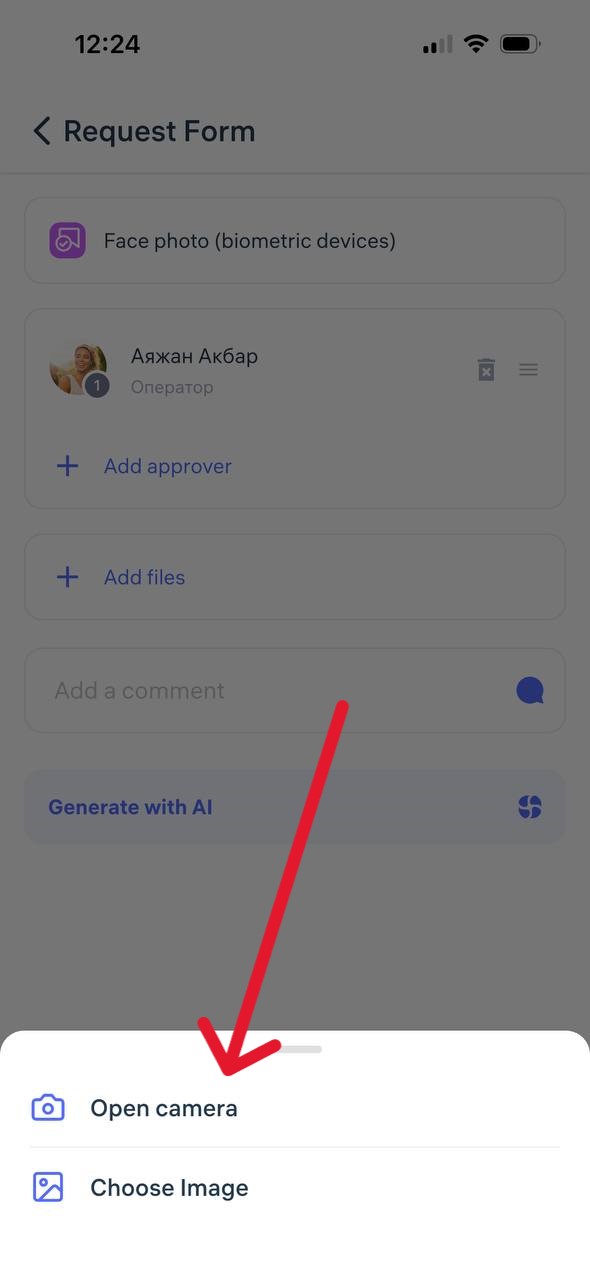
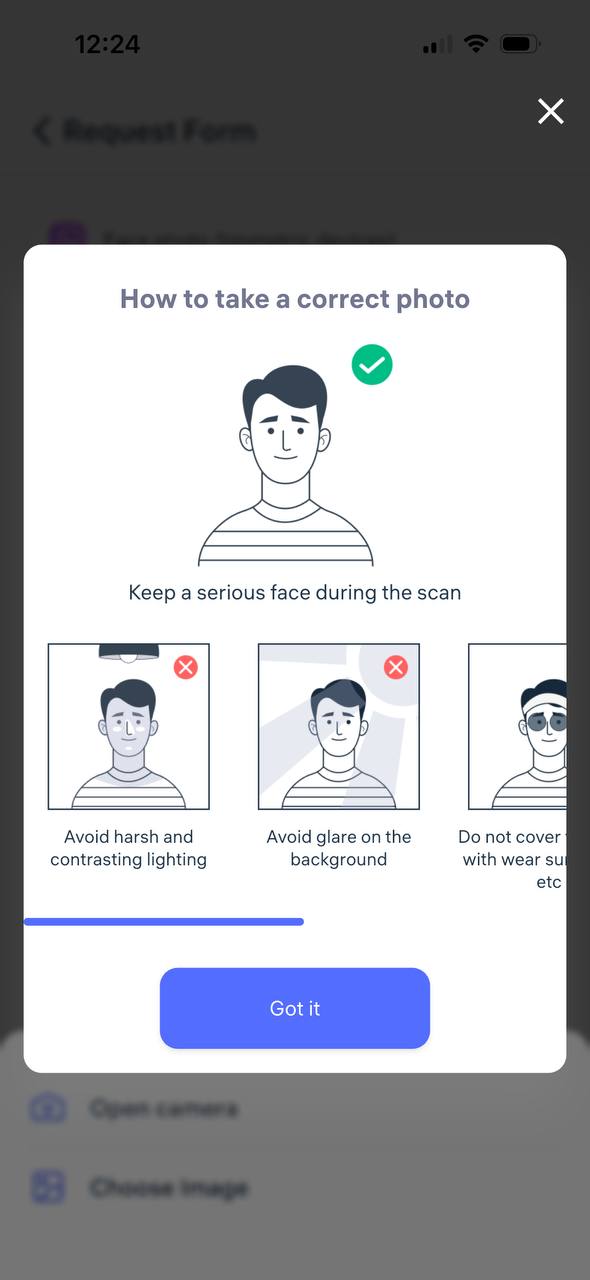
Step 4. Submit the request
Add a comment if needed and tap “Send request” The request will appear in the General Requests section and will be reviewed by the manager.
What happens next?
A push notification will be sent once the photo is approved or rejected.
After approval, the photo will be added to the system and used on the company’s biometric devices.
How to create a request for a missed record in your personal account (clock-in/out)?
If an employee forgets to clock in or clock out, a request can be submitted through the Clockster mobile app to add the missing record.
Step 1. Open the request form
Open the Clockster mobile app.
On the main screen, tap the “+” button.
Select “General Request.”
Step 2. Choose the request type
Scroll down the list.
Go to the “Clock-in/Clock-out” section.
Step 3. Fill out the form
Select the date and time for the missing record.
Make sure to choose the correct time zone — this ensures accurate working time calculations.
In the status field, select “Clock-in” or “Clock-out.” ⚠️ This step is crucial — it determines how the working hours will be calculated.
Step 4. Choose a manager and submit the request
Select one or two managers who should approve the request (for example, an administrator and a director).
If needed, attach a comment or photo (e.g., a screenshot confirming presence at work).
Tap “Send Request” and wait for approval.
Step 5. Check the request status
A push notification will appear once the request is approved or rejected.
You can also go to Requests → General Requests to view the status under the Approved or Rejected tabs.
Additional note
If several clock-ins or clock-outs were missed, the app will automatically suggest submitting requests for all missing records when the employee tries to clock in normally.
This helps ensure no shifts are lost and maintains attendance accuracy.
The app is properly installed, I am inside my account. How do I make clock-ins/outs?
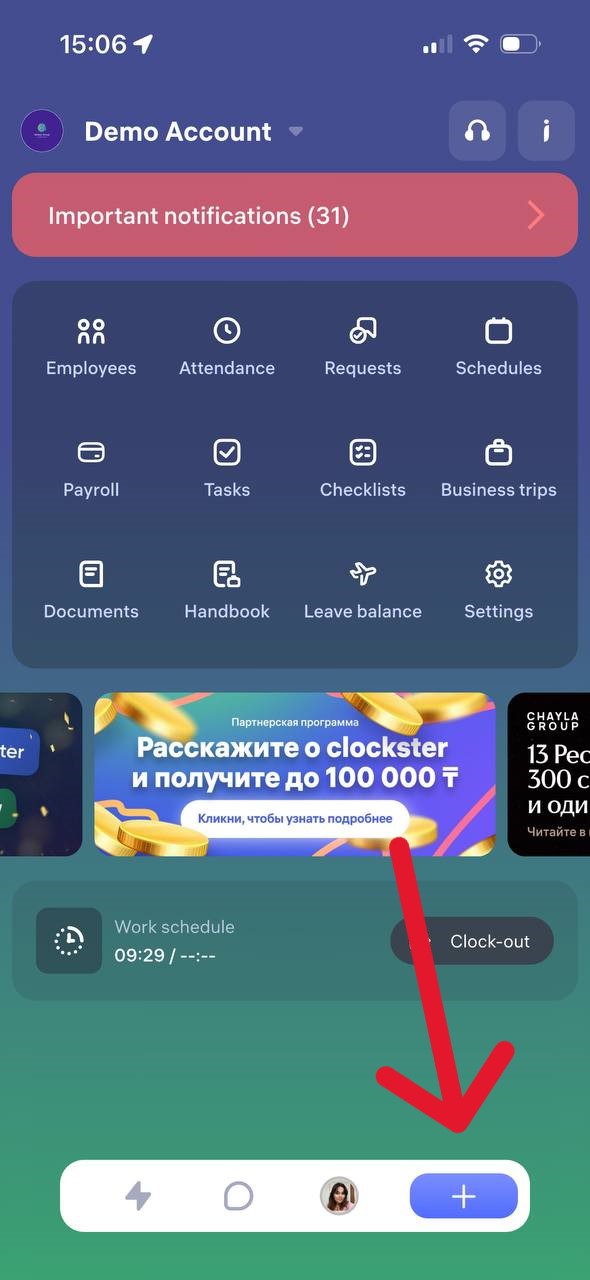
How to Clock In or Clock Out in the Clockster App
On the main page of the app, tap the “+” button at the bottom of the screen.
Select “Clock In/Out”
Tap “Clock In” or “Clock Out” depending on what you need to mark.
What to Remember:
– Make sure your location services (GPS) are enabled on your phone. Without it, the clock in/out may not be recorded.
– Important:
If you make only one mark — for example, only “Clock In” or only “Clock Out” — the day will not be counted as a full working day. The report will show incomplete hours.
To ensure your working hours are recorded correctly, you need to make both marks each day: “Clock In” and “Clock Out.”
– The app will offer you to send a request for missed clock-ins/outs for the last 14 days.
We recommend always sending such requests to keep your data complete.
– The app has a reminder feature for clock-ins/outs. Notifications are sent:
• 5 minutes before the start of your shift
• At the start of your shift
• 5 minutes after the start of your shift
The same notifications are sent at the end of the working day so you don’t forget to clock out.
Note:
Notifications work only if a work schedule has been created for you in the Clockster system.
What’s an additional record and how to use it?
An additional clock-in is a special type of attendance mark that allows an employee to send an extra location update during the workday. It is only available after the employee has marked “Clock-in” but before they have marked “Clock-out.”
When it is used:
When it’s necessary to send an intermediate clock-in during the workday.
When the company requires tracking location throughout the shift.
When an employee moves between different work sites.
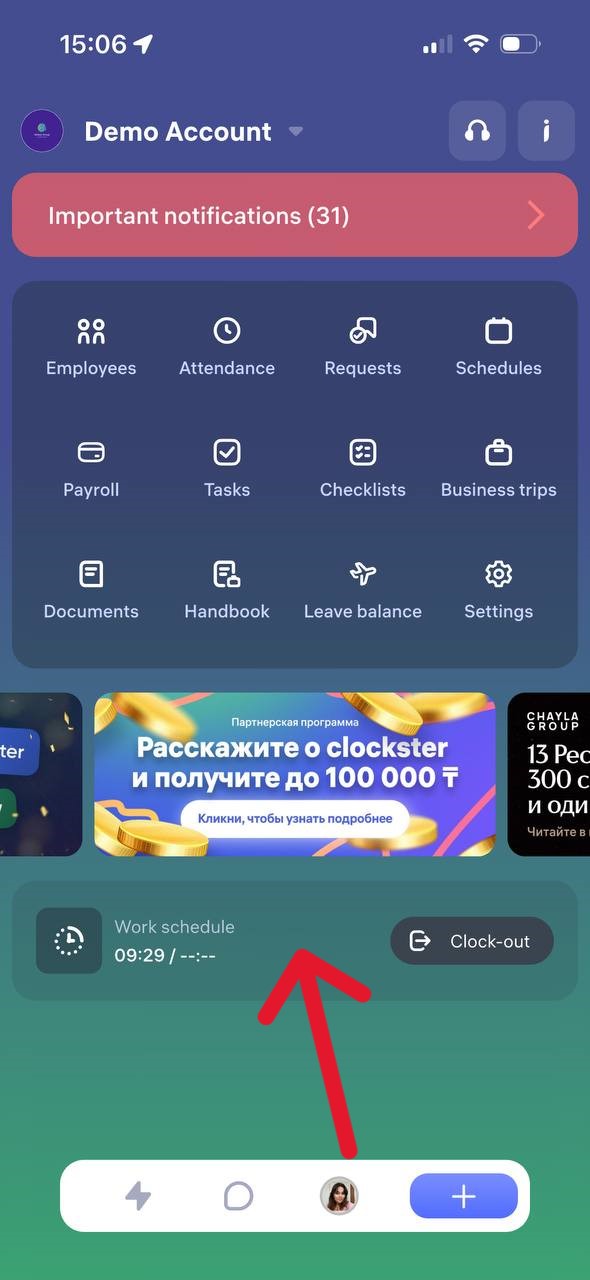
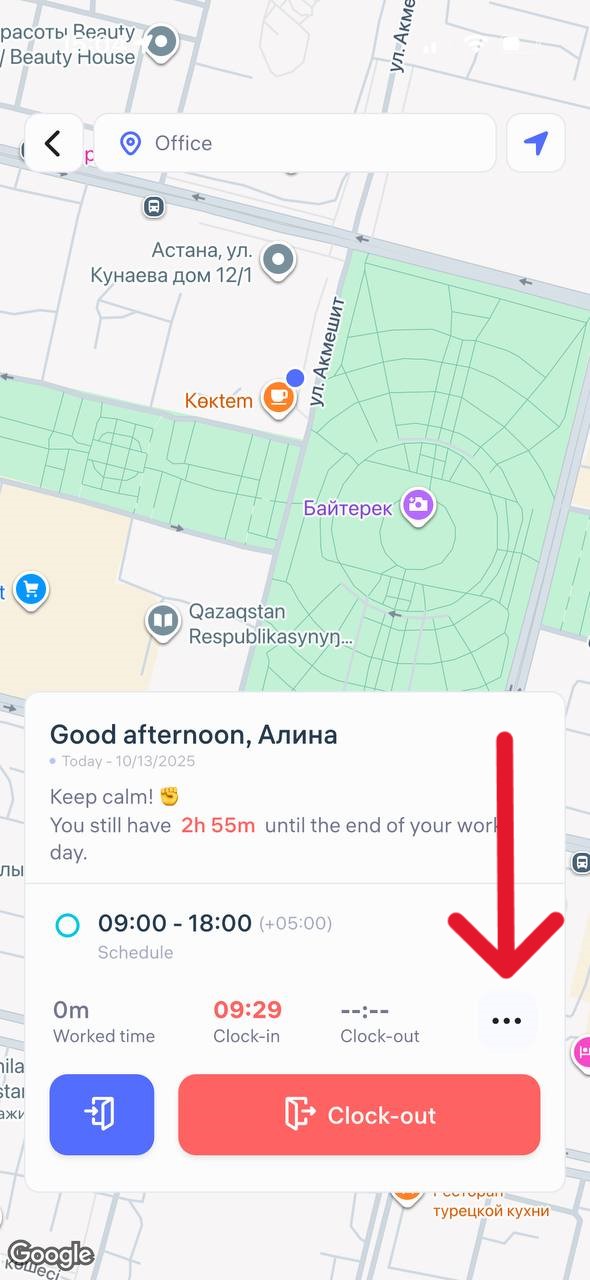
How to create an additional clock-in?
Open the Clockster mobile app.
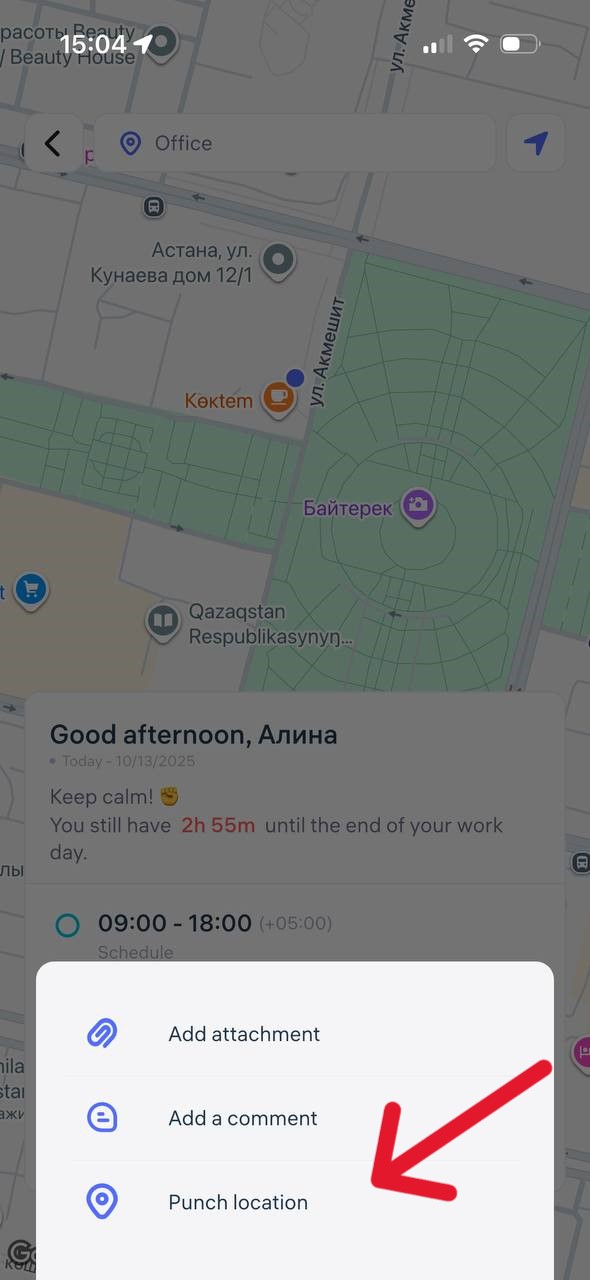
After marking “Clock-in,” a button with three dots (⋯) will appear on the main screen next to the main buttons.
Tap it and select “Punch location”
Add a comment (if needed).
Attach a photo or file, if required.
The system will automatically record your location and the time of the check-in.
Important
The additional clock-in is treated as a “Clock-in” type but does not close the workday.
It does not replace the main “Clock-out” mark.
Having an additional clock-in does not affect the calculation of working hours.
Notification: “This device is already assigned to (user). Please contact your administrator.”
In Clockster, only one employee can be linked to one mobile device.
This is done to ensure data transparency and prevent anyone from clocking in or out on behalf of someone else.
If you receive a notification that login is not possible, there may be two reasons:
1. You changed or purchased a new phone.
In this case, your profile in the system is still linked to the old device.
To allow you to log into the app on your new phone, the administrator must unlink the old device.
How the administrator can unlink the old device:
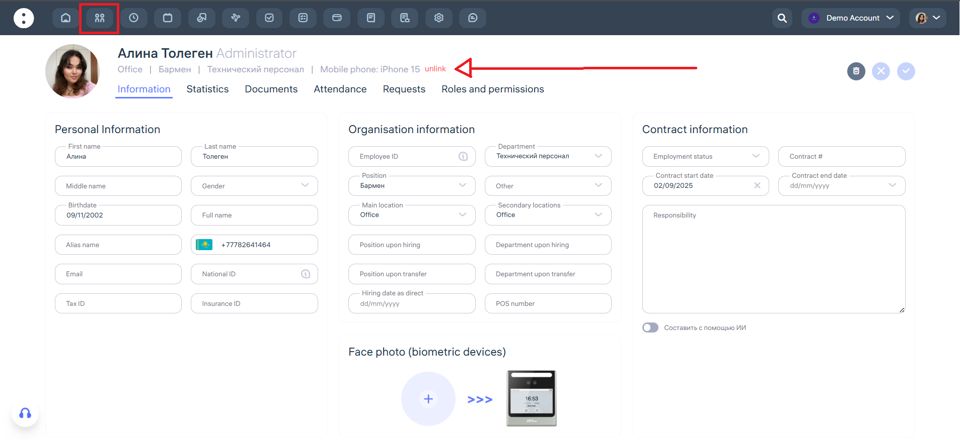
Through the web version:
– Go to the “Employees” section.
– Find the employee you need.
– Click on their name.
– The employee profile will open, including the “Mobile Phone” field showing the device make and model.
– Click the “unlink” next to the device to remove it.
After that, the employee will be able to log in to the app on the new phone.
Through the mobile app:
– Go to the “Employees” section.
– Find the needed employee.
– Tap on their name.
– In the profile, find the “Phone model” field showing the device make and model.
– Tap the Unlink button to remove the device.
After removing it, the employee will be able to log in to the app on their new phone.
2. Another employee previously logged into Clockster from your device.
In this case, the notification will display the name of the employee who was previously logged in from this phone.
What to do:
The administrator must follow the same steps described above, but this time remove the device from the profile of the employee who was previously linked to that phone.
How to switch between profiles?
Each Clockster user initially has a personal profile — this is a profile not linked to any company. In it, the user provides basic information such as full name, photo, contact details, and other personal settings.
When the user joins at least one company (a Clockster client), an employee profile is automatically created for that company. This profile gives access to all Clockster features, including:
Clock-in and clock-out tracking,
Submitting requests (for leave, sick days, etc.),
Viewing personal statistics and schedules.
If the user works for multiple companies, switching between profiles is simple depending on the context or task.
In the mobile app
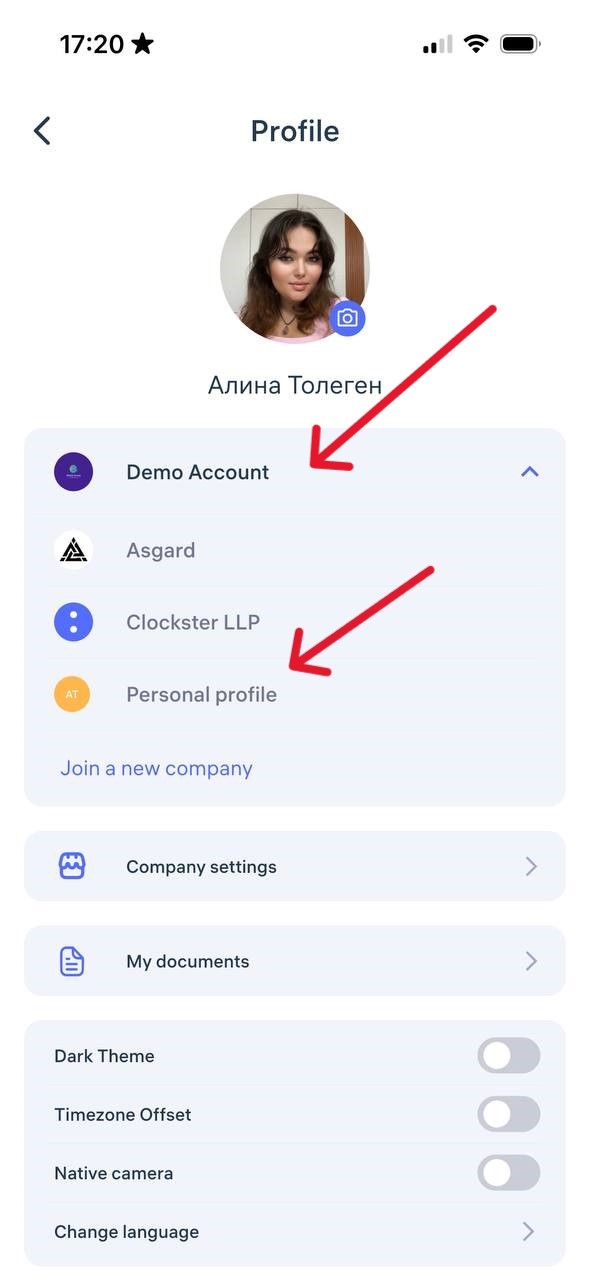
Go to the Profile section — the button is in the bottom-right corner.
At the top, you’ll see a list of all available profiles: the names of companies you’re connected to and your personal profile.
Tap the desired profile — the app will instantly switch to that work environment.
In the web version
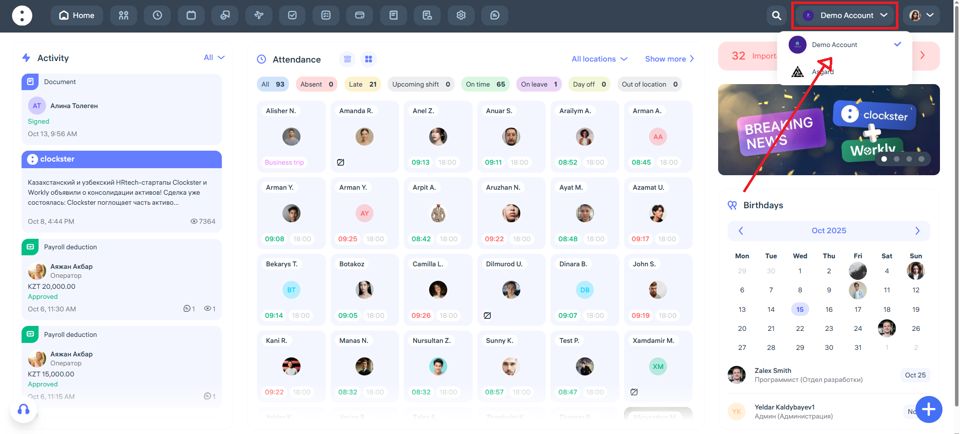
In the top-right corner, click on the name of the current company.
From the drop-down list, select the desired organization or personal profile.
To access personal profile settings (change photo, language, theme, etc.), click your name in the top-right corner.
💡 Note: Actions and data are not shared between companies. Each profile has its own record of attendance, requests, and schedules.
What is located on the Home page?
What’s Inside Each Section of Clockster
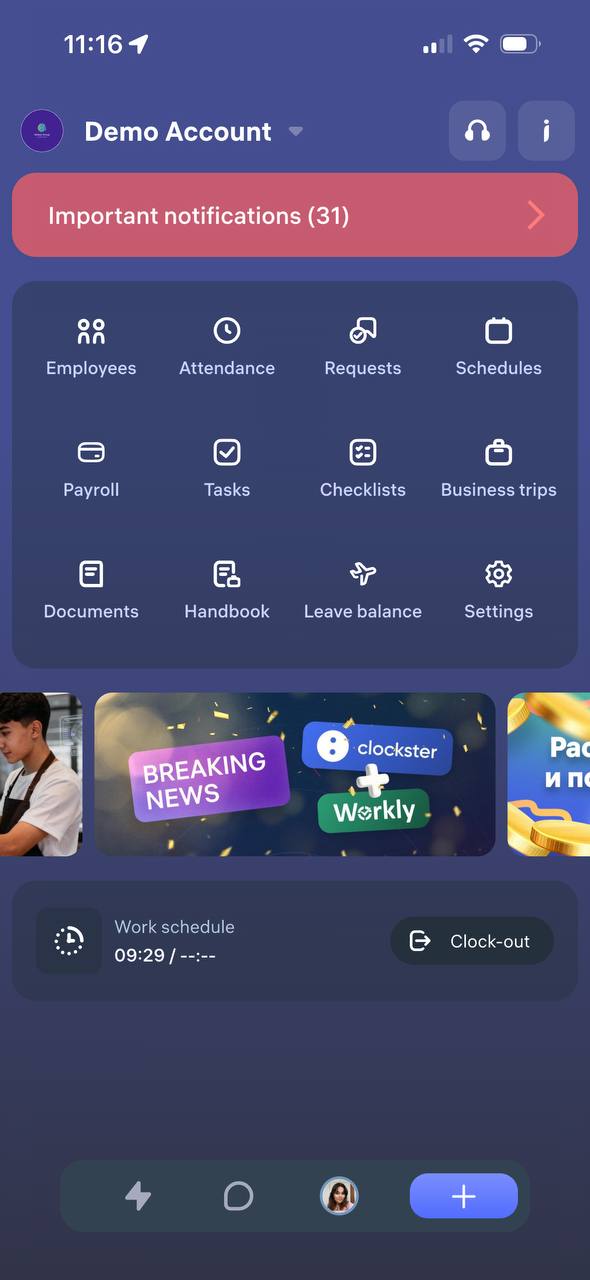
“Colleagues” section
Displays a list of all company employees. You can see each colleague’s position, department, and contact details.
“Attendance” section
Shows your check-in and check-out times, breaks, late arrivals, overtime, and the total number of hours worked.
“Requests” section
Here you can send requests to your manager — for vacation, sick leave, day off, overtime, or other internal approvals.
“Schedule” section
Displays your work schedule, showing which days are work shifts, days off, and public holidays.
“Payroll” section
Shows your earnings and deductions, the final payout amount, and your payment history.
“Tasks” section
Contains assignments from your manager. You can accept tasks, complete them, and mark them as done.
“Checklists” section
Includes step-by-step instructions for performing work processes.
You can mark items as completed — for example, when opening or closing a shift.
“Business Trips” section
Tracks your business travel requests. You can submit a new trip request or view details of approved trips.
“Documents” section
Contains the company’s internal documents such as orders, instructions, policies, and guidelines.
You can open and read documents directly in the app.
It also includes personal employee documents uploaded from your mobile gallery.
“Handbook” section
Provides useful information, including: SOPs, Company organizational structure, Banners, Announcements, Surveys
“Leave Balance” section
Shows how many vacation days you have for the current year, how many you’ve already used, and how many remain available.
It also displays your contract start date, sick leaves, and unpaid leaves, among other related data.
How do I create an absence request?
In Clockster, you can quickly send a request for day off, sick leave, or temporary absence through the mobile app.
1. Open the Clockster mobile app
After logging into your account, on the main screen, tap the “+” button at the bottom of the screen.
2. Select the request type
On the request selection screen, tap “Leave Schedule.”
3. Fill in the request details
Choose the reason for absence: sick leave, day off, unpaid leave, etc.
Specify the start and end dates.
If you selected “Partial day leave” specify the exact start and end time.
Assign the responsible manager who will approve your request.
Optionally, you can:
Add a photo/file (for example, a medical certificate);
Write a comment (reason for absence, additional notes, etc.).
4. Submit the request and wait for a response
Once the request is created, it will be sent to the selected manager for review.
The manager will receive a notification and can either approve or reject your request.
You will receive a push notification on your phone with the decision.
5. Track the status of your request
Go to the “Absence” tab.
Use filters: “Pending,” “Approved,” “Rejected” to quickly find the request you need.
Important to know:
The “Partial day leave” reason is not suitable for a full-day request. It is only intended for short-term absences (for an hour, several hours, or half a day).
If you need to be absent for a full day or several days, select “Day off“, “Sick leave,” etc.
How to Check Your Payslip
Opening the Payslip:
Go to the “Payroll” section in the mobile app.
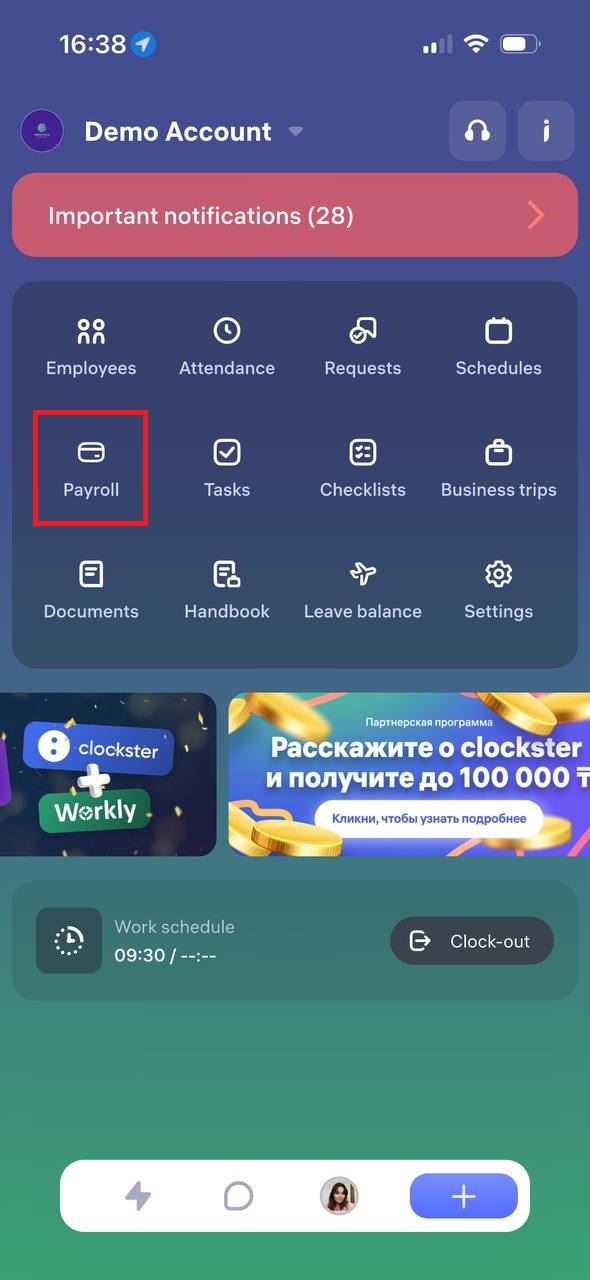
Viewing Details:
Your payslip displays the following information:
Income: salary, bonuses, additional payments (e.g., sales plan, holidays).
Deductions: fines, taxes, pension, and medical contributions.
Net pay: the final amount you will receive.
Company expenses: the total cost incurred by the employer (visible to employees for transparency).
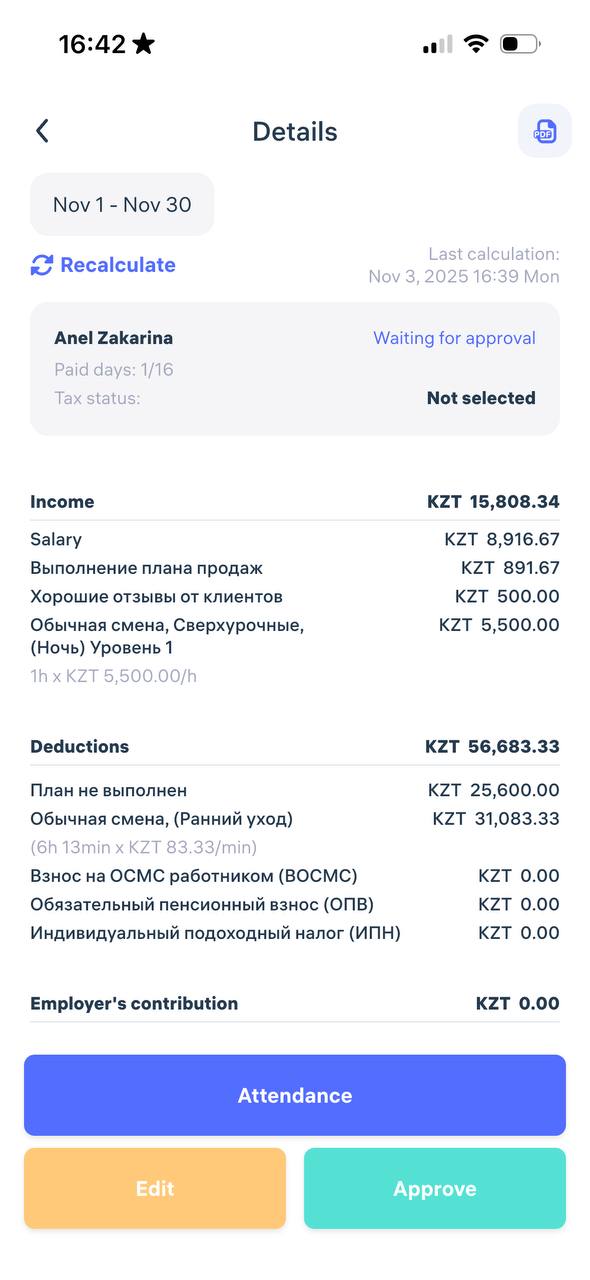
If your payslip is unavailable or the data seems incorrect, please contact your company’s accountant or HR department.
How do I submit a request to create a work schedule?
Employees can send a schedule creation request directly through the Clockster mobile app.
This feature is useful for shift work, rotational schedules, or individual work hours.
Step 1. Open the request
Open the Clockster mobile app.
On the home screen, tap the “+” button.
Select the “Schedule” section.
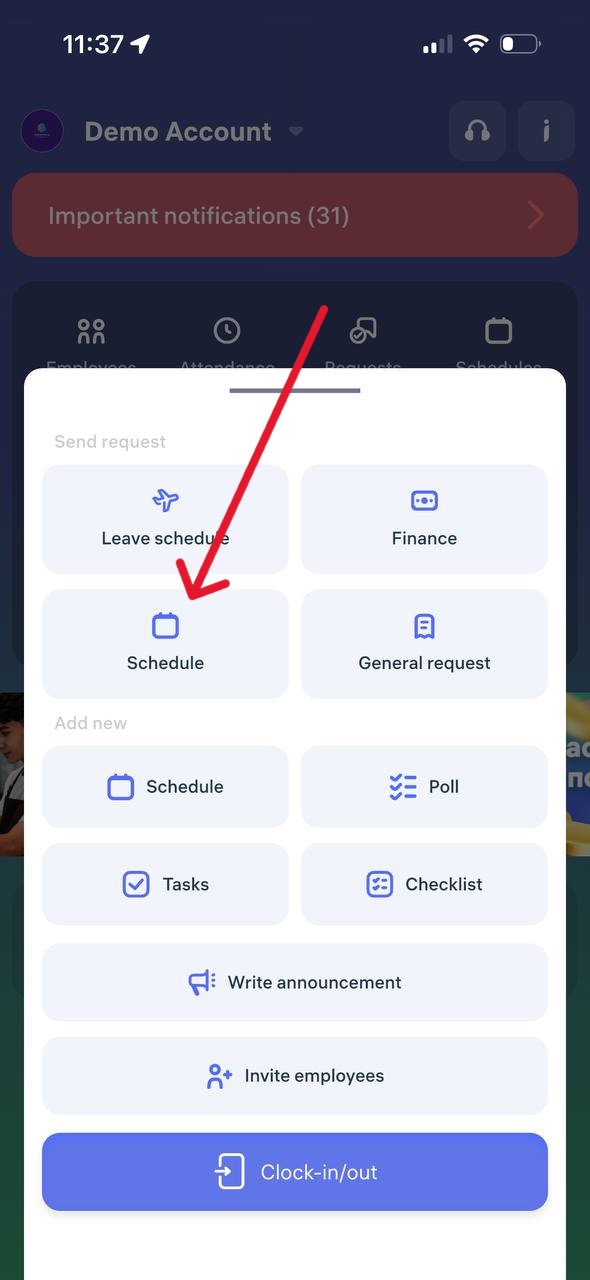
Step 2. Select the schedule period
For a period — if the employee works several days in a row (e.g., from 07.02.2025 to 10.12.2025).
Specific dates — if only certain days need to be set (e.g., March 1, March 10, March 30).
Tap “Next.”
Step 3. Set up repetition
Weekdays — for standard schedules (e.g., 5/2, 6/1).
Alternation of days — for shift or rotational work (e.g., 2/2, 14/14).
Step 4. Choose time
Specify:
working hours (start and end of the workday),
correct time zone,
lunch break duration (in minutes).
Step 5. Assign managers and add a comment
Select one or two managers who must approve the schedule (e.g., a director and an administrator).
Add a comment if needed.
Tap “Send request”
It’s recommended not to change additional settings unless you know their purpose.
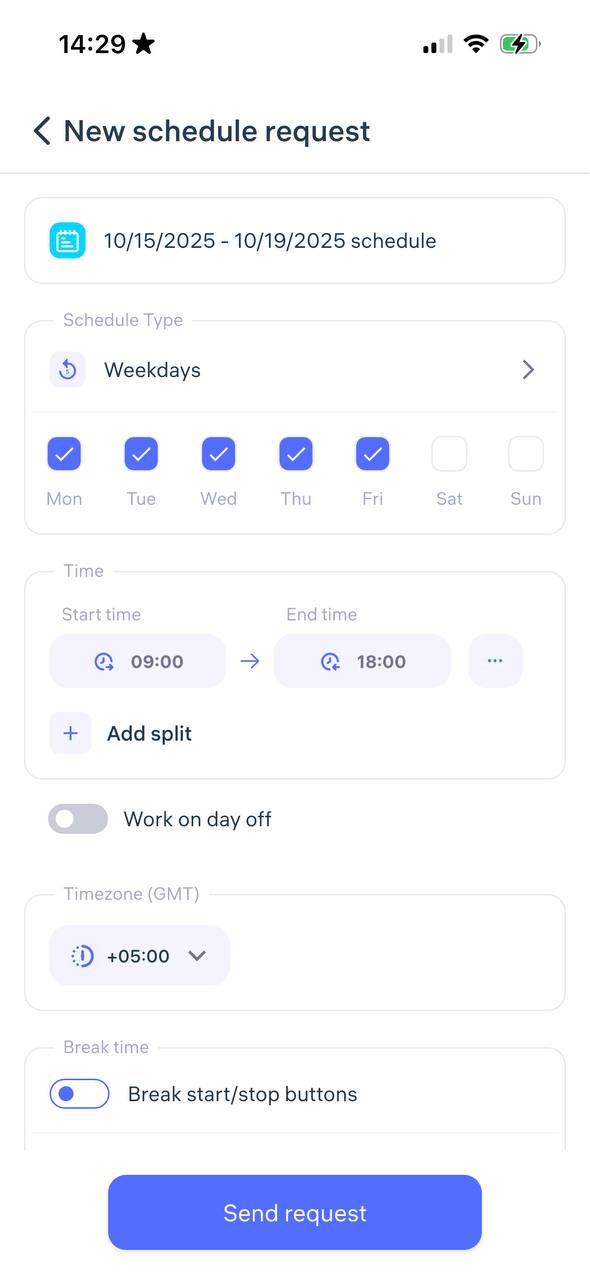
Step 6. Wait for approval
After submitting the request:
You’ll receive a push notification once it’s approved or rejected.
The request status can also be tracked in the Feed on the app’s home page.
How an employee’s rating is calculated?
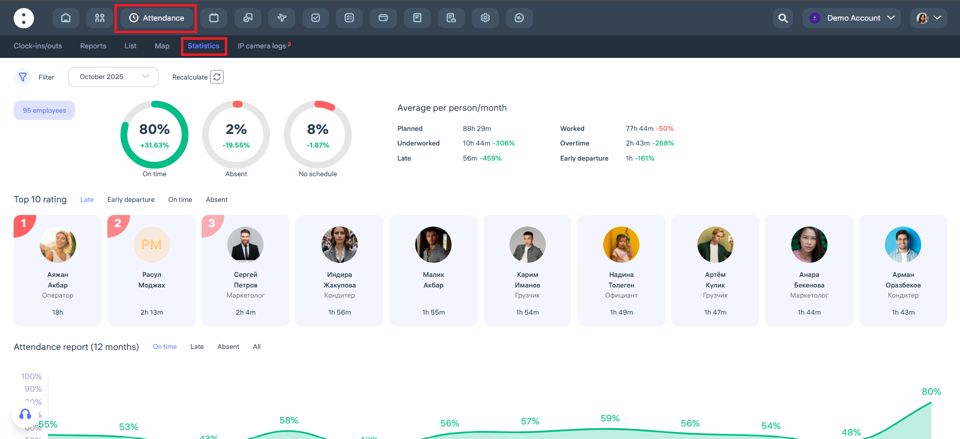
How the Employee Rating is Calculated in Clockster
The employee rating in the “Attendance → Statistics” section is calculated based on the total time of late arrivals, early departures, and absences recorded by the system.
The following parameters affect the rating:
Late arrivals – how many minutes or hours an employee arrived later than the scheduled time.
Early departures – how much earlier the employee left work before the end of the scheduled workday.
Absences – days or hours when the employee had no clock-in or clock-out records.
On time – the percentage of attendance without violations. This indicator positively affects the rating.
Calculation principle:
The fewer violations, the higher the employee’s rating. Therefore, an employee with fewer late arrivals, early departures, and absences will have a higher rating.
“Top 10 Rating” section:
This section displays a list of employees with the best attendance performance. For example, if one employee was late for 1 hour and 44 minutes during the month, their rating will be lower than that of an employee with less total lateness.
Where to find it:
Go to “Attendance” → “Statistics.”
At the top, you’ll see charts showing attendance percentages, and below — the Top 10 list of employees.
My statistics
The “My Statistics” section in Clockster displays a summary of your attendance for a selected period.
What you can see in the statistics:
Planned hours — the number of hours you were scheduled to work.
Worked hours — the actual number of hours you worked.
Overtime — the number of hours worked beyond your schedule.
Worked on weekends — shows if you worked on non-working days.
Late time — the total time you arrived late to work.
Early departures — the total time you left earlier than the end of your shift.
Additional information available:
Total days summary — details for each individual day.
Average summary — average working hours.
Total leave summary — displays weekends and public holidays.
Where to find it:
Go to the “Attendance” section.
Select the “My Statistics” tab.
Set the desired period (select the start and end dates).
What are Tasks and how do I add a Task?
Tasks are a task management tool in Clockster. They allow you to automate task assignment and monitor their timely completion.
Any user with the appropriate permissions can create a task for themselves or for other employees. When creating a task, you can specify:
Start date and time
Deadline
Time zone (if the employee is in another region)
Subtasks with descriptions
Priority (normal or high) and reward amount
Requirement to define location upon completion
Time tracking option
Attach necessary files and instructions
How to add a task in the Clockster mobile app:
On the main page, tap Tasks.
Tap the + icon to create a new task.
Select the responsible employees.
Fill in the start date and time, deadline, and time zone.
If needed, add subtasks, priority, reward, comments, and attach files.
Save the task.
Additional information:
All tasks are visible to the assignee.
After completing a task, the employee can attach photos and comments.
The manager can see the task status: ongoing, finished, overdue, etc.
Permission in the role is required to work with tasks.
What parameters does a Task have?
Title — a required field. This is the name of the task. Without a title, the task will not be saved.
Description — an optional field. Here you can describe in detail what needs to be done.
Assignees — the users responsible for completing the task. You can select one or several people — there are no limits.
Due date — the date by which the task should be completed. You can leave it blank if the deadline is not important.
Priority — a required field. It helps indicate how important the task is for the assignees.
Time tracking — a feature that allows employees to log the start and completion time of the task.
You can attach a file to the task — such as a document, photo, or PDF.
When the task is closed, the system automatically generates a report, which can be viewed or downloaded.
What does Group mean in the Tasks section?
Group in the Tasks section means combining several tasks under one name.
Purpose of a Group in Tasks:
To organize tasks by topics or projects.
For example:
The group “Webinar Preparation” may include tasks like “Create a banner,” “Set up Zoom,” “Send a mailing.”
To make it easier to track progress on a specific topic or project.
To assign multiple tasks at once to employees belonging to the same group.
How it works:
You create a task group with a specific name.
Inside this group, you create tasks related to that topic.
When viewing tasks in Clockster, you can filter and see only tasks from a specific group, making it faster to find what you need.
Thus, the Group feature in the Tasks section helps you maintain order, organize work by projects, and prevent tasks from getting lost in the general list.