
How an employee’s rating is calculated?
How the Employee Rating is Calculated in Clockster
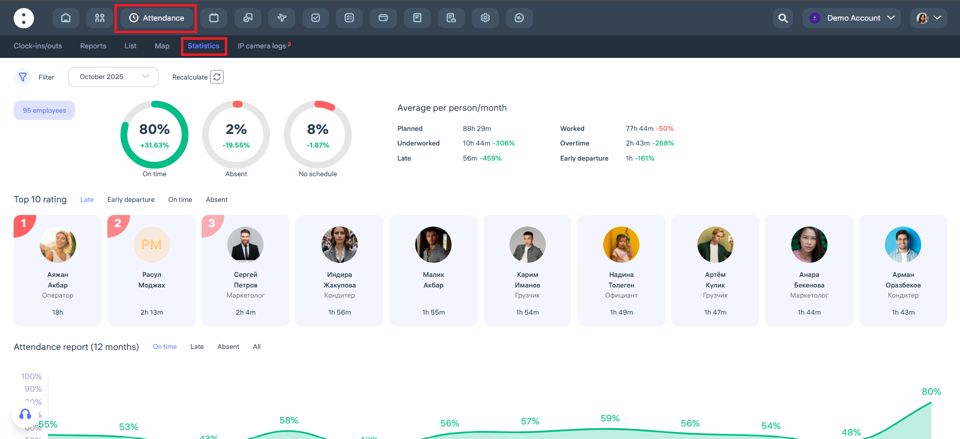
The employee rating in the “Attendance → Statistics” section is calculated based on the total time of late arrivals, early departures, and absences recorded by the system.
The following parameters affect the rating:
Late arrivals – how many minutes or hours an employee arrived later than the scheduled time.
Early departures – how much earlier the employee left work before the end of the scheduled workday.
Absences – days or hours when the employee had no clock-in or clock-out records.
On time – the percentage of attendance without violations. This indicator positively affects the rating.
Calculation principle:
The fewer violations, the higher the employee’s rating. Therefore, an employee with fewer late arrivals, early departures, and absences will have a higher rating.
“Top 10 Rating” section:
This section displays a list of employees with the best attendance performance. For example, if one employee was late for 1 hour and 44 minutes during the month, their rating will be lower than that of an employee with less total lateness.
Where to find it:
Go to “Attendance” → “Statistics.”
At the top, you’ll see charts showing attendance percentages, and below — the Top 10 list of employees.
My statistics
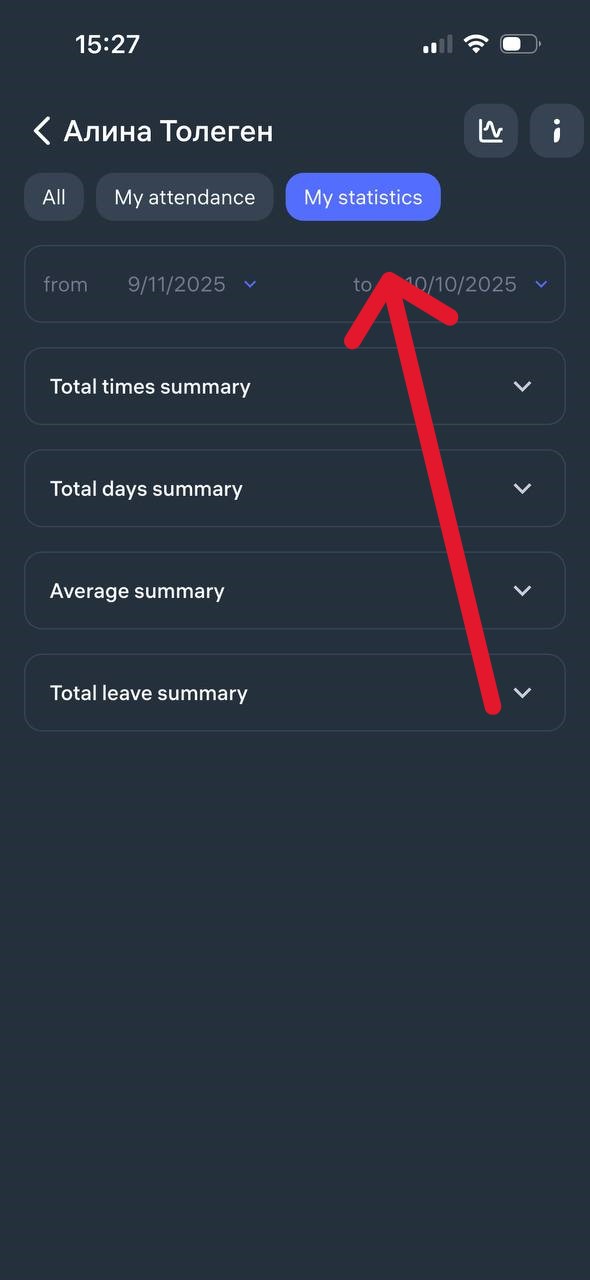
The “My Statistics” section in Clockster displays a summary of your attendance for a selected period.
What you can see in the statistics:
Planned hours — the number of hours you were scheduled to work.
Worked hours — the actual number of hours you worked.
Overtime — the number of hours worked beyond your schedule.
Worked on weekends — shows if you worked on non-working days.
Late time — the total time you arrived late to work.
Early departures — the total time you left earlier than the end of your shift.
Additional information available:
Total days summary — details for each individual day.
Average summary — average working hours.
Total leave summary — displays weekends and public holidays.
Where to find it:
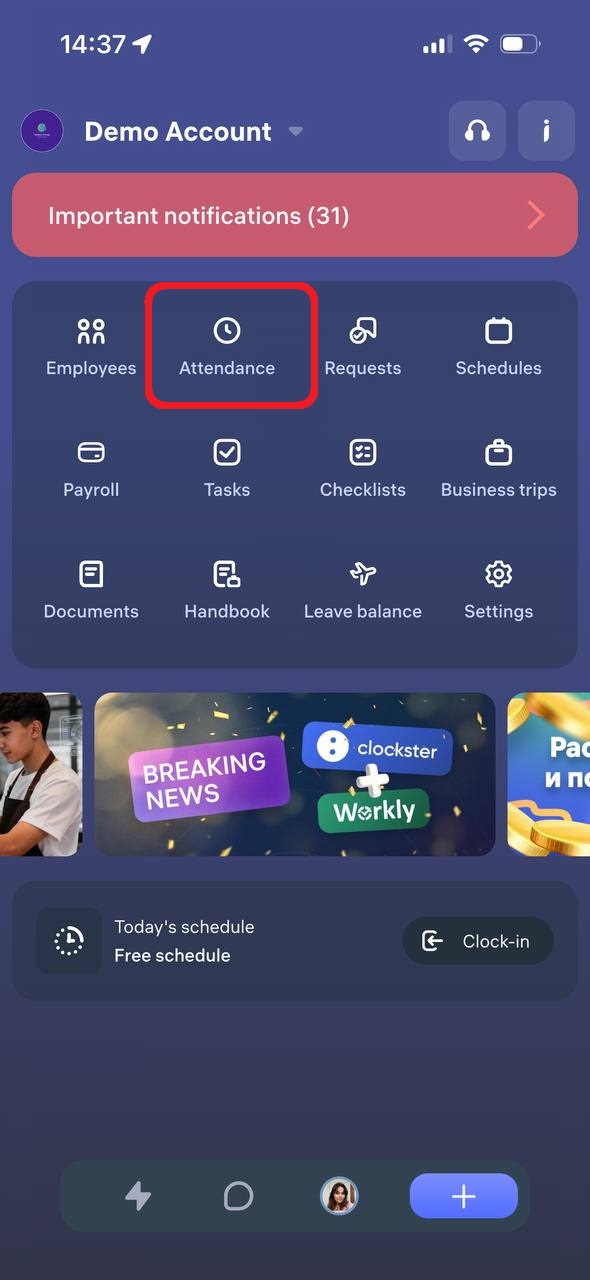
Go to the “Attendance” section.
Select the “My Statistics” tab.
Set the desired period (select the start and end dates).