
How do I submit a request to create a work schedule?
Employees can send a schedule creation request directly through the Clockster mobile app.
This feature is useful for shift work, rotational schedules, or individual work hours.
Step 1. Open the request
Open the Clockster mobile app.
On the home screen, tap the “+” button.
Select the “Schedule” section.
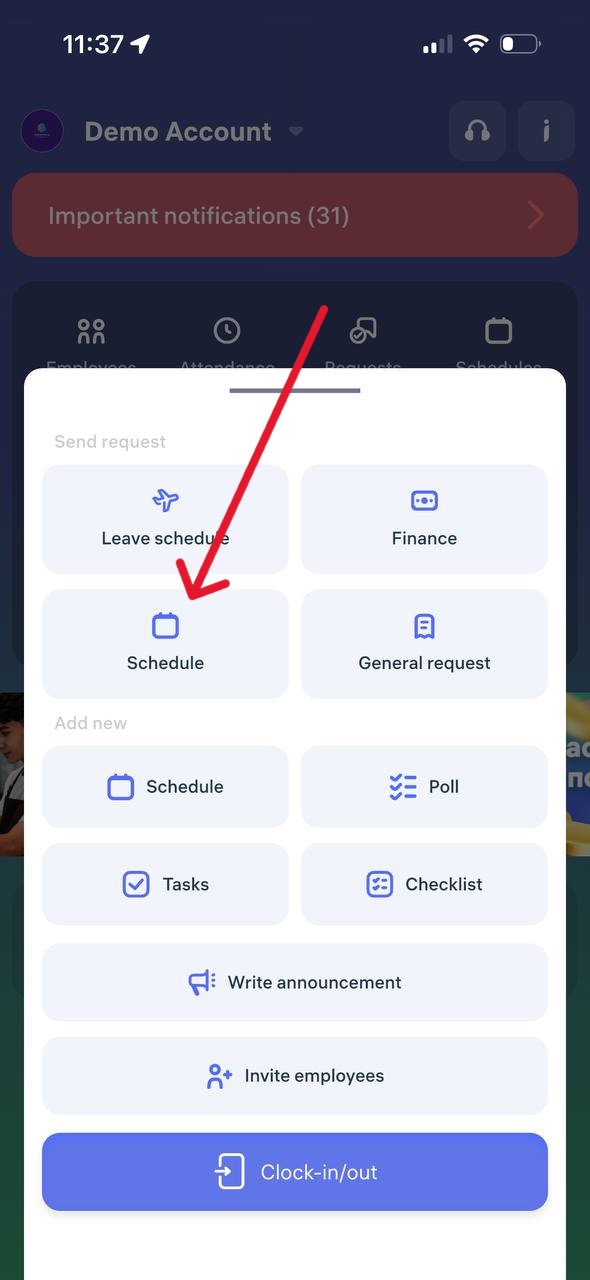
Step 2. Select the schedule period
For a period — if the employee works several days in a row (e.g., from 07.02.2025 to 10.12.2025).
Specific dates — if only certain days need to be set (e.g., March 1, March 10, March 30).
Tap “Next.”
Step 3. Set up repetition
Weekdays — for standard schedules (e.g., 5/2, 6/1).
Alternation of days — for shift or rotational work (e.g., 2/2, 14/14).
Step 4. Choose time
Specify:
working hours (start and end of the workday),
correct time zone,
lunch break duration (in minutes).
Step 5. Assign managers and add a comment
Select one or two managers who must approve the schedule (e.g., a director and an administrator).
Add a comment if needed.
Tap “Send request”
It’s recommended not to change additional settings unless you know their purpose.
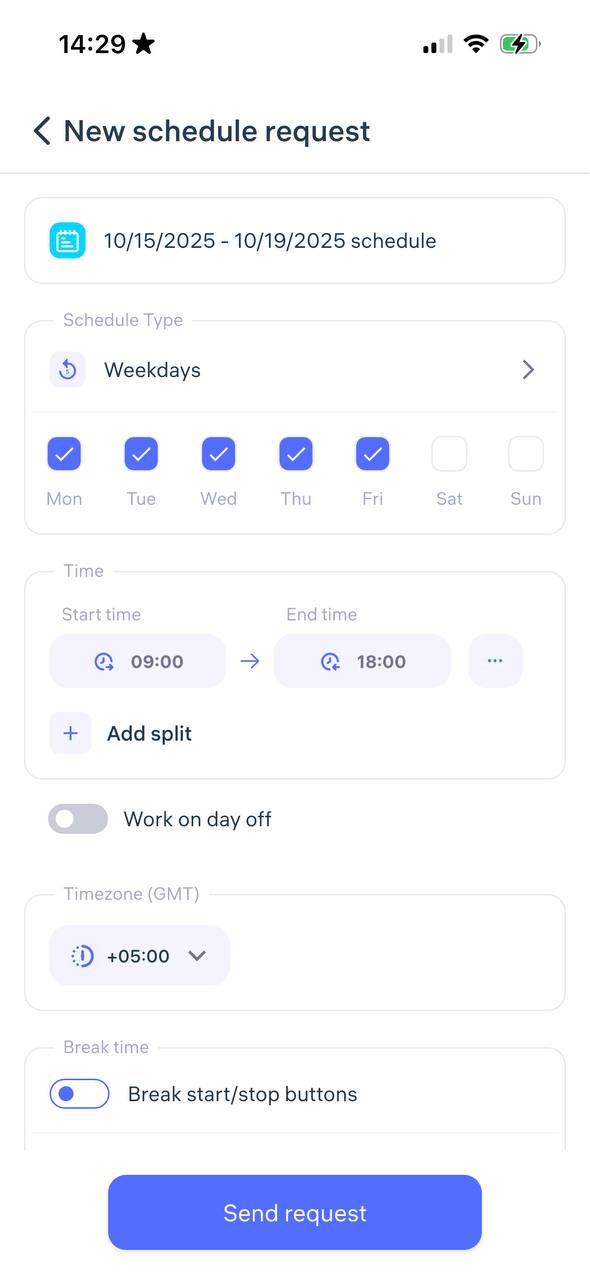
Step 6. Wait for approval
After submitting the request:
You’ll receive a push notification once it’s approved or rejected.
The request status can also be tracked in the Feed on the app’s home page.