
How can I see my employees’ documents in the mobile app?
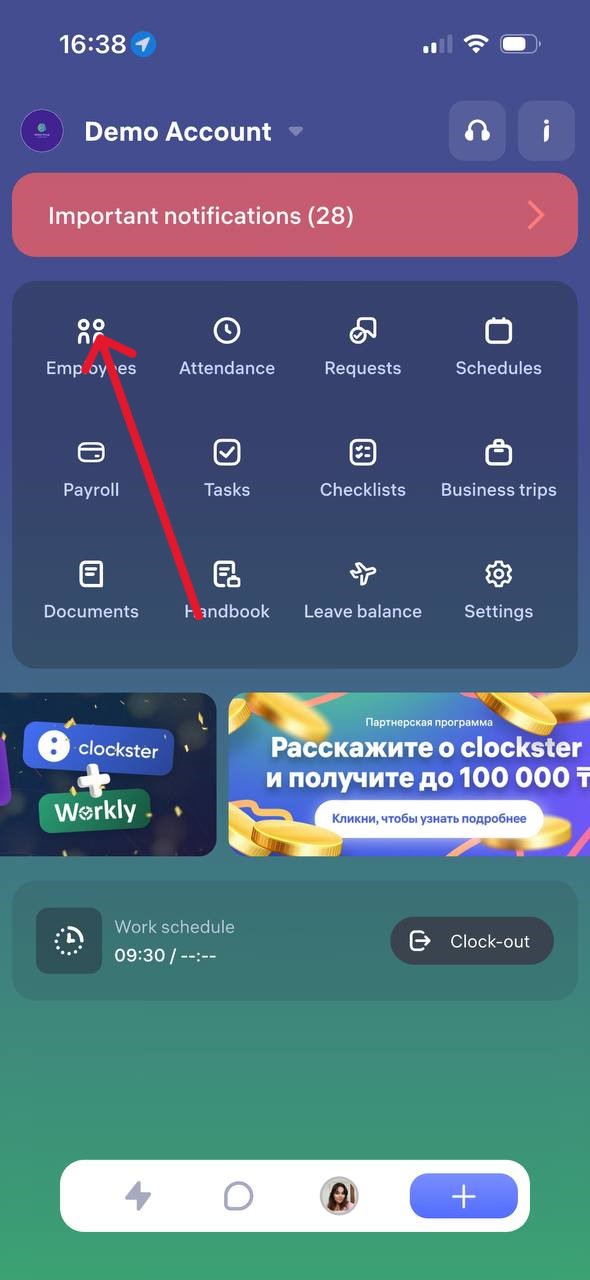
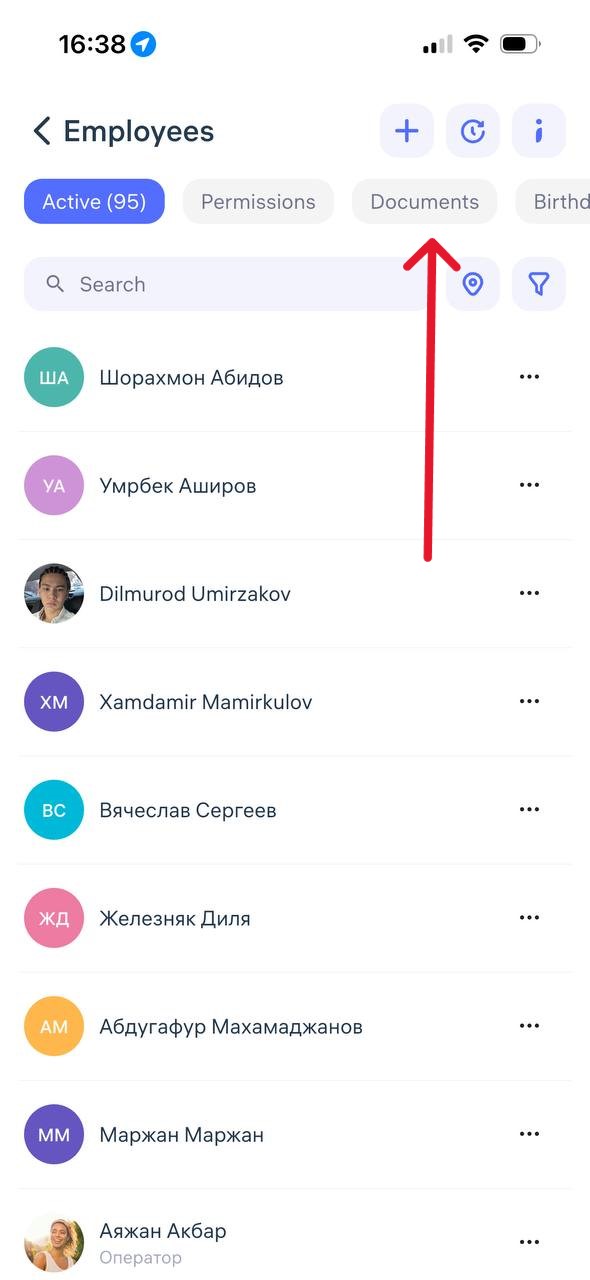
How to View Employee Documents in the Clockster Mobile App
To view employee documents in the Clockster mobile app, follow these steps:
Open the Clockster mobile app.
Go to the Employees section (as shown in the first image).
Select the desired employee from the list.
In the employee’s profile, find the Documents tab or section.
Here, you can view uploaded files such as ID cards, IIN, medical certificates, and other documents — if they were added earlier.
If you don’t see any documents:
Make sure you have the appropriate access rights (Administrator or HR permissions are required).
Check whether the documents were previously uploaded by the employee or an administrator.
Updated at