
I uploaded a photo, but the device does not recognize the employee.
There can be several reasons why a biometric device (face recognition) does not identify an employee. Below is a list of the most common issues and how to fix them:
1. Poor face capture during registration
During initial registration, the following issues may have occurred:
Poor lighting
Partially covered face (glasses, mask, cap)
Head turned too much to the side
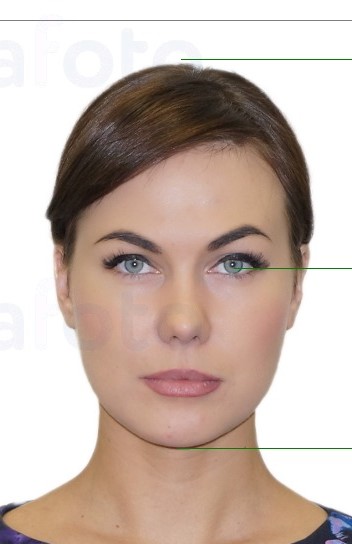
What to do: Re-register the employee on the device in good lighting, with no objects covering the face, centered on the screen, following the example provided.
2. Changes in appearance
Significant changes in appearance may affect recognition, such as:
Shaved or grown beard
New hairstyle or hair color
Glasses or contact lenses that were not previously used
What to do: Update the employee’s facial recognition template.
3. Standing too close or too far from the camera
Devices are sensitive to distance:
For Horus, the optimal distance is 25–50 cm.
For Sebury, the distance is set in the device settings (for example, “Middle”).
What to do: Check the “Face detection size” and “Identification Distance” settings and adjust them according to real conditions.
4. Lighting conditions
Lighting that is too dark or too high in contrast can interfere with the camera’s performance.
What to do: Make sure the area around the device is evenly and well lit. Avoid backlighting.
5. Restriction on repeated scans
If an employee has already checked in recently, the device may ignore the next attempt.
Settings examples:
Horus: Duplicate verified time = 300 seconds
TL-1 / Eface10: Re-scan minimum interval = 4 minutes
What to do: Wait for the required time or change the parameter if it causes inconvenience.
6. Too many faces in the frame
The device may have multiple-face protection enabled.
What to do: In Horus, check:Preventing simultaneous face recognition from multiple entrances = On
Approach the device one person at a time, not in groups.
7. The device has not synchronized the employee’s photo
Possible causes:
The device was not connected to the correct location when the photo was added, or not connected at all.
The employee does not have a photo uploaded in the “Face photo (biometric devices)” section of their profile.
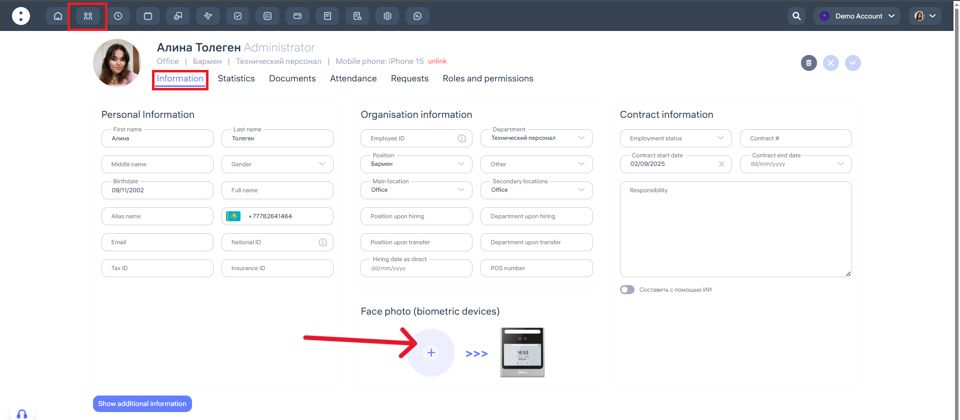
What to do:
In the Clockster web version, check if the employee’s photo is uploaded in the Employees section.
Verify that the device is linked to the correct location in its settings.
If everything is correct but the employee still isn’t recognized:
Restart the device.
Delete and re-register the employee’s face.
Updated at
Related questions
- How do devices work?
- What kind of photo is needed so that the device can recognize an employee? / Photo requirements
- Where can I upload a photo of an employee so that the device can recognize him?
- What types of devices are there and how do they differ?
- What device settings are available in your personal account?