
Guide to Using the “Payroll” Module
The “Payroll” module allows you to automate employee payroll calculation based on worked hours, rates, and additional earnings. Follow this guide to set up and use the module effectively.
Block 1. Preparing to Use the Module
Before you start, make sure that:
Employees are correctly added to the system.
Work schedules and shifts are properly configured.
Employees regularly check in and out.
These data are necessary for the system to correctly account for working time in payroll calculations.
Block 2. Main Payroll Settings
Open the “Payroll” section in the Clockster menu.
Go to the “Settings” tab.

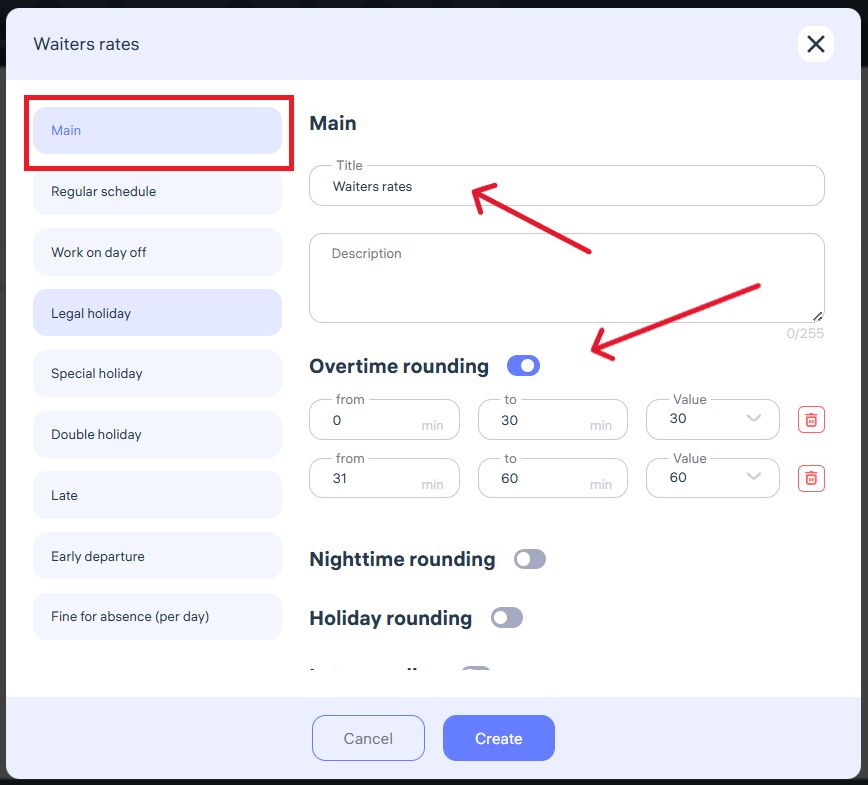
3. Set up basic employee pay rates:
Enter the name of the rate.
If you want overtime to be rounded (so extra hours aren’t counted with decimals), turn on the rounding toggle.
4. Configure bonuses and deductions:
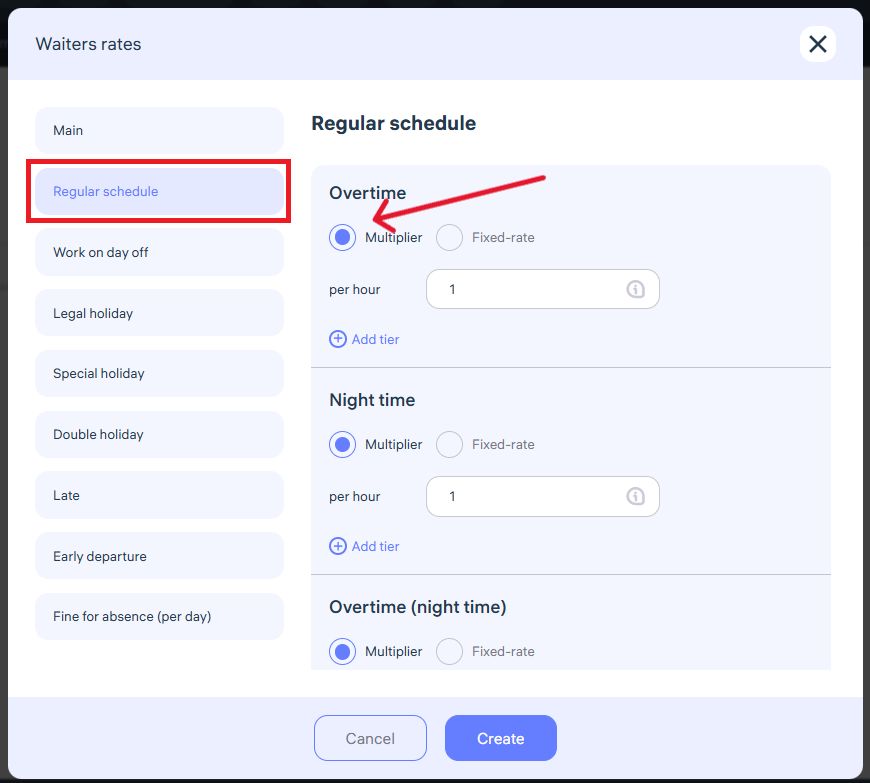
If an employee’s pay is set as a monthly rate, Clockster automatically calculates the hourly rate based on the planned number of working hours in the current month. This ensures accurate payment for overtime, night shifts, and other additional hours.
If you set a fixed hourly rate manually, Clockster will use that rate for all additional hours worked.
5. Setting pay for work on the employee’s day off:
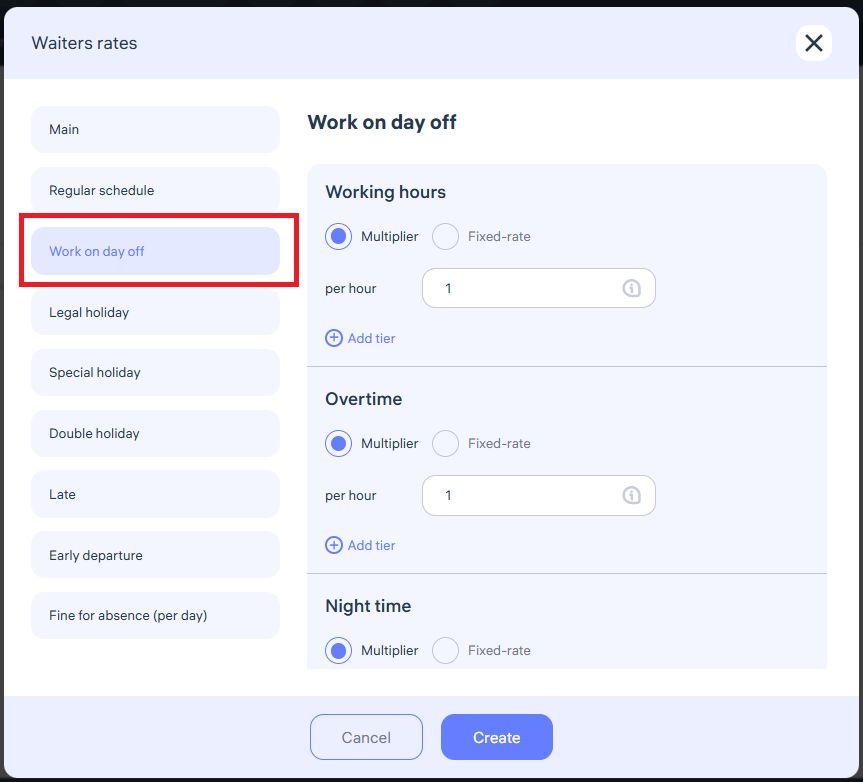
Clockster calculates payment for working on a day off as follows:
If an employee works on their day off, you can set payment either by a multiplier (e.g., double pay = multiplier 2) or by a fixed-rate.
Clockster automatically calculates the payment using the multiplier or fixed rate for each worked hour.
Overtime and night shifts can be configured separately for day-off work.
Example: If the multiplier is “2”, the employee receives double the standard hourly rate. If a fixed rate is used, Clockster bases the calculation strictly on that rate.
6. Setting pay for work on a legal holiday:
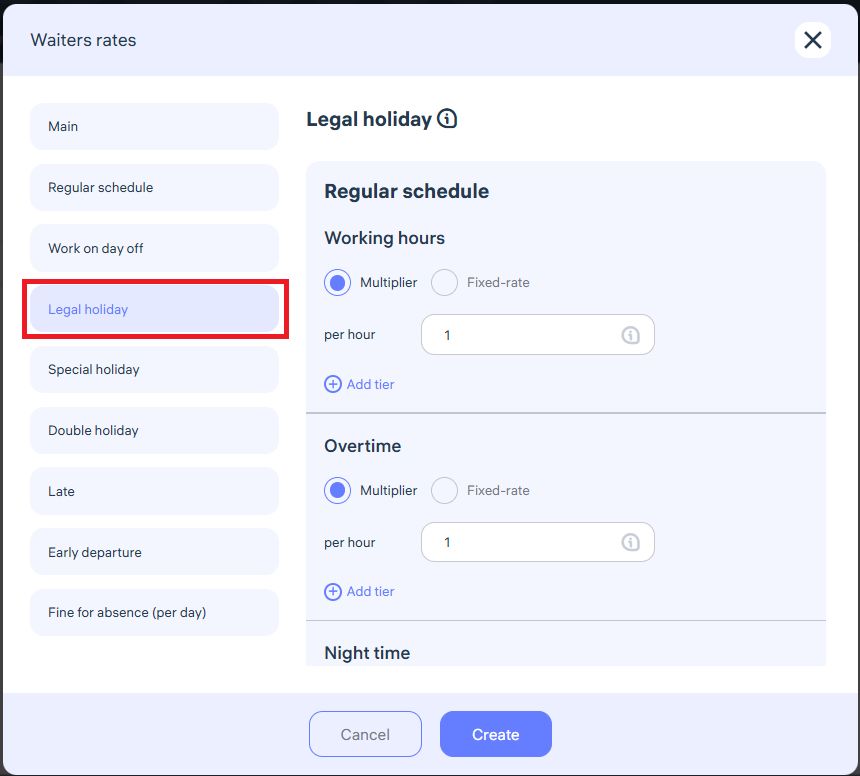
If an employee works on a legal holiday, you can choose between a multiplier or a fixed hourly rate.
With a multiplier (e.g., 2×), the system automatically increases the pay for each hour worked on the holiday.
With a fixed hourly rate, Clockster uses only the value you specify, regardless of the standard rate.
Overtime and night hours can also be configured for holidays in the same way.
This gives you flexibility in managing pay for employees working on holidays.
7. Setting pay for work on a special holiday:
Clockster calculates pay for special holidays as follows:
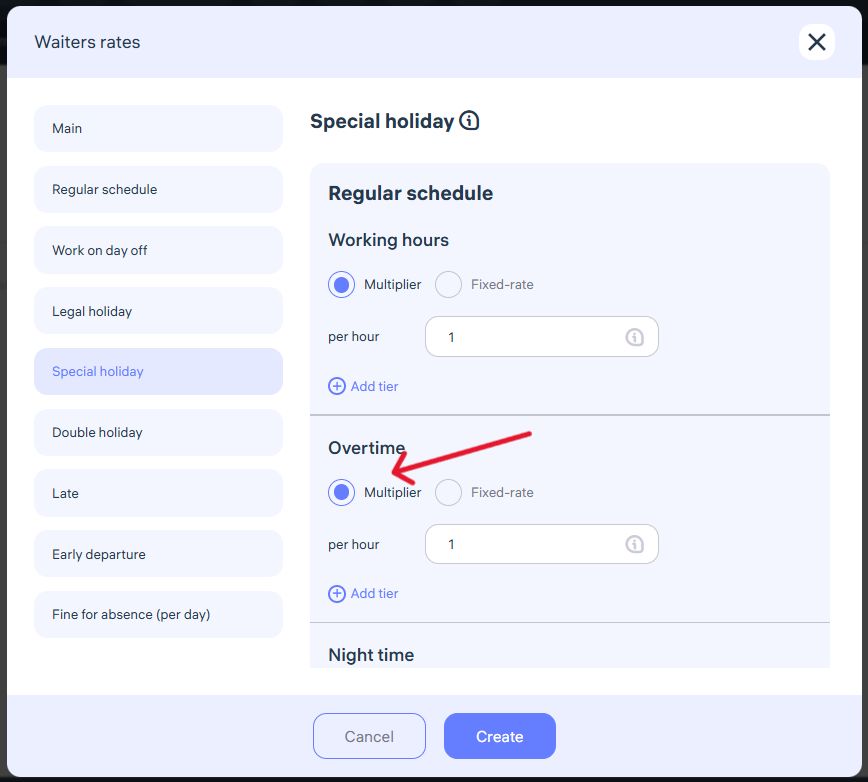
You can choose to pay using a multiplier (e.g., 1.5 or 2) or set a fixed hourly rate.
When using a multiplier, the system multiplies the employee’s standard hourly rate by the specified coefficient.
When using a fixed rate, Clockster calculates pay strictly based on the entered value.
Overtime and night hours for special holidays can also be configured separately.
8. Setting pay for work on a double holiday:
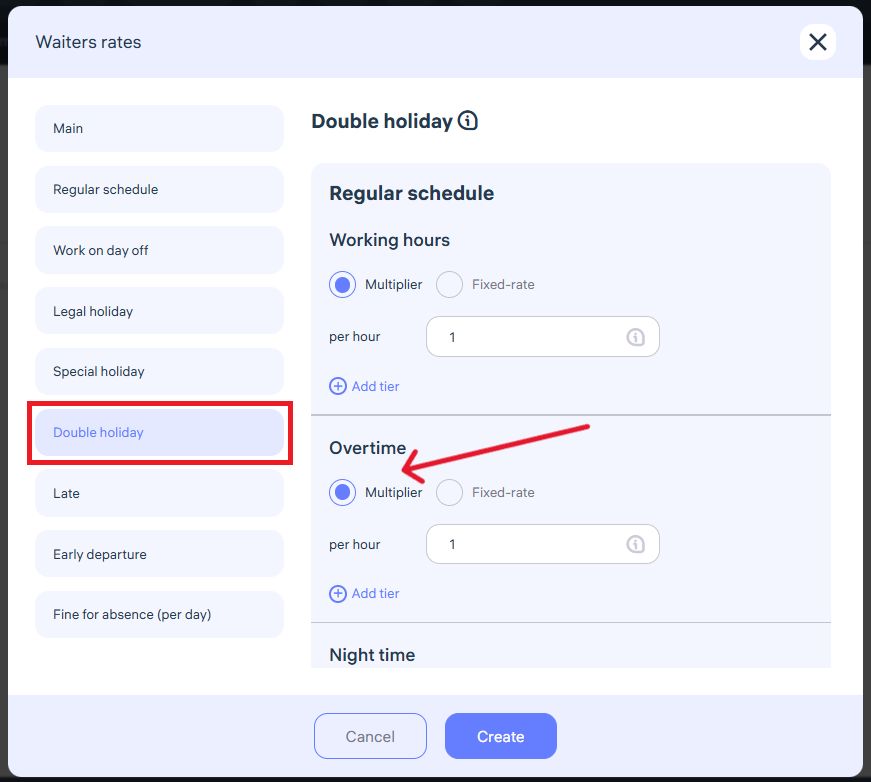
A double holiday occurs when a legal holiday coincides with an employee’s regular day off.
You can pay using a multiplier (e.g., 1.5 or 2) or a fixed hourly rate.
With a multiplier, Clockster multiplies the standard hourly rate by the coefficient for each worked hour.
With a fixed rate, Clockster uses that value for all calculations.
Overtime and night shift settings work the same way as for special holidays.
In the example, a fixed overtime rate of “0.00” means no pay for overtime during double holidays.
To enable overtime pay, set the fixed rate above zero or use a multiplier relative to the employee’s standard rate.
9. Setting a late arrival penalty:
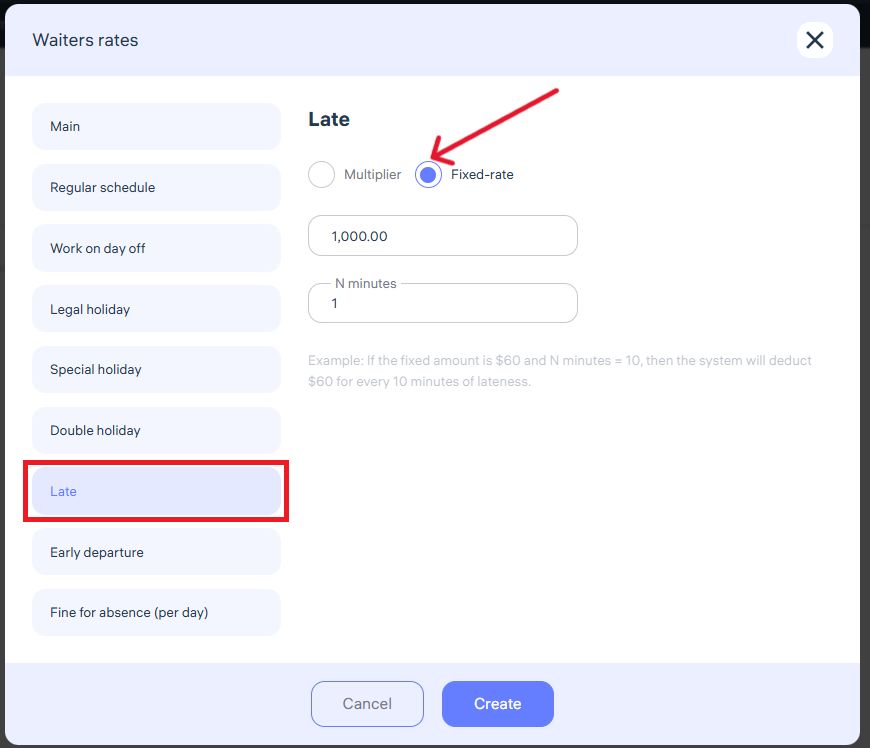
Clockster allows you to automatically deduct penalties for lateness.
Example: A fixed rate of “1000 per minute” means the system deducts 1000 units from the employee’s payroll for each minute late.
You can adjust this setting:
Multiplier – the deduction is proportional to the employee’s standard hourly rate.
Fixed rate – the deduction is a constant amount for every N minutes of lateness.
10. Setting an early departure penalty:
Setting an absence penalty:
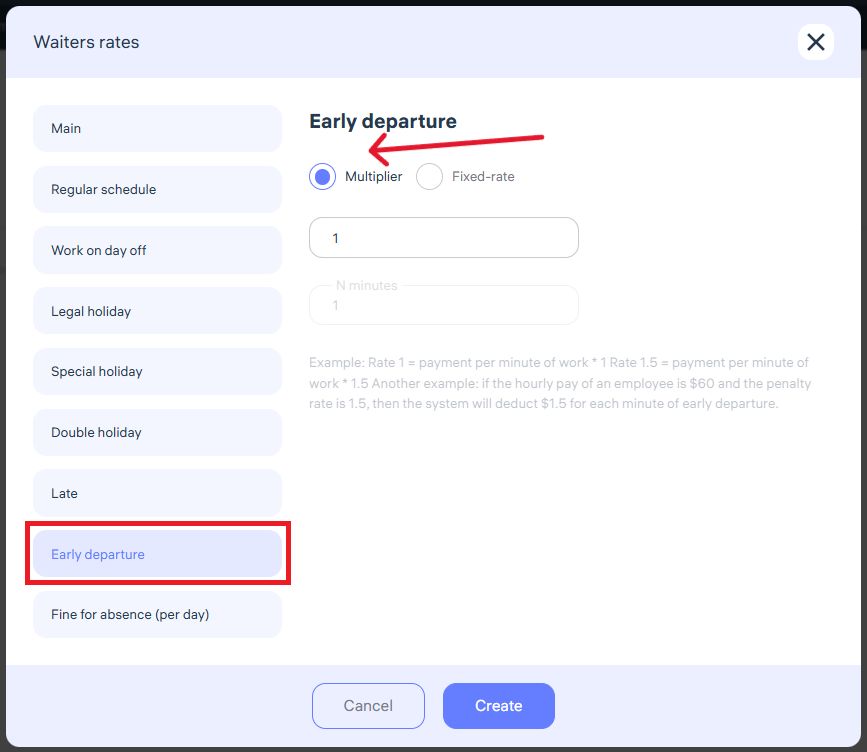
Clockster can also deduct pay for leaving work early.
Example: A multiplier of “1” means the system deducts the employee’s standard per-minute pay for every minute of early departure.
You can configure this in two ways:
Multiplier – the penalty equals the employee’s per-minute rate × the multiplier.
Fixed rate – a constant deduction regardless of the employee’s standard rate.
11. Setting an absence penalty:
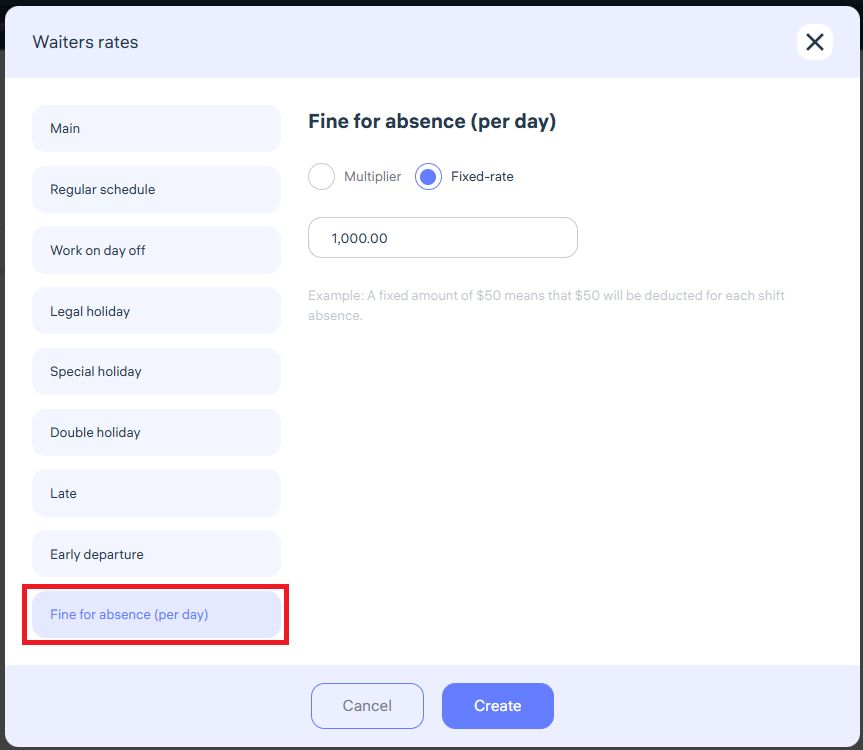
Clockster automatically applies penalties for unexcused absences:
Example: A fixed rate of 1,000 means that if an employee misses a full day without checking in, the system deducts 1,000 from their payroll.
You can choose between:
Multiplier – the penalty equals the employee’s daily rate × multiplier.
Fixed rate – a constant deduction regardless of the salary.
⚠️ Important:
If there’s no check-in, check-out, or both during a working day, Clockster counts it as an absence. The penalty applies automatically.
To avoid unnecessary deductions, make sure employees always check in and out on time.
Save your rate changes!
Clockster allows you to create multiple pay rates depending on your company’s needs, including:
Basic payroll rates
Overtime rates
Weekend and holiday pay
Night shift pay
Penalties for lateness, early leave, or absences
These rates can be applied to different employee categories depending on their position, work conditions, and motivation system.
This flexibility allows for accurate and fully automated payroll calculations across your company.
Updated at