
Requests
How to Request an Absence
If, for a valid reason, you cannot come to work (due to illness, personal circumstances, annual leave, etc.), you can submit an absence request in the Clockster app to notify your administrator and ensure accurate time tracking.
To do this:
Open the Clockster app.
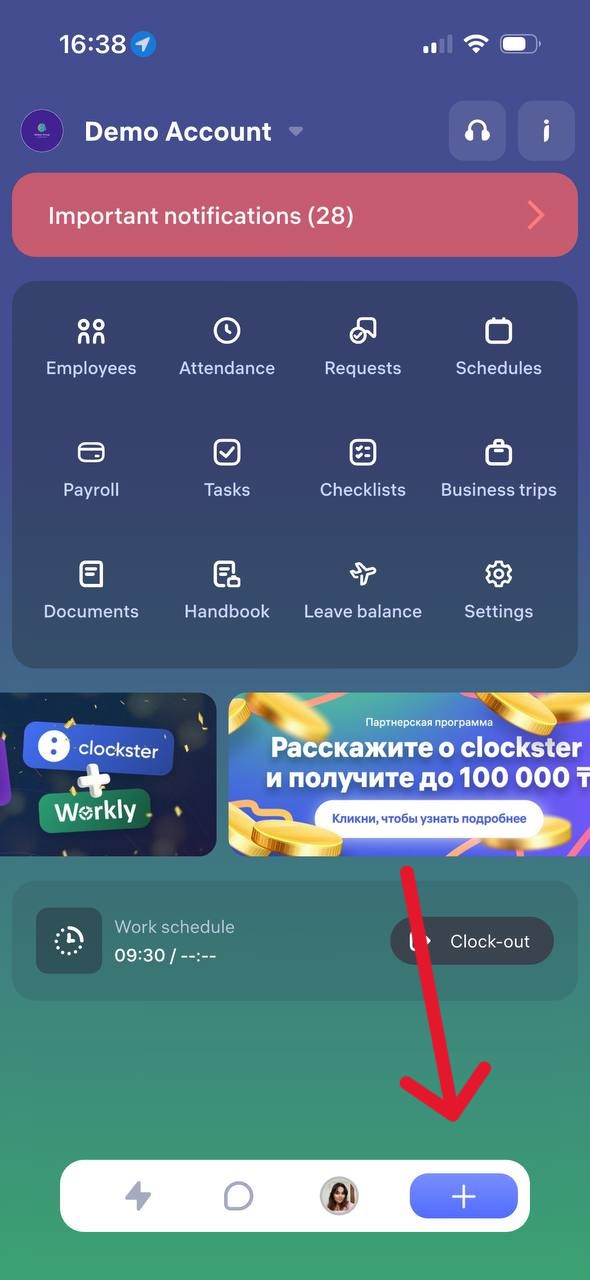
Tap the “+” icon on the bottom of the screen.
Select “Leave Schedule.”
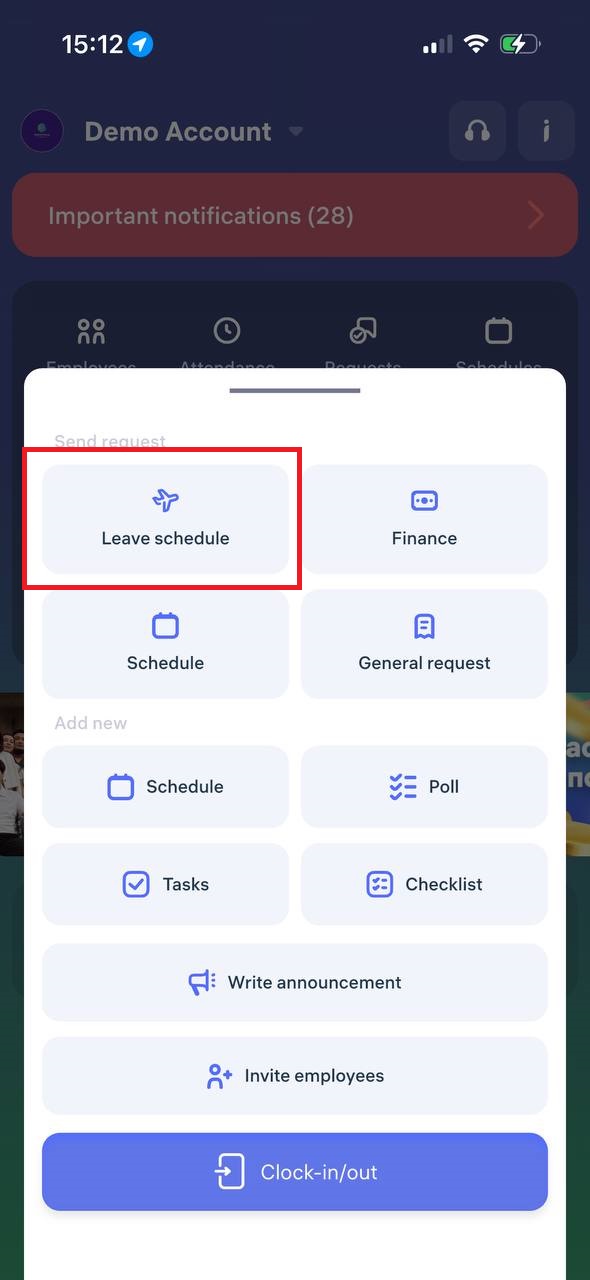
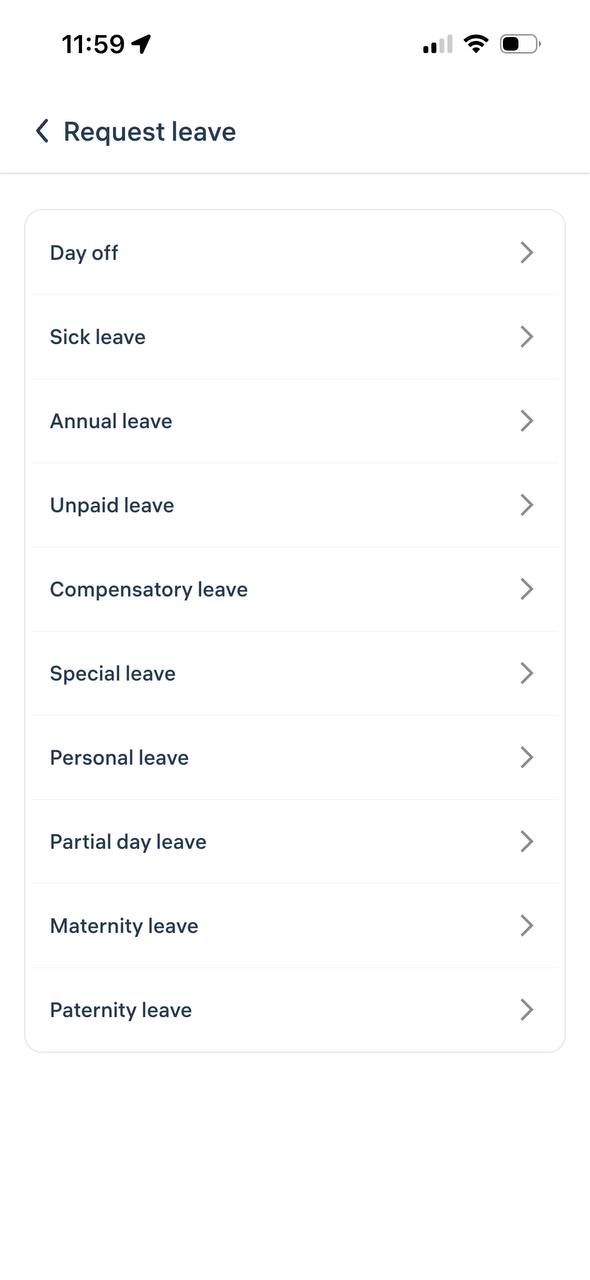
Then choose the reason for your absence request.
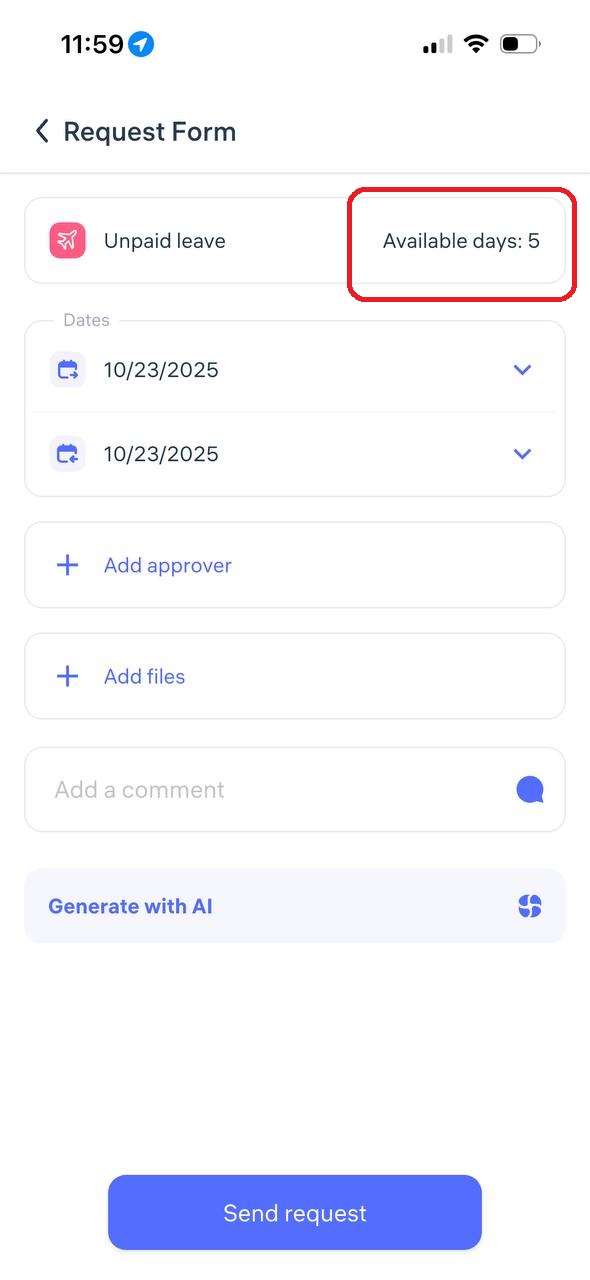
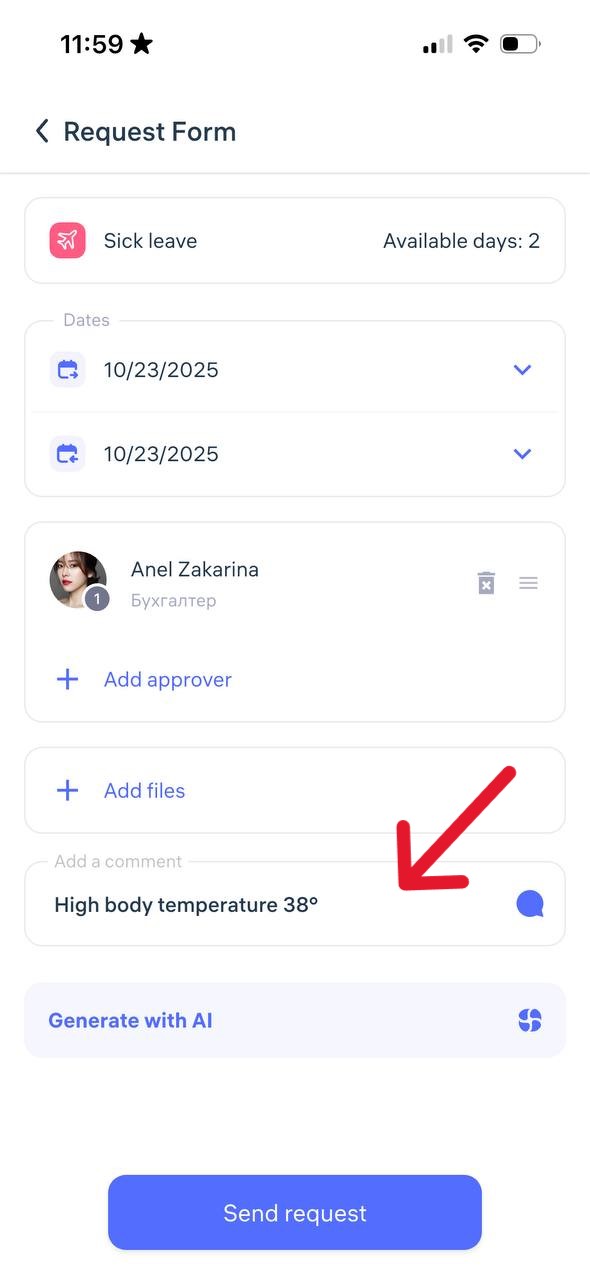
When creating any type of absence request, select the dates or period of your absence.
If your company administrator has set a leave balance, you will see the number of available days you can request.
Choose the manager who should review your request and add a comment explaining the reason for your absence.
Tap “Send Request.”
Track the Status of Your Request
After submission, you can monitor the status in the “Requests” section:
Pending
Approved
Declined
Important:
Submit your request as early as possible, as soon as you know about your upcoming absence.
If you forgot to submit it in advance, do so on the day of your absence and include a comment explaining the situation.
How Can I Request a Schedule Change
If you need to change your work schedule, you can create a request through the Clockster mobile app.
Please note: the availability of this feature depends on your company’s settings. If you don’t see the required request type, contact your administrator.
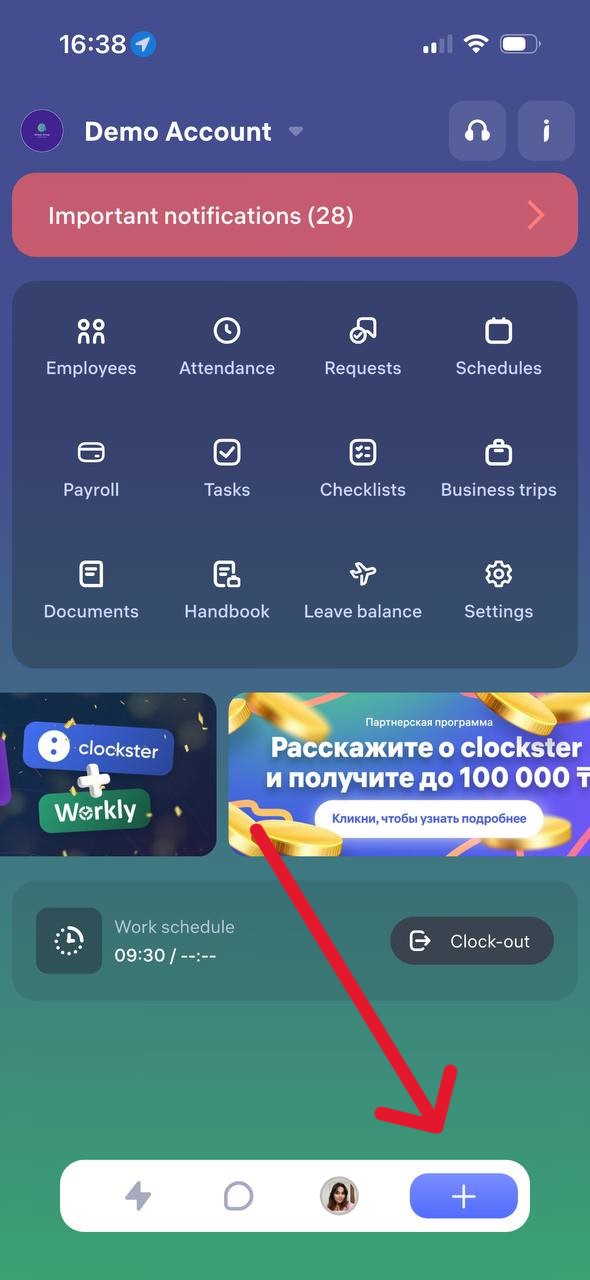
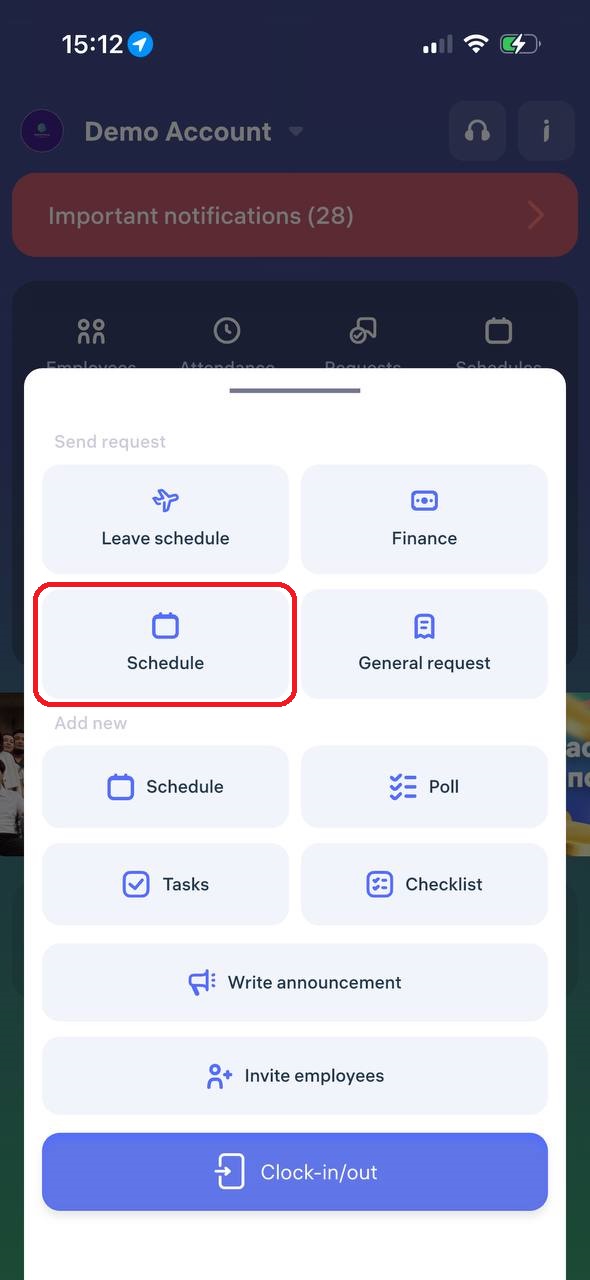
Open the Clockster mobile app, tap the “+” button at the bottom of the screen, and select “Schedule.”
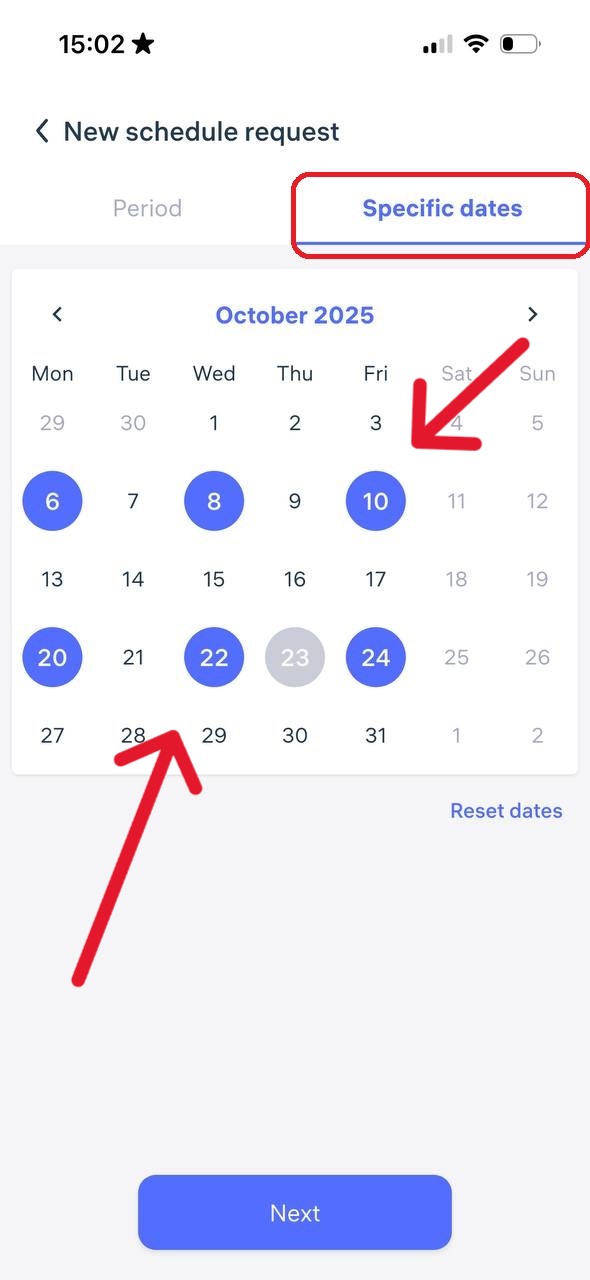
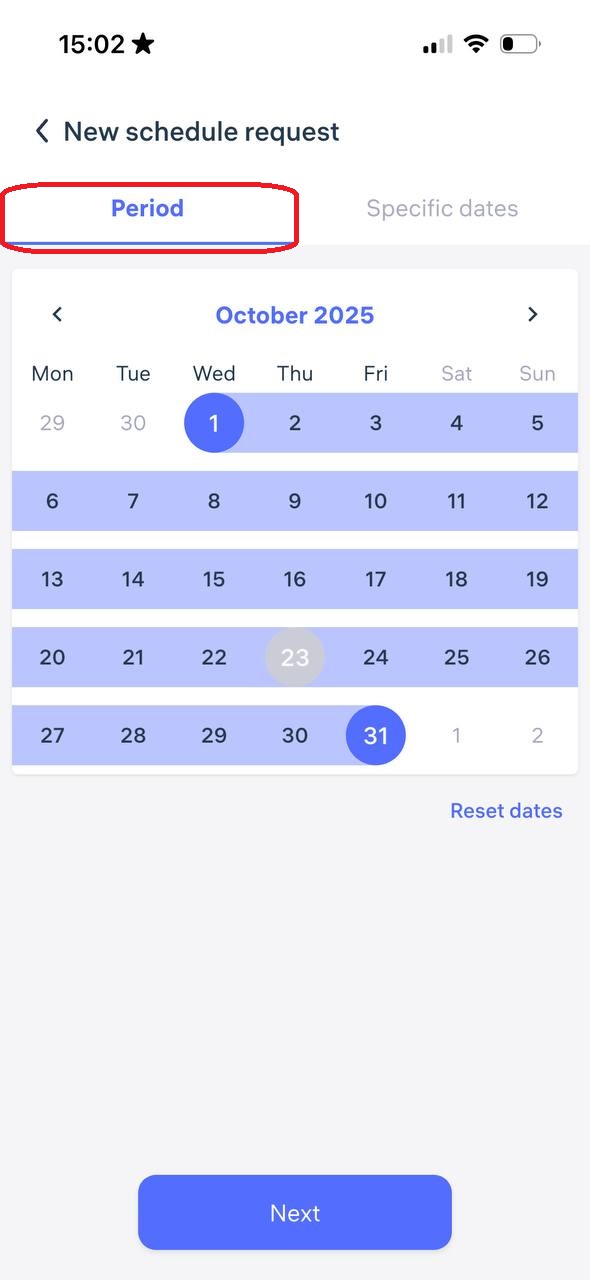
2. Specify the days you want to adjust or add to your work schedule. You can either:
Select a period, or
Set specific dates
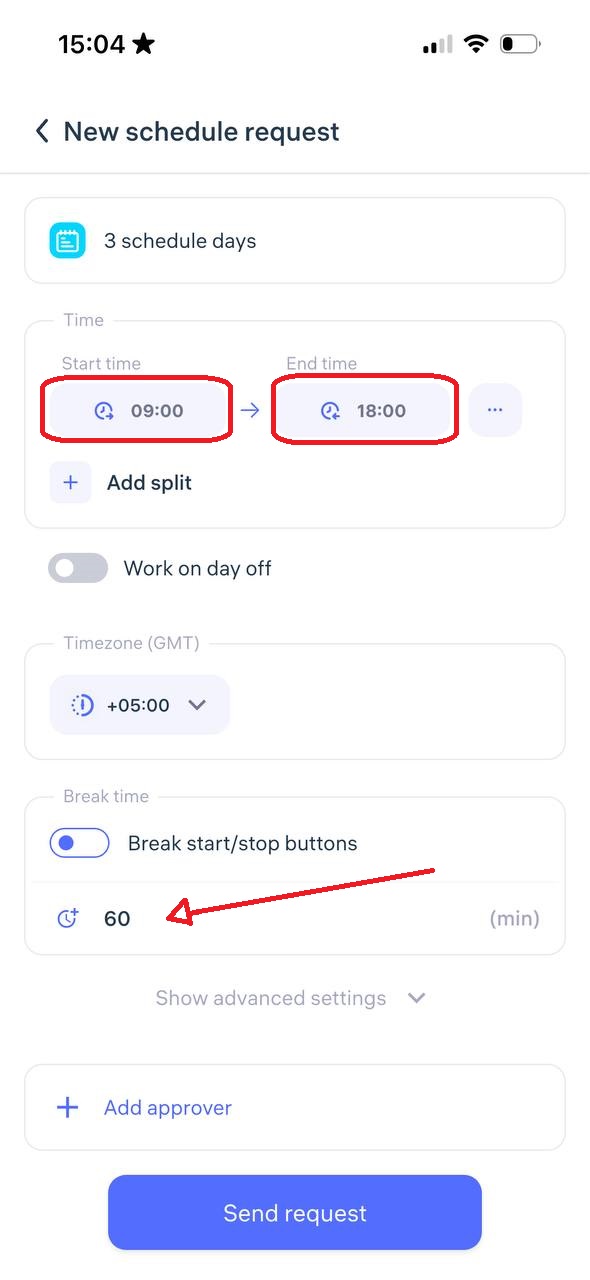
Be sure to set the start time and end time of your workday, specify your lunch break (this time is automatically deducted from your total working hours), and choose the manager who should approve your request.
Review all the details, then tap “Send Request.”
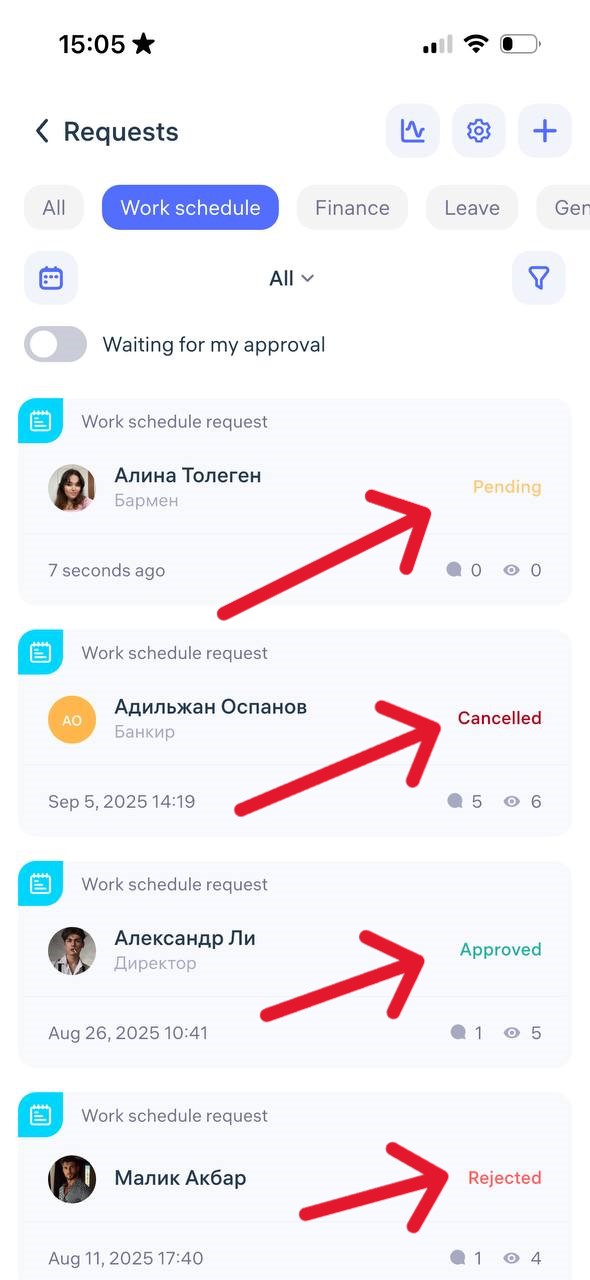
After submission, you can track the status of your request in the “Requests” section:
❌ Declined
🟡 Pending
✅ Approved
or Cancelled
Helpful tip:
If you know in advance that your schedule needs to be changed, submit the request as early as possible so that the administrator has time to approve it and include it in the calculations.
What Financial Requests Can I Create?
If you need to submit a finance-related request — for example, an advance payment, compensation, bonus, or reimbursement — you can do this directly through the Clockster app.
All such requests are sent to your company’s administrator or accountant for approval.
Types of Financial Requests
Depending on your company’s settings, the following types may be available to you:
Advance / Loan
Financial Assistance
Bonus
Payroll Deduction
Purchase of Goods / Equipment
Write-off
Expense claim
Payment for services
Other
Let’s go through each type in more detail:
1. Advance and Loan
Advance — part of your future salary that you receive early, usually before payday. It will later be deducted from your total salary.
Example: If your salary is 100,000 and you took a 30,000 advance, you’ll receive 70,000 on payday.
Loan — money the company lends you, similar to a credit. It’s not salary but a debt you must repay, either in installments or as a lump sum.
When submitting such a request in Clockster, check with your accountant which type to select to avoid confusion.
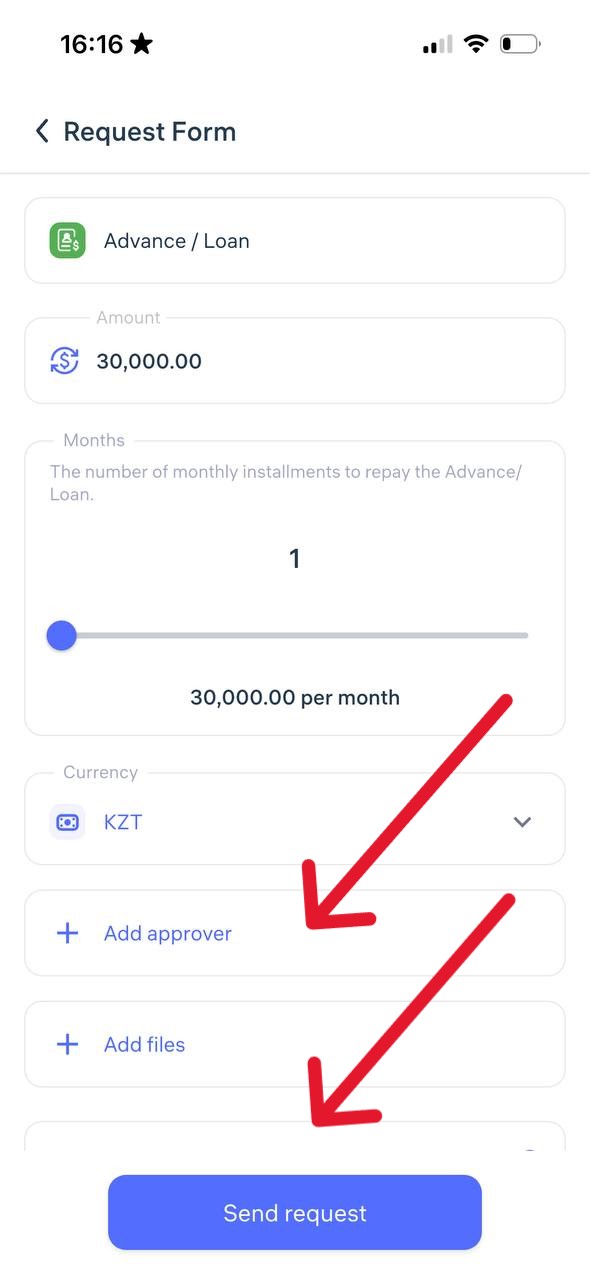
Enter the requested amount, choose the currency and manager, add a comment, review all details, and tap “Send Request.”
2. Financial Assistance
Financial assistance is money or other material support that the company provides to an employee, usually without repayment.
It’s a voluntary form of help from the employer, often in cases such as:
Serious life circumstances (illness, loss of a loved one, natural disaster)
Birth of a child or wedding
Low income, relocation, and other personal challenges
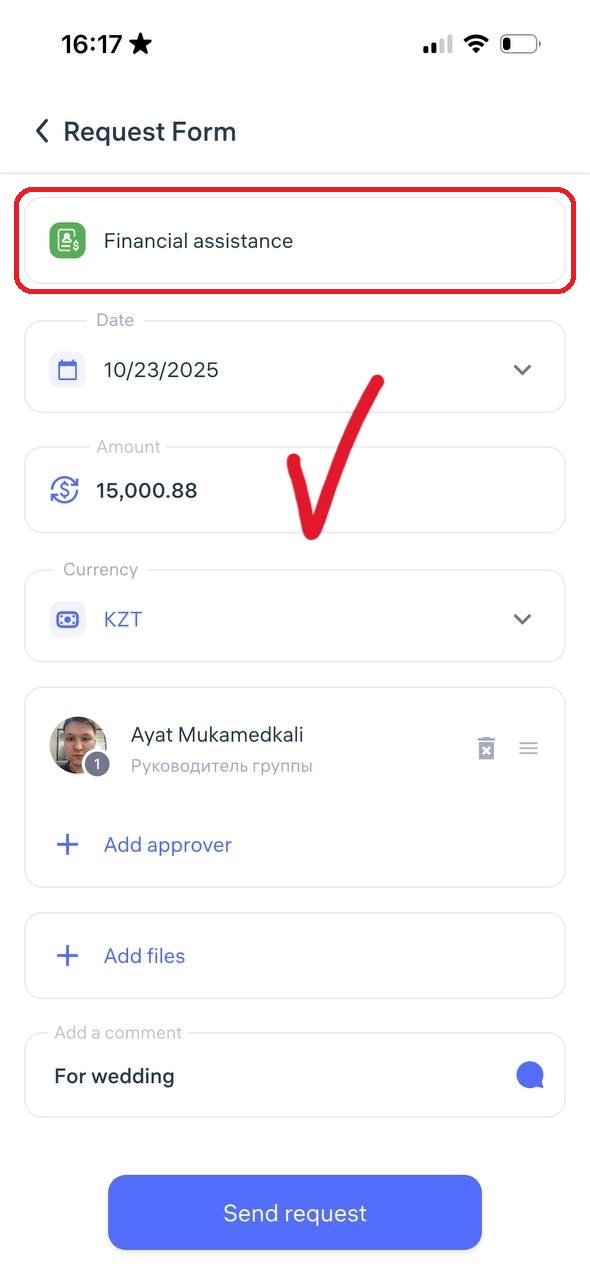
Enter the requested amount, select the currency and manager, add a comment, review the information, and tap “Send Request.”
3. Bonus
A bonus is an additional payment given to an employee on top of their regular salary for good performance, achievements, completing goals, loyalty, length of service, or even for holidays (e.g., New Year 🎄).
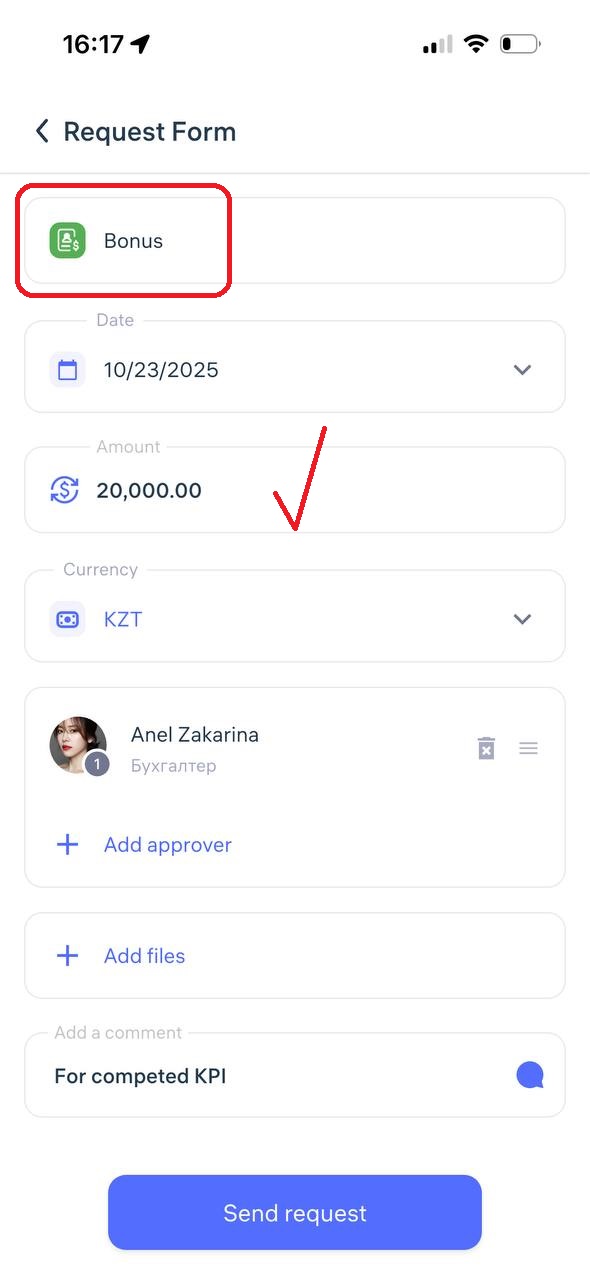
Enter the bonus amount, select the currency and manager, add a comment, review the details, and tap “Send Request.”
4. Payroll Deduction
A payroll deduction is when the employer withholds a certain amount from your salary for valid reasons — for example, repayment of a loan or advance, fines, compensation for lost company property, or voluntary contributions.
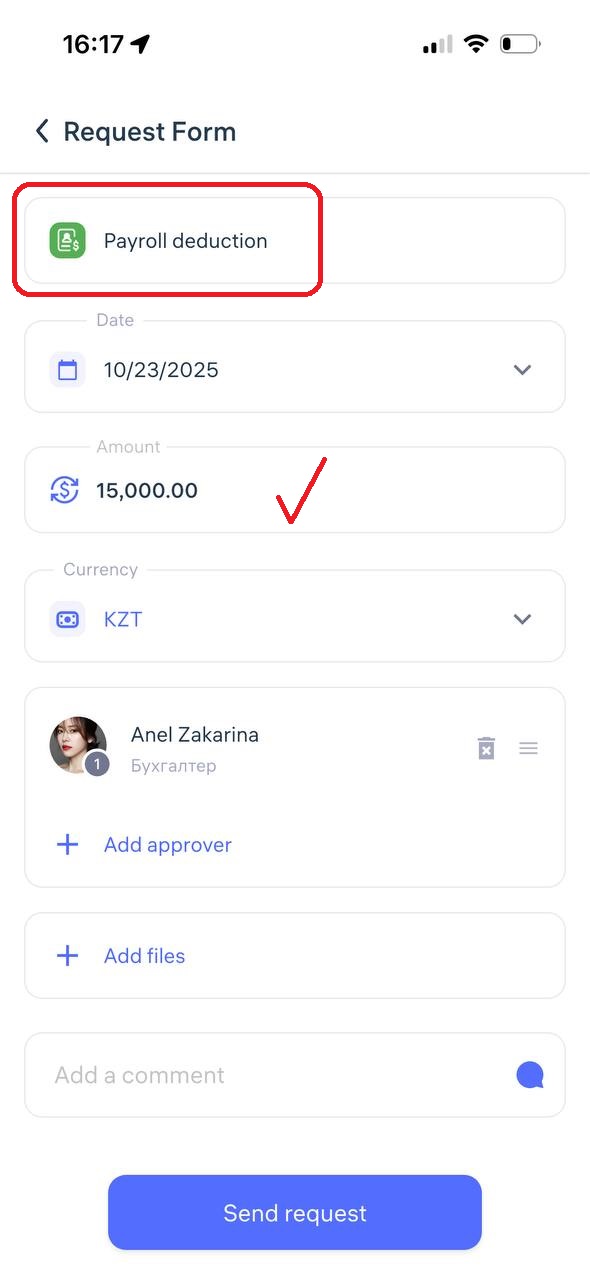
Enter the deduction amount, select the currency and manager, add a comment, review all details, and tap “Send Request.”
5. Purchase of Goods / Equipment
This is a formal request from an employee or manager asking the company to buy materials, equipment, or tools needed for work.
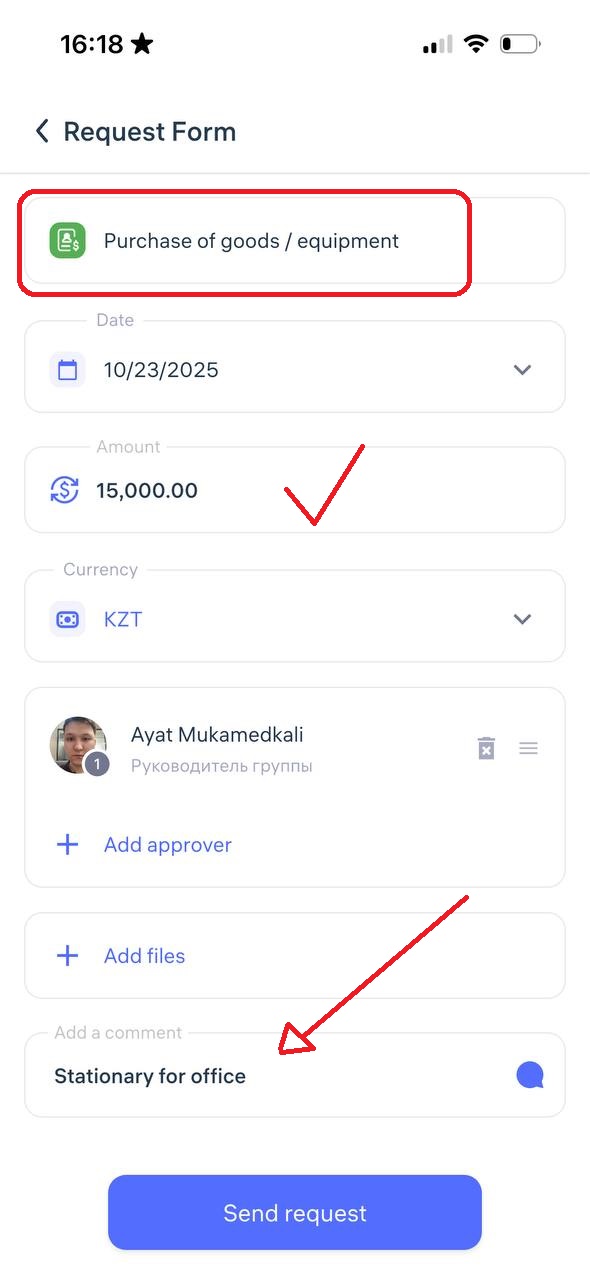
Enter the purchase amount, select the currency and manager, add a comment, review the details, and tap “Send Request.”
6. Write-off
A write-off request is an official acknowledgment that something has lost its value, become obsolete, damaged, lost, or cannot be repaired or returned.
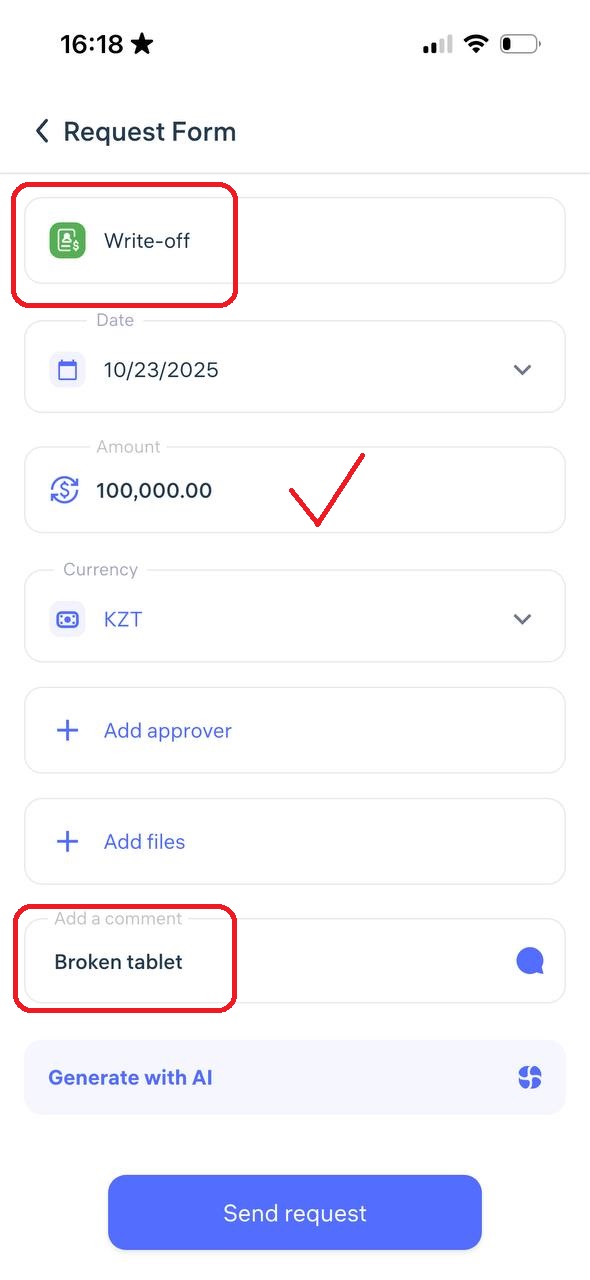
Enter the write-off amount, select the currency and manager, add a comment, review the details, and tap “Send Request.”
7. Expense Claim
Expense reimbursement is when the company refunds money you personally spent for business purposes.
Example: You bought office supplies, paid for transportation, or covered hotel expenses during a business trip — you can request reimbursement for those costs.
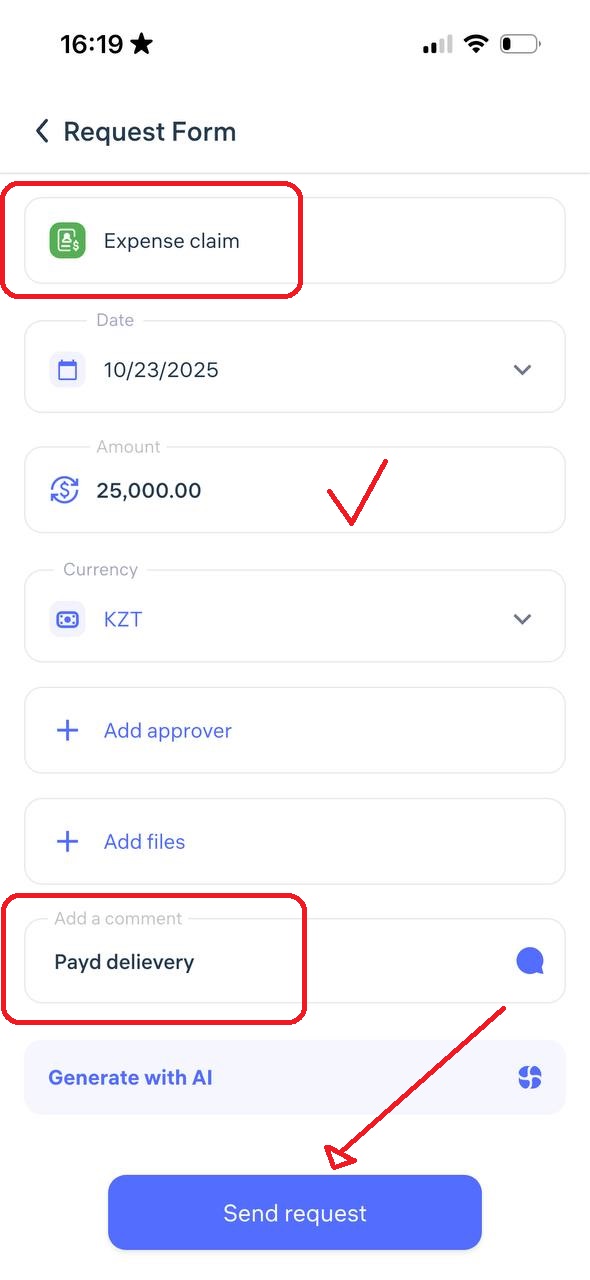
Enter the amount to be reimbursed, select the currency and manager, add a comment, review the details, and tap “Send Request.”
8. Payment for Services
Service payment is when the company pays an individual or organization for completed work or provided services — for example, cleaning, auditing, internet setup, delivery, etc.
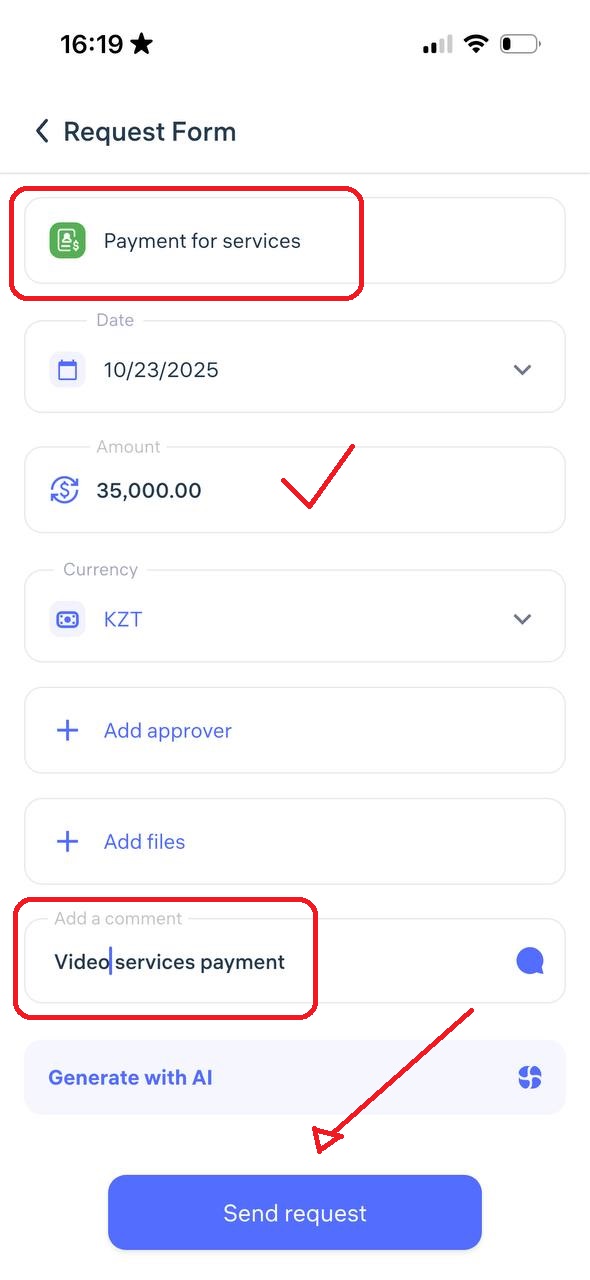
Enter the payment amount, select the currency and manager, add a comment, review all details, and tap “Send Request.”
9. Other
The “Other” category is for financial requests that don’t fit into standard types such as advance, loan, deduction, bonus, or financial aid.
You can use this for:
One-time payments for extra work performed
Any other financial need that requires approval
To ensure proper review, your comment should include:
A clear explanation of the reason for the request
The requested amount
Supporting documents or justification if needed (e.g., receipt, memo, signed report)
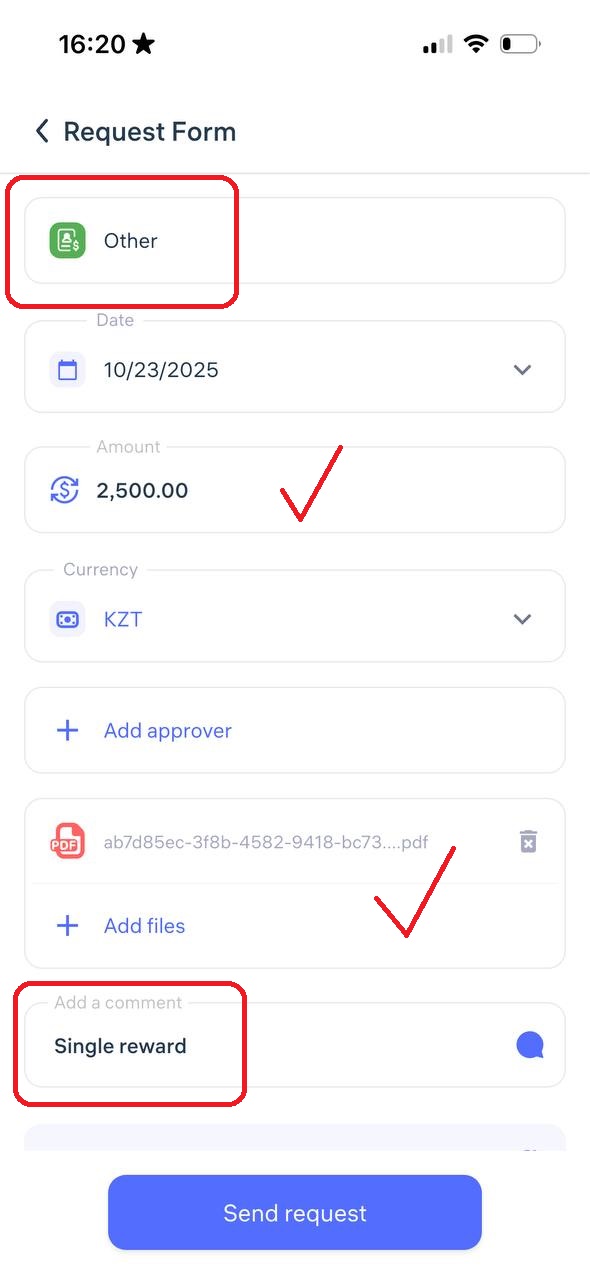
Enter the amount, select the currency and manager, add a comment, review everything, and tap “Send Request.”
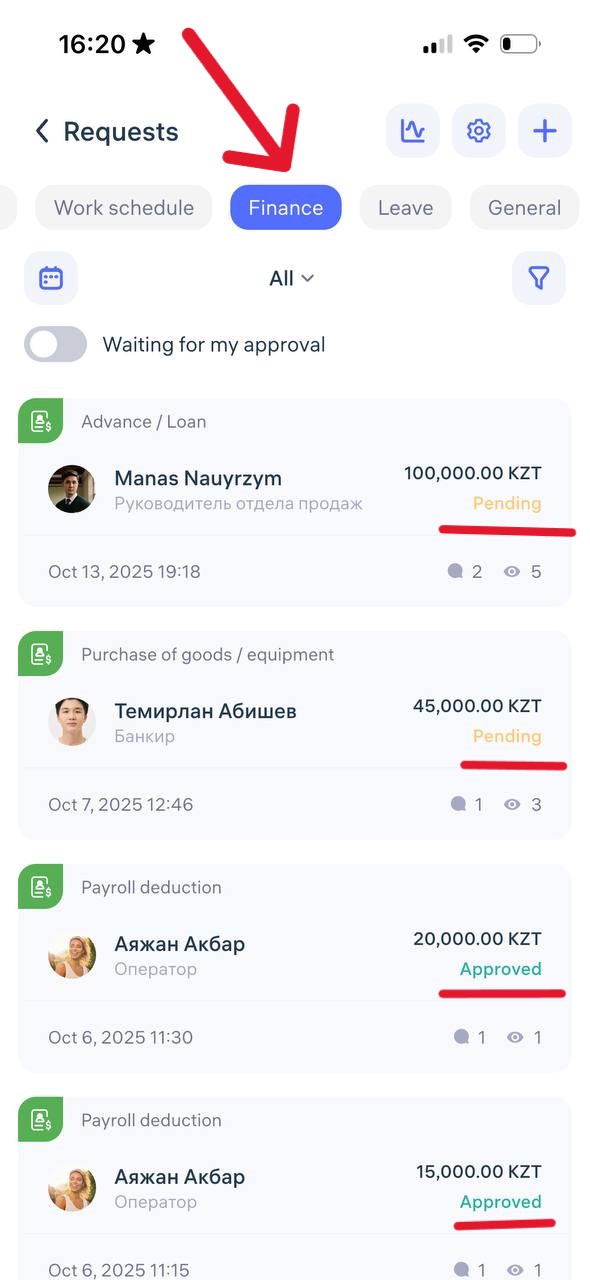
How to Track the Status of a Financial Request
Go to the “Requests” tab
Find your request in the list
Check its current status:
🟡 Pending
✅ Approved
❌ Declined
🔄 Returned for revision
Important Notes
All requests are reviewed according to your company’s internal policies.
Processing times and approval rules may vary — check with your administrator.
If you have questions or don’t see the required type of financial request, contact your HR department, accounting, or Clockster support — we’ll be happy to help.
What are general requests?
In Clockster, general requests refer to requests that are not directly related to payroll, absences, or schedule changes, but still require approval or action from management or HR. These usually involve internal processes, documentation, or technical adjustments.
To create a general request, click the “+” icon at the bottom of the screen and select “General Request”
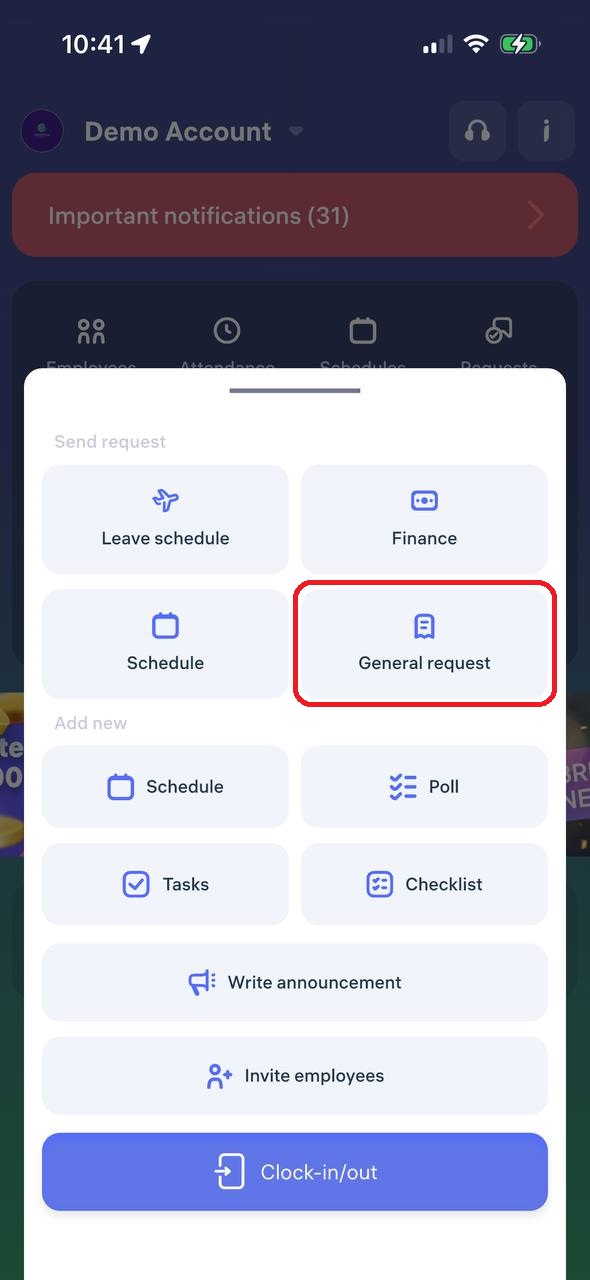
Let’s take a closer look at each type of general request:
Requests related to work schedule changes
1. Recall from annual leave
A recall from annual leave means the employer is requesting the employee to return to work earlier than planned.
This is an official process used when there is a business need, urgent task, or staff shortage.
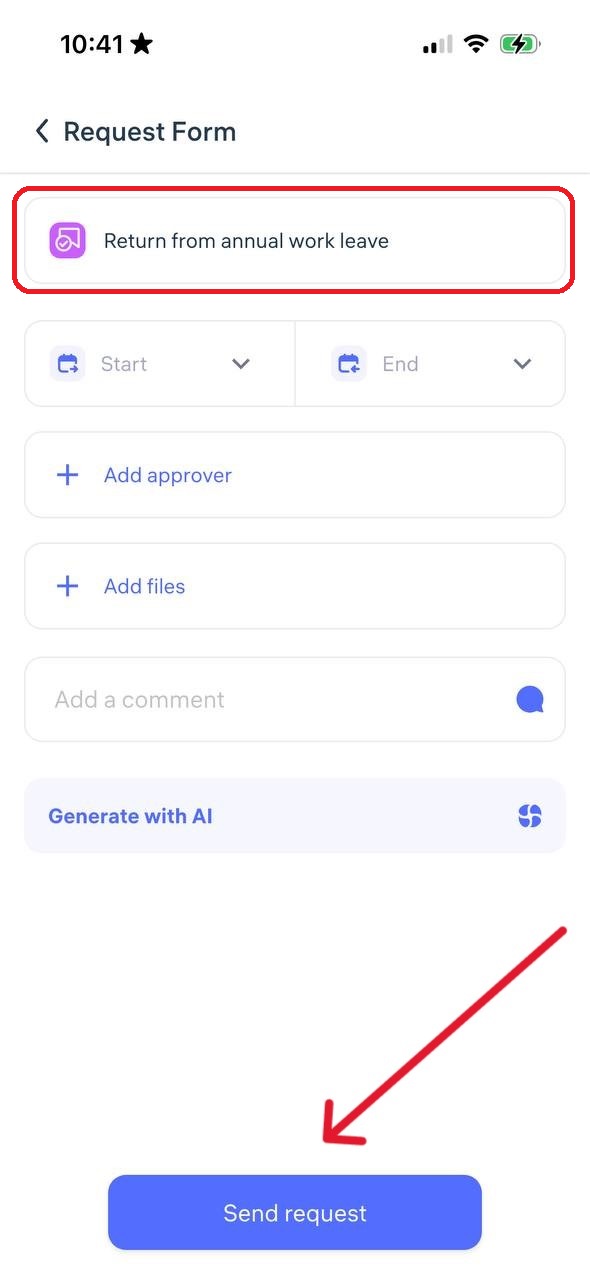
Enter the dates when you are being recalled from leave, select a manager, add a comment, and click “Send Request“
⚠️ Note: This type of request does not modify the employee’s work schedule.
2. Overtime
An overtime request in Clockster is an official request by the employee to record and compensate extra working hours beyond the normal schedule.
Example: The employee stayed late after their shift. To ensure these hours are counted and paid, an overtime request must be submitted.
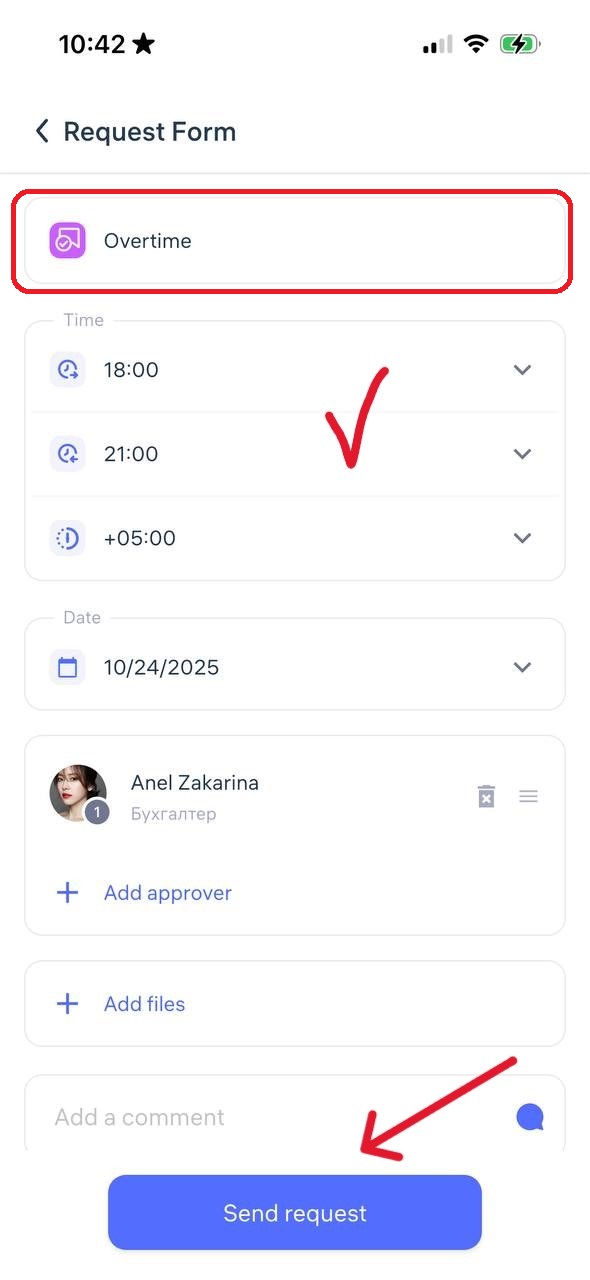
Specify the start and end time of the overtime, select the approving manager, add a comment, and click “Send Request”
3. Suspension
A suspension request is used when an employee is temporarily removed from work duties by the employer, with or without pay (depending on the reason).
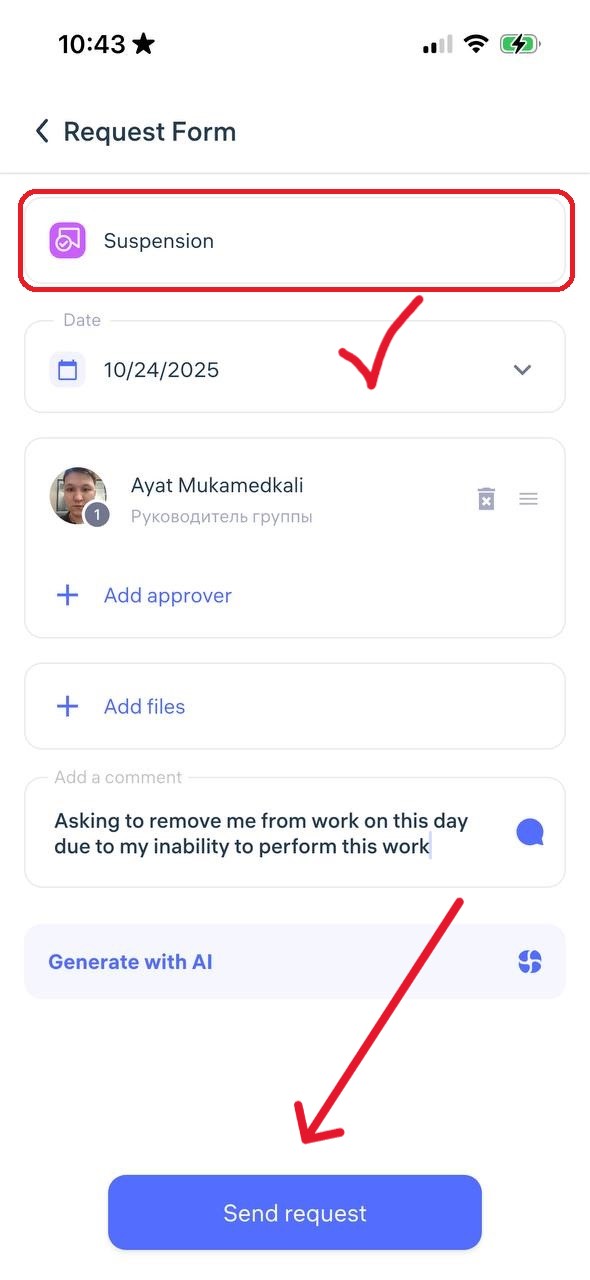
Indicate the suspension date, select a manager for approval, add a comment, and click “Send Request.”
⚠️ Note: This request does not affect the employee’s schedule.
4. Change in working conditions
A change in working conditions request involves modifying key aspects of the employee’s job agreement, such as work hours, responsibilities, or employment type.
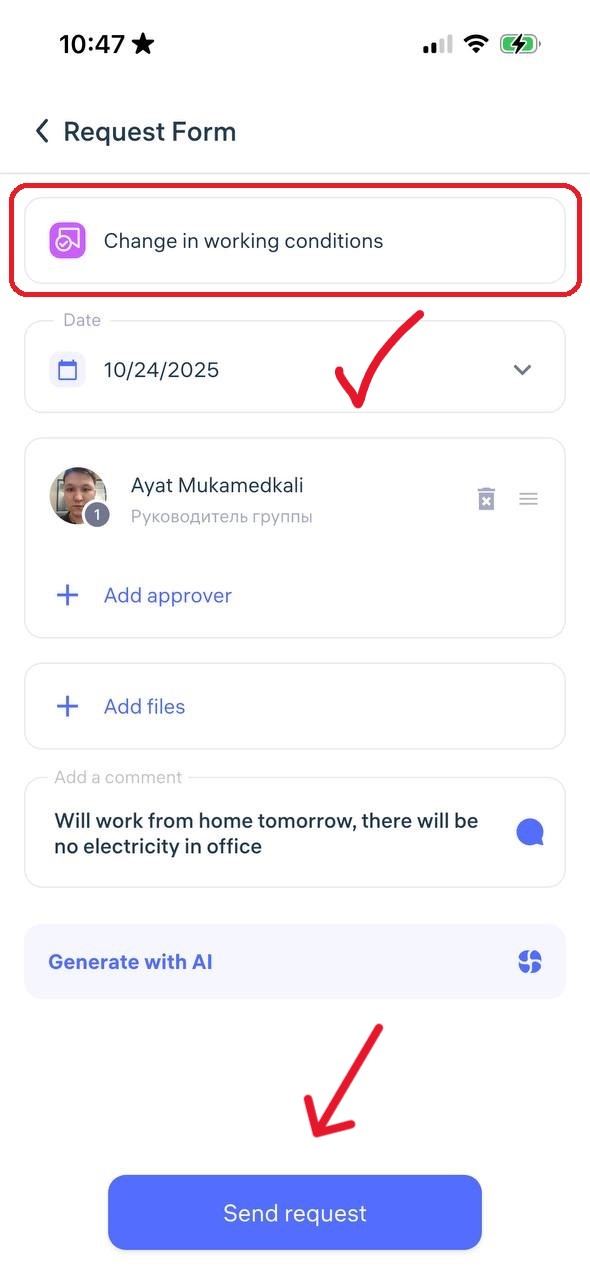
Specify the effective date, choose a manager, add a comment, and click “Send Request.”
⚠️ Note: This request does not modify the work schedule or enable off-location check-ins (such permissions must be set in the employee’s profile).
5. Business trip
A business trip request is used when an employee needs to travel temporarily to another city or location for work purposes.
Enter the departure and return dates. If you enable “I know the route,” you can indicate the travel cost. If you enable “I know where I’ll stay,” you can specify accommodation costs
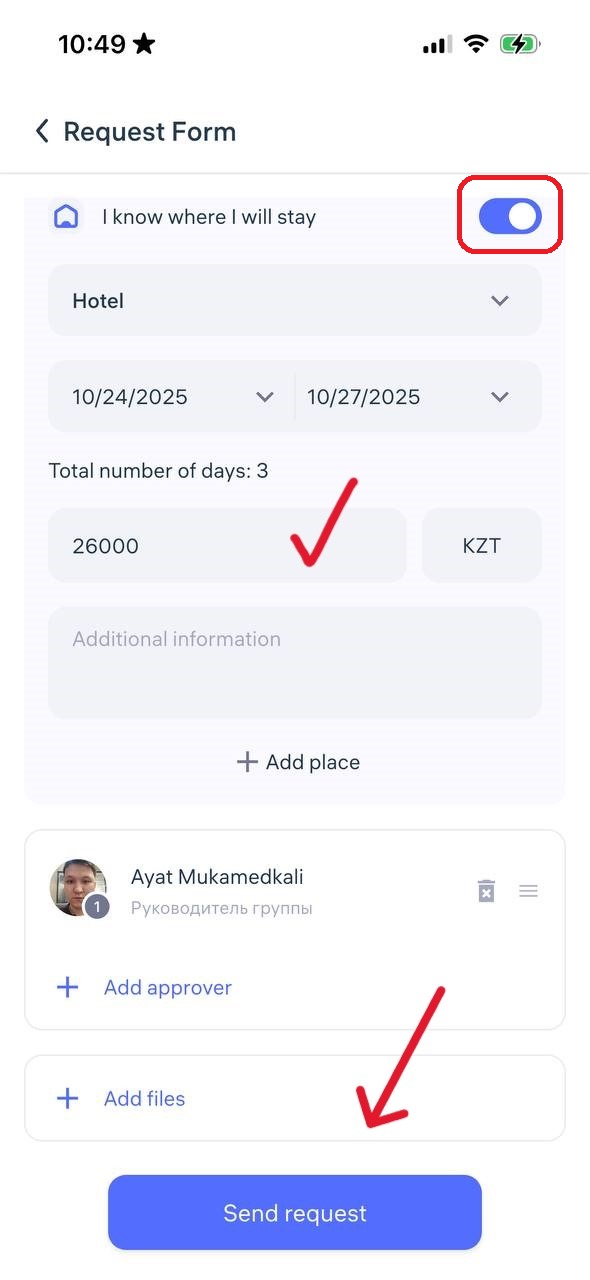
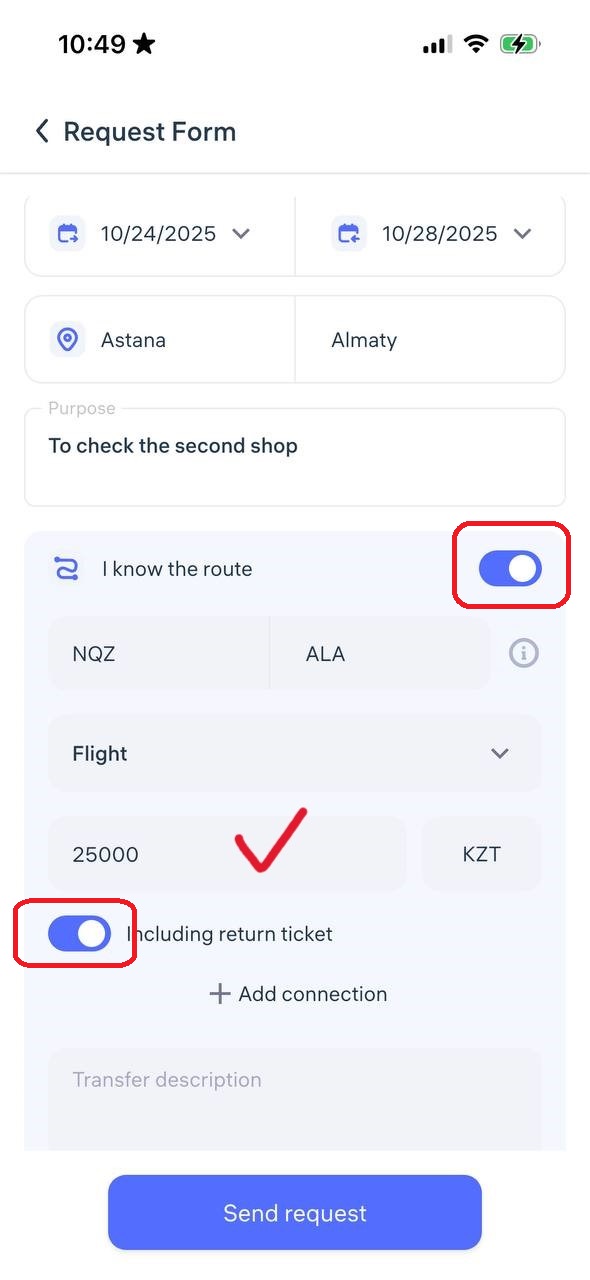
Select a manager and click “Send Request.”
Other types of requests
6. Training
A training request is used when an employee wants to attend a training, course, or seminar to improve their skills.
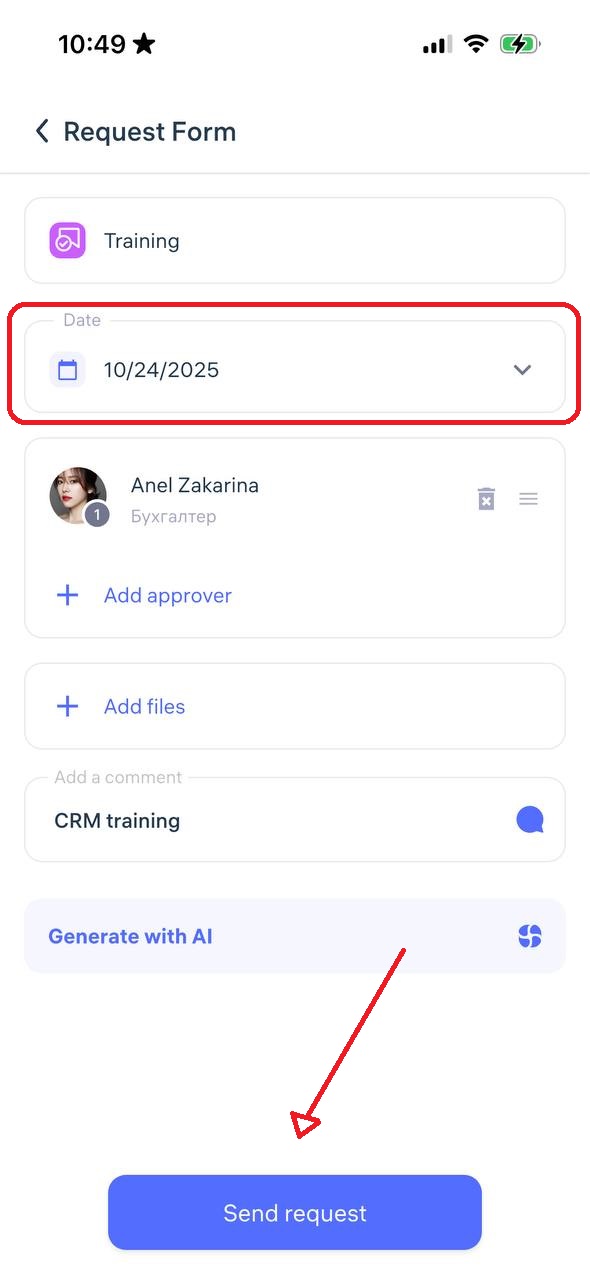
Enter the training date, select a manager for approval, add a comment, and click “Send Request”
7. Disciplinary action
This request is initiated by a manager to document a violation of company policy and begin a disciplinary process.
This is not an employee’s initiative, but an official document issued through the system to record a disciplinary violation and apply the appropriate disciplinary measure.
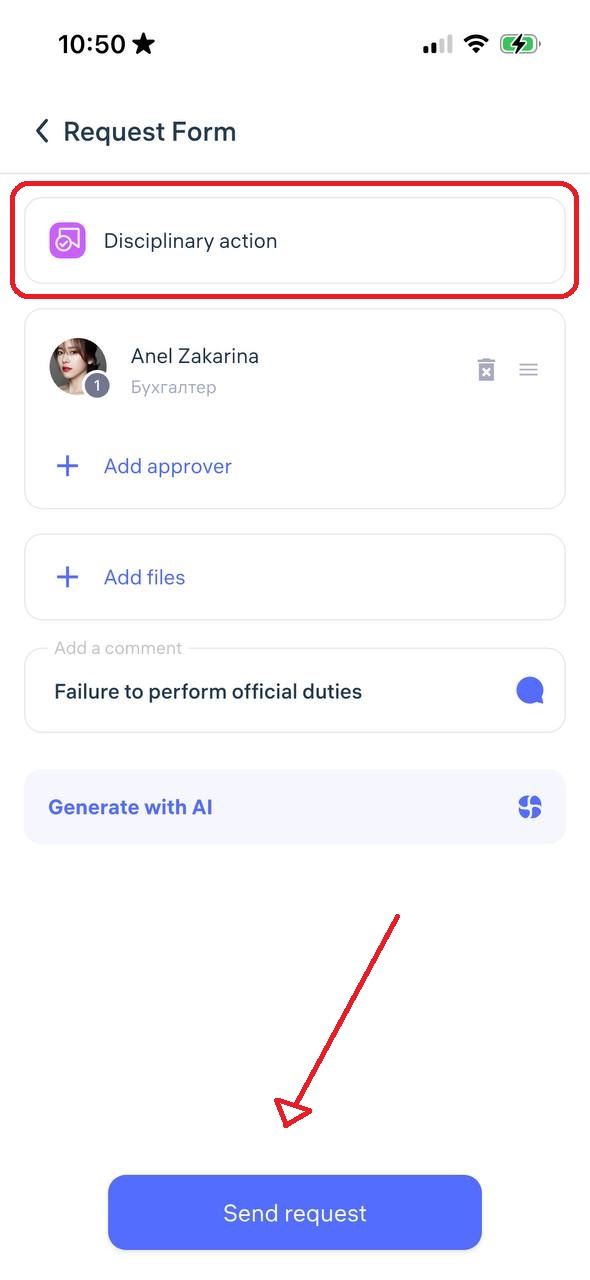
Select the approving manager, add a comment, and click “Send Request”
8. Employment certificate
An employment certificate request allows the employee to request an official document confirming employment, job title, experience, or salary — often needed for banks, consulates, or other organizations.
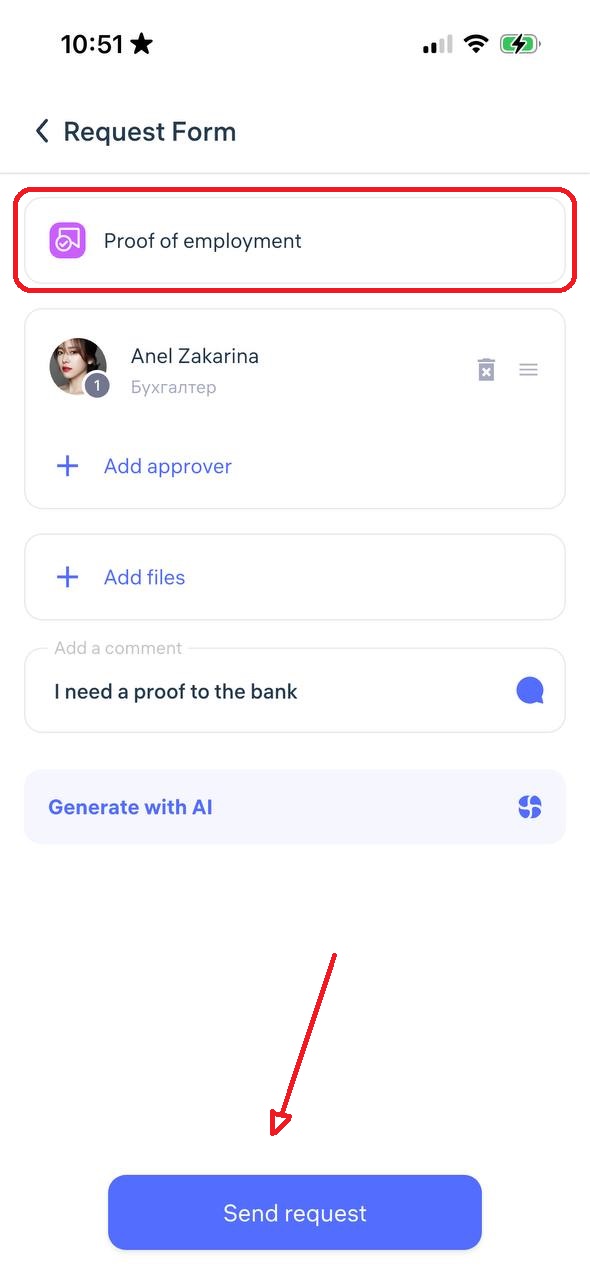
Select a manager, add a comment, and click “Submit Request.”
9. Complaint
A complaint request allows an employee to formally report an issue, conflict, or misconduct related to work, colleagues, or management.
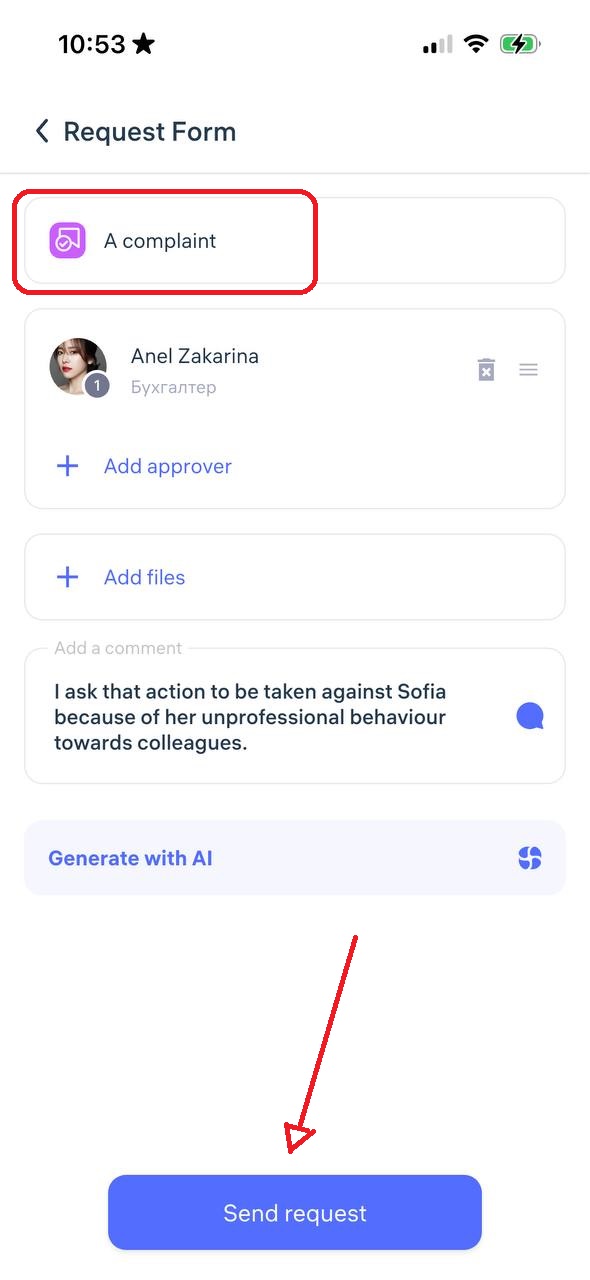
Select the responsible manager or HR, describe the situation, and click “Send Request”
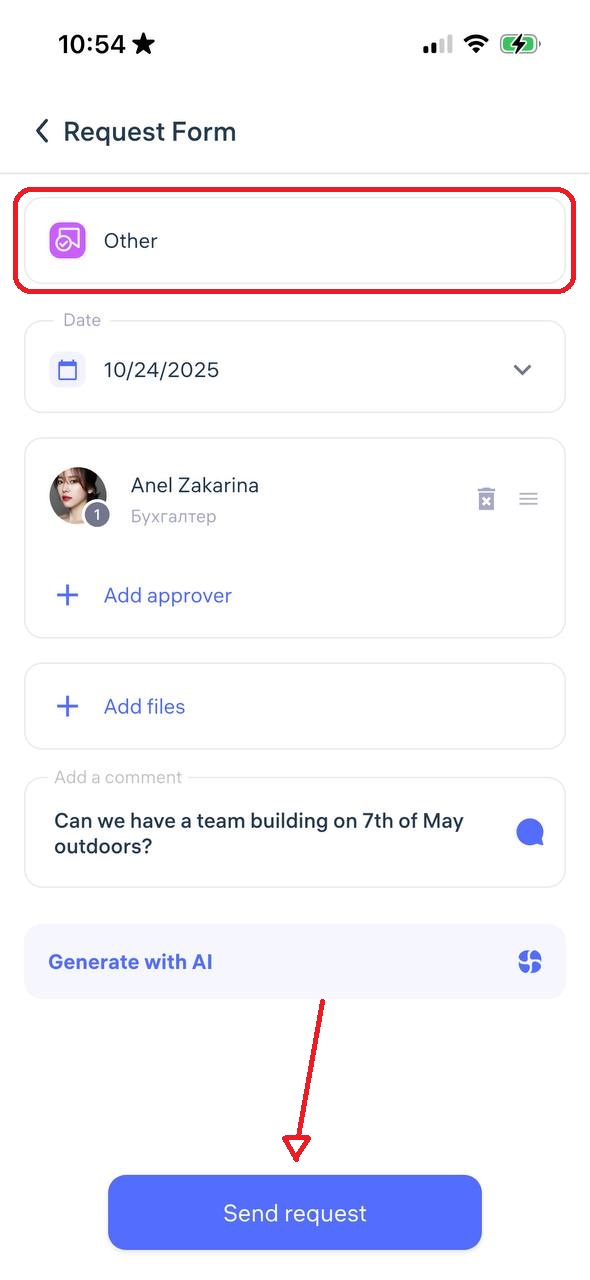
10. Other
This is a general-purpose request type for cases that do not fit into predefined categories.
Describe your situation in detail, select the department (HR, accounting, IT, etc.), specify the approving manager, and click “Send Request”
11. Resignation
A resignation request is a formal way for an employee to notify the employer of their intention to leave the company.
This serves as a digital equivalent of a paper resignation letter, including the submission date, reason, and desired termination date.
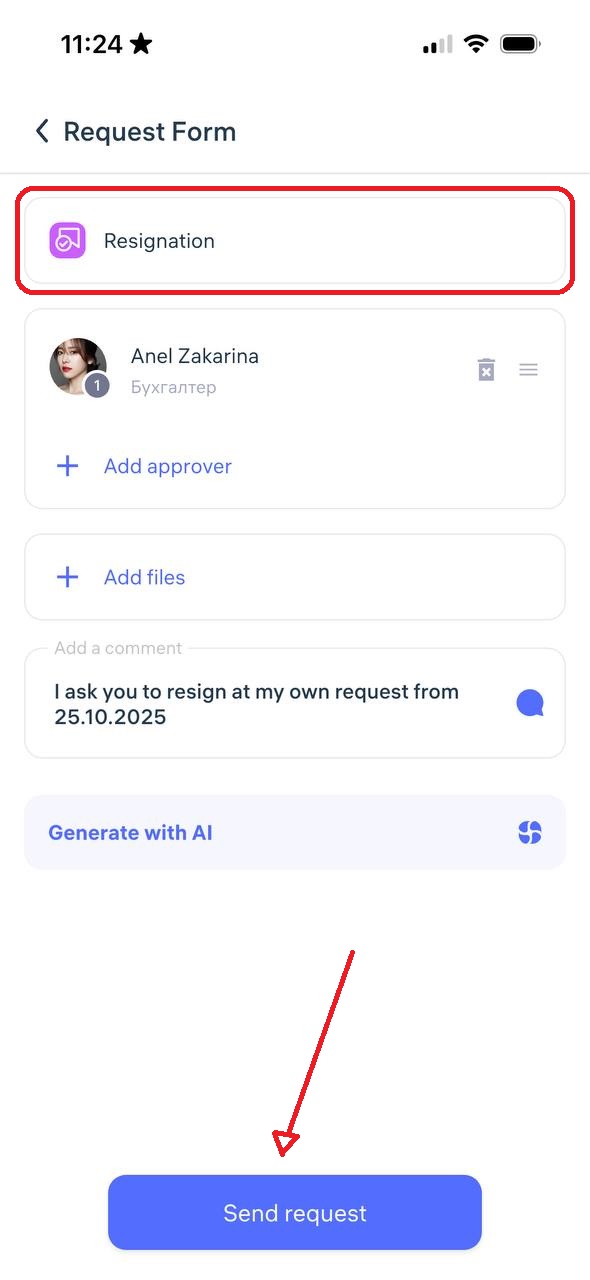
Select a manager, add a comment, and click “Send Request”
12. Clock-in/out | Break hours
An clock-in/out | Break request is used to correct missed or incorrect check-ins, check-outs, or breaks.
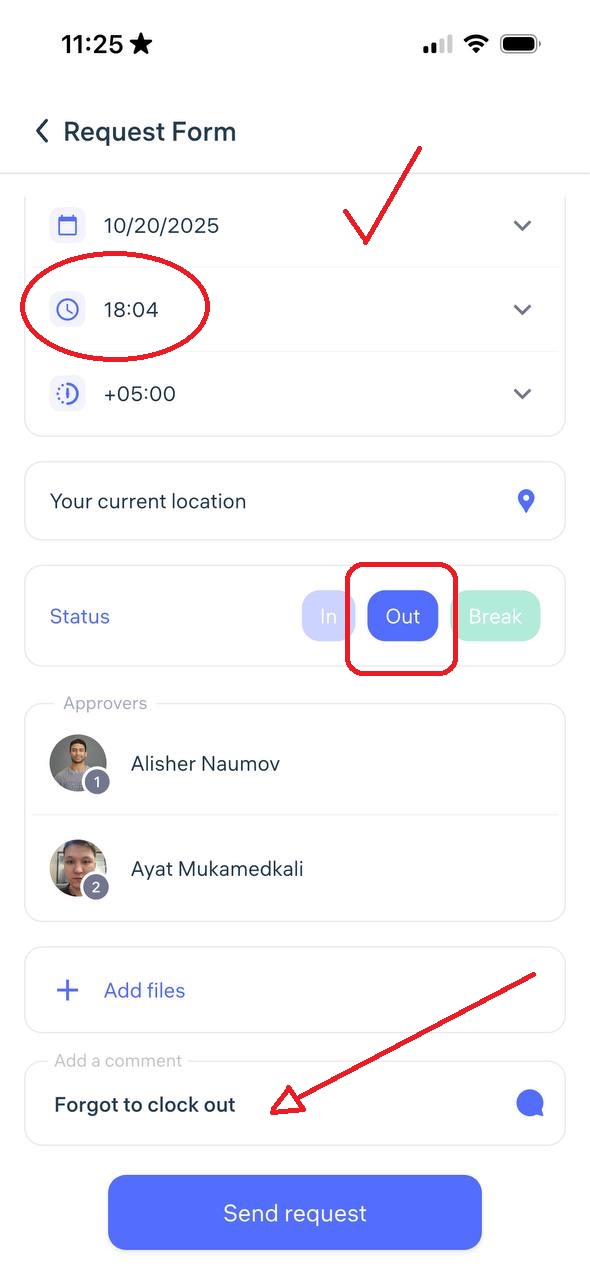
Specify the correct time, ensure the status (Check-in/Check-out or Break) is selected properly, choose a manager, and click “Send Request.
⚠️ Note: All corrections are logged and visible in the system history.
13. Face photo (biometric devices)
A face photo request is used to upload or update the employee’s photo for biometric recognition on Clockster devices.
To submit:
Choose “Face photo (Biometric devices)”
Tap “Open Camera” — the system will show examples of invalid photos
Take a selfie following the requirements below:
Format: JPEG / JPG / PNG
Size: Minimum 600×600 px
Background: Light and plain
Face: No accessories, no smile, no headwear, no filters
Framing: Face must occupy at least 70% of the photo
Photo: Must be clear, color, and not taken from another photo
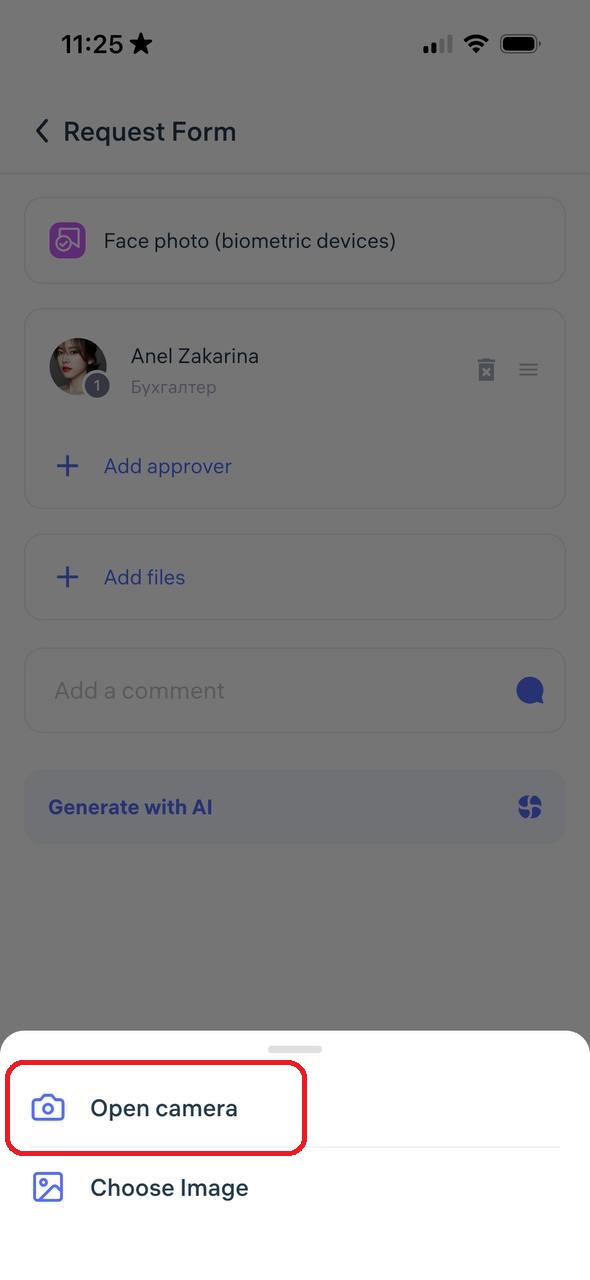
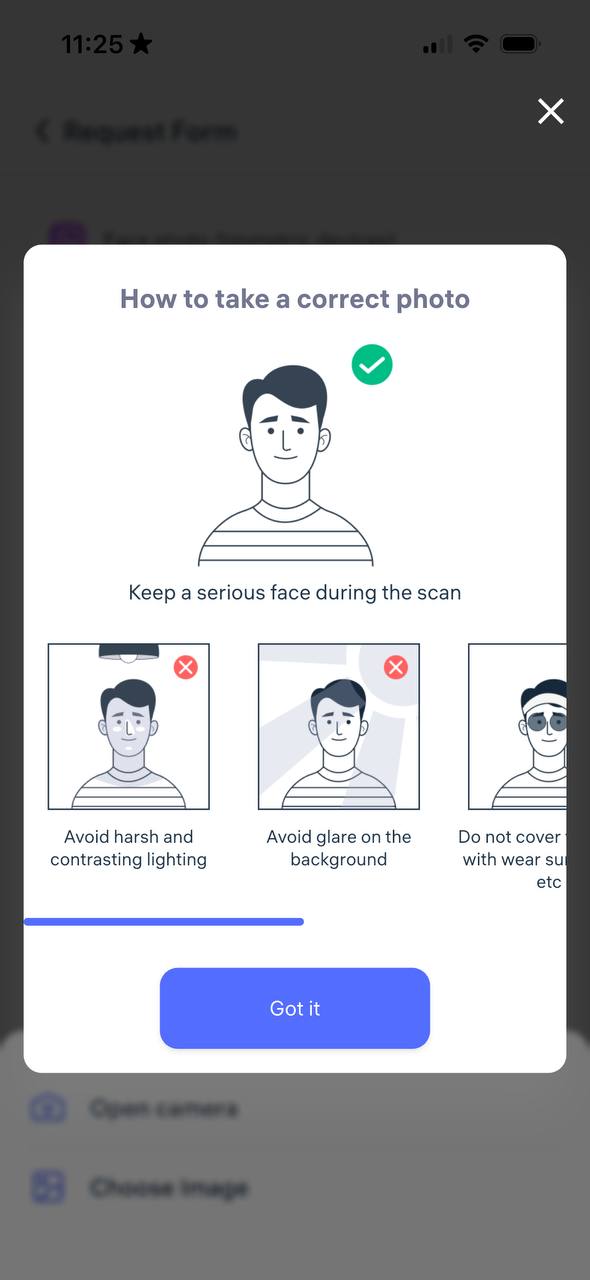
After uploading, click “Send Request” The administrator will review and approve it, after which the data will sync with the assigned locations.
14. Location
This request is used when an employee needs to change their main assigned location.
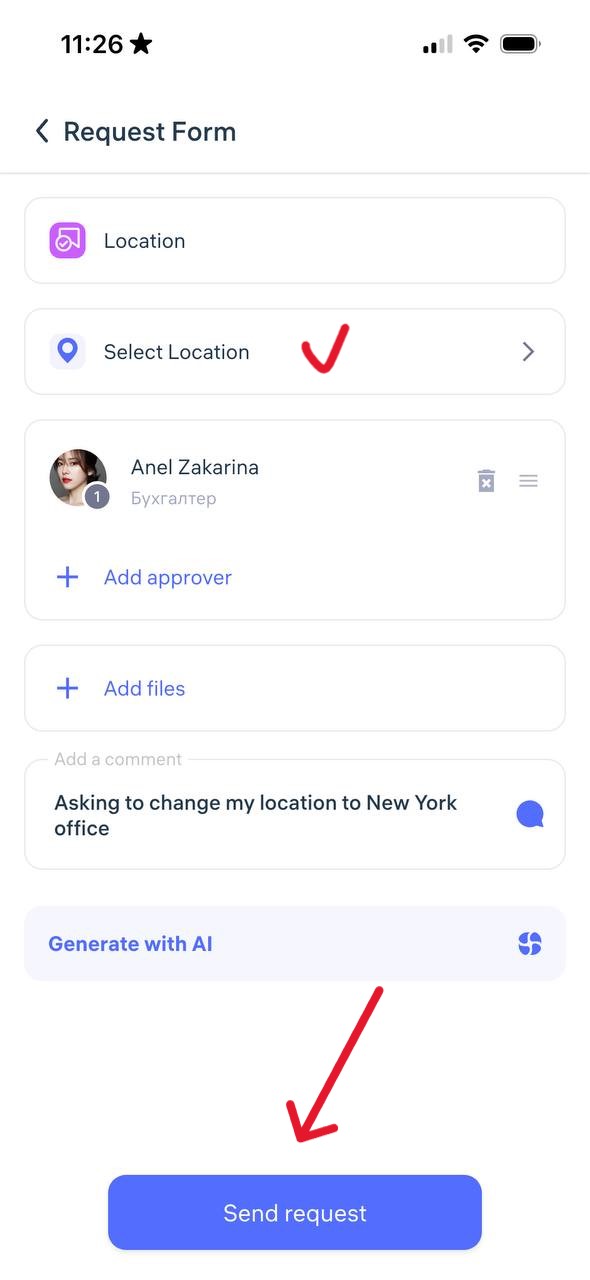
Select the new location from the list, choose a manager for approval, add a comment, and click “Send Request”