
What are general requests?
In Clockster, general requests refer to requests that are not directly related to payroll, absences, or schedule changes, but still require approval or action from management or HR. These usually involve internal processes, documentation, or technical adjustments.
To create a general request, click the “+” icon at the bottom of the screen and select “General Request”
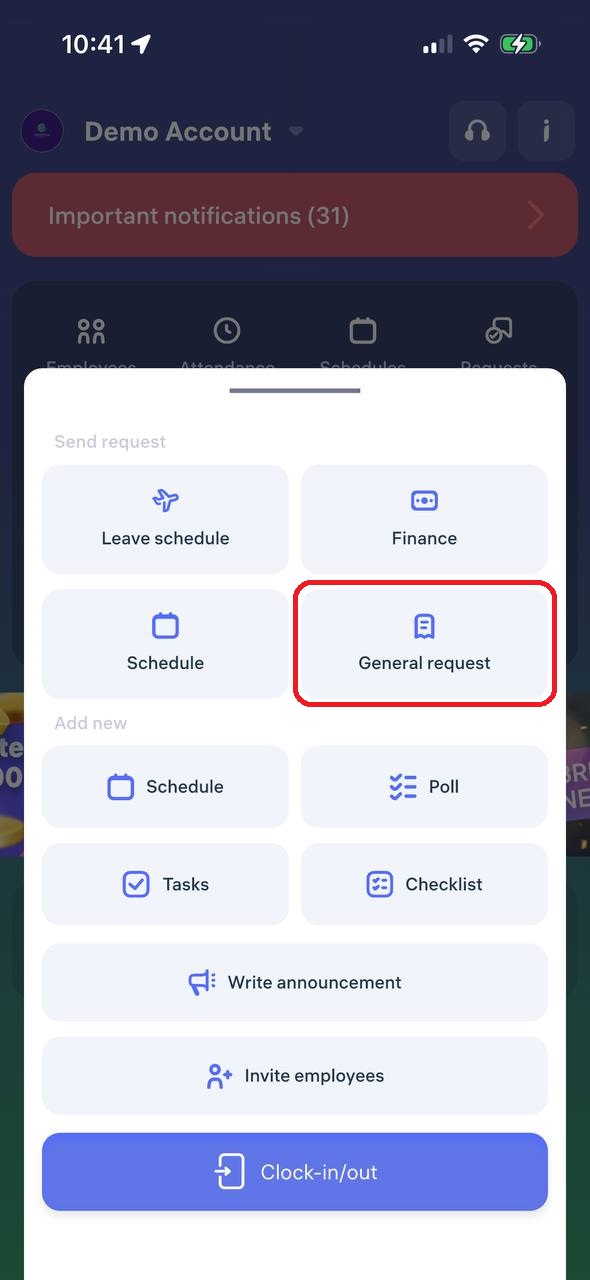
Let’s take a closer look at each type of general request:
Requests related to work schedule changes
1. Recall from annual leave
A recall from annual leave means the employer is requesting the employee to return to work earlier than planned.
This is an official process used when there is a business need, urgent task, or staff shortage.
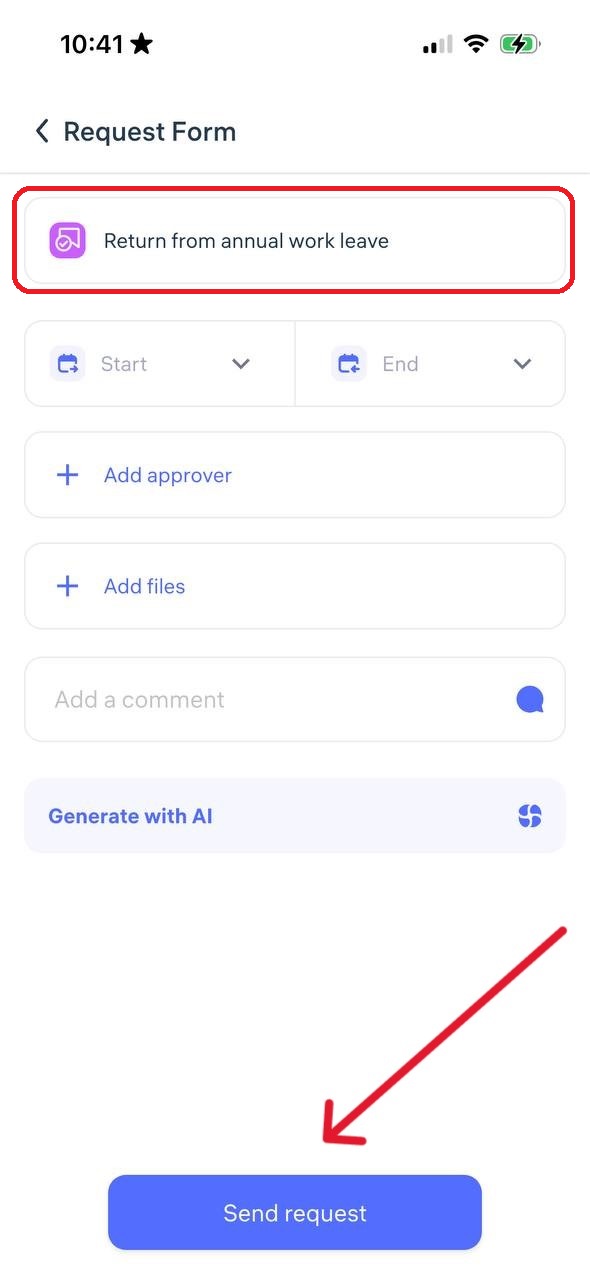
Enter the dates when you are being recalled from leave, select a manager, add a comment, and click “Send Request“
⚠️ Note: This type of request does not modify the employee’s work schedule.
2. Overtime
An overtime request in Clockster is an official request by the employee to record and compensate extra working hours beyond the normal schedule.
Example: The employee stayed late after their shift. To ensure these hours are counted and paid, an overtime request must be submitted.
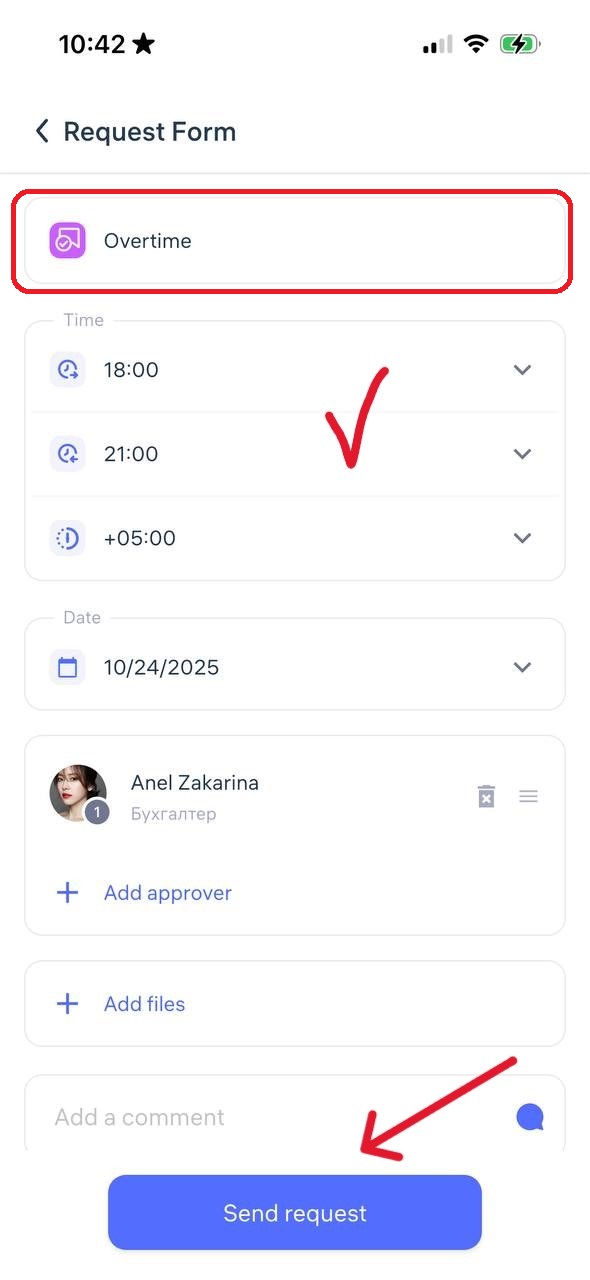
Specify the start and end time of the overtime, select the approving manager, add a comment, and click “Send Request”
3. Suspension
A suspension request is used when an employee is temporarily removed from work duties by the employer, with or without pay (depending on the reason).
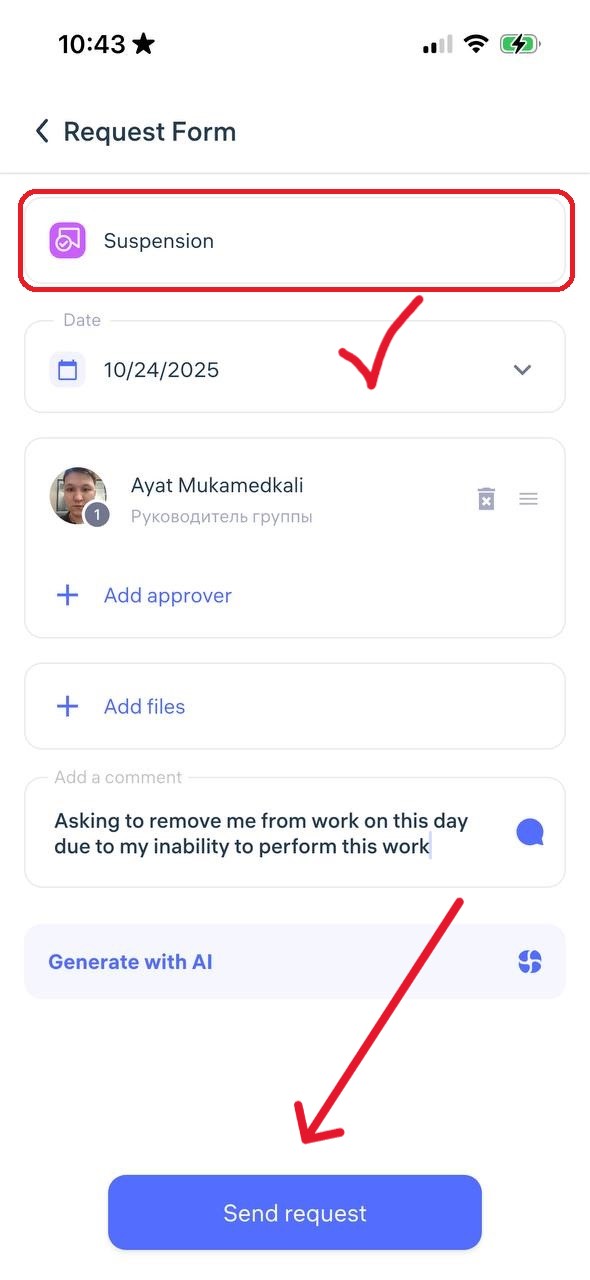
Indicate the suspension date, select a manager for approval, add a comment, and click “Send Request.”
⚠️ Note: This request does not affect the employee’s schedule.
4. Change in working conditions
A change in working conditions request involves modifying key aspects of the employee’s job agreement, such as work hours, responsibilities, or employment type.
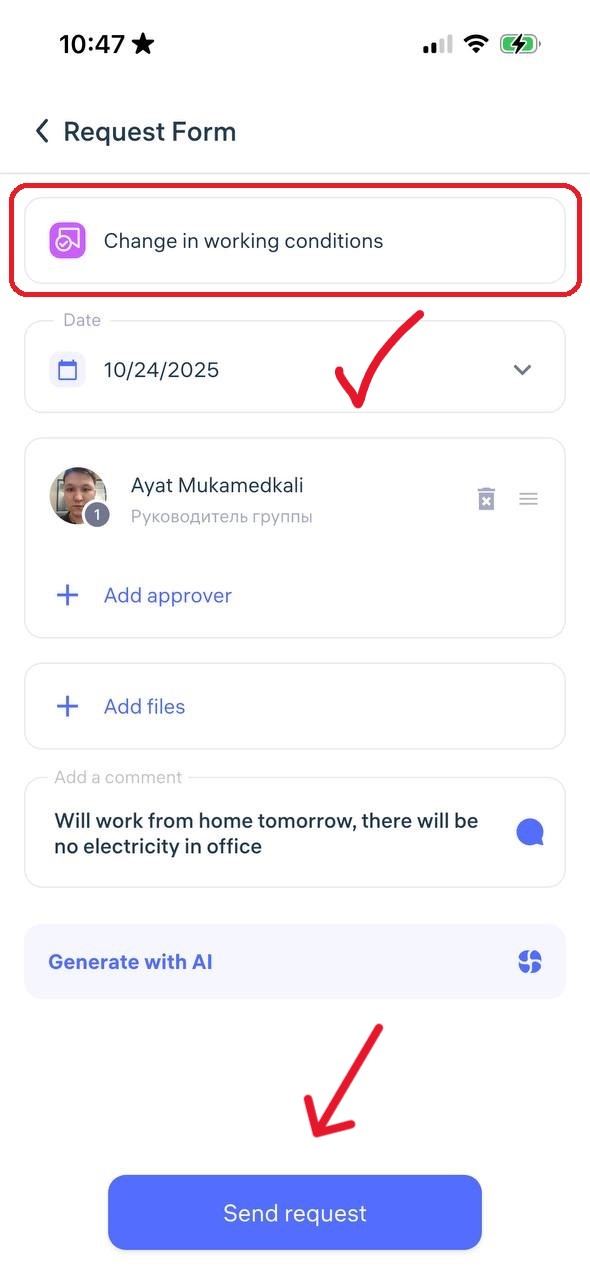
Specify the effective date, choose a manager, add a comment, and click “Send Request.”
⚠️ Note: This request does not modify the work schedule or enable off-location check-ins (such permissions must be set in the employee’s profile).
5. Business trip
A business trip request is used when an employee needs to travel temporarily to another city or location for work purposes.
Enter the departure and return dates. If you enable “I know the route,” you can indicate the travel cost. If you enable “I know where I’ll stay,” you can specify accommodation costs
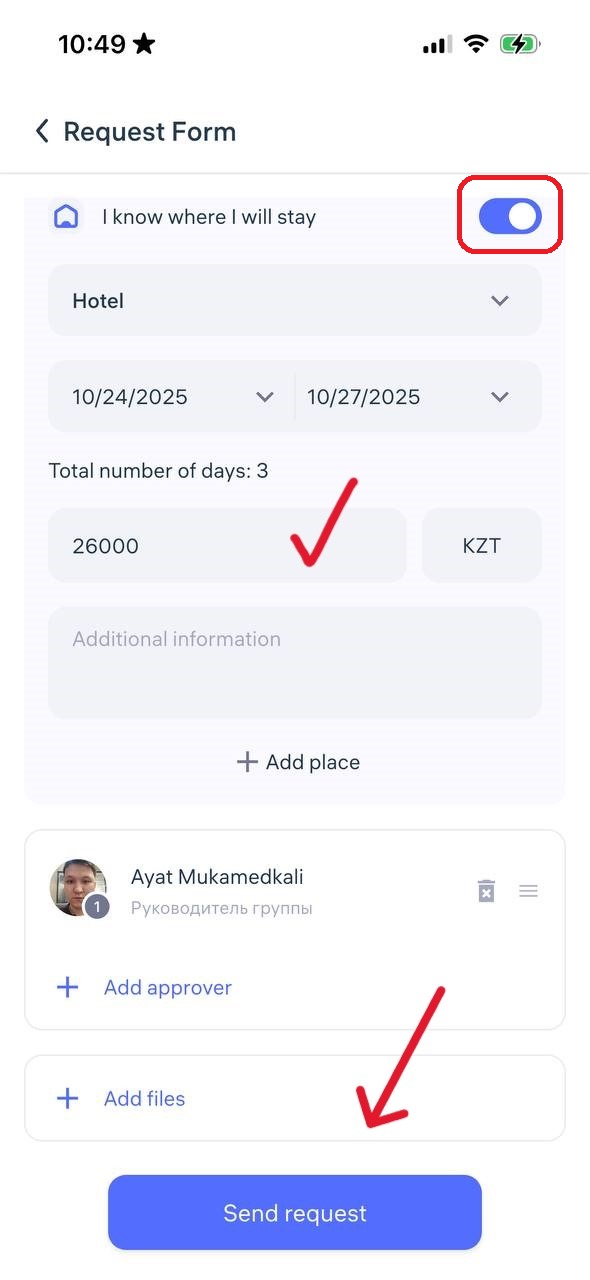
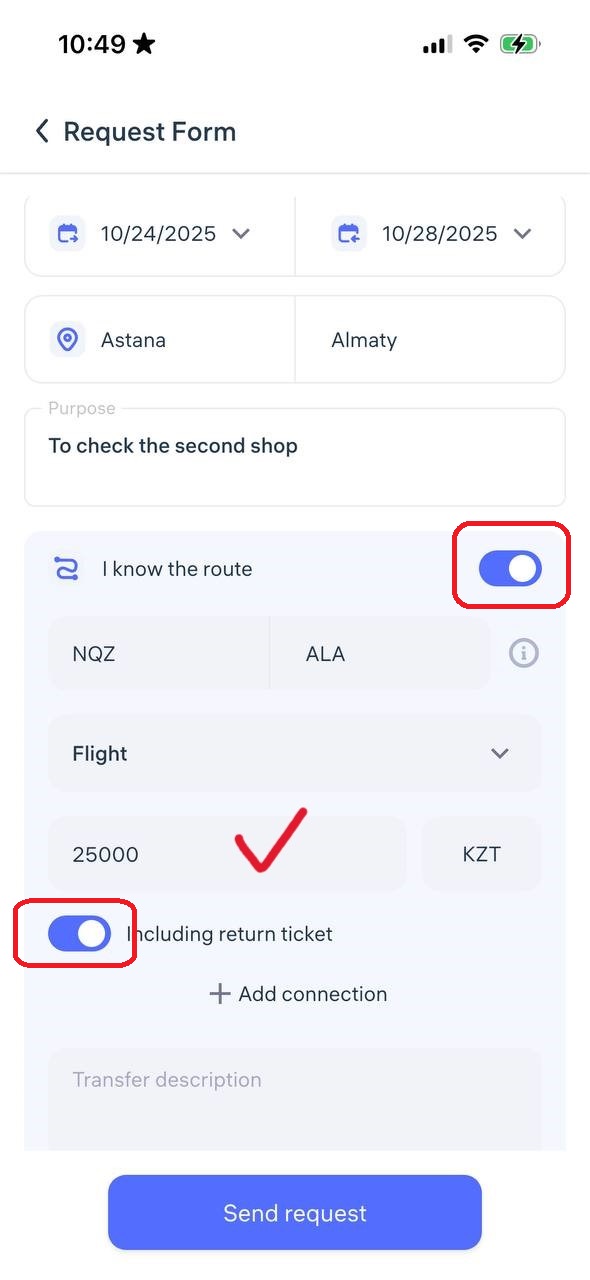
Select a manager and click “Send Request.”
Other types of requests
6. Training
A training request is used when an employee wants to attend a training, course, or seminar to improve their skills.
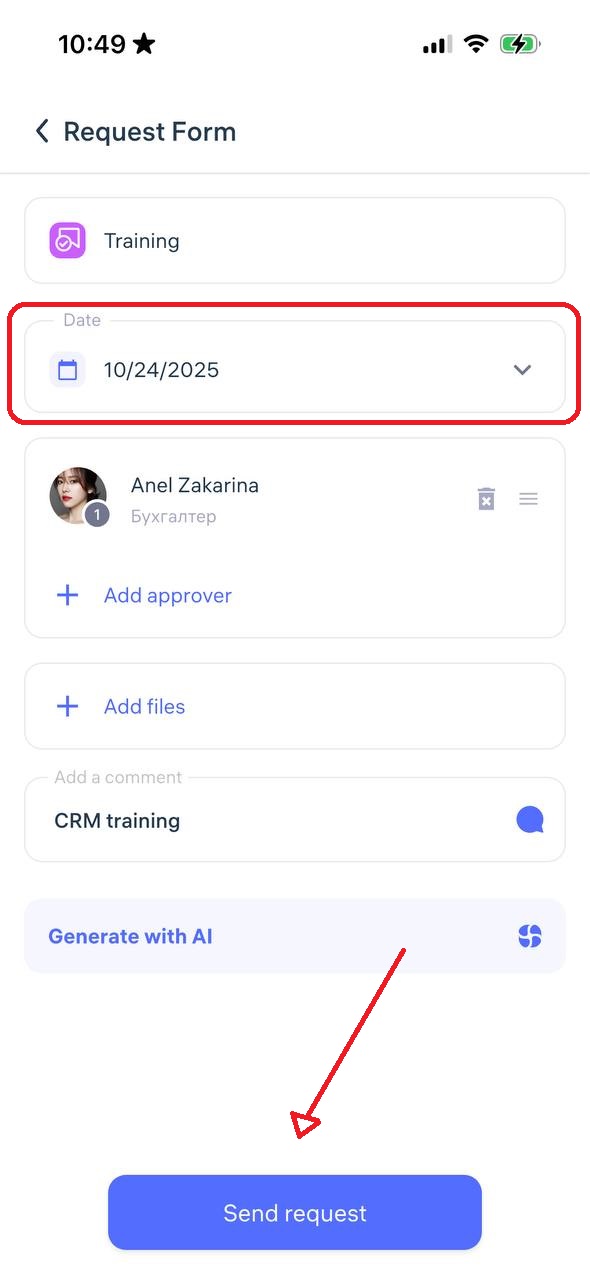
Enter the training date, select a manager for approval, add a comment, and click “Send Request”
7. Disciplinary action
This request is initiated by a manager to document a violation of company policy and begin a disciplinary process.
This is not an employee’s initiative, but an official document issued through the system to record a disciplinary violation and apply the appropriate disciplinary measure.
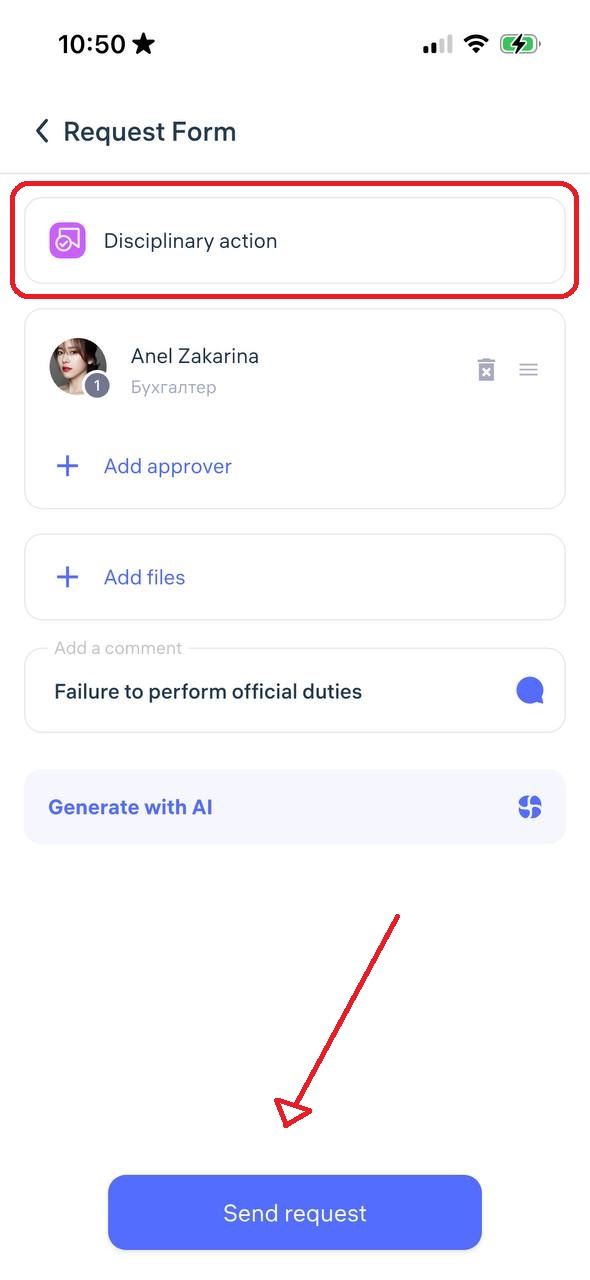
Select the approving manager, add a comment, and click “Send Request”
8. Employment certificate
An employment certificate request allows the employee to request an official document confirming employment, job title, experience, or salary — often needed for banks, consulates, or other organizations.
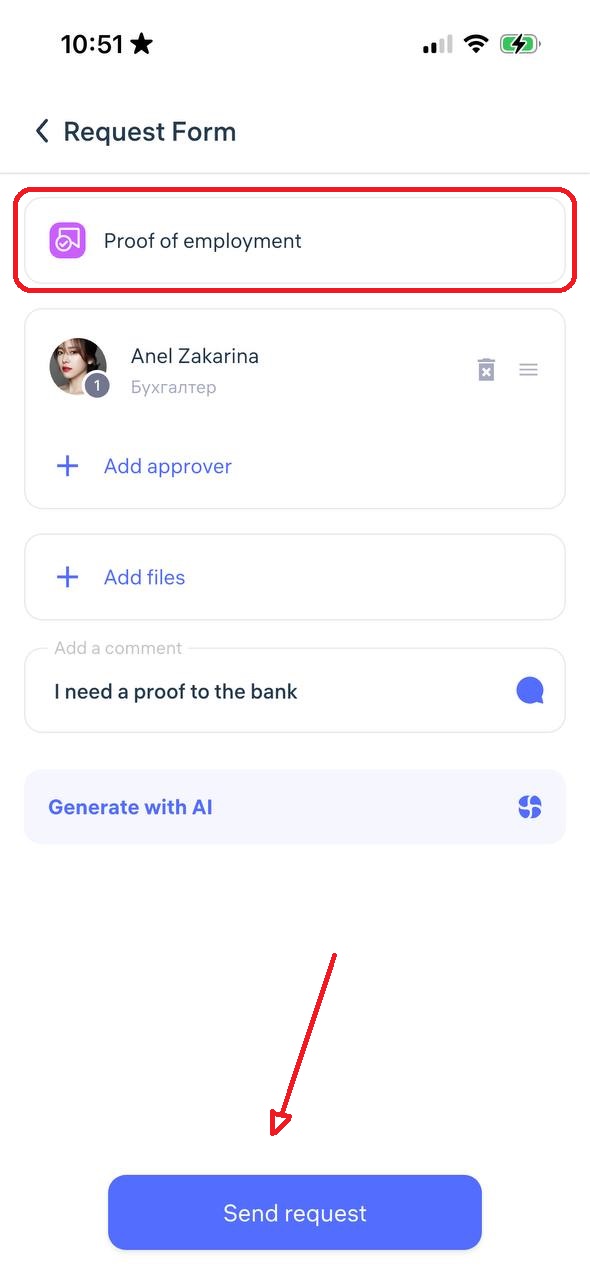
Select a manager, add a comment, and click “Submit Request.”
9. Complaint
A complaint request allows an employee to formally report an issue, conflict, or misconduct related to work, colleagues, or management.
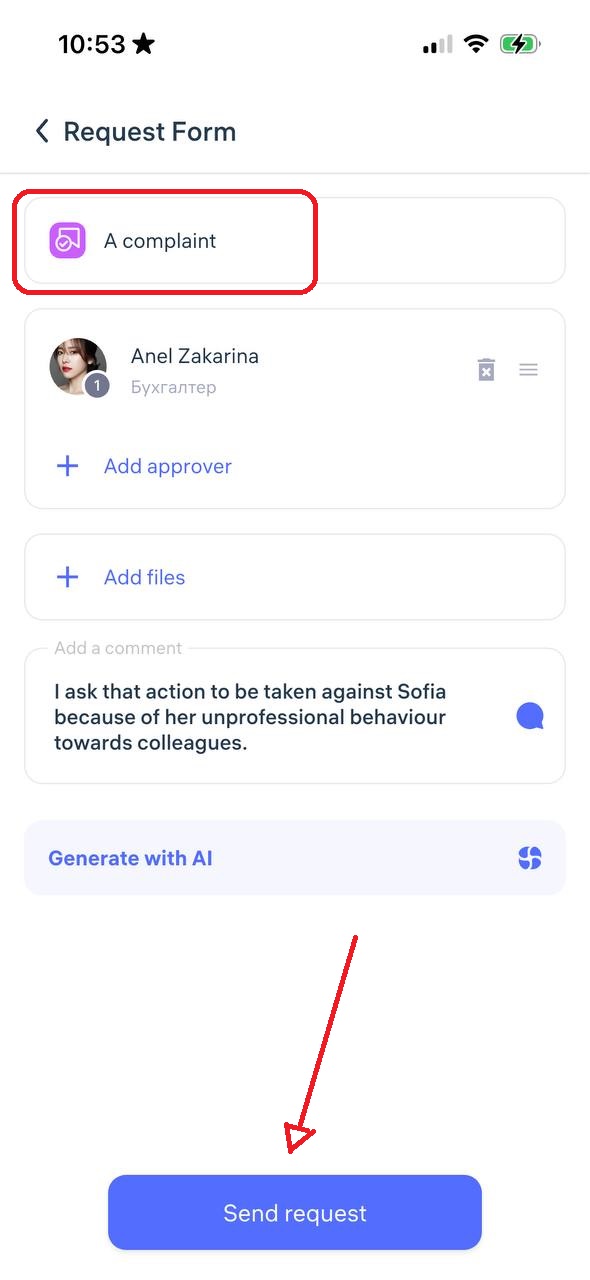
Select the responsible manager or HR, describe the situation, and click “Send Request”
10. Other
This is a general-purpose request type for cases that do not fit into predefined categories.
Describe your situation in detail, select the department (HR, accounting, IT, etc.), specify the approving manager, and click “Send Request”
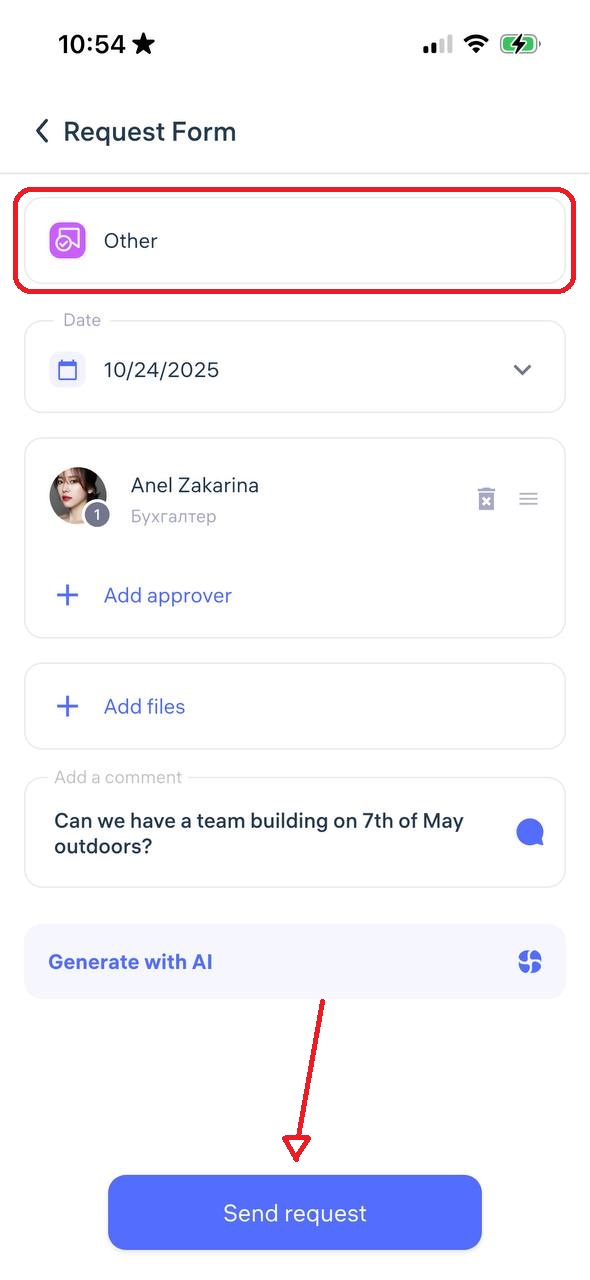
11. Resignation
A resignation request is a formal way for an employee to notify the employer of their intention to leave the company.
This serves as a digital equivalent of a paper resignation letter, including the submission date, reason, and desired termination date.
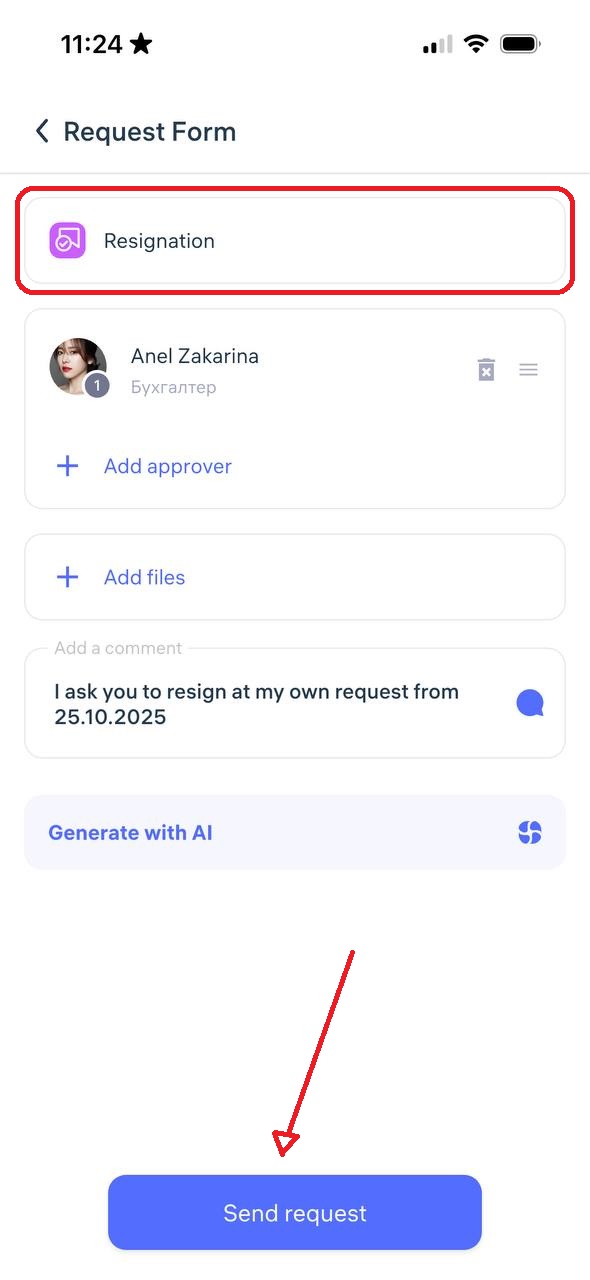
Select a manager, add a comment, and click “Send Request”
12. Clock-in/out | Break hours
An clock-in/out | Break request is used to correct missed or incorrect check-ins, check-outs, or breaks.
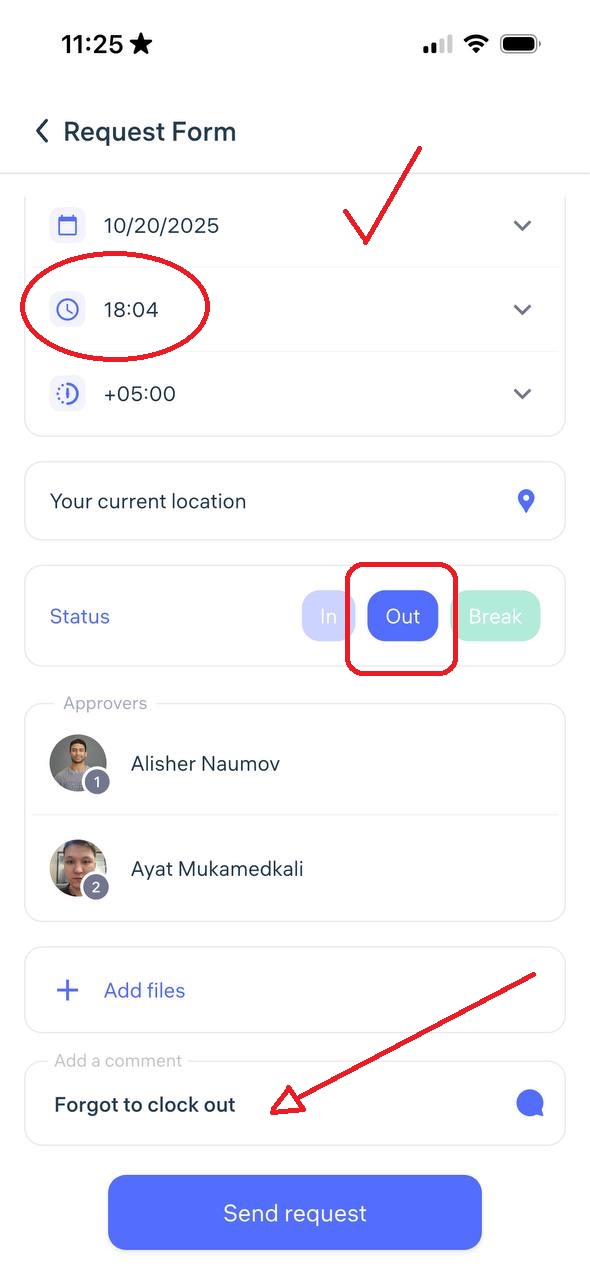
Specify the correct time, ensure the status (Check-in/Check-out or Break) is selected properly, choose a manager, and click “Send Request.
⚠️ Note: All corrections are logged and visible in the system history.
13. Face photo (biometric devices)
A face photo request is used to upload or update the employee’s photo for biometric recognition on Clockster devices.
To submit:
Choose “Face photo (Biometric devices)”
Tap “Open Camera” — the system will show examples of invalid photos
Take a selfie following the requirements below:
Format: JPEG / JPG / PNG
Size: Minimum 600×600 px
Background: Light and plain
Face: No accessories, no smile, no headwear, no filters
Framing: Face must occupy at least 70% of the photo
Photo: Must be clear, color, and not taken from another photo
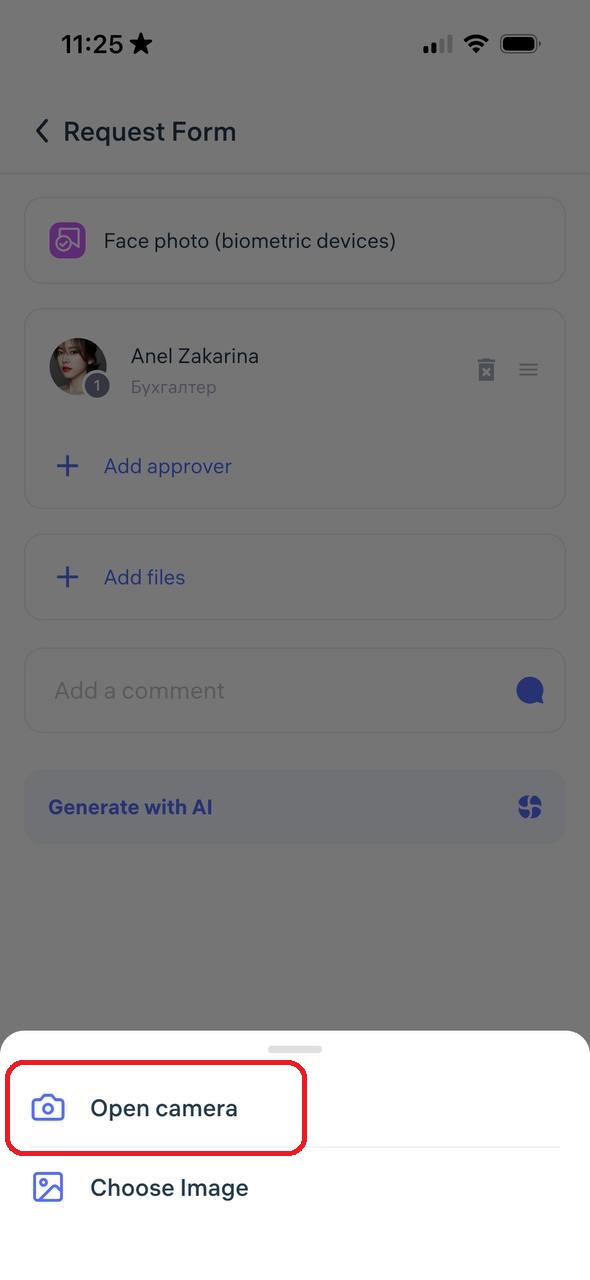
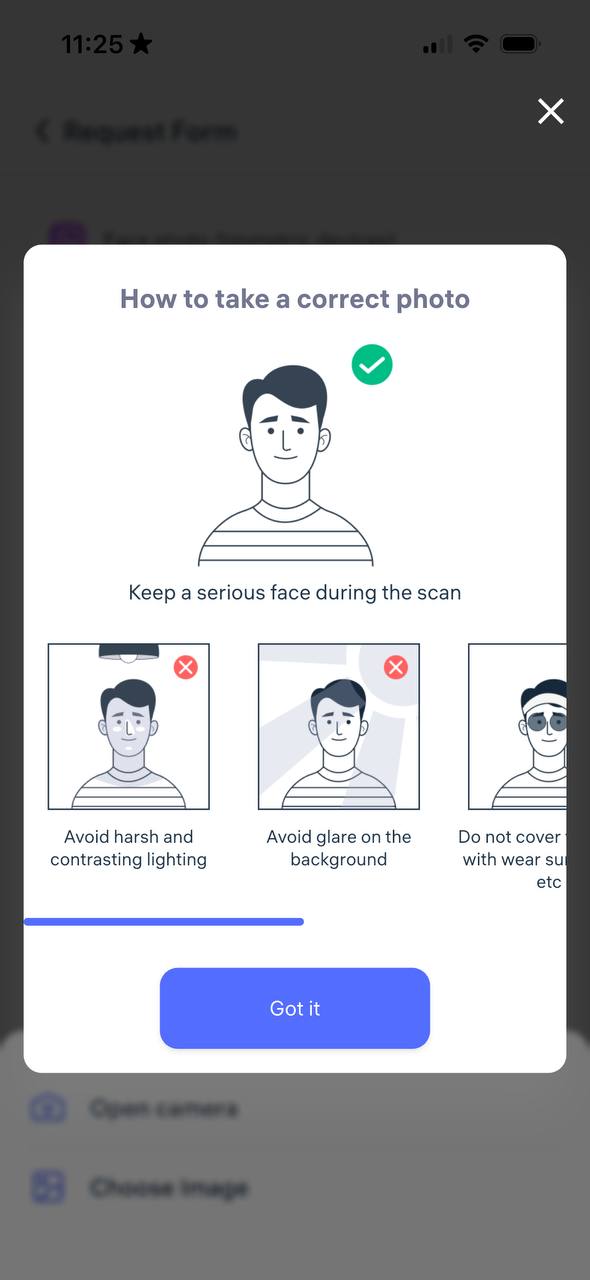
After uploading, click “Send Request” The administrator will review and approve it, after which the data will sync with the assigned locations.
14. Location
This request is used when an employee needs to change their main assigned location.
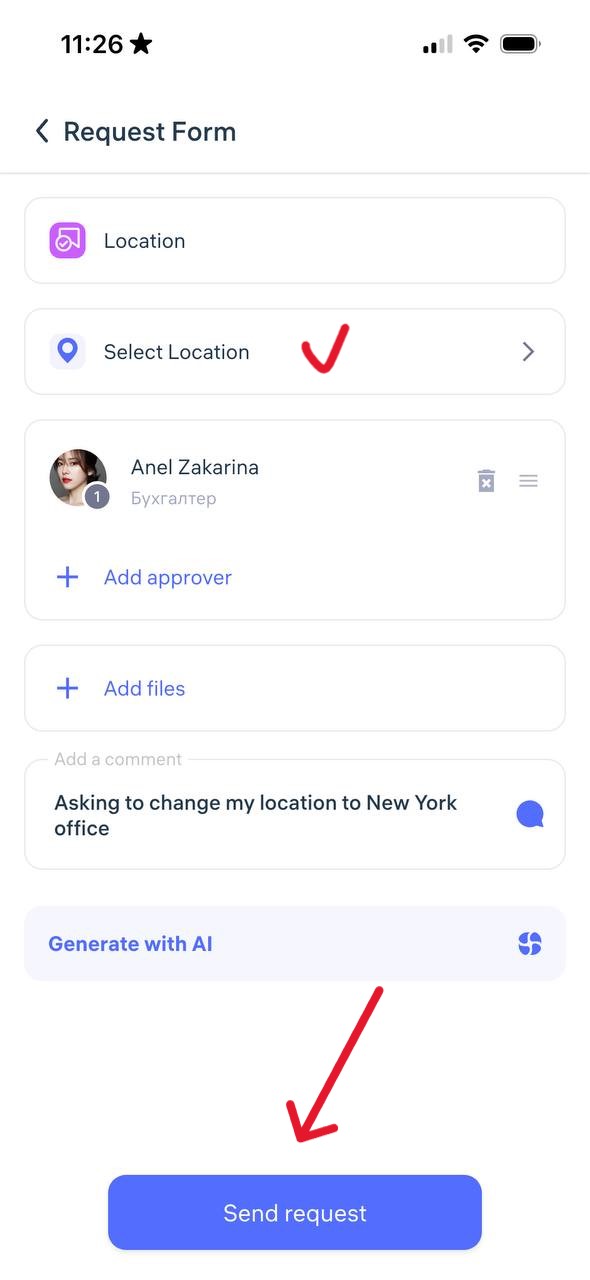
Select the new location from the list, choose a manager for approval, add a comment, and click “Send Request”
Updated at