
What Financial Requests Can I Create?
If you need to submit a finance-related request — for example, an advance payment, compensation, bonus, or reimbursement — you can do this directly through the Clockster app.
All such requests are sent to your company’s administrator or accountant for approval.
Types of Financial Requests
Depending on your company’s settings, the following types may be available to you:
Advance / Loan
Financial Assistance
Bonus
Payroll Deduction
Purchase of Goods / Equipment
Write-off
Expense claim
Payment for services
Other
Let’s go through each type in more detail:
1. Advance and Loan
Advance — part of your future salary that you receive early, usually before payday. It will later be deducted from your total salary.
Example: If your salary is 100,000 and you took a 30,000 advance, you’ll receive 70,000 on payday.
Loan — money the company lends you, similar to a credit. It’s not salary but a debt you must repay, either in installments or as a lump sum.
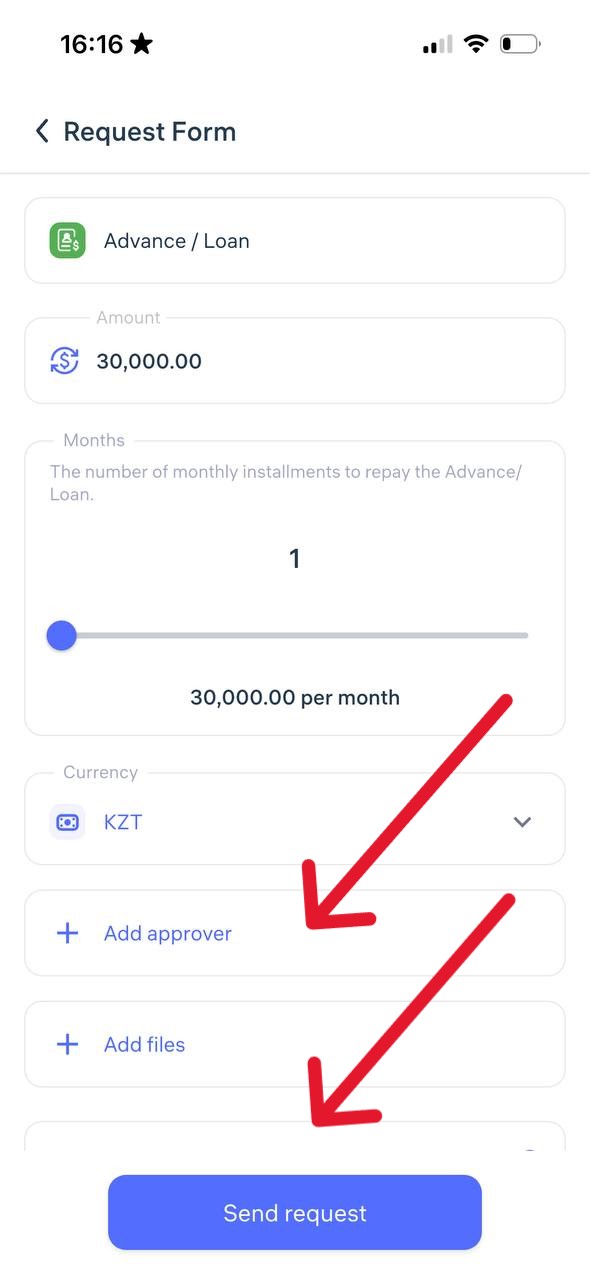
When submitting such a request in Clockster, check with your accountant which type to select to avoid confusion.
Enter the requested amount, choose the currency and manager, add a comment, review all details, and tap “Send Request.”
2. Financial Assistance
Financial assistance is money or other material support that the company provides to an employee, usually without repayment.
It’s a voluntary form of help from the employer, often in cases such as:
Serious life circumstances (illness, loss of a loved one, natural disaster)
Birth of a child or wedding
Low income, relocation, and other personal challenges
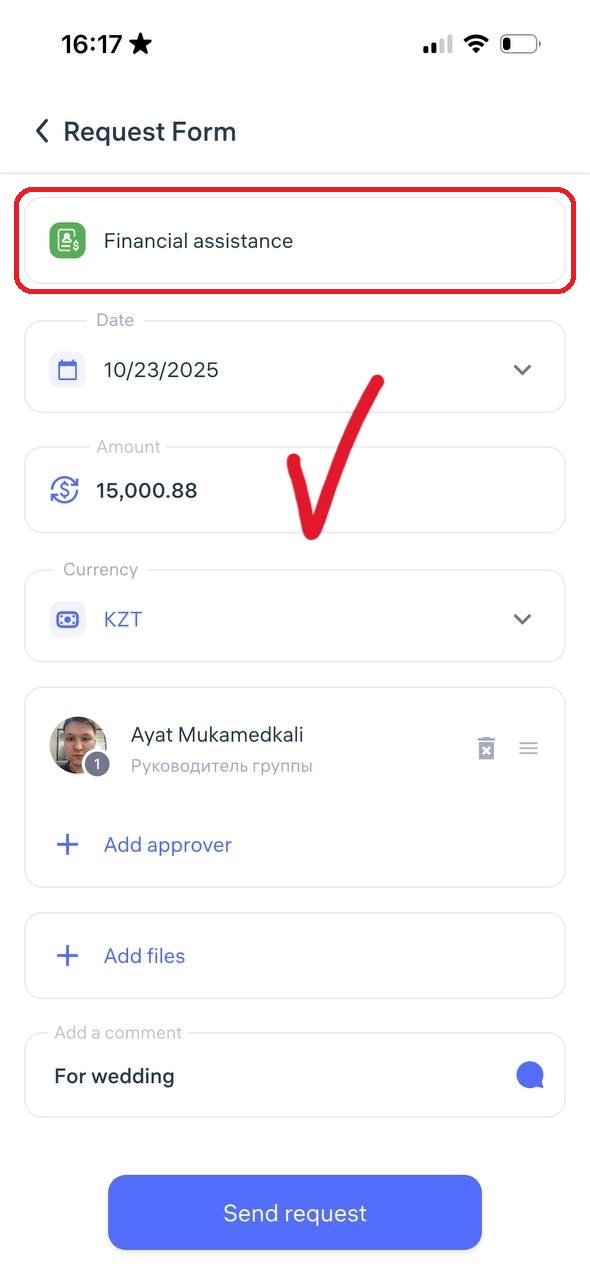
Enter the requested amount, select the currency and manager, add a comment, review the information, and tap “Send Request.”
3. Bonus
A bonus is an additional payment given to an employee on top of their regular salary for good performance, achievements, completing goals, loyalty, length of service, or even for holidays (e.g., New Year 🎄).
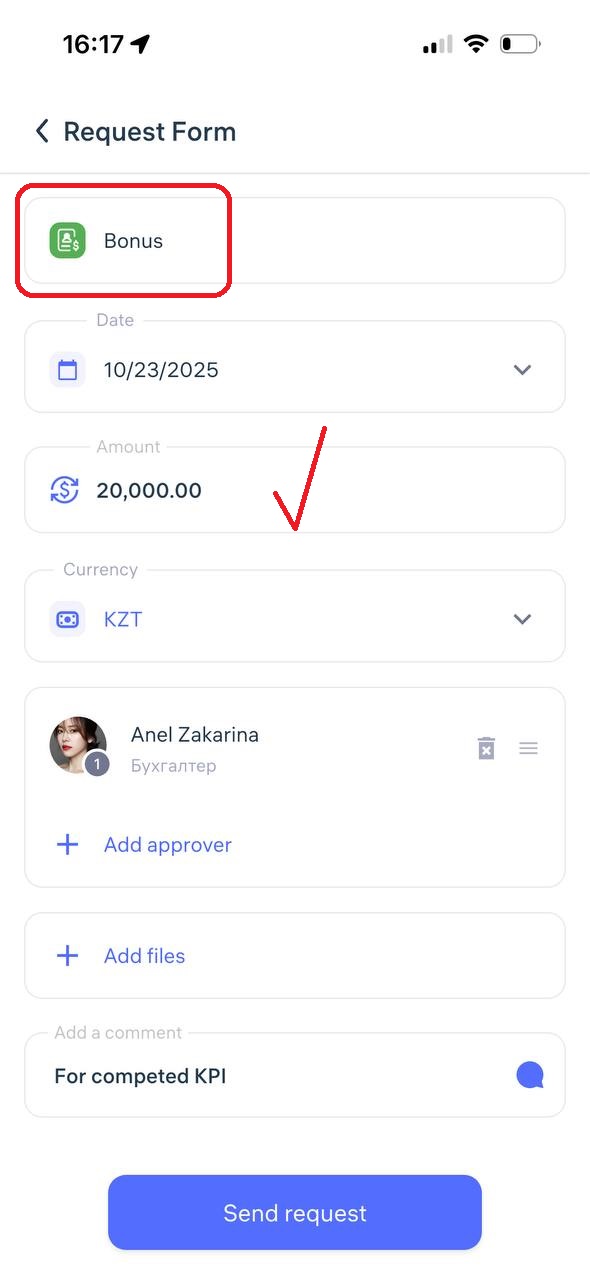
Enter the bonus amount, select the currency and manager, add a comment, review the details, and tap “Send Request.”
4. Payroll Deduction
A payroll deduction is when the employer withholds a certain amount from your salary for valid reasons — for example, repayment of a loan or advance, fines, compensation for lost company property, or voluntary contributions.
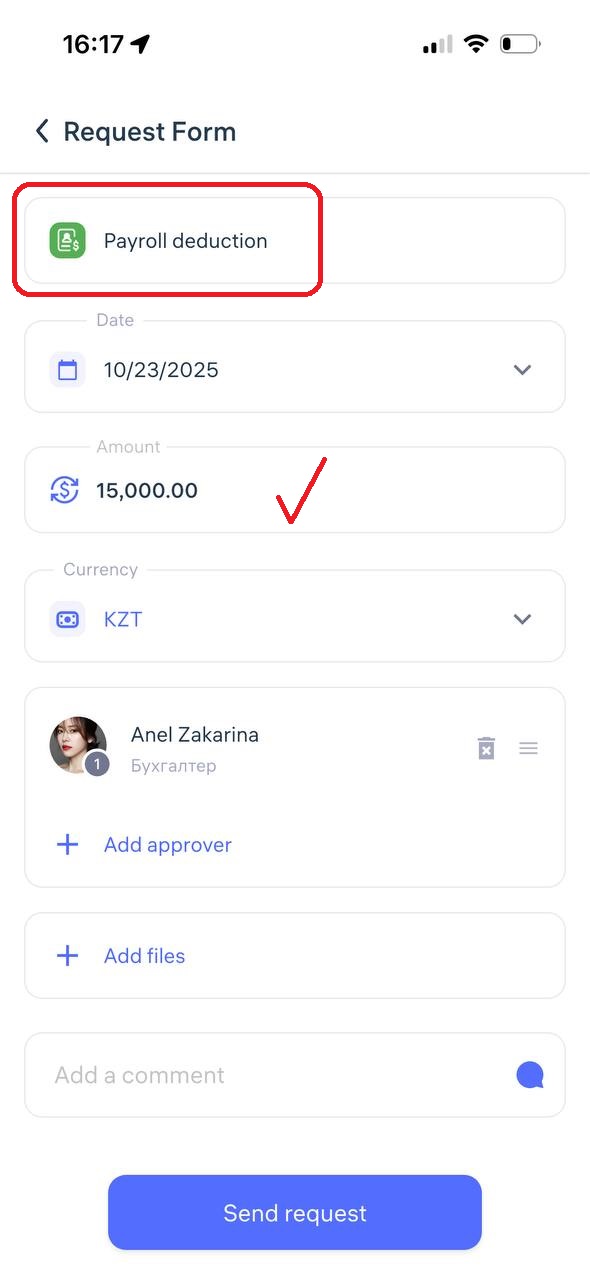
Enter the deduction amount, select the currency and manager, add a comment, review all details, and tap “Send Request.”
5. Purchase of Goods / Equipment
This is a formal request from an employee or manager asking the company to buy materials, equipment, or tools needed for work.
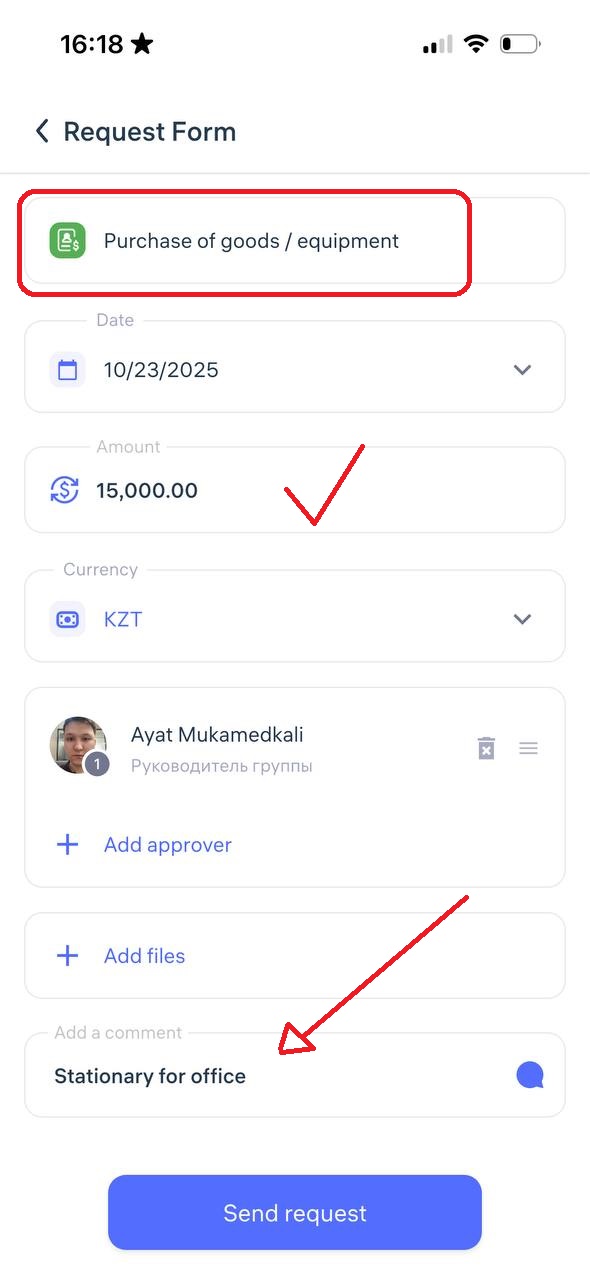
Enter the purchase amount, select the currency and manager, add a comment, review the details, and tap “Send Request.”
6. Write-off
A write-off request is an official acknowledgment that something has lost its value, become obsolete, damaged, lost, or cannot be repaired or returned.
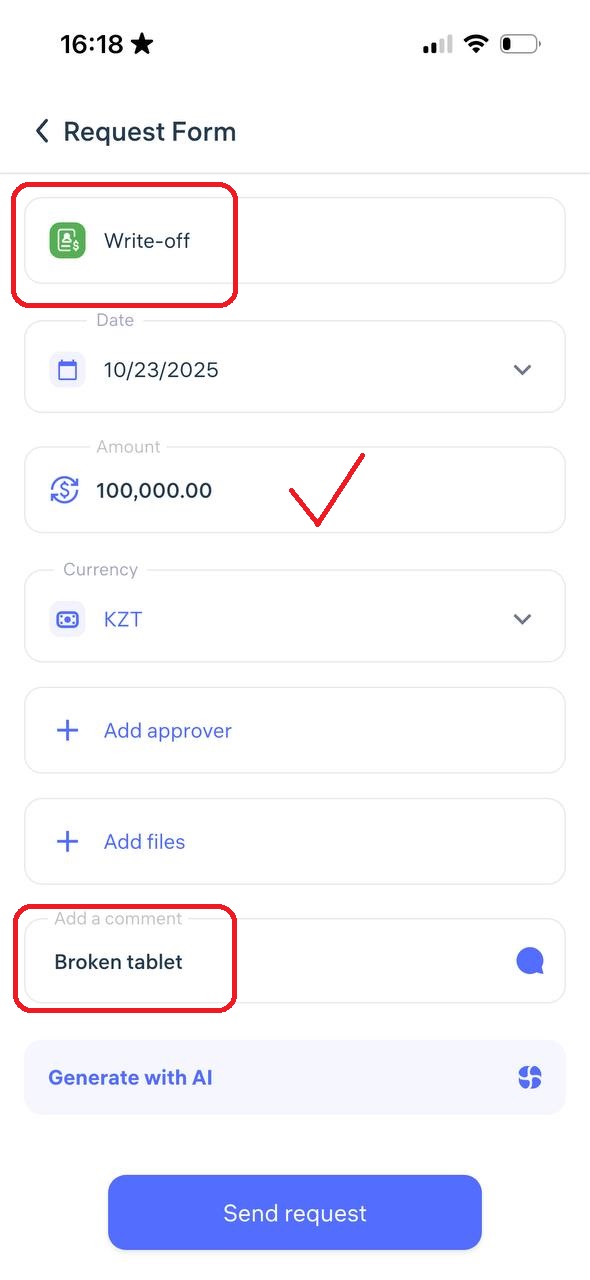
Enter the write-off amount, select the currency and manager, add a comment, review the details, and tap “Send Request.”
7. Expense Claim
Expense reimbursement is when the company refunds money you personally spent for business purposes.
Example: You bought office supplies, paid for transportation, or covered hotel expenses during a business trip — you can request reimbursement for those costs.
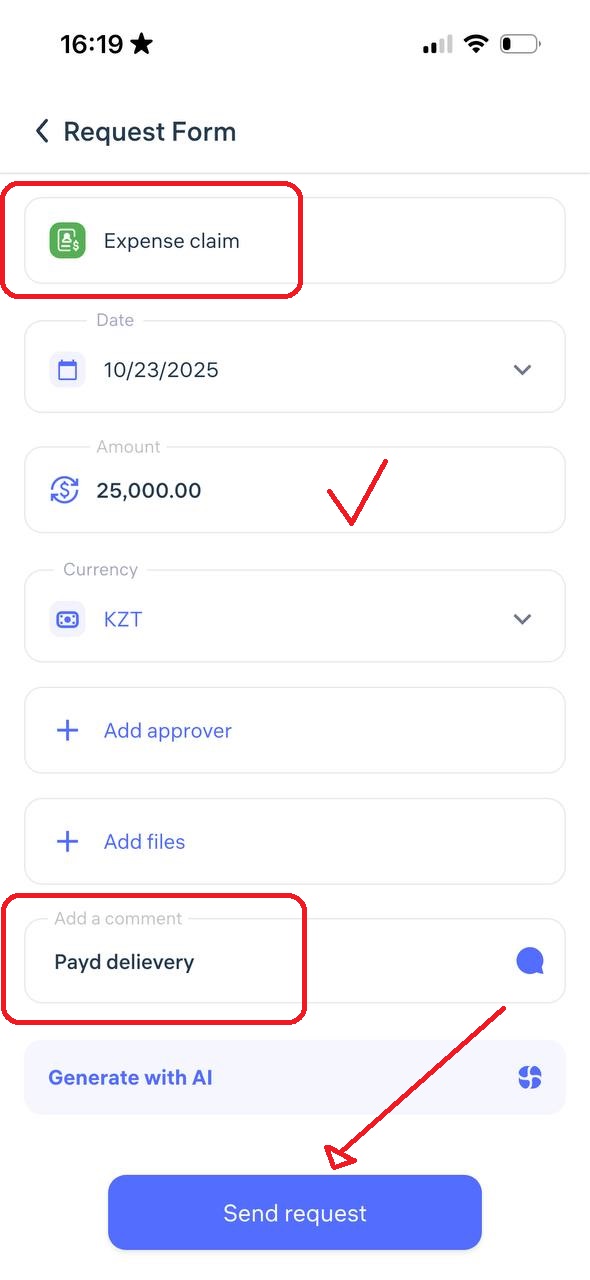
Enter the amount to be reimbursed, select the currency and manager, add a comment, review the details, and tap “Send Request.”
8. Payment for Services
Service payment is when the company pays an individual or organization for completed work or provided services — for example, cleaning, auditing, internet setup, delivery, etc.
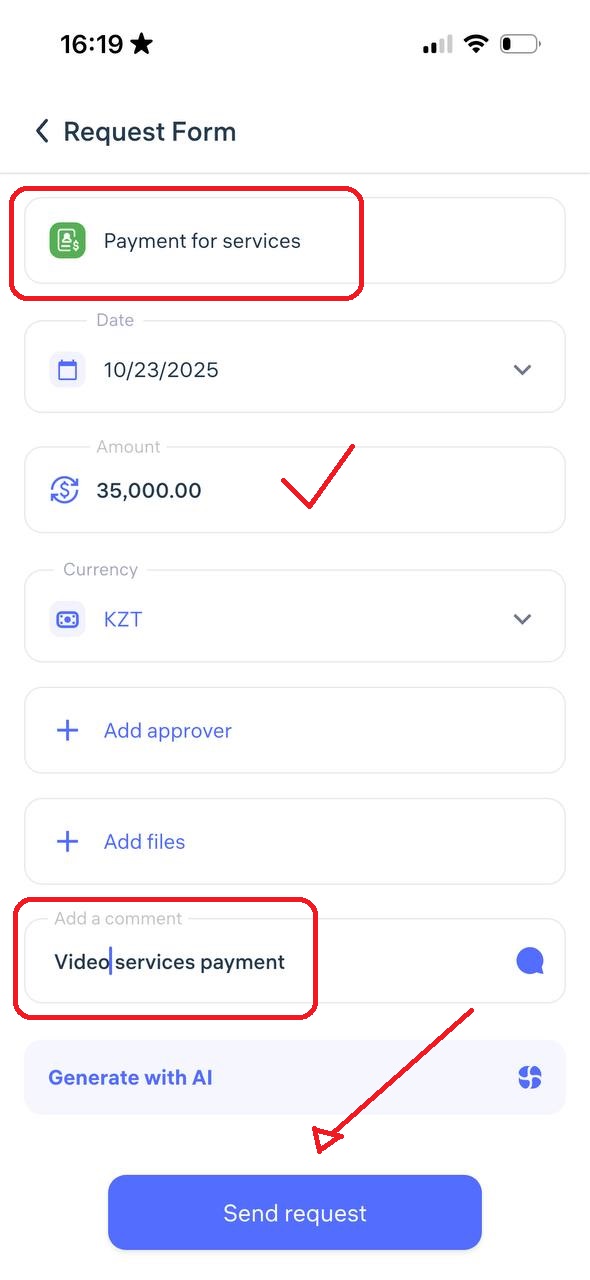
Enter the payment amount, select the currency and manager, add a comment, review all details, and tap “Send Request.”
9. Other
The “Other” category is for financial requests that don’t fit into standard types such as advance, loan, deduction, bonus, or financial aid.
You can use this for:
One-time payments for extra work performed
Any other financial need that requires approval
To ensure proper review, your comment should include:
A clear explanation of the reason for the request
The requested amount
Supporting documents or justification if needed (e.g., receipt, memo, signed report)
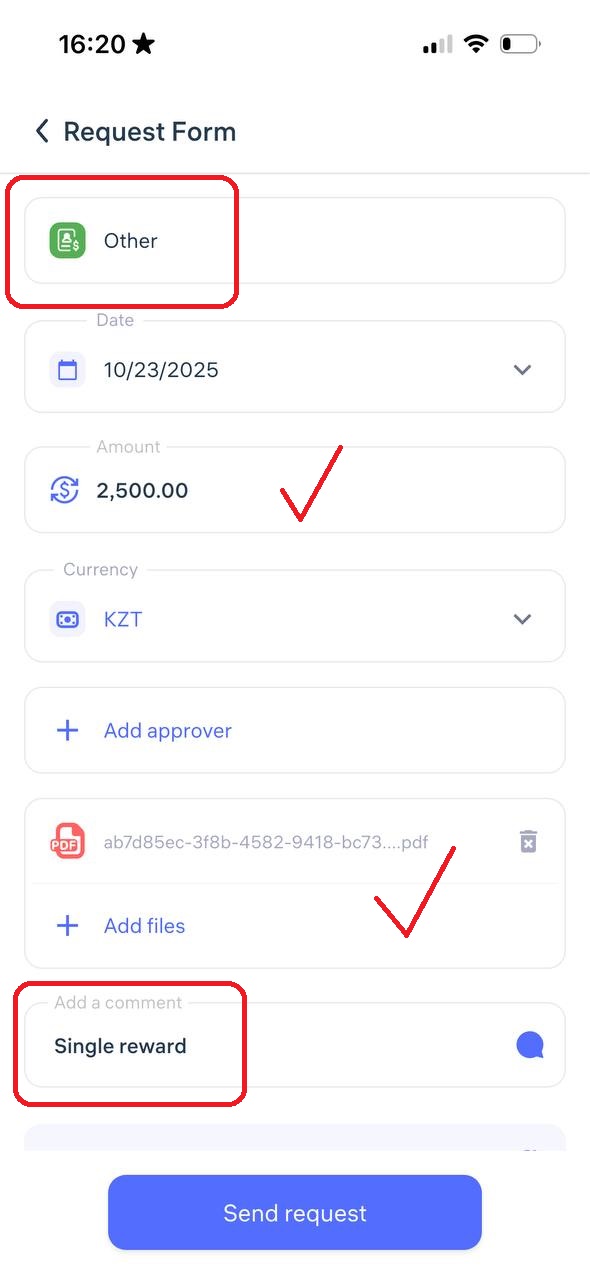
Enter the amount, select the currency and manager, add a comment, review everything, and tap “Send Request.”
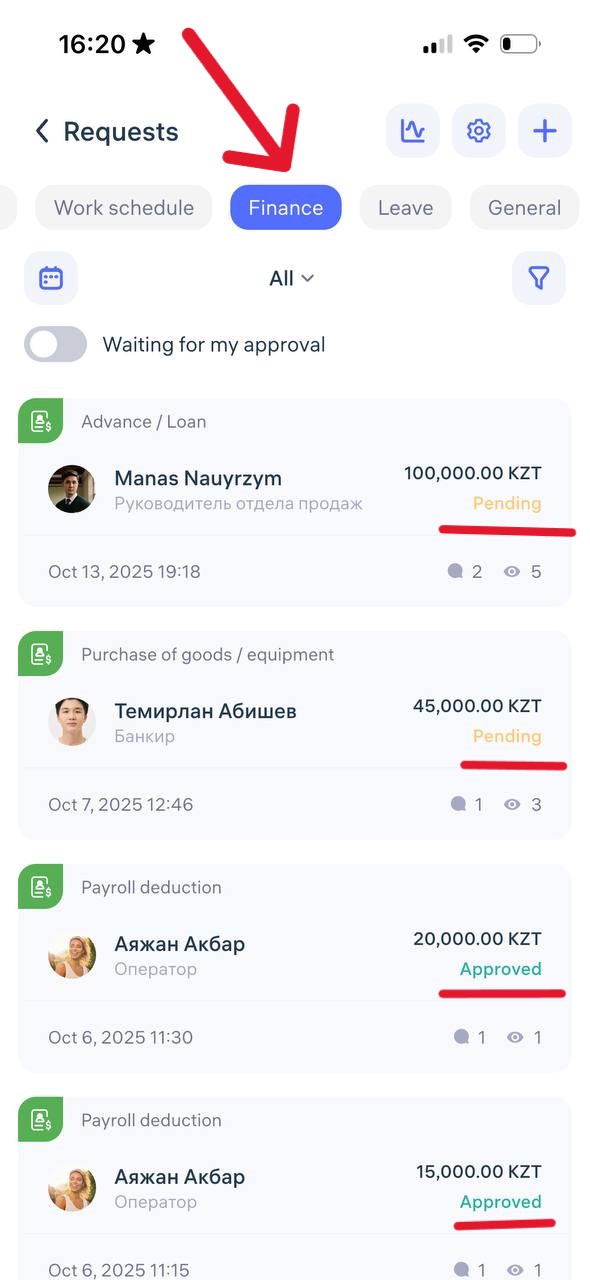
How to Track the Status of a Financial Request
Go to the “Requests” tab
Find your request in the list
Check its current status:
🟡 Pending
✅ Approved
❌ Declined
🔄 Returned for revision
Important Notes
All requests are reviewed according to your company’s internal policies.
Processing times and approval rules may vary — check with your administrator.
If you have questions or don’t see the required type of financial request, contact your HR department, accounting, or Clockster support — we’ll be happy to help.
Updated at