
Advanced task settings
Advanced task settings
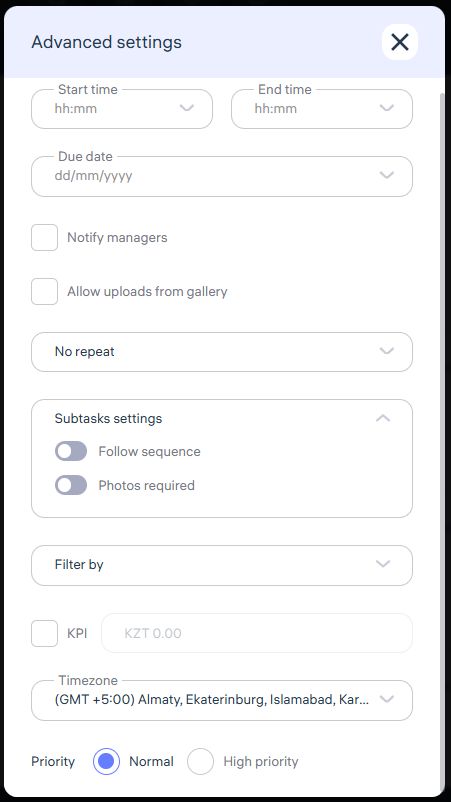
Start time, end time and due date
Notify Managers
When this option is enabled, managers will receive notifications about the creation and any changes made to the task.Allow Upload from Gallery
If this option is enabled, employees can attach photos not only taken in real time with the camera but also from their phone’s gallery.No repeat, As per the work shift, Every day, Every 2 days, Weekly, Specific dates
Here you can specify how often the task repeats.Subtasks settings
Follow sequence – when this setting is turned on, subtasks become sequential. The employee will only be able to complete the next subtask after finishing the previous one.
Require Photo Upload – if enabled, the employee will be required to attach a photo report when completing a subtask.
Filter by
You can link a task to specific parameters:Location – select the specific place where the task will be performed.
Department – select the department to which the task applies.
Position – select the position of the employees for whom the task is created.
KPI Plan
A field where you can specify the planned KPI amount for the task. This amount will be used to compare with actual data in reports.Timezone
High Priority
When activated, the task will be displayed as a high-priority task for the assignee.
Updated at