
Adding New Employees to the System
Employees Section
Depending on the selected button configuration, you can change how the employee list is displayed.


To add new employees, go to the “Employees” section and select the “Add Employee” option. Depending on the configuration of the devices used for clock-in/out, there are two main methods for adding employees:
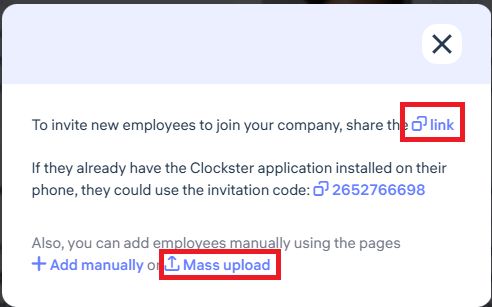
When using the mobile app together with facial recognition devices:
Send all employees a link to join the company.
Employees will fill out their own profiles by installing the mobile app via the link, and they will automatically appear in the “Employees” section in the Administrator’s dashboard.
Bulk upload via Excel form (for facial recognition devices):
If your company uses biometric devices for facial recognition, use the bulk upload feature via Excel. Beforehand, prepare a folder with employee photos on your desktop, as you can upload face images along with the completed Excel form that contains employee data.
Important!
Upload employees in batches of 10 people.
This limitation is due to technical processing capacity and helps prevent system lag, ensuring stable data upload.
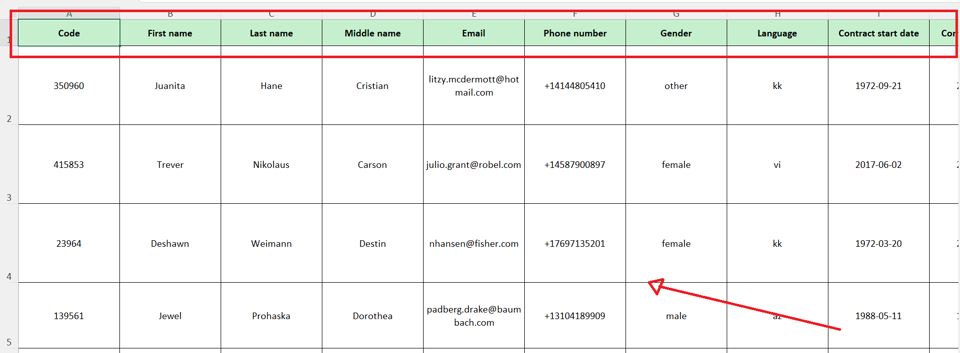
Do not modify the highlighted green row in the Excel template!
The sample employee data provided is for example only — delete it and fill in the fields following the same structure as shown in the examples.
When creating an employee profile via the Administrator’s dashboard, please note:
Creating an employee profile manually does not automatically generate a login account for the mobile app.
An employee’s account is only created when the user registers themselves in the Clockster mobile app, setting up their own login and password.
If you create a profile manually and plan for the employee to use the mobile app, make sure to enter their active phone number in the employee card.
This is important because, during registration, the system will search for a match by phone number and automatically link the mobile account to the existing profile.
✅ This way, you will avoid creating duplicate profiles, and all employee data will remain stored in one place.
Please note:
If the phone number is not added in advance, the employee will create a new separate account during registration, which may cause data inconsistencies.
Updated at