
Where to start first
Setting up your company account
Start by configuring the basic information about your company:
On the left panel of the Clockster interface, you will find the main system sections. Please go to the “Settings” section.
Setting up the Attendance section
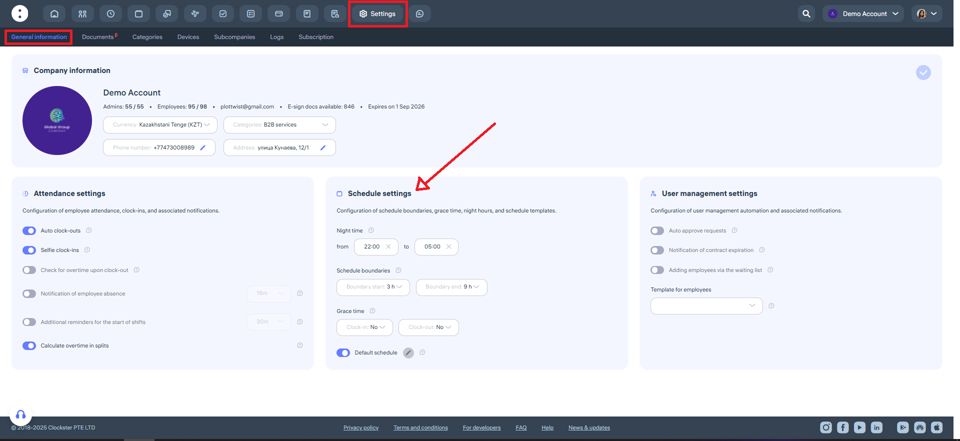
If desired, you can enable automatic check-out records. This means the system will automatically create check-out entries for your employees according to their work schedule, regardless of whether they actually left work at that time.
You can also enable the “Selfie clock-ins” feature, which requires employees to take a photo using their phone camera when clocking in or out in the Clockster mobile app. Uploading photos from the gallery is not allowed — the photo must be taken in real-time using the camera.
If you use the Payroll module, enable the option to check for overtime upon clock-out when employees clock in or out outside their scheduled working hours via the mobile app.
When the absence notification feature is enabled, the system will send push notifications to all Administrators with the appropriate access rights if not all employees have clocked in.
An additional reminder for the start of shifts in Clockster are notifications that are sent to employees shortly before their scheduled work time, reminding them that their shifts are about to begin.
Setting up the Schedule section
Please note: all changes made in this section will affect only future schedules.
You can always set individual schedules manually for each employee when creating or editing them.
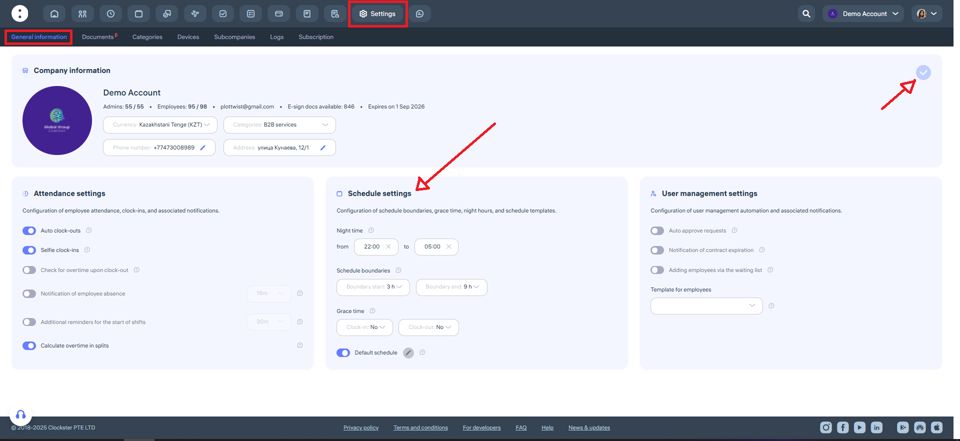
Specify the time interval for night shifts according to your company’s policies.
Set the lower and upper time limits for clock-ins and clock-outs:
The lower limit defines how early an employee can clock in before their shift starts.
The upper limit defines how late an employee can clock out after their shift ends.
If an employee clocks in or out outside of these limits, their working hours will not be counted.
In the timesheet, they will show “0 hours”, and in the Attendance section, they will appear as “Absent.”If this happens, you will need to either:
Edit the employee’s schedule for that day, or
Adjust the time limits in their individual work schedule.
You can also set grace time for lateness and early departures in minutes.
If the employee exceeds this limit, the system will record the full delay time
📘 Example:
If a 5-minute grace time allowed and the employee arrives 6 minutes late, the system records a 6-minute delay. However, if the lateness is less than 5 minutes, it will not appear in the report, and the employee will not be marked as late or as having left early.
Setting up the Employee Management section
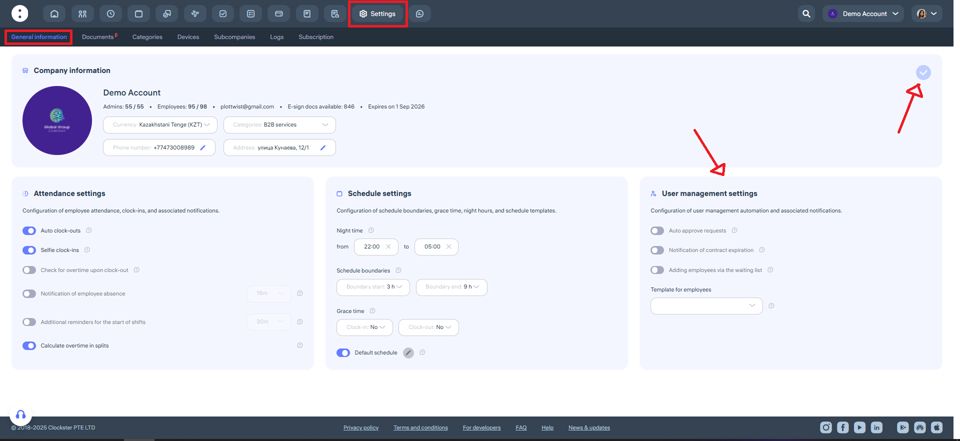
If desired, you can enable auto approve requests. This means all employee requests — regardless of type or reason — will be automatically approved by the system.
When the notification of contract expiration feature is enabled, the system will automatically inform the Administrator one month before an employee’s contract end date (if this date is specified in the employee’s profile).
You can also enable the adding employees via the waiting list feature. This means new employees will only be added to your company after being approved by Administrators with the proper access rights.
✅ Don’t forget to save all your changes in the company settings!
The save icon is located in the top-right corner of the page.
After setting up your company information, move on to the next important section — “Categories.”
We recommend setting up your workspace step by step, following the sequence outlined in this guide!
Updated at