
Announcements
How do I submit an announcement?
You can create an announcement in two ways:
From the Handbook section:
Navigate to the Handbook section in the top menu.
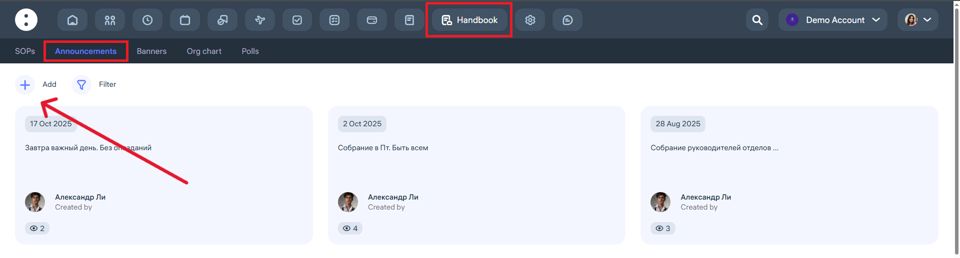
Click on the Announcements button.
Click on “+ Add” to create a new announcement.
2. From the Home page:
Click the “+” button in the bottom-right corner.
Select “Write announcement.”
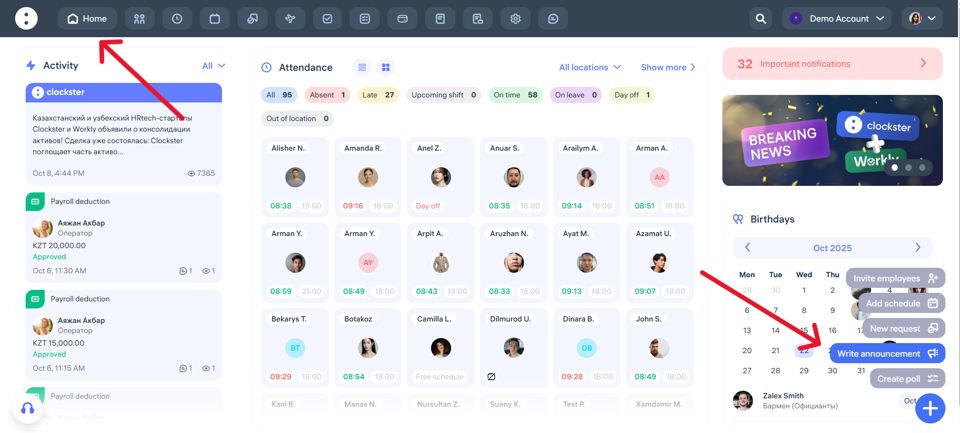
In the pop-up window, you can write your announcement and adjust the settings:
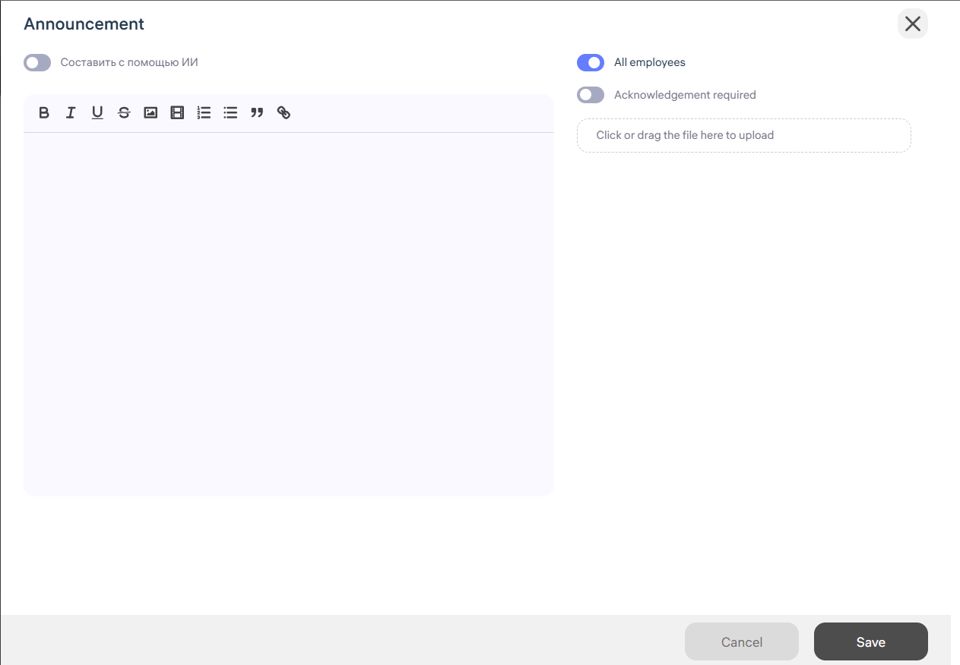
When the “Generate using AI” toggle is enabled, a prompt field will appear where you can enter a description or idea. The system will then help generate the announcement automatically.
When the “All employees” toggle is enabled, the announcement will be sent to all employees. If it’s turned off, you can select specific employees manually.
When the “Acknowledgment required” toggle is enabled, the system will show who has read the announcement and who hasn’t.
Finally, click Save to publish the announcement.
That’s it — your announcement is now created and sent!
Is it possible to set up a list of announcement recipients?
When creating a new announcement in the web version of Clockster, the administrator can configure the exact list of recipients and even generate the text automatically using the built-in AI tool.
Recipient selection
By default, the toggle “All employees” is enabled, meaning the announcement will be sent to the entire company.
If this toggle is turned off, a filter will appear, allowing precise selection of recipients based on the following criteria:
Location (branch, office, store)
Department (accounting, HR, warehouse, etc.)
Position (cashier, director, etc.)
Employment status (full-time, contract, etc.)
Gender (male / female)
Individual selection — manually select one or more employees
This flexibility ensures that announcements reach only the intended audience and remain relevant.
AI-powered text generation
Below the text input field, there is a switch labeled “Generate with AI.”
When enabled:
Clockster automatically creates a draft announcement based on the entered goal or topic.
The generated text can be used as-is or manually edited.
This feature saves time and helps craft clear, professional messages in a consistent corporate tone.
Additional options
A “acknowledgement required” option can be enabled — the system will track which employees have read the announcement.
Files and images can be attached to announcements.
Employees can leave comments and attach documents directly within the announcement thread.
How will the recipients know about the Announcement?
How new announcement notifications work in the mobile app
When a new announcement is created in Clockster, employees instantly receive a push notification on their mobile devices.
What happens when the notification arrives
A message appears with the text: “New post in the feed.”
By tapping the notification, the app automatically opens the announcement page with the full content.
The employee can immediately read the text, view attached files, and leave a comment if comments are enabled.
Why this is convenient
Employees are informed of new announcements instantly, without needing to check the feed manually.
Notifications increase engagement and response speed to important updates.
Everything is handled within one app — no need for external messengers or emails.
Is it possible to know who viewed an Announcement?
Announcement engagement tracking in Clockster
Clockster allows administrators to monitor employee engagement with announcements. This helps determine who has read important updates and who has not yet seen them.
Announcement views: who has read and who hasn’t
When opening any announcement, the system displays:
The total number of views;
A list of employees who have read the announcement;
A list of employees who haven’t read it yet.
This feature helps track coverage and, if needed, send additional reminders to those who haven’t viewed the message.
Discussion inside the announcement
Each announcement includes a built-in “Discussion” section where employees can:
Leave comments or ask questions;
Join discussions;
Attach files such as documents, screenshots, or instructions.
Administrators and other employees with access can reply to comments directly in Clockster, eliminating the need for external messengers.
Notifications
The announcement creator receives a push notification when someone leaves a new comment.
If the creator replies, the commenter receives a notification in response.
Practical use
View tracking ensures that important information reaches everyone.
Useful for urgent updates, new policies, schedule changes, or vacation notices.
The built-in discussion and file attachments enable quick and transparent feedback.
Is it possible to comment on an Announcement?
Comments and discussions in Clockster
In Clockster, both employees and administrators can leave comments under announcements, discuss important topics, share feedback, and respond to questions quickly.
Web version (Admin panel)
In the Settings → Announcements section, administrators can see all created announcements.
When opening a specific announcement, there is a Discussion tab displaying employee comments.
Comments appear in chronological order, each comment can be replied to directly.
Mobile app
Employees can comment on announcements directly from the mobile app.
The announcement creator receives a push notification when someone leaves a comment.
If the creator replies, the original commenter receives a notification about the response.
This creates seamless two-way communication directly within Clockster, without switching to external messengers.
Benefits
A convenient way to gather feedback.
All discussions are centralized under each announcement.
Notifications ensure that no important replies or questions are missed.
Can you add a task based on announcements?
Inside the Announcement page in the lower part there is a field “Task”, where it is possible to create a list of tasks based on the details of the announcement.