
Creating and Assigning an Administrator
Key Administrator in Clockster
When a company is registered in the Clockster system, the employee who completes the initial registration is automatically assigned the status of Key Administrator.
The Key Administrator is the primary user with full access to all functions and sections of the system within the connected subscription plan.
Responsibilities of the Key Administrator:
Manages all company sections and system settings.
Adds and removes other administrators.
Assigns permissions and access levels to administrators.
Controls organizational structure, schedules, and employee data management.
Ensures overall order and data security in the system.
⚠️ Important: Only the Key Administrator can create other administrators and manage their permissions. It is strongly recommended that this level of access be granted only to a trusted individual.
🛠 How to Add a New Administrator and Configure Access Rights
Log in to the Clockster Administrator Dashboard using the Key Administrator’s credentials.
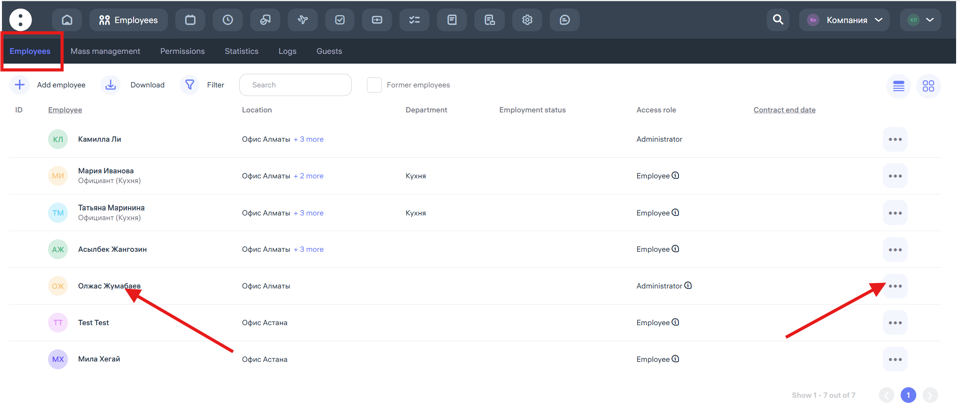
Navigate to the Employees section.
Select the employee from the list (if the employee is not yet in the system, first send them an invitation to join).
Click on the three-dot menu next to the employee’s name, or click directly on the employee’s profile to edit:
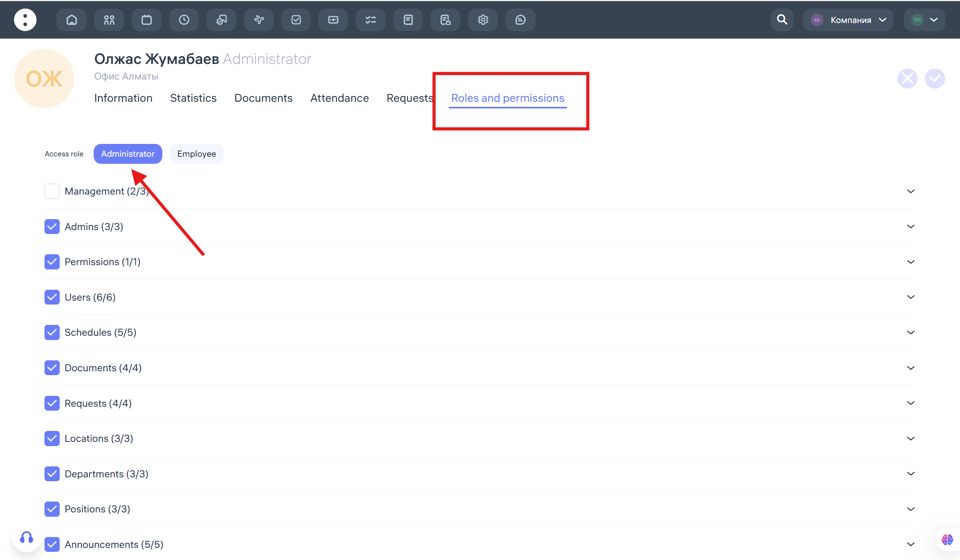
Assign the role Administrator and specify the required access rights to modules (e.g., Schedules only, Payroll only, Reports only, etc.):
Save your changes.
💡 Tip: You can modify or restrict administrator rights at any time, depending on organizational needs.
Updated at