
Biometric Devices
Attendance Tracking
To ensure accurate working hour records, employees must consistently mark their clock-ins and clock-outs.
Clockster offers two ways to register attendance:
1. Clockster Mobile App
Employees can record their arrival, departure, and breaks directly through the Clockster mobile app.
Advantages:
Convenient: employees can mark attendance from their own smartphones.
Flexible: supports geolocation, push notifications, and other features.
No additional equipment required.
Limitations:
Possible errors if employees forget to clock in/out manually.
2. Biometric Devices (Optional)
Clockster also supports integration with select biometric terminals.
These devices can be installed at company locations and automatically register employee arrivals and departures using facial recognition.
Advantages:
Prevents fraudulent clock-ins — the system identifies the actual employee.
Increases discipline and accuracy.
Fully automated — no manual action required from the employee.
Limitations:
Requires purchase and installation of hardware.
May involve maintenance or setup issues (e.g., recognition tuning, connectivity problems).
Devices operate only for employees and locations linked in the system.
📌 Recommendation:
You can use both methods — the mobile app and biometric terminals — depending on your company’s setup.
For example, install terminals at office locations and use the mobile app for remote or field staff.
If you wish to connect biometric devices, please contact our support team to receive a list of compatible models and detailed integration instructions.
Guide: Connecting a Biometric Device in Clockster
Step 1. Device Configuration
When adding a new device, key parameters are entered to enable synchronization with your Clockster admin dashboard.
If you purchased the device through Clockster, it usually comes pre-configured.
If you purchased it independently, request a configuration file from Clockster’s technical support.
Step 2. Device Installation
Once configured, the device must be installed at the designated location where:
There is access to a power source;
For Wi-Fi connection — place it close to the router to ensure a stable signal.
Step 3. Internet Connection
Connect the device to the internet — either via Wi-Fi or Ethernet cable, depending on the model and available options.
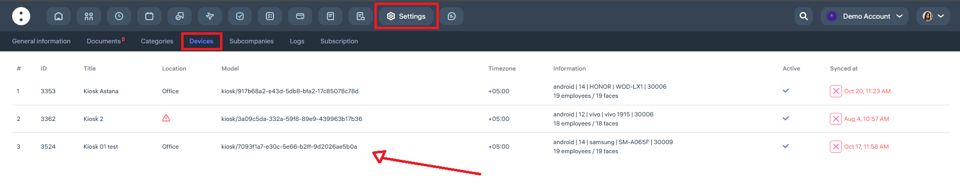
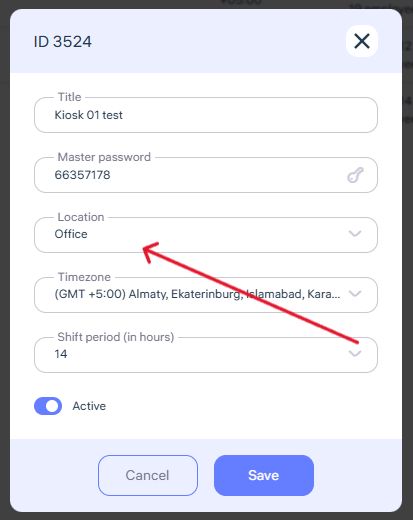
Step 4. Linking the Device to a Location
In the Clockster admin dashboard, go to: Settings → Devices, and link the biometric device to the specific location where it’s physically installed.
Step 5. Uploading Employee Photos
All employees working at that location must have a facial photo uploaded to their profiles.
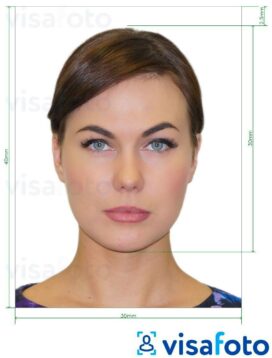
The photo must meet specific quality and angle requirements for proper recognition:
Format: JPEG / JPG / PNG
Minimum resolution: 600×600 px
Background: light, solid color
Face: no accessories, no smile, no headwear, no filters
Look directly at the camera — the face should occupy at least 70% of the frame
Photo must be clear, in color, and not taken from another photo
Step 6. Data Synchronization
After uploading photos and connecting the device to the internet, Clockster will automatically sync employee images to the terminal.
Once synchronization is complete, the device will start recognizing employees by face.
Step 7. Start Using the Device
From this point, employees can clock in and out using the biometric terminal,
and the system will automatically record attendance and calculate working hours according to their assigned schedules.
Updated at