
Administrator Roles and Permissions in Clockster
Administrator Roles and Permissions in Clockster
In Clockster, employees can have different levels of access:
Administrators with full access – have complete control over all system functions without restrictions.
Administrators with limited access – have access only to specific functions, departments, or locations.
Regular employees – may have minimal access, which you can manually configure.
How to Change Roles and Permissions
To modify access rights, go to the employee’s profile → Roles and Permissions.
Here you can manually configure:
The level of access
Managed departments
Locations and functions
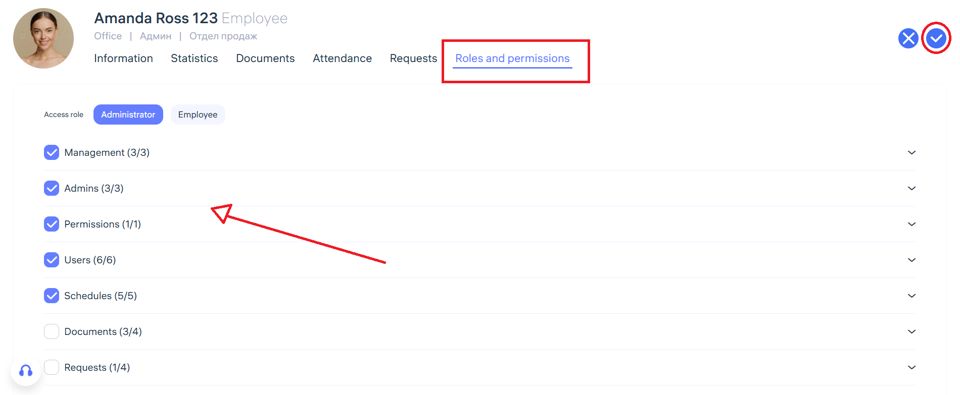
Steps:
Open the employee’s profile.
Go to the “Roles and Permissions” tab to set the access level.
Specify which department or location the employee will manage.
Consider Your Company’s Geography and Structure
✅ If your company has multiple locations across a city, country, or even worldwide, you can:
Assign a separate administrator for each location.
Limit their access within their assigned location.
✅ If your company operates in one location (e.g., a hotel or factory) but includes multiple departments, you can:
Assign an administrator for each department.
Restrict their access to employees within their specific division.
Use Templates to Speed Up the Process
If you have more than two administrators, it’s recommended to:
Create a unified template with the required permissions.
Apply this template to all administrators who should have the same access rights.
If you only have a few administrators, you can configure their roles and permissions manually in each profile.
💡 Tip: Templates save time and reduce the chance of errors when assigning access rights in bulk.
Updated at